 By Stephanie Taylor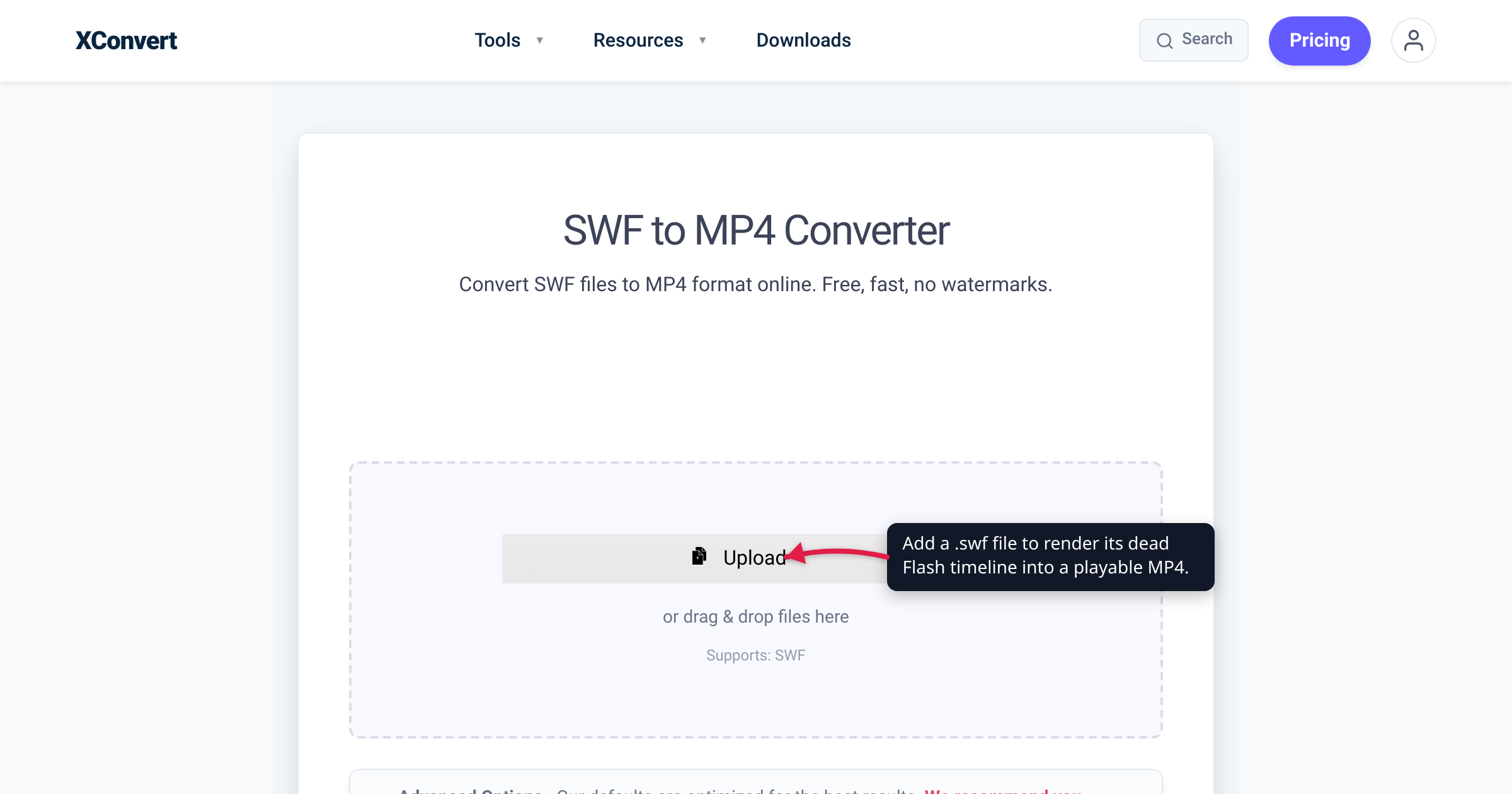
You found a folder of .swf files — a training course your team built in 2014, a cartoon you animated in Flash, the intro cinematic ripped from an old game — and not one of them will open. Double-click, and your browser just shrugs: the plugin they need was pulled years ago. The files are fine. It’s the player that disappeared. Converting them to MP4 re-renders the moving picture (and its sound) into a standard video that plays on anything. We verified the tool flow live and checked the Flash end-of-life dates against Adobe’s own notice.
Quick answer: Adobe Flash Player reached end-of-life on December 31, 2020, and every major browser removed Flash — so .swf files no longer play by default. Converting to MP4 captures the file’s visual timeline and audio as an ordinary video that plays everywhere. The catch: MP4 is linear video, so interactivity does not survive. Clickable buttons, menus, ActionScript, quiz logic, game controls — none of it carries over. A cartoon or cutscene converts perfectly; an interactive quiz becomes a video you can watch but not click.
Jump to a section
- Why your SWF files won’t play anymore
- What survives the conversion — and what doesn’t
- Which SWF files convert well
- Convert SWF to MP4 on xconvert
- FAQ
Why your SWF files won’t play anymore
SWF (pronounced “swiff”) is, in the Library of Congress’s words, “a defunct format for multimedia content in the Adobe Flash Player.” That’s the whole problem in one sentence: an .swf is the file Flash Player opened, and Flash Player is gone.
Adobe’s own end-of-life notice is unambiguous. “Adobe stopped supporting Flash Player beginning December 31, 2020,” and “Adobe blocked Flash content from running in Flash Player beginning January 12, 2021.” Adobe adds that “major browser vendors have disabled and will continue to disable Flash Player from running.” Chrome, Firefox, Edge, and Safari all followed through — there is no plugin left to switch back on.
So nothing is wrong with your file. The bytes on disk are intact; the runtime that turned them into motion simply no longer exists. The format itself had a long life first — it came out of FutureWave’s FutureSplash animator in 1996, became Macromedia Flash, and passed to Adobe when it bought Macromedia in 2005 (the “SWF” abbreviation originally stood for ShockWave Flash, later backronymed to Small Web Format).
The fix that actually lasts is to move the content out of a dead plugin format and into one that isn’t tied to any plugin at all. MP4 with H.264 video plays natively on essentially every modern browser, phone, tablet, and TV. Converting is how you make the timeline watchable again — permanently, with nothing to install.
What survives the conversion — and what doesn’t
Here’s the part every honest guide has to lead with, because it decides whether conversion is right for your file.
A SWF is not simply a video. Per the Library of Congress, it “delivers vector graphics (especially animations)” driven by a timeline, and “interactive examples … use both a timeline and ActionScript, a scripting language similar to JavaScript.” Over successive Flash versions the format also gained audio and embedded video, and it was routinely used to build fully interactive applications — menus, forms, branching e-learning, games.
MP4 is the opposite kind of thing: a linear video container. It holds a sequence of rendered frames and an audio track, and nothing else. There is no place inside an MP4 to put code, a click target, or a branch.
So the conversion is best understood as a faithful recording of the SWF’s timeline as it plays out:
The visual animation and the audio survive. The interactivity does not. Clickable buttons, drop-down menus, branching navigation, drag-and-drop, score-keeping — anything powered by ActionScript — is gone, because there’s nowhere for it to live and nothing to run it. An interactive quiz becomes a video of its opening screen playing forward. A Flash game becomes footage of its title loop, not a game you can play.
Put plainly: you get the movie, not the app. And for the enormous amount of Flash content that was linear to begin with — cartoons, animated shorts, explainer clips, cutscenes, banner animations, narrated lessons that just run start to finish — that “movie” is exactly what you wanted, converted cleanly and permanently. For genuinely interactive modules, MP4 preserves what the thing looked like, not what it did.
Which SWF files convert well
Use this to set expectations before you upload:
| Your SWF is… | What the MP4 gives you |
|---|---|
| A linear animation or cartoon | Faithful — plays exactly as it did |
| An animated cutscene or game intro | Faithful — the cinematic is captured in full |
| A banner or ad animation | Faithful visuals; any click-through link is gone |
| A narrated e-learning module that plays start-to-finish | Faithful — video and audio intact |
| A quiz or branching course with clickable answers | Visual only — watchable, not interactive |
| A Flash game | A video of the visuals; not playable |
| A form or ActionScript-driven app | Visual capture only; controls don’t function |
Rule of thumb: if the SWF was something you watched, MP4 is a great new home for it. If it was something you did, expect a recording of it — not a working copy. For an archive of old animations or cutscenes, that’s a permanent, share-anywhere win. For an interactive course you need to actually use again, the video is a visual record, and you may want to keep the original .swf alongside it.
Convert SWF to MP4 on xconvert
The xconvert SWF to MP4 converter renders the file’s Flash timeline into a standard MP4 on our servers — no plugin, no Flash Player, nothing to install:
- Open xconvert.com/convert-swf-to-mp4 and click Upload to add your
.swf— From my Computer, From Google Drive, or From Dropbox. - (Optional) Open Advanced Options (the gear icon) to control the output. The Quality Preset dropdown defaults to Very High (Recommended), which is a safe choice for most files.
- (Optional) Set the output size under the resolution controls — Resolution Percentage, Keep original, Preset Resolutions, or a custom Width x Height. Because a SWF is often vector-based (resolution-independent), pick a resolution that suits where the video will be watched.
- (Optional) For finer control of the video track, choose a bitrate mode — Constant Bitrate, Variable Bitrate, or Constant Quality. To export only part of a long timeline, set a Time Range under Trim.
- Click Convert, then Download your MP4.
Your file is uploaded over an encrypted connection, is processed on our servers, and deleted automatically a few hours later. Nothing lingers.
Clearing out other legacy or unplayable video while you’re at it? The same converter family handles MKV to MP4 and AVI to MP4 for universal playback.
FAQ
Why won’t my SWF files play anymore?
Because they need Adobe Flash Player, which reached end-of-life on December 31, 2020. Adobe blocked Flash content from running on January 12, 2021, and Chrome, Firefox, Edge, and Safari all removed Flash support. Your .swf file is intact — the player that ran it is what disappeared, so double-clicking it does nothing in a modern browser.
How do I play a SWF file in 2026?
The dependable, future-proof way to view the content is to convert it to a standard video format like MP4. That turns the animation and its audio into an ordinary video file that plays natively on any browser, phone, or media player, with no discontinued plugin required. For linear content — animations, cartoons, cutscenes, narrated lessons — this reproduces the SWF faithfully.
Does converting SWF to MP4 keep the interactivity?
No. MP4 is a linear video container — it stores rendered frames and audio, not code. Any interactivity driven by ActionScript (clickable buttons, menus, branching navigation, quiz answers, game controls) does not survive the conversion. You get a faithful recording of the visual timeline and sound, but not a working interactive file.
What kind of SWF converts best to MP4?
Anything that was linear — a cartoon, an animated short, an explainer, a cutscene or game intro, a banner animation, or an e-learning module that plays start to finish. These become clean, share-anywhere videos. Interactive quizzes, games, and apps convert only their visual output, so you can watch them but not use them.
Will I lose quality converting SWF to MP4?
SWF graphics are frequently vector-based, meaning they scale without blurring; MP4 is raster video at a fixed resolution, so the converter renders the timeline at whatever output size you choose. Pick a resolution that matches where you’ll watch it (use Resolution Percentage or a Preset Resolution), keep the Quality Preset high, and for typical playback the result looks the same as the original.
Can I turn a Flash game back into a playable game?
No. Converting to MP4 produces a video of the game’s visuals, not a game — the ActionScript logic and player input don’t survive into a video file. It’s a great way to preserve a game’s intro, attract loop, or cutscenes as watchable footage, but not a way to make the game itself playable again.
Is it safe to convert SWF files online?
Your upload travels over an encrypted connection, is processed on our servers, and deleted automatically a few hours later — it isn’t kept or shared. As with any legacy Flash file, only convert .swf files you obtained from a source you trust.
Sources
Last verified 2026-07-16.
- Adobe — Flash Player end of life — Adobe’s official notice: support ended December 31, 2020; Flash content blocked from running January 12, 2021; browser vendors disabling Flash.
- Library of Congress — Macromedia Flash (SWF) File Format — SWF as a “defunct format for multimedia content in the Adobe Flash Player”; vector graphics/animation on a timeline; interactivity via ActionScript.
- Wikipedia — SWF — format history (FutureSplash 1996 → Macromedia Flash → Adobe 2005), naming (“ShockWave Flash” / “Small Web Format”), and supported content (vector graphics, ActionScript, audio, video, interactivity).