 By James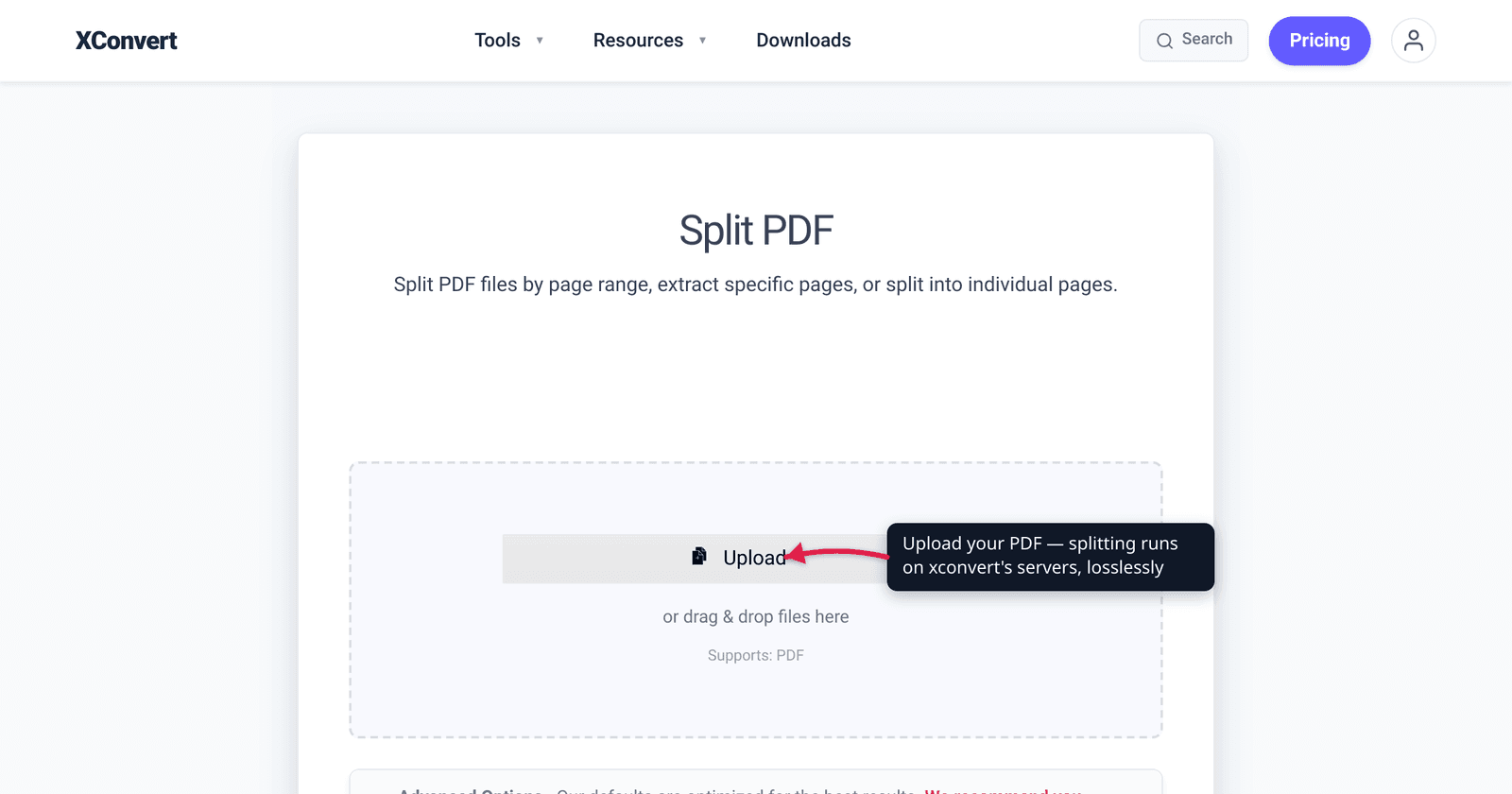
You scanned a 40-page contract, but you only need to email pages 12–14 to one person and keep the rest private. Or a colleague sent a combined report and you want each chapter as its own file. Splitting a PDF does exactly this — and the part most guides bury is that it’s lossless: a good splitter copies the existing page objects into a new file, so nothing is re-rendered, recompressed, or degraded. We verified the split modes against the live tool and the page-object behavior against the PDF specification.
Quick answer: To split a PDF, upload it, pick a split mode, and download the result. Three modes cover every case: Page by page (every page becomes its own PDF, delivered as a ZIP), Pages by range (extract one contiguous section like pages 5–12 into a single PDF), and Pages by multi-range (pull several sections at once, e.g. 1, 10-15, 30, each as its own file in a ZIP). Splitting is lossless — pages are copied as-is, so text stays selectable and image quality is untouched. No re-rendering, no quality loss.
Jump to a section
- What “splitting” actually does to a PDF
- The three split modes — and which to use
- Why splitting is lossless
- Common reasons to split a PDF
- Split a PDF on xconvert
- FAQ
What “splitting” actually does to a PDF
A PDF is not one flat blob of “pages.” Internally, each page is a separate object, and the document’s catalog points to a page tree that lists them in order — this is defined in the PDF specification (ISO 32000). Splitting walks that tree, selects the page objects you asked for, and writes them into a brand-new PDF, carrying along the resources each page references (fonts, images, vector graphics).
That structural detail is why splitting can be lossless. The splitter isn’t taking a picture of each page and saving it again — it’s lifting the original page content streams out of one container and into another. The pixels, the text layer, the embedded fonts: all copied verbatim.
The practical opposite of splitting is merging (combining several PDFs into one) — and the two are often used together. You might split a scanned stack into individual pages, drop the blank ones, then merge the rest back into a clean document.
The three split modes — and which to use
The xconvert Split PDF tool offers three modes. Here’s exactly what each one does, the input it needs, and what you get back:
| Mode | What it does | Input | Output |
|---|---|---|---|
| Page by page | Turns every page into its own separate PDF | None — just click Split | Multiple PDFs in a ZIP |
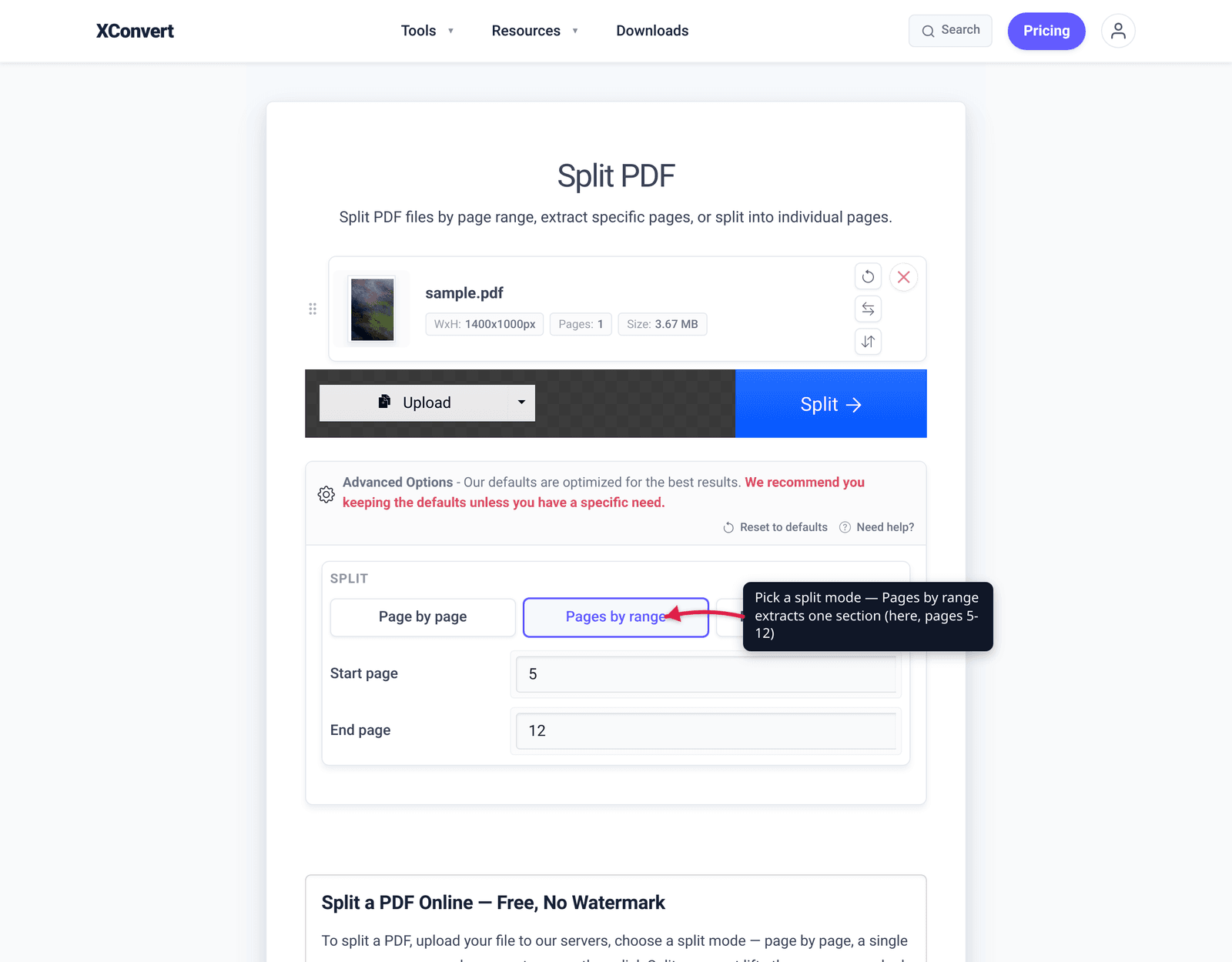
| Pages by range | Extracts one contiguous section | A start and end page (e.g. 5-12) | A single PDF of just those pages |
| Pages by multi-range | Extracts several sections at once | Comma-separated ranges (e.g. 1, 10-15, 30, 40-60) | One PDF per range, packaged in a ZIP |
Picking the right one is straightforward:
- You want each page as its own file (e.g. splitting a multi-page scan so each page can be filed or re-ordered separately) → Page by page.
- You want one chunk — a single chapter, a contract clause, the pages you’ll email to one person → Pages by range. You get a single, tidy PDF.
- You want several disjoint pieces in one go — the cover, an appendix, and two separate sections — without running the tool three times → Pages by multi-range.
A note on the multi-range syntax: a bare number like 30 means just that single page; 10-15 means the contiguous block from 10 through 15 inclusive. Each comma-separated entry becomes its own output PDF.
Why splitting is lossless
This is the question worth answering plainly, because some tools get it wrong: splitting a PDF does not reduce quality when the tool copies pages rather than re-rendering them.
xconvert copies the original page content streams as-is. That means:
- Text stays selectable and searchable — it isn’t flattened into an image.
- Fonts render identically — the embedded fonts come along with the pages.
- Vector graphics stay sharp — lines and shapes are math, not pixels, and they’re preserved as math.
- Images are not recompressed — a 300 DPI scan in the source is still 300 DPI in the split file, with no extra JPEG compression artifacts.
If you’ve ever split a PDF and noticed fuzzy text or softened images afterward, that’s the signature of a tool that re-rendered the pages (rasterized them and saved them again) instead of copying the objects. A page-copy splitter avoids that entirely — the output pages are exact copies of the originals.
One honest caveat: splitting doesn’t shrink a page’s content. If your goal is a smaller file rather than fewer pages, splitting alone won’t help much — extracting a heavy scanned page gives you a heavy single-page PDF. For that, compress the PDF; see why scanned PDFs are so big for what actually drives the size.
Common reasons to split a PDF
- Email only the relevant pages. Sending a whole 60-page report when the recipient needs three pages is noise — and sometimes a privacy problem. Extract the section with Pages by range and send a clean, small file. If even the extracted pages are too large to attach, see how to email a large PDF file.
- Separate a multi-page scan. Scanners often dump a whole stack into one PDF. Page by page breaks it back into individual documents you can rename, file, or re-order.
- Isolate a chapter or appendix. Pull a single chapter out of a manual or a single exhibit out of a legal bundle without exposing the rest.
- Grab non-adjacent pieces in one pass. Need the cover, the summary on page 4, and the conclusion on pages 50–52? Pages by multi-range does it in a single operation instead of three.
- Prep for re-assembly. Split out the pages you want, discard the rest, then merge what’s left into a tidier document.
Split a PDF on xconvert
The xconvert Split PDF tool runs all three modes in one place:
- Open xconvert.com/split-pdf and click Upload (shown as + Add Files) to add your PDF — from your computer, Google Drive, or Dropbox.
- Choose a split mode: Page by page, Pages by range, or Pages by multi-range.
- If you picked Pages by range, enter the start and end page (e.g.
5to12). For Pages by multi-range, type comma-separated ranges like1, 10-15, 30, 40-60. Page by page needs no input. - (Optional) Open Advanced Options if you need them — the defaults are optimized for the best results.
- Click Split.
- Download your result — a single PDF for a single range, or a ZIP of multiple files for page-by-page and multi-range splits.
Your file uploads over an encrypted connection, is processed on our servers, and is automatically deleted a few hours later. Nothing stays around.
For the reverse operation — stitching PDFs back together — see combine photos and pages into one PDF.
FAQ
How do I split a PDF into separate pages?
Upload your PDF to the Split PDF tool, choose the Page by page mode, and click Split. Every page becomes its own PDF, and you’ll download them together as a ZIP file. No page numbers to enter — this mode splits everything automatically.
How do I extract only specific pages from a PDF?
Use Pages by range to pull one contiguous section (enter a start and end page, e.g. 5–12, and get a single PDF), or Pages by multi-range to grab several non-adjacent sections at once (e.g. 1, 10-15, 30). Multi-range gives you one PDF per range, bundled in a ZIP.
Does splitting a PDF reduce its quality?
No. Splitting is lossless — the tool copies the original page objects rather than re-rendering them, so text stays selectable, fonts and vectors are preserved, and images are not recompressed. If a split PDF looks fuzzy, the tool you used rasterized the pages instead of copying them.
Will splitting make the file smaller?
Only by removing pages — each remaining page keeps its original size and quality. Extracting one heavy scanned page still gives you a heavy single-page PDF. If your real goal is a smaller file, compress it instead; see why scanned PDFs are so big.
Can I split a PDF into multiple files at once?
Yes. Page by page produces one file per page, and Pages by multi-range produces one file per range — both delivered as a single ZIP download, so you get every piece in one step.
What’s the difference between splitting and merging a PDF?
Splitting breaks one PDF into smaller files (by page or by range); merging combines several PDFs into one. They’re complementary — split out the pages you want, then merge what’s left back together.
Does the order of my pages stay the same after splitting?
Yes. Splitting preserves the original page order within each output file. A range like 10-15 produces a PDF with those six pages in their original sequence; page-by-page output files are numbered in document order.
Sources
Last verified 2026-06-25.
- xconvert Split PDF tool — the live tool; source for the three split modes (Page by page, Pages by range, Pages by multi-range), their inputs, ZIP/single-PDF outputs, and the lossless page-copy behavior.
- PDF Association — ISO 32000-1 (PDF 1.7) — the PDF specification defining the document catalog and page tree, the structure that lets a splitter copy individual page objects into a new file.
- PDF Association — ISO 32000-2 (PDF 2.0) — current PDF specification; confirms page objects and the structures (tags, bookmarks) that splitting and page operations must carry along.