 By Stephanie Taylor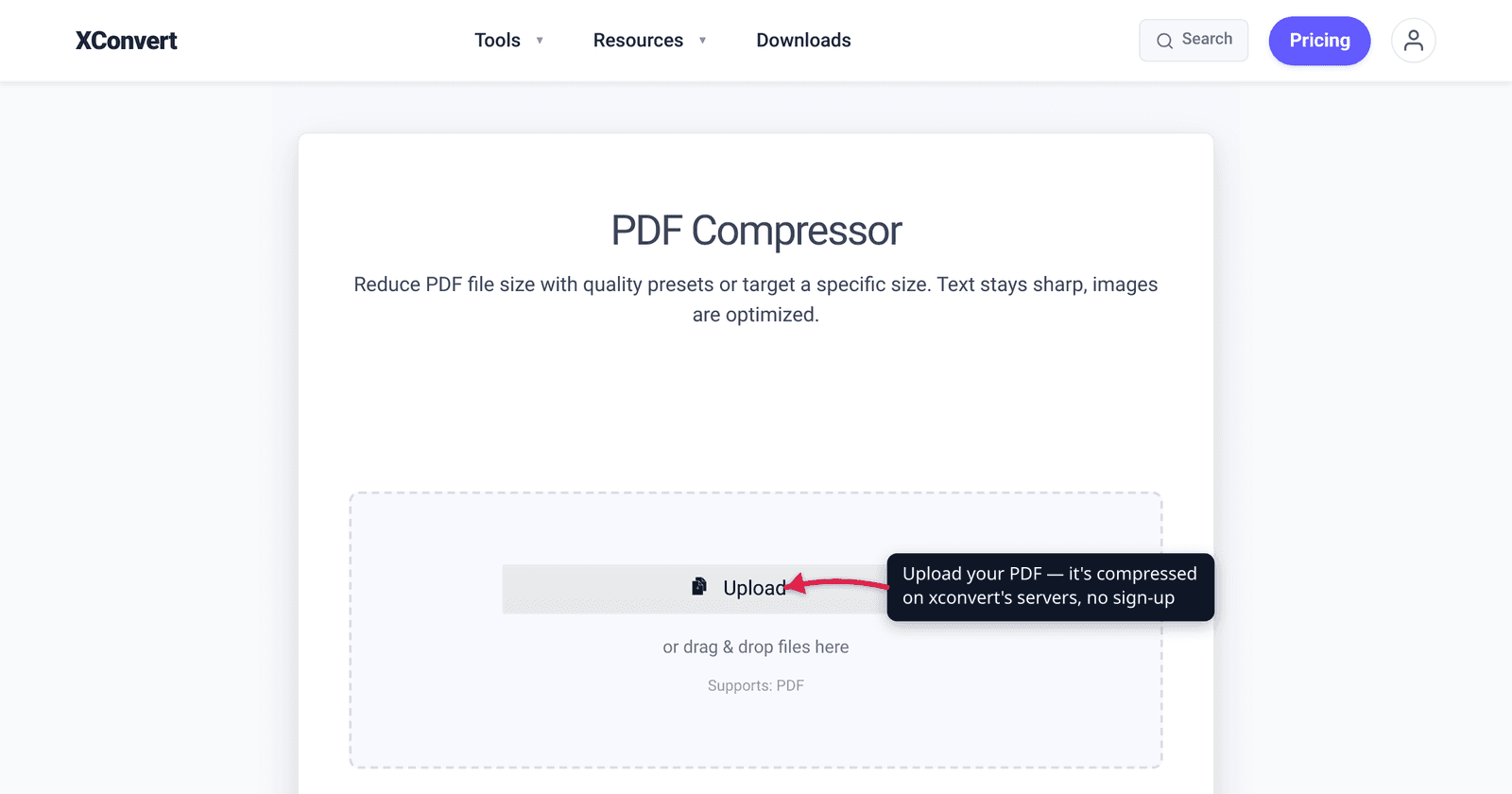
A 22 MB project proposal that won’t attach to an email, a scanned contract too big for a government portal, a brochure that crawls when you open it — almost always, the bloat is images, not text. The good news: a PDF that’s heavy with photos or scans can usually be cut by 50–90% with no visible difference on screen, because the file is carrying far more image resolution than a screen (or even a printer) can show. The catch is that a PDF made of plain text and vector graphics barely shrinks at all — there’s almost nothing to remove. This guide explains exactly what makes a PDF big, what “without losing quality” honestly means, and how to compress one. We verified the resolution presets against the official Ghostscript documentation and the perceptual limits against print-resolution sources.
Quick answer: PDFs are usually big because of embedded high-resolution images (photos and scans) — fonts and vector text take almost no space. Compression works by downsampling and recompressing those images and stripping redundant data (duplicate images, unused objects, bloated metadata). “Without losing quality” means lossless structure cleanup plus image downsampling to a resolution that’s still visually unchanged at the DPI you’ll actually view or print at (typically 150 DPI for screen/e-reading, 300 DPI for print). Image-heavy and scanned PDFs shrink a lot; text-and-vector-only PDFs barely shrink, because there’s little redundancy to remove.
Jump to a section
- What actually makes a PDF big
- How PDF compression works
- What “without losing quality” really means
- How much you can expect to save
- Compress a PDF on xconvert
- FAQ
What actually makes a PDF big
Open a 30 MB PDF and the size almost never comes from the words on the page. A PDF stores two very different kinds of content, and they have wildly different costs:
- Text and vector graphics are tiny. Text is stored as characters plus a font; a line, a logo, or a chart drawn as vectors is stored as math (move here, curve to there). The word “agreement” is a handful of bytes whether it appears once or a thousand times. An entire text-only contract is often under 100 KB per page.
- Images are huge. A scan or an embedded photo is a grid of pixels, each storing color. A single full-color page scanned at 300 DPI can be 8–10 MB on its own — bigger than a whole book’s worth of text. The official Ghostscript optimization guide puts it plainly: “if images are present, they will generally use the most bytes.”
That’s the whole story of PDF bloat. Resolution is the multiplier that makes it explosive: an image’s data scales with the square of its DPI, so doubling resolution from 150 to 300 DPI roughly quadruples that image’s size. This is why a scanned document — which is nothing but a high-resolution photograph of each page — dwarfs the same document typed out as text. (We go deep on that specific case in why is my scanned PDF so big.)
The practical takeaway: how compressible your PDF is depends almost entirely on how much of it is images. A photo-heavy report or a scanned stack has enormous room to shrink. A born-digital text document already near its theoretical floor does not.
How PDF compression works
A good PDF compressor doesn’t “zip” the file — it rebuilds it more efficiently. Per Ghostscript (the open-source PDF engine behind most compression tools), there are three main levers:
- Downsample images. If an image sits at 600 DPI but the page only needs 150, the extra pixels are pure waste — they can’t be seen on a screen and won’t print sharper. Downsampling throws away that excess resolution. This is the single biggest win and the one that’s safest, because you’re removing detail that was never visible.
- Recompress image data. Images can be re-encoded with more aggressive compression (for example JPEG). This is the lever that can cost visible quality if pushed too hard — it trades sharpness for size — so it’s the one to dial in carefully.
- Strip redundancy. Tools deduplicate identical images (Ghostscript hashes every image and replaces repeats with a reference to the first), drop unused objects, flatten bloated structures, and remove heavy metadata. This is lossless — the visible page is byte-for-byte identical afterward — but on a text-only PDF there’s usually little of it to find.
Levers 1 and 3 are where “compress without losing quality” lives. Lever 2 is where you start trading quality for size, and a sensible tool lets you control how far it goes.
What “without losing quality” really means
“Lossless” in the strict sense — every pixel preserved — only gets you the redundancy cleanup in lever 3, which on an image-heavy PDF is a small fraction of the possible saving. The honest, useful definition most people actually want is “visually unchanged at the resolution I’ll view or print at.” And that’s very achievable, because most PDFs carry far more resolution than the eye can use:
- For on-screen reading, email, and web embeds, around 150 DPI is effectively indistinguishable from the original at normal zoom. The pixels are smaller than the screen can render distinctly.
- For printing, 300 DPI is the standard sweet spot — the human eye generally can’t resolve detail beyond ~300 PPI at normal print-viewing distance, so anything above it is invisible weight.
So downsampling a 600 DPI scan to 150 DPI for an emailed copy isn’t “losing quality” in any way the recipient will notice — it’s removing data that was never going to reach their eyes. The places you will see a difference: pushing the image-quality/recompression dial too low (lever 2), or downsampling below the DPI you’ll actually use (e.g. 72 DPI on something you then print). The rule of thumb: match the output resolution to the destination, and the quality loss stays invisible.
How much you can expect to save
Because compressibility tracks image content, the savings are a range, not a constant. Using the standard Ghostscript presets — which is what xconvert’s compression levels map to — here’s the honest spread:
| Preset (output use) | Image downsample target | Typical reduction | Best for |
|---|---|---|---|
| Screen | 72 DPI color/gray, 300 DPI mono | 60–90% | Email, web embeds, phone review |
| Ebook | 150 DPI color/gray, 300 DPI mono | 40–70% | E-readers, e-filing, intranet portals |
| Default | mixed | 30–50% | General use without committing |
| Printer | 300 DPI color/gray, 1200 DPI mono | 10–30% | Office laser printing, archival copies |
| Prepress | 300 DPI color/gray, 1200 DPI mono | 5–20% | Commercial print, color-managed work |
Downsample targets are the Ghostscript PDFSETTINGS resolutions; reductions are typical and depend heavily on your content.
Two honest caveats:
- A text-and-vector-only PDF may barely move — sometimes a few percent — no matter which preset you pick, because there are almost no images to downsample and little redundancy to strip. That’s not a broken tool; there’s genuinely nothing to remove. If a born-digital document is “too big,” it’s usually one heavy embedded graphic or font subset, not the prose.
- The numbers above are content-dependent. A PDF that’s 90% photographs hits the top of each range; a mostly-text PDF with one small logo hits the bottom. Treat any single percentage as an estimate, not a promise.
If your goal is specifically getting under an email attachment cap or a government portal limit, see how to email a large PDF file and compress a PDF for SBA, IRS, and government portals, which work backward from a target size.
Compress a PDF on xconvert
The xconvert PDF compressor exposes exactly the levers above, so you can shrink the file as far as your destination allows without overshooting into visible quality loss:
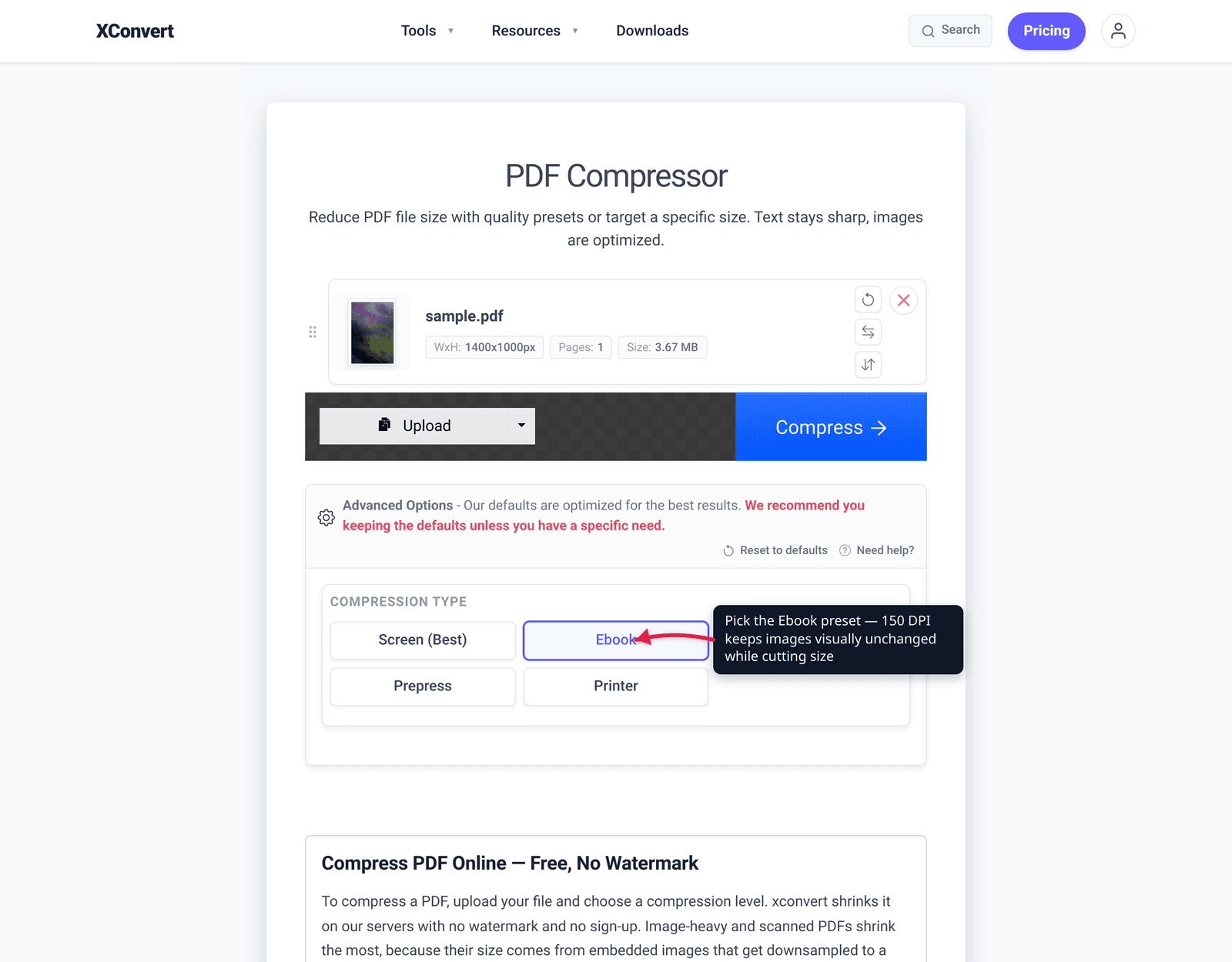
- Open xconvert.com/compress-pdf and click Upload to add your PDF (from your computer, Google Drive, or Dropbox).
- Open Advanced Options (the gear icon) to reveal the controls.
- Pick a Compression Type preset that matches where the PDF will go: Screen (Best) for email and on-screen viewing (smallest), Ebook for a balanced 150 DPI result, or Printer / Prepress when you need full print resolution.
- There’s no separate quality slider to tune — each preset bundles its own image downsampling and re-encoding for its target DPI. If the result comes back bigger than you need, re-run the original file on the next-stronger preset (Ebook → Screen).
- Click Compress, then download. If a text-heavy file barely shrinks, that’s expected — there’s little image data to remove; try the Screen preset or move to splitting the file instead.
Your file uploads over an encrypted (TLS) connection, is processed on our servers in an isolated session, and is deleted automatically a few hours after the job completes. Nothing is watermarked and no sign-up is required.
FAQ
Does compressing a PDF reduce its quality?
Not visibly, if you match the output resolution to how the PDF will be used. Lossless cleanup — removing duplicate images, unused objects, and bloated metadata — changes nothing you can see. Downsampling images to 150 DPI for screen or 300 DPI for print is also visually lossless at normal viewing distance, because the eye can’t resolve the extra pixels. Quality only suffers if you pick a preset that downsamples below the resolution you’ll actually view or print at — Screen’s 72 DPI images look fine on a monitor but soft in print.
Why doesn’t my PDF get smaller when I compress it?
Because it’s mostly text and vector graphics, not images. Those are already stored extremely efficiently, so there’s little to downsample and little redundancy to strip. Compression saves space by shrinking image data — if your PDF has almost no images, even an aggressive preset may only trim a few percent. The fix for an oversized text PDF is usually splitting it or checking for one heavy embedded font or graphic, not compression.
What makes a PDF file so large in the first place?
Embedded high-resolution images — scans and photos — almost always. A single full-color page scanned at 300 DPI can be 8–10 MB, while an entire text page is often under 100 KB. Image size scales with the square of DPI, so an over-scanned document balloons fast. Fonts and vector content are comparatively negligible.
What DPI should I compress to without losing quality?
150 DPI for on-screen reading, email, and web; 300 DPI for printing. The human eye generally can’t distinguish detail above ~300 PPI at normal print-viewing distance, and 150 DPI is effectively indistinguishable on a screen. Anything higher is invisible weight you can safely remove. Only keep 300+ DPI if the file will be printed at close inspection.
Is compressing a scanned PDF different from a normal one?
In principle no — it’s the same image-downsampling process — but scans benefit the most, because a scanned PDF is entirely image data. That’s where the biggest reductions (often 60–90%) come from. A born-digital PDF made of text shrinks far less. See why is my scanned PDF so big for the full breakdown.
Can I compress a PDF to an exact file size like 5 MB?
Most compressors, including this one, don’t take an exact-MB target directly — you pick a preset, then check the result. Start with Ebook, and if it’s still over your target, step down to Screen (Best). For portal- and email-specific size targets, how to email a large PDF file walks through hitting a cap.
Sources
Last verified 2026-06-25.
- Ghostscript — Optimizing PDFs — “if images are present, they will generally use the most bytes”; the three mechanisms: image downsampling, recompression, and duplicate-image/redundancy removal.
- Ghostscript documentation — VectorDevices / PDFSETTINGS — exact image-resolution presets: /screen 72 DPI, /ebook 150 DPI, /printer & /prepress 300 DPI (color/gray), 300/1200 DPI mono.
- PrintingCenterUSA — DPI vs PPI — the human eye generally can’t resolve detail beyond ~300 PPI at normal print-viewing distance; 150 DPI is acceptable for screen/distance viewing.
- Computer Hope — scanned PDF too large — scanned pages are stored as bitmap images (pixels), unlike vector/text PDFs, which is why they’re far larger.
[…] the last few hundred kilobytes, pick Ebook or Printer instead. For the wider quality trade-offs, how to compress a PDF without losing quality works through the rest of what each preset […]