 By Stephanie Taylor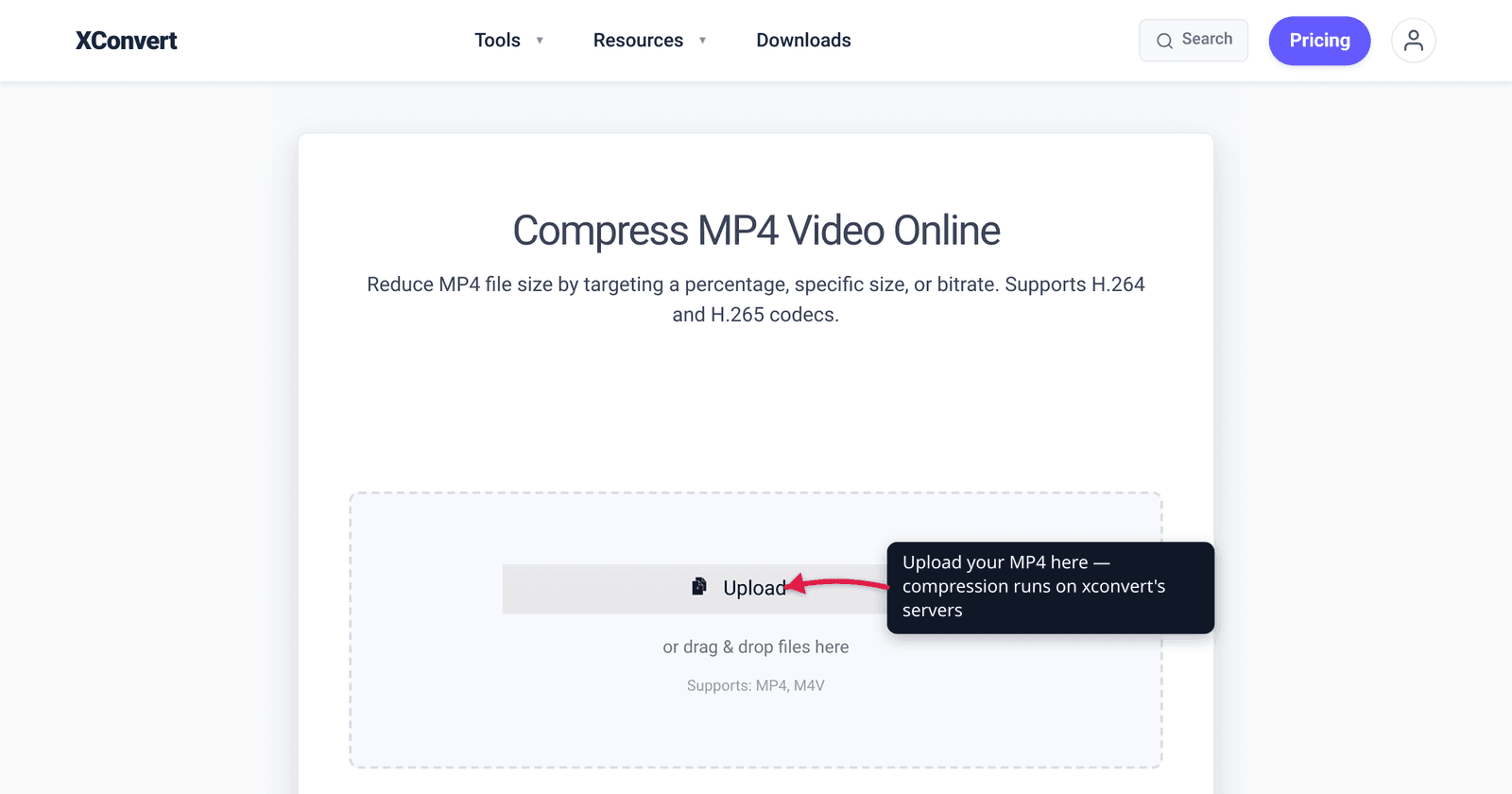
A 12-minute 1080p screen recording can land at 1.5 GB — too big to email, slow to upload, painful to store. The good news: most of that size is waste. A typical MP4 can shrink 40–90% with no quality you’d ever notice, because the original was encoded loosely and you have better levers than the export preset used. The catch is the phrase “without losing quality”: literal lossless re-encoding barely shrinks anything, so what people actually want is visually transparent compression — a smaller file your eyes can’t tell from the source. We verified the codec efficiency figures, the CRF ranges, and the browser-support facts against the standards bodies, MDN, and the FFmpeg/x264 maintainers.
Quick answer: Don’t just lower the bitrate blindly. Pull the right levers in order: (1) encode with constant quality (CRF) in the visually-transparent range — around CRF 18–23 for H.264, where the file gets much smaller but looks the same; (2) switch to a more efficient codec — H.265/HEVC is roughly 50% smaller than H.264 at equal quality, AV1 smaller still; (3) only if the file is still too big, drop resolution or frame rate to match how it’ll actually be viewed. “Without losing quality” honestly means visually transparent, not mathematically lossless — and with these settings most people genuinely can’t tell.
Jump to a section
- What “without losing quality” really means
- The four levers that control MP4 size
- The recommended recipe
- Reduce your MP4 on xconvert
- Platform-specific siblings
- FAQ
What “without losing quality” really means
Re-encoding video is lossy by nature. Every MP4 you’ve made already threw away data your eyes wouldn’t miss — that’s how it got from raw camera frames to a shareable file. So “reduce the size without losing quality” can’t literally mean lossless; truly lossless video is enormous and defeats the purpose.
What it does mean is visually transparent (also called visually lossless): a re-encode so close to the input that, side by side at normal viewing distance, you can’t tell them apart. MDN frames the exercise as a tradeoff — “anything that makes the encoded video look more like the original… will generally make the resulting data larger as well. Thus, it’s always a tradeoff of size versus quality.” The skill is sitting at the point on that curve where the file is much smaller but the picture is, to your eyes, identical.
Two honest caveats: don’t re-encode a file that’s already tightly compressed — there’s little redundancy left to remove, so another pass mostly just degrades it (big wins come from loosely-encoded sources like screen recordings, phone video, and default high-bitrate exports). And each re-encode generation loses a little, so keep your original and compress a copy.
The four levers that control MP4 size
An .mp4 is a container. What’s inside it — the codec and how aggressively it was encoded — determines the size. Four levers, in rough order of “best quality-per-byte first”:
1. Encoding mode: constant quality (CRF) beats a guessed bitrate. The single most useful setting is CRF — Constant Rate Factor. Instead of forcing a fixed bitrate (which wastes bits on simple scenes and starves complex ones), CRF holds perceived quality constant and spends exactly the bitrate each scene needs. For x264 (H.264), the scale runs 0–51, lower = better quality and bigger files; the default is 23, the maintainer-recommended “sane range” is 18–28, and around CRF 18 is visually transparent. Handy rule from the x264 docs: a change of ±6 roughly doubles or halves the file size, so nudging CRF 18 → 23 can nearly halve the file with quality almost no one will notice.
2. Codec efficiency: a newer codec is smaller at the same quality. The codec is the algorithm doing the compression, and newer ones do more work per frame to squeeze harder:
| Codec | Size vs H.264 at equal quality | Best for |
|---|---|---|
| H.264 / AVC | baseline | Plays everywhere — web, email, old devices |
| H.265 / HEVC | ~50% smaller (Fraunhofer HHI design target; real-world ~25–50%) | Modern Apple/phone playback you control |
| AV1 | up to ~50% smaller than H.264 (MDN), smaller than H.265, royalty-free | Modern-only audiences; accepts slow encode |
Switching H.264 → H.265 is the closest thing to a free lunch: roughly half the size at the same quality with no resolution loss. The cost is patchy browser playback and slower encoding — covered in our H.264 vs H.265 guide.
3. Bitrate. If you must hit an exact size (an email cap, an upload limit), a target bitrate or target file size gets you there directly. It’s blunter than CRF — you cap the bits regardless of scene complexity — but it’s the right tool when size, not quality, is the hard constraint.
4. Resolution and frame rate — last resort, biggest hammer. These genuinely remove picture information, so use them only when the file is still too big after the smarter levers. But matched to how the video is actually watched, they’re nearly free: MDN notes that downscaling a 1080p source to 720p before encoding “can be much smaller while having much higher visual quality” than cramming full-res into a tiny budget. Likewise, a 60 fps screen recording of mostly-static content loses nothing meaningful at 30 fps — and “higher frame rates cause larger compressed video sizes.”
The recommended recipe
Work the levers in this order and stop as soon as the file is small enough:
- Re-encode with CRF, not a guessed bitrate. Start at CRF 20–23 for H.264. If you need it smaller, raise CRF a few points before touching anything else — remember +6 ≈ half the size.
- If you control playback, switch to H.265 (HEVC). Roughly halves the size again at the same quality. Skip it for public web embeds or email to unknown devices — H.265 doesn’t play everywhere (Safari yes; Chrome/Edge/Firefox only partial and hardware-gated, per caniuse). Use H.264 there.
- Only if still too big, scale down. Match resolution to the viewing device (4K → 1080p, 1080p → 720p) and drop an over-high frame rate (60 → 30 fps) for talking-head or screen content.
- Need an exact size? Use a target file size / bitrate mode to hit an email or upload cap precisely.
Reduce your MP4 on xconvert
The xconvert MP4 compressor exposes all four levers in one place, so you can apply the recipe without a command line:
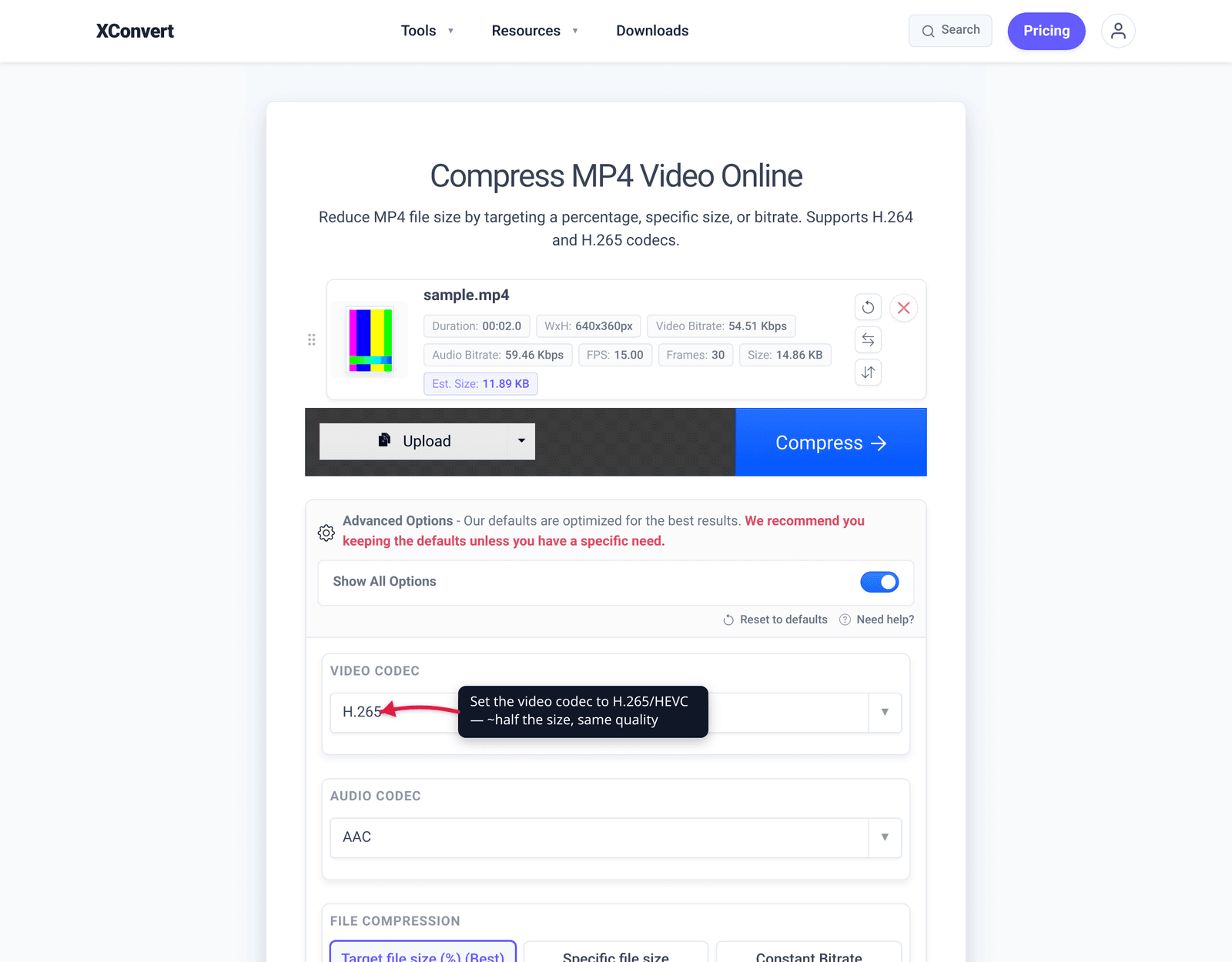
- Open xconvert.com/compress-mp4 and click Upload to add your video (from your computer, Google Drive, or Dropbox).
- Open Advanced Options (the gear icon) to reveal the compression controls.
- Choose how to control size. Constant Quality is the CRF mode for “smaller but visually the same” — the quality-first choice. To hit an exact cap instead, use Target file size (%) (marked Best) or Specific file size; Constant Bitrate / Variable Bitrate give you direct bitrate control.
- Pick the video codec: H.264 for play-anywhere compatibility, or H.265/HEVC (or AV1) for roughly 25–50% smaller files at the same quality when you control the playback device.
- If the file is still too large, let Auto Scale (Smart Scaling) trim the resolution, or use Trim to keep only the part you need.
- Click Compress, then download. H.265 and AV1 encode slower than H.264, so allow extra time.
Your file uploads over an encrypted connection, is processed on our servers, and is automatically deleted a few hours later. Nothing is kept.
Platform-specific siblings
This guide is the general “smaller MP4, same look” method. If your goal is tied to a specific platform, these go deeper on that case:
- Sending it by email? Hit Gmail/Outlook’s 25 MB-class limits with a target size — see how to compress a video for email.
- On a Windows PC? Step-by-step for Windows users in compress an MP4 in Windows.
- iPhone video (often HEVC already)? See how to compress a video on iPhone and, to shrink HEVC without losing the codec’s efficiency, compress HEVC without re-encoding to H.264.
- Embedding on the web? Compare MP4 vs WebM for the open-codec route.
FAQ
Can you really compress an MP4 without losing quality?
Not literally — but you can make it visually transparent. Any re-encode is technically lossy, but encoding with constant quality (CRF) in the right range, or switching to a more efficient codec, produces a much smaller file that looks identical to your eyes at normal viewing. That’s what “without losing quality” means in practice, and at balanced settings most people genuinely can’t tell the difference.
What’s the best CRF value for high quality and a smaller file?
For H.264 (x264), the default is 23 and the maintainer-recommended “sane range” is 18–28. Around CRF 18 is visually transparent — lower just wastes space. CRF 20–23 is a great quality-first zone that still shrinks the file a lot. Remember a ±6 change roughly doubles or halves the size, so raise CRF a few points if you need it smaller.
How much smaller can an MP4 get without visible quality loss?
Commonly 40–90%, depending entirely on the source. Loosely-encoded files (high-bitrate exports, screen recordings, phone video) shrink the most; already-compressed files have little redundancy left and shrink little. Switching H.264 to H.265 alone targets roughly 50% at the same quality.
Does lowering the resolution reduce quality?
It removes picture detail, so it’s a last resort — but matched to the viewing device it’s nearly free. MDN notes that downscaling 1080p to 720p before encoding can yield a much smaller file with better visual quality than forcing full resolution into a tiny bitrate budget. Drop resolution to match how the video is actually watched, not below it.
Should I use H.264 or H.265 to make my MP4 smaller?
H.265 makes it smaller — about half the size at equal quality. But it doesn’t play everywhere: Safari supports it, while Chrome, Edge, and Firefox are only partial and depend on a hardware decoder. Use H.265 when you control the playback device (modern phones, Apple gear), and H.264 when it must play anywhere (web embeds, email, unknown devices). Full breakdown in H.264 vs H.265.
Will compressing the same MP4 twice ruin it?
Each lossy re-encode loses a little, and it compounds. One well-chosen pass is fine and invisible; repeatedly recompressing the output will eventually show artifacts. Always keep your original and compress a copy, so you can redo it from the source if needed.
Sources
Last verified 2026-06-25.
- MDN — Web video codec guide — HEVC ≈ half the size of AVC; AV1 up to ~50% better than AVC; resolution/frame-rate effect on size; size-vs-quality tradeoff.
- Fraunhofer HHI — H.265 / HEVC — “HEVC achieves about 50% bit-rate reduction at the same subjective video quality.”
- CRF Guide (Werner Robitza / FFmpeg wiki maintainer) — x264 CRF scale 0–51, default 23, sane range 18–28, ±6 ≈ half/double the file size.
- caniuse — HEVC / H.265 — current browser support (Safari full; Chrome/Edge/Firefox partial and hardware-gated).