 By James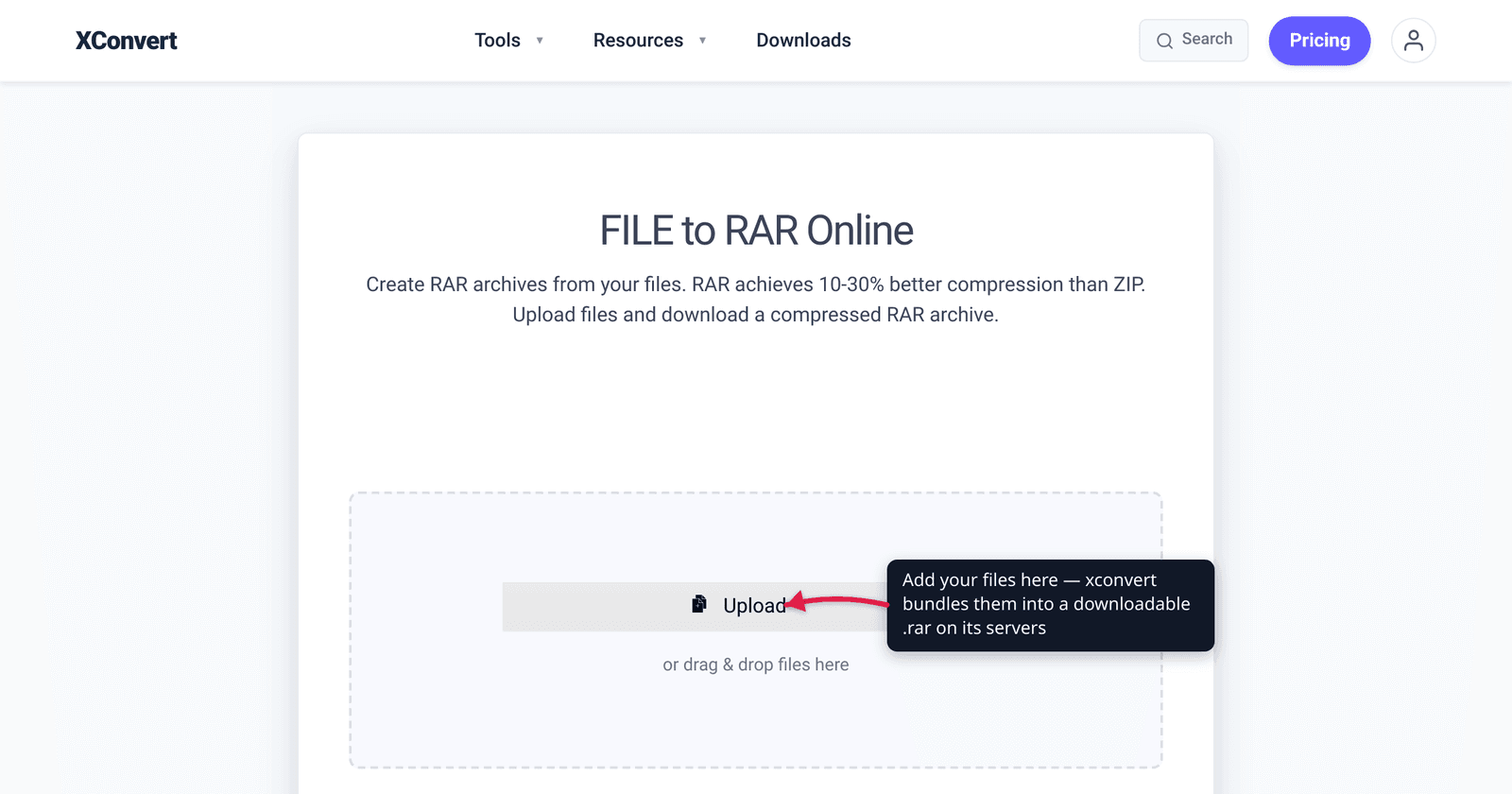
You searched “create a RAR file” and every result points you at WinRAR — a paid Windows download — or an online tool that promises a .rar in two clicks. Before you install anything, there’s a fact almost no tutorial tells you: RAR is a closed, proprietary format, and by its own license only RARLAB’s own software (WinRAR / RAR) — or software licensed by them — is permitted to create true RAR-compressed archives. Everything else on earth can open a RAR but isn’t licensed to make one. This guide explains what that means in practice, what an online “create RAR” tool actually does, and — most usefully — why ZIP or 7z is almost certainly the format you actually want. We verified the licensing against RARLAB’s own UnRAR terms and the format history against the Library of Congress and Wikipedia.
Quick answer: You can only create a genuine RAR archive with WinRAR or the official RAR command-line tool (Windows, macOS, Linux), or software licensed by RARLAB — the RAR compression algorithm is proprietary and may not legally be re-implemented. For nearly every real need (“I just need to bundle/compress files and send them”), use ZIP (opens everywhere, no software needed) or 7z (better compression, fully open). Only insist on .rar when a specific recipient or upload form explicitly demands that exact extension. xconvert’s archive-to-RAR tool bundles your files into a downloadable .rar online; for the open formats most people should pick, use its ZIP or 7z output instead.
Jump to a section
- Why RAR is harder to “create” than you’d think
- What an online “create RAR” tool actually does
- RAR vs ZIP vs 7z: which should you actually make?
- When you genuinely need a .rar
- Create an archive on xconvert
- FAQ
Why RAR is harder to “create” than you’d think
RAR (Roshal ARchive) was created by Russian engineer Eugene Roshal in 1993, and the format is owned and licensed today by win.rar GmbH (RARLAB), with copyright held by Alexander Roshal. Unlike ZIP and 7z, RAR is not an open format — and the asymmetry is the whole story:
- Unpacking RAR is open. RARLAB publishes the C++ source for UnRAR as freeware, so almost any archiver — 7-Zip, The Unarchiver, WinZip, macOS, Windows 11 — can extract a
.rar. - Packing RAR is closed. The UnRAR license is explicit: “Neither RAR binary code, WinRAR binary code, UnRAR source or UnRAR binary code may be used or reverse engineered to re-create the RAR compression algorithm, which is proprietary.” Per the format documentation, RAR archives “can only be created with proprietary WinRAR… command-line RAR… and other software that has written permission from Alexander Roshal or uses copyrighted code under license from Roshal.”
In plain English: the world can read RAR, but only RARLAB-blessed software is licensed to write it. That single legal restriction is why “create a RAR file” is a genuinely awkward task in a way that “create a ZIP file” never is — and why most people are better served by a format that doesn’t carry this baggage.
What an online “create RAR” tool actually does
A browser-based “create RAR” tool takes your files, archives them on a server, and hands you back a .rar to download. That’s a real, useful outcome — you get a single .rar bundle your recipient can open in WinRAR, Windows 11, 7-Zip, or any other reader. The honest caveats worth knowing:
- It runs on our servers, not on your own machine. Your files are uploaded, the archive is built server-side, and the result is sent back. (This is also why it works on a phone or a locked-down work laptop with no software installed.)
- The “RAR-only software can write RAR” rule still applies. A
.rarthat’s genuinely RAR-compressed must, by license, come from RARLAB-licensed code — no independent tool can claim RARLAB’s proprietary algorithm. The practical test that actually matters to you: does your recipient’s archiver open the file? Modern archivers (WinRAR, Windows 11, 7-Zip) do. - You usually don’t need RAR at all. If the goal is “compress these files and send them,” ZIP or 7z does the job with zero licensing ambiguity and broader, simpler support — see the next section.
So if a form, a teacher, or a download mirror specifically demands a .rar, an online tool gets you a .rar without installing WinRAR. If you just want an archive, read on before you pick RAR.
RAR vs ZIP vs 7z: which should you actually make?
Here’s the comparison that should drive your choice — focused on the one thing most guides skip, who is allowed to create the format:
| ZIP | 7z | RAR | |
|---|---|---|---|
| Open format? | Yes — PKWARE’s .ZIP Application Note is public | Yes — spec ships with 7-Zip source under LGPL | No — proprietary to RARLAB |
| Anyone can create it? | Yes | Yes | No — only WinRAR/RAR or RARLAB-licensed software |
| Opens without extra software? | Yes — built into Windows, macOS, Linux, phones | Usually needs 7-Zip / a capable archiver | Needs a RAR-capable reader (very common, still an install on some setups) |
| Compression | Good, universal | Best of the three, smaller files | Strong (often beats ZIP) |
| Best for | “Send to anyone, zero friction” | “Smallest file, recipient has a real archiver” | “The recipient/form specifically requires .rar” |
The takeaways:
- Want maximum compatibility? Make a ZIP. Every modern OS opens it natively with a double-click — no app, no friction. It is the correct default for emailing, uploading, or sharing with someone whose setup you don’t control.
- Want the smallest file? Make a 7z. The 7z format is open (spec + source under the GNU LGPL), so any tool can create it, and its compression typically beats both ZIP and RAR — ideal when the recipient has a proper archiver and size matters.
- Specifically need
.rar? That’s the only scenario where RAR is the right answer — covered next.
For a deeper side-by-side of the three, see ZIP vs RAR vs 7z.
When you genuinely need a .rar
Despite all the above, there are real cases where the literal .rar extension is the requirement, not a preference:
- A form or upload portal validates the extension and rejects
.zip/.7z. (Annoying, but it happens — some submission systems whitelist exactly.rar.) - A recipient or community explicitly asks for RAR — some file-distribution scenes and older workflows standardized on it.
- You’re recreating or matching an existing RAR set (e.g. multi-part
.part1.rararchives) and need to stay in-format. - You want RAR-specific features from the real tool — recovery records, robust multi-volume splitting, RAR5 encryption. These genuinely benefit from WinRAR or the official RAR command-line tool, since they’re RARLAB features.
If none of those apply, you don’t need RAR — and reaching for ZIP or 7z will save your recipient the “what opens this?” moment. If you do need that exact extension and don’t want to install WinRAR, an online archiver is the low-friction path.
Create an archive on xconvert
The xconvert archive-to-RAR tool bundles your files into a downloadable .rar in the browser — no WinRAR install. For the open formats most people should prefer, xconvert also offers ZIP and 7z output (linked below).
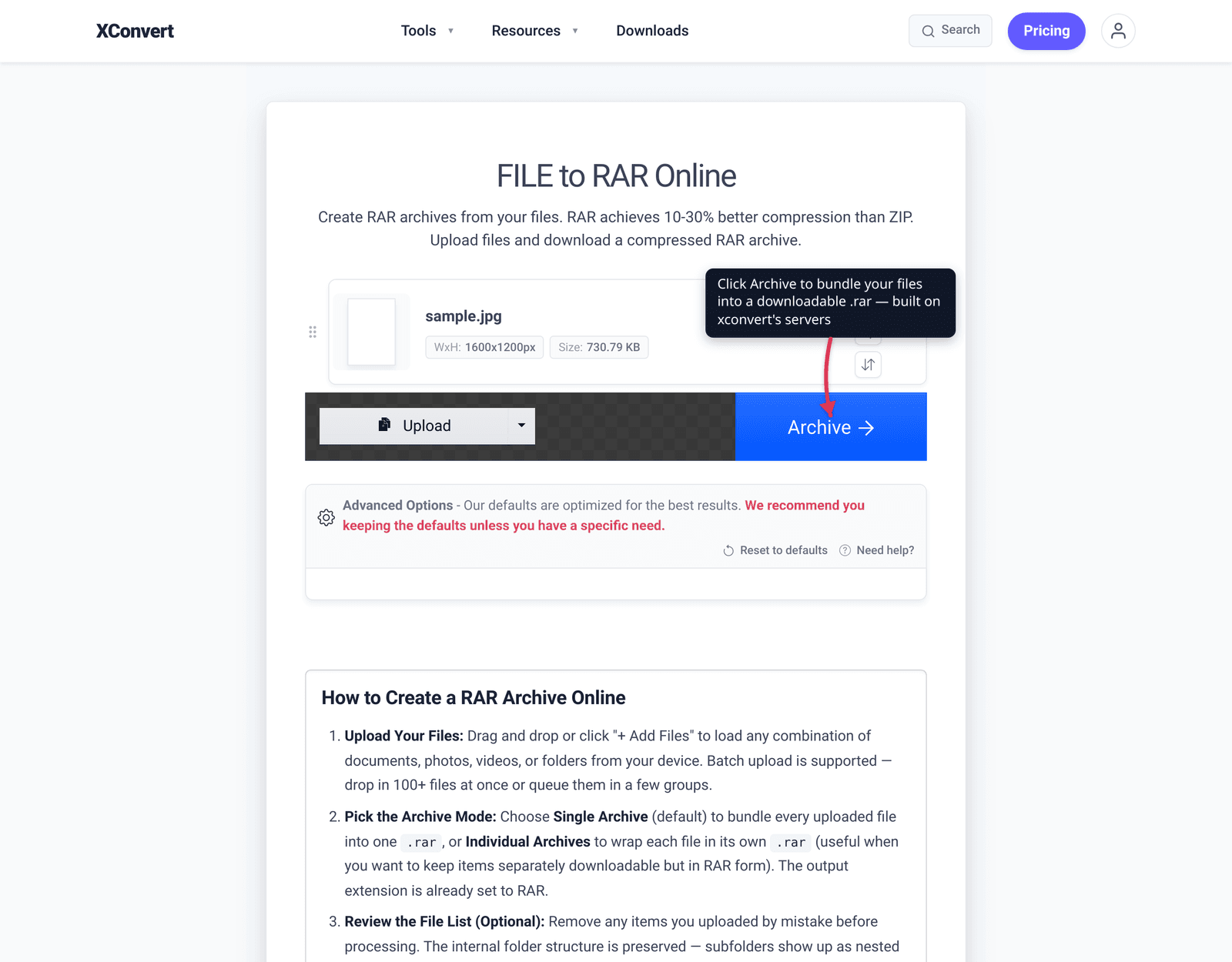
- Open xconvert.com/archive-file-to-rar and click + Add Files to upload (from your Computer, Google Drive, or Dropbox). Add as many files as you want to bundle.
- (Optional) Open Advanced Options. The tool’s defaults are tuned for general use; the main choice is Archive Mode — Single Archive (default) packs everything into one
.rar, or Individual Archives wraps each file in its own.rar. - Click Convert.
- Download the resulting
.rar. Test that it opens in your archiver (WinRAR, Windows 11, 7-Zip, The Unarchiver) before you send it on.
Prefer an open format? Make a ZIP for “opens anywhere, no software” sharing, or a 7z for the smallest file — both create cleanly with no licensing caveats.
Your files upload over an encrypted connection, are processed on our servers, and are deleted automatically a few hours later. Nothing is kept.
FAQ
Can I create a RAR file without WinRAR?
Only sort of. A genuine, RAR-compressed archive can by license only be produced by WinRAR, the official RAR command-line tool, or software RARLAB has licensed — the RAR compression algorithm is proprietary and may not be re-implemented. An online archiver can hand you a .rar file without you installing WinRAR, which is fine if a recipient just needs that extension. If you simply want an archive, ZIP or 7z is the cleaner, fully-open choice that anyone can create.
Is RAR free to create?
The format is proprietary, and the official tool isn’t free. WinRAR is shareware (a paid license after a trial), and only RARLAB-licensed software may create RAR archives. There is no free, open way to make a true RAR the way there is for ZIP or 7z. That’s a strong reason to default to ZIP (built into every OS) or 7z (free and open) unless .rar specifically is required.
Is RAR better than ZIP?
For raw compression, RAR usually beats ZIP (smaller files), but ZIP wins where it counts for most people: it’s open and opens natively on every OS with a double-click — no software to install. RAR’s edge in size rarely outweighs ZIP’s universal, zero-friction compatibility. If you want better compression and an open format, 7z typically compresses smaller than both.
Why can everything open RAR but almost nothing can create it?
Because RARLAB deliberately split the two. They release the UnRAR source as freeware so any program can extract RAR, but their license forbids using that code (or reverse-engineering) to re-create the RAR compression algorithm, which they keep proprietary. So extraction is everywhere; creation is restricted to their own (and licensed) software.
Should I use RAR or 7z?
Use 7z unless something specifically requires .rar. The 7z format is open (its spec ships with the 7-Zip source under the GNU LGPL), any tool can create it, and it generally compresses smaller than RAR. RAR makes sense only when the exact .rar extension is mandated, or you need RAR-specific features (recovery records, RAR5 encryption) from the official WinRAR/RAR tool.
Will a .rar made by an online tool open in WinRAR?
A standard RAR archive opens in any RAR-capable reader — WinRAR, Windows 11’s built-in extractor, 7-Zip, The Unarchiver, and others all read .rar. The practical test is simply whether your recipient’s archiver opens the file; modern archivers handle it. Always open the downloaded archive yourself once before sending it on, to confirm it extracts cleanly.
Sources
Last verified 2026-06-25.
- RAR (file format) — Wikipedia — RAR created by Eugene Roshal (1993), owned by win.rar GmbH/RARLAB; creation restricted to WinRAR/RAR/RARLAB-licensed software; quotes the UnRAR license restriction that the proprietary RAR compression algorithm may not be re-created or reverse-engineered.
- WinRAR — Wikipedia — WinRAR/RAR as the proprietary tools that create RAR; shareware/paid licensing; UnRAR freeware for extraction only.
- RAR Archive File Format Family — Library of Congress — authoritative format record confirming RAR’s proprietary status and RARLAB ownership.
- 7z Format — 7-Zip.org — the 7z format and spec are open and distributed with the 7-Zip source; any developer can implement it.
- 7-Zip — Wikipedia — 7-Zip/7z licensed under the GNU LGPL; format is open and modular.
- .ZIP Application Note (PKWARE) — referenced via ZIP format history — ZIP’s open, publicly-published specification enabling universal independent implementation.
- xconvert archive-to-RAR tool — the funnel tool; verified UI labels (+ Add Files; Single vs Individual Archive mode; Convert) and that it outputs a downloadable
.rar.