 By Stephanie Taylor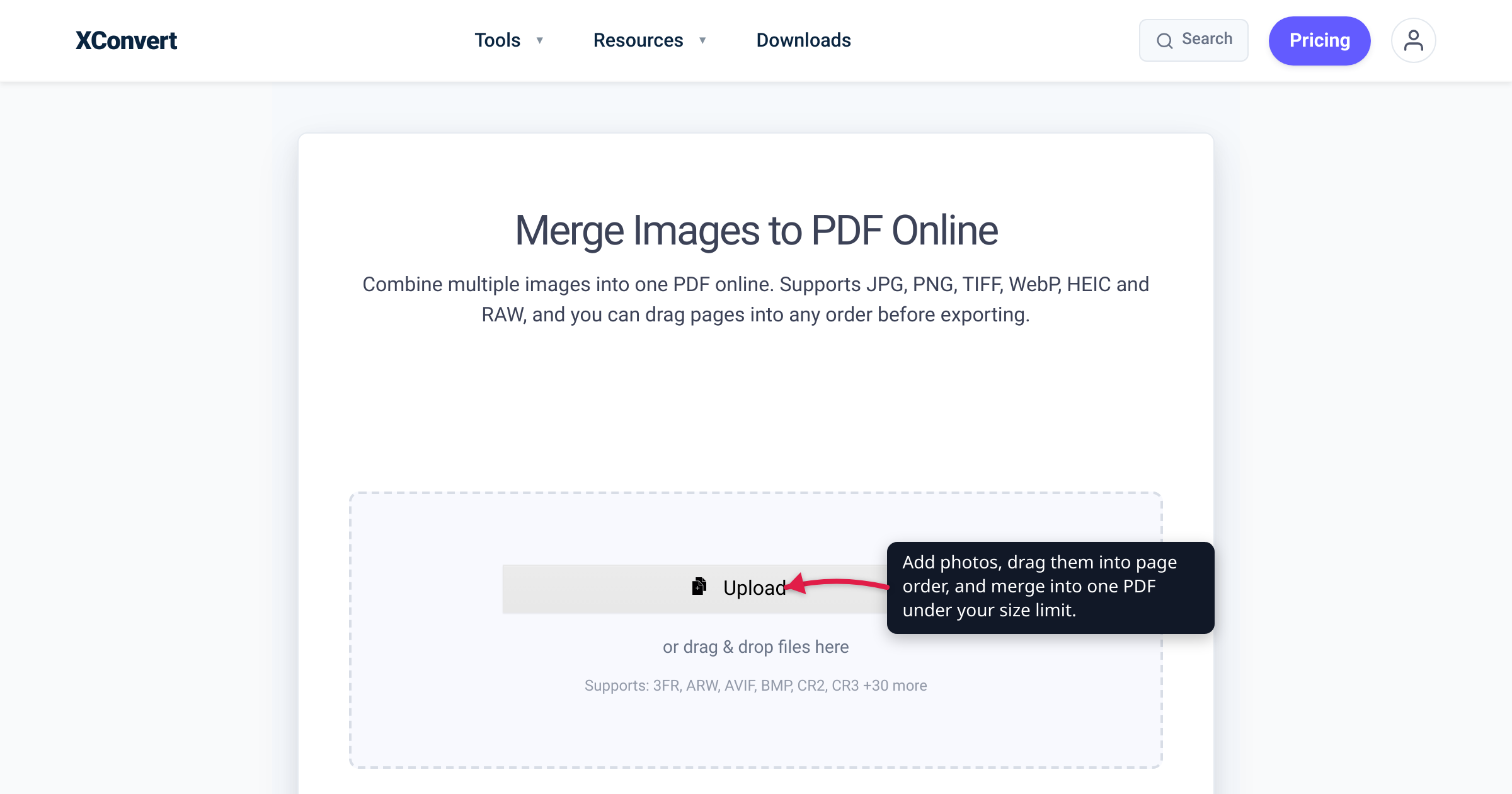
The upload form is blunt: “one PDF, maximum 10 MB” — and you’re holding twenty photos of receipts, IDs, or inspection shots that add up to 60 MB. Getting them into a single PDF is the easy half; getting that PDF under the limit is where most people stall. This guide covers what actually drives the size of a photos-PDF, what’s realistic per photo count, and the two-step workflow — merge, then a compression pass — that hits 5, 10, or 25 MB targets. We verified every control name against the live xconvert tools and every email cap against the provider’s own documentation, and hedged the numbers that genuinely depend on your photos.
Quick answer: Merge your photos at xconvert.com/merge-image-to-pdf — at default settings the merged PDF stays close to the photos’ combined size — then run the result through xconvert.com/compress-pdf and pick a Compression Type: Ebook (150 DPI images) for 10–25 MB targets or photos with readable text, Screen (Best) (72 DPI) for tight 5 MB budgets. Image-heavy PDFs typically shrink 60–90% on Screen and 40–70% on Ebook. The documented caps to aim under: Gmail 25 MB (personal accounts), Outlook.com and other internet email 20 MB, Exchange work accounts 10 MB by default.
Jump to a section
- What drives the size of a photos-PDF
- Know the cap you’re aiming for
- The two-step workflow and the presets
- Realistic expectations by photo count
- Merge photos into a PDF under your limit on xconvert
- FAQ
What drives the size of a photos-PDF
A PDF built from photos is essentially a container around the images — one photo per page. Its size is therefore close to arithmetic:
photo count × per-photo size × compression level.
The merge step itself barely changes the total. xconvert’s published figure for its merge tool: at the default 75% quality, the merged PDF stays within roughly 5–10% of the combined source size for JPG inputs. A photo merge to PDF is assembly, not compression — twelve phone photos of ~3 MB each become a 12-page document still around 36 MB, give or take a few percent. That’s already past every mainstream email cap, which is why the second pass exists.
The lever that actually moves the number is pixel count. A 12 MP phone photo measures about 4032×3024 pixels. Nobody reviewing your PDF on a screen — or printing it on A4 — needs that many:
- An A4 page (210×297 mm) rendered at 150 DPI is about 1240×1754 pixels — ~2.2 MP, an ~80% pixel reduction from a 12 MP original.
- At 72 DPI it’s about 595×842 pixels — ~0.5 MP, a ~96% reduction.
Downsampling to a sane page resolution, plus re-encoding the JPEGs, is where the 60–90% size cuts come from. The remaining lever is count: size scales roughly linearly with pages, so splitting one 40-photo PDF into two 20-photo PDFs halves each file — the escape hatch when compression alone can’t reach the target.
Know the cap you’re aiming for
The 5 / 10 / 25 MB tiers aren’t arbitrary — they map to real, documented limits. Only trust caps published by the platform itself:
| Target | Where it comes from | Documented by |
|---|---|---|
| 25 MB | Gmail attachment limit for personal accounts. Go over it and Gmail removes the attachment and inserts a Google Drive link instead. | Google’s Gmail help |
| 20 MB | Outlook’s email size limit for internet email accounts (Outlook.com, Gmail-connected) — and it covers the whole email, message plus attachment. | Microsoft Support |
| 10 MB | Default email size limit for Exchange (business) accounts — admins can raise or lower it, so your workplace may differ. | Microsoft Support |
| 5–10 MB | Common per-file caps on application and government upload portals. These are not standardized — the portal’s own instructions are the only authority, so check them before you build the file. | Varies by portal |
Two practical notes. First, leave headroom: the Outlook limits include the message itself, and work accounts can be set lower than the published defaults, so a file that lands exactly on the cap can still bounce. Second, if the recipient is email and you simply can’t get under the limit, a link-based handoff beats a bounced attachment — see how to email a large PDF for those options.
The two-step workflow and the presets
Why two steps instead of one? Because the two tools do different jobs: the merge tool assembles pages in your order and keeps the originals essentially intact, and the compressor is where the downsampling happens. Running them in sequence lets you check the size between passes and only compress as hard as the target requires.
The xconvert PDF compressor exposes five Compression Type presets. They follow the long-standing Ghostscript/Acrobat Distiller quality ladder, whose official definitions set the image resolution each tier targets:
| Preset (as labeled on the page) | Image resolution | Use it for |
|---|---|---|
| Screen (Best) | 72 DPI | The smallest file — tight 5 MB budgets, email, screen-only viewing |
| Ebook | 150 DPI | The balanced choice — 10–25 MB targets, photos where text must stay readable |
| Default | — | General-purpose output when you don’t have a hard target |
| Printer | 300 DPI | Documents that will be office-printed |
| Prepress | 300 DPI, color preserved | Commercial print workflows — largest output, wrong direction for a size limit |
What that buys you, per xconvert’s published production data: the median PDF drops about 76%, and image-heavy PDFs — which is exactly what a merged photos file is — typically shrink 60–90% on Screen and 40–70% on Ebook.
One caveat before you reach for Screen (Best): if your photos are of documents — receipts, forms, whiteboards — each page is one big image, and xconvert’s own guidance warns that dropping image resolution below ~200 DPI can make small text fuzzy. For photographed paperwork that someone must read, prefer Ebook; save Screen (Best) for scenery, products, and photos where fine text doesn’t matter.
Realistic expectations by photo count
The table below is illustrative arithmetic, not a promise: it assumes typical ~3 MB phone JPEGs (the figure xconvert uses in its own merge example) and applies the published reduction ranges above. Detailed, high-texture photos land at the large end; simple, flat ones at the small end.
| Photos | Merged PDF (defaults) | After Ebook pass | After Screen (Best) pass |
|---|---|---|---|
| 5 | ≈15 MB | ≈5–9 MB | ≈2–6 MB |
| 10 | ≈30 MB | ≈9–18 MB | ≈3–12 MB |
| 20 | ≈60 MB | ≈18–36 MB | ≈6–24 MB |
| 40 | ≈120 MB | ≈36–72 MB | ≈12–48 MB |
Read against the common targets:
- Under 25 MB (Gmail): up to about 7–8 photos often pass with a straight merge; beyond that, an Ebook pass typically covers you into the tens of photos.
- Under 10 MB: plan on a compression pass from the start — Ebook for a handful of photos, Screen (Best) as the count grows.
- Under 5 MB: Screen (Best) usually gets a small batch there. For bigger batches, add the second lever: lower the merge tool’s Quality Percentage slider below its default 75 before merging (drop it in steps and re-run — lower means visibly stronger JPEG compression), then compress.
Still over budget after both levers? The count lever is all that’s left: split the document into Part 1 / Part 2 with the split PDF tool — or merge in smaller batches — if your portal or recipient accepts multiple files.
Merge photos into a PDF under your limit on xconvert
The whole workflow is two tool pages, no install — these steps use the controls as they’re actually labeled:
- Open xconvert.com/merge-image-to-pdf and click Upload (or drag and drop) — files can come From my Computer, From Google Drive, or From Dropbox. JPG, PNG, HEIC, TIFF, WebP, and camera RAW formats are accepted.
- Once uploaded, drag the thumbnails into the page order you want — each photo becomes one page.
- In the Advanced Options panel below the upload area, leave Combine? on Single PDF and pick a Paper size (A4 is the default; “Original” sizes each page to its photo). Page layout, Margin, Image placement (Contained avoids cropping; Cover fills the page), and Image alignment are there if you need them.
- Working toward a tight cap? Lower the Image Compression → Quality Percentage slider (default 75) before merging — it’s the pre-shrink lever.
- Click Merge, download the PDF, and check its size. Under your cap: done.
- Over the cap: open xconvert.com/compress-pdf, click Upload, add the merged PDF, choose a Compression Type — start with Ebook for 10–25 MB targets, or Screen (Best) for a 5 MB budget — and click Compress. Check the result and re-run with a stronger preset if needed.
Your photos and the merged PDF upload over an encrypted connection; each file is processed on our servers and deleted automatically a few hours later. If you’d rather do the combining step with your phone or PC’s built-in features instead, see combine photos into one PDF on iPhone, Android, or PC — then come back to the compressor for the size pass.
FAQ
How do I merge photos into a PDF under 5 MB?
Merge first, compress second. Combine the photos at merge-image-to-pdf, then run the result through the PDF compressor on Screen (Best) — image-heavy PDFs typically shrink 60–90% on that preset. If you’re still over, lower the merge tool’s Quality Percentage slider below 75 and repeat, or split the document into parts.
Why is my merged PDF so big?
Because merging doesn’t compress. A photos-PDF is roughly the sum of the photos inside it — xconvert’s published figure is within ~5–10% of the combined source size at default settings — and modern phone photos run several MB each at ~12 MP or more. Ten photos ≈ 30 MB. The size drops when the images are downsampled to page resolution in a compression pass, not when they’re merged.
Will compressing the PDF make my photos blurry?
On screen, Ebook (150 DPI) usually looks clean for photo pages, while Screen (Best) at 72 DPI is a visible step down — acceptable for reference shots, aggressive for detail. The risk case is photographed text: below ~200 DPI, small print in receipts and forms can turn fuzzy, so use Ebook when the pages must stay readable. If quality matters more than the last megabyte, work down the ladder one preset at a time.
What is the largest PDF I can email?
Gmail personal accounts cap attachments at 25 MB — beyond that Gmail auto-converts the attachment to a Google Drive link, per Google’s own help page. Microsoft documents 20 MB for internet email accounts (the limit covers the whole message) and a 10 MB default for Exchange work accounts, which admins can change. Aim comfortably under your cap, not at it.
Should I lower quality when merging, or compress the PDF afterwards?
Afterwards, by default. The compression presets do the heavy lifting (median drop ~76% in xconvert’s production data), and keeping the merge at default quality means you compress a clean source and can re-run with different presets without re-uploading every photo. Reach for the merge tool’s Quality Percentage slider only when a preset pass alone can’t hit the target — the two levers stack.
How many photos can I merge into one PDF?
xconvert doesn’t publish a photo-count cap on the merge page, and each image simply becomes one page. The practical limits are upload time and the final file size — 40 typical phone photos already produce a PDF around 120 MB before compression. For very large batches, merge and send in parts rather than building one giant file.
Sources
Last verified 2026-07-15.
- Google — Send attachments with your Gmail message — 25 MB attachment limit for personal accounts; oversized attachments auto-convert to a Google Drive link.
- Microsoft — Reduce attachment size to send large files with Outlook — 20 MB email size limit for internet email accounts; 10 MB default for Exchange accounts.
- Ghostscript documentation — Vector devices / PDFSETTINGS — the screen/ebook/printer/prepress quality ladder and its per-preset image resolutions (72/150/300/300 DPI).
- xconvert — Merge Images to PDF — live UI labels used in the steps; published figure that merged output stays within ~5–10% of combined source size for JPG at default 75% quality.
- xconvert — PDF Compressor — live preset labels (Screen (Best), Ebook, Default, Prepress, Printer); published production data (median ~76% reduction; 60–90% on Screen and 40–70% on Ebook for image-heavy PDFs) and the ~200 DPI text-legibility guidance.