 By James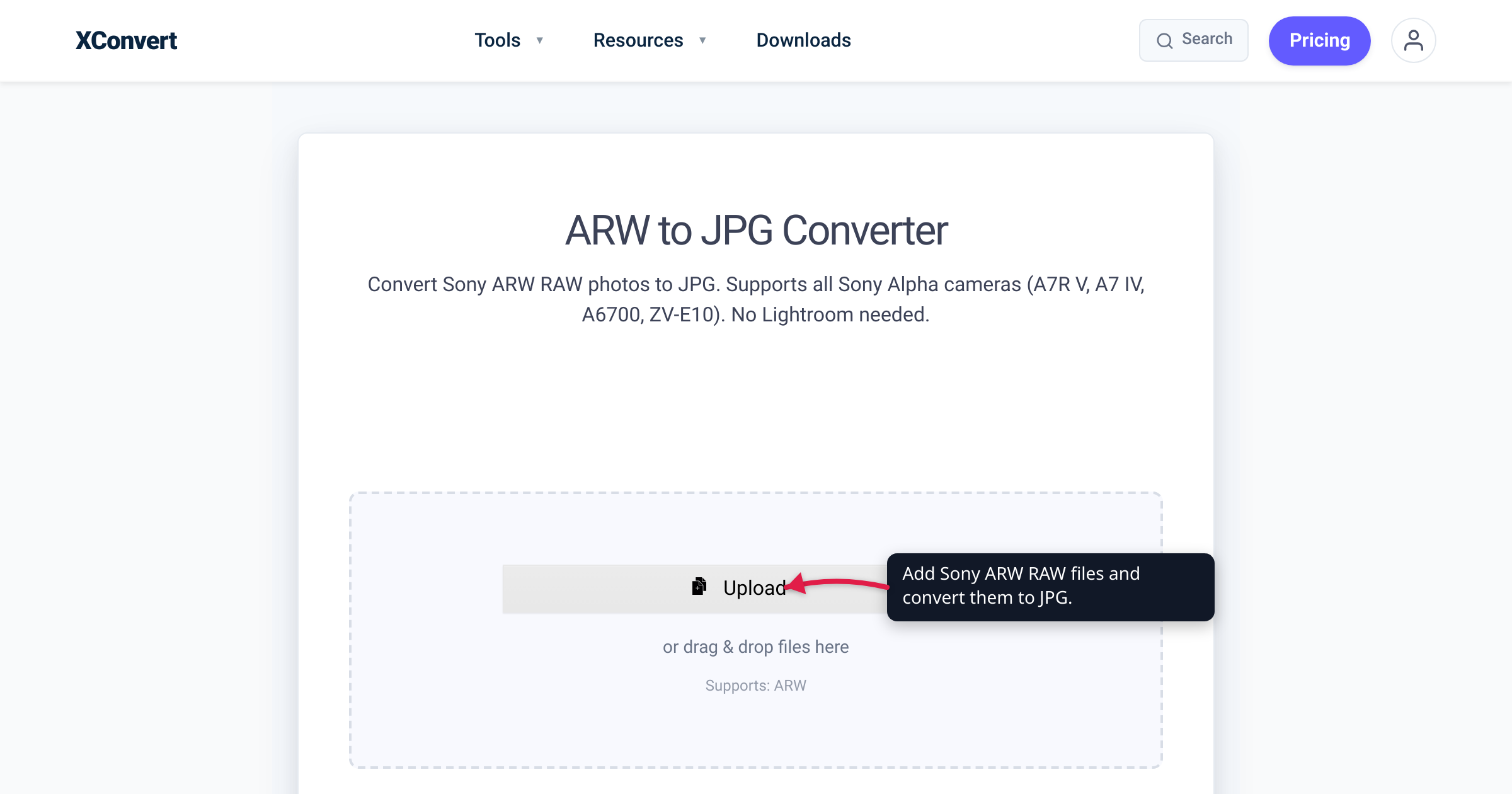
You offload a shoot from your Sony — an a7 IV, an a6400, even an RX100 compact — and the files land as .ARW: blank thumbnails in File Explorer, a photo viewer that refuses to open them, an upload form that rejects the extension. The files are fine. ARW is Sony’s RAW format, and a RAW file isn’t a finished photograph — it’s the unprocessed readout of the sensor, and almost nothing outside dedicated photo software knows how to render it. Converting an ARW to JPG produces a small, universal image every app understands. This guide explains what ARW is, which Sony cameras write it, what the conversion gives up, and how to do it — checked against Sony’s own help guides and spec sheets.
Quick answer: ARW is Sony Alpha RAW — the format Sony cameras have recorded since the first Alpha DSLR, the α100 in June 2006. Today’s a7/a1 bodies, the a6000 series, ZV vlogging cameras, and RX compacts all write it. Sony’s manuals are explicit: with RAW, “digital processing is not performed on this file format,” and opening one requires software that can develop it. To share the photo, convert a copy: drop it into the xconvert ARW to JPG converter and click Convert — batch upload works for a whole card. JPG is 8-bit and lossy, so keep the original ARW if you’ll ever want to re-edit.
Jump to a section
- What an ARW file actually is
- Why your ARW won’t open — and why JPG will
- What you lose converting ARW to JPG
- Sony’s own route: Imaging Edge Desktop
- Convert ARW to JPG on xconvert
- FAQ
- Sources
What an ARW file actually is
ARW stands for Alpha RAW — Sony’s proprietary RAW photo format, introduced with the α100 (DSLR-A100) in June 2006, the first camera Sony shipped after taking over Konica Minolta’s SLR business. Twenty years on, it’s still the RAW format across the whole lineup — full-frame a7/a7R/a7S/a7C, the a9 and a1 flagships, the APS-C a6000 family, ZV vlogging cameras, even the pocketable RX compacts. Sony’s spec sheets say it plainly: the a7 IV lists stills as “RAW (Sony ARW 5.0 format compliant)” and the RX100 VII as “RAW (Sony ARW 2.3 format).”
Two details from Sony’s own documentation explain everything that follows:
- It’s sensor data, not a picture. Sony’s help guides describe the RAW option flatly: “Digital processing is not performed on this file format.” An ARW holds the value each sensor pixel recorded — 14 bits per pixel on current bodies, dropping to 12 bits in certain modes such as continuous shooting with compressed RAW — before white balance, color, contrast, sharpening, or JPEG compression is applied. Turning that data into a viewable image requires raw development: demosaicing the sensor’s color-filter mosaic and applying tone and color processing. Ordinary viewers can’t do it; Sony’s manuals say that “to open a RAW image file recorded with this camera, the software Imaging Edge Desktop is needed.”
- “ARW” is a family, not one fixed format. That version number on the spec sheet (ARW 2.3 vs ARW 5.0) changes across camera generations, which is why software sometimes opens an older body’s files while failing on a brand-new model’s until the app is updated. A JPG has no such problem — the format hasn’t needed an update to open anywhere in decades.
Why your ARW won’t open — and why JPG will
RAW earns its keep during editing and archiving; it fails at viewing and sharing. Concretely:
- Almost nothing decodes it. Browsers, email clients, chat apps, web upload forms, and office software don’t ship Sony RAW decoders. Even Windows’ built-in Photos app needs Microsoft’s free Raw Image Extension installed before ARW files preview at all. A JPG opens instantly on every phone, browser, and operating system.
- It’s heavy. An ARW carries the sensor’s full 14-bit readout, so it’s several times the size of the JPG rendered from the same frame — painful for email caps and phone storage, wasted on a recipient who just wants to see the photo.
- You’ve never actually seen the RAW. What the rear screen showed you was already a processed render. Converting to JPG simply produces that finished, viewable version as a file you can hand to anyone.
The honest rule of thumb: convert to JPG for anything that involves showing the photo to a person or a website; keep ARW for anything that involves editing it later. Delivery, proofs, socials, quick triage — JPG. The archive master — ARW.
What you lose converting ARW to JPG
The conversion is genuinely lossy, and it’s better to know exactly where:
- Bit depth: 14 → 8. JPG stores 8 bits per channel. The extra depth in the ARW is precisely the headroom that lets an editor pull a blown-out sky or a black shadow back into range. Once flattened to JPG, that recovery latitude is mostly gone.
- Settings get baked in. In RAW, white balance is just metadata — you can re-choose it losslessly after the fact. In a JPG, the white balance, exposure rendering, and color are cooked into the pixels; large corrections start tearing up the image.
- Lossy compression. JPEG discards data to get small. At a high quality setting the render is visually indistinguishable from the RAW development for normal viewing and printing — but re-saving a JPG repeatedly compounds the loss.
None of that argues against converting — it argues against converting and deleting. The professional workflow is boring and correct: the ARW is the negative, the JPG is the print. Convert copies to share; archive the originals. If you also shoot Canon, the same logic (and the same trap) applies to CR2 files — covered in our Canon CR2 to JPG guide.
Sony’s own route: Imaging Edge Desktop
Sony’s answer to “how do I open this?” is Imaging Edge Desktop — a free download for Windows and Mac from Sony’s Imaging Edge site, split into three apps: Remote (tethered shooting), Viewer (browse and rate), and Edit (adjust and develop RAW, including ARW, ARQ, and AXR files). Per Sony’s instructions, developing an ARW into a JPEG goes like this:
- Display the image in Edit.
- Click Output on the toolbar (or File ▸ Output…).
- Set the File type to JPEG, choose compression, color space, and pixel size, then click Save.
- For many files, select them in Viewer first and run the same Output step as a batch.
The upside is full raw development — you can correct white balance and exposure before the JPEG is rendered. The downsides: an install, a learning curve, and it only helps on a computer you control. On a work machine, a Chromebook, or a phone — or when you need shareable files in the next two minutes — the online route below needs nothing installed.
Convert ARW to JPG on xconvert
The xconvert ARW to JPG converter develops Sony RAW files into standard JPGs on our servers — any device, nothing to install:
- Open xconvert.com/convert-arw-to-jpg and click Upload, then From my Computer (Google Drive and Dropbox are there too) — or just drag & drop the files onto the page. The uploader shows Supports: ARW, and it accepts multiple files at once, so you can select an entire shoot in one go.
- Under Advanced Options, check File extension: both JPEG and JPG are listed — they’re the same format, so either is fine.
- In Image Compression, leave the Quality Preset on Very High (Recommended) for a near-transparent render, or switch to Specific file size if you need to hit a byte budget. Image resolution is optional — keep the original, pick a Preset Resolution, scale by Resolution Percentage, or set exact Width x Height for downsized delivery copies.
- Click Convert, then download the results — individually, or as a ZIP for batch jobs.
Every setting applies to the whole batch — practical for a full card of ARWs, not just one file. Your upload travels over an encrypted connection, is processed on our servers and deleted automatically a few hours later. Because the work happens server-side, it behaves identically on Windows, macOS, Linux, or a phone — no Sony software, no RAW codecs. For bigger multi-format workflows (mixed Sony/Canon/Nikon cards, hundreds of files), see batch-convert RAW photos to JPG.
FAQ
How do I open ARW files on Windows 10 or 11?
Out of the box, Windows Photos and File Explorer show ARW files as blank. Install Microsoft’s free Raw Image Extension from the Microsoft Store — it’s built on the open-source libraw project and adds thumbnails in File Explorer plus viewing in the Photos app for most RAW formats, Sony ARW included. Files from very new camera models can lag until the extension updates. For files that need to open anywhere without add-ons, convert them to JPG.
Will converting ARW to JPG lose quality?
You mostly lose editing latitude, not viewing quality. The ARW’s 14-bit data becomes an 8-bit lossy JPG, so highlight/shadow recovery and free white-balance changes are gone — but at a high quality preset the JPG is visually indistinguishable from the developed RAW for screens and prints. Keep the ARW original and convert a copy.
Why won’t my new Sony’s ARW files open in software that handled my old camera’s?
Because ARW is versioned. Sony’s spec sheets show the drift — “Sony ARW 2.3 format” on an RX100 VII versus “Sony ARW 5.0 format compliant” on an a7 IV — and every RAW decoder has to be updated per camera generation. Until your editor ships that update, the new body’s files won’t open even though the extension is identical; converting to JPG sidesteps the problem.
Can my Sony just save JPGs instead of ARW?
Yes. In the still-image quality menu, Sony bodies offer JPEG-only — and more usefully RAW & JPEG, which Sony describes as creating “a RAW image and a JPEG image at the same time”: a viewable copy for sharing plus the RAW master for editing. If your card is already full of ARW-only shots, converting after the fact achieves the same split.
Can I convert a whole shoot of ARW files at once?
Yes — the ARW to JPG converter accepts multiple files in one upload (select them all in the file picker or drag the batch in), applies your Quality Preset and resize settings to every file, and offers the output as a ZIP. For the bulk workflow across brands, see batch-convert RAW photos to JPG.
Can I convert ARW to JPG on my phone?
Yes. The converter runs in any mobile browser, and the RAW development happens on our servers — your phone only uploads the ARW and downloads the JPG. It’s the practical route to a shareable image when you’re nowhere near a computer with photo software.
Sources
Last verified 2026-07-15.
- Sony a7 IV (ILCE-7M4) Help Guide — File Format (still image) — “digital processing is not performed” on RAW; 14 bits per pixel (12-bit in listed modes); “the software Imaging Edge Desktop is needed”; the RAW & JPEG simultaneous option.
- Sony a7 IV (ILCE-7M4) Help Guide — Specifications — still-image file format: “RAW (Sony ARW 5.0 format compliant)”.
- Sony RX100 VII (DSC-RX100M7) Help Guide — Specifications — “RAW (Sony ARW 2.3 format)”: RX compacts write ARW too.
- Sony a6100 (ILCE-6100) Help Guide — File Format (still image) — the APS-C a6000 line: same 14-bit RAW and Imaging Edge requirement.
- Sony — Imaging Edge Desktop official page — Remote / Viewer / Edit apps, RAW development, Windows and Mac downloads.
- Sony — Imaging Edge Desktop: Exporting images into JPEG or TIFF (developing) — Sony’s steps: Edit ▸ Output ▸ File type ▸ Save; batch via Viewer.
- Sony — Imaging Edge Desktop: Supported images — supported formats include RAW (ARW/ARQ/AXR).
- Microsoft Store — Raw Image Extension — free extension adding RAW thumbnails in File Explorer and viewing in Photos; “made possible thanks to libraw open source project”.
- DPReview — Sony Alpha DSLR-A100 hands-on (June 2006) — the α100’s June 2006 debut as Sony’s first Alpha DSLR, from the Konica Minolta lineage.
- xconvert ARW to JPG converter — live tool: Upload / drag & drop, “Supports: ARW”, multi-file batch upload, Advanced Options (Quality Preset, Specific file size, Image resolution, File extension JPEG/JPG), as shown on the page.