 By Stephanie Taylor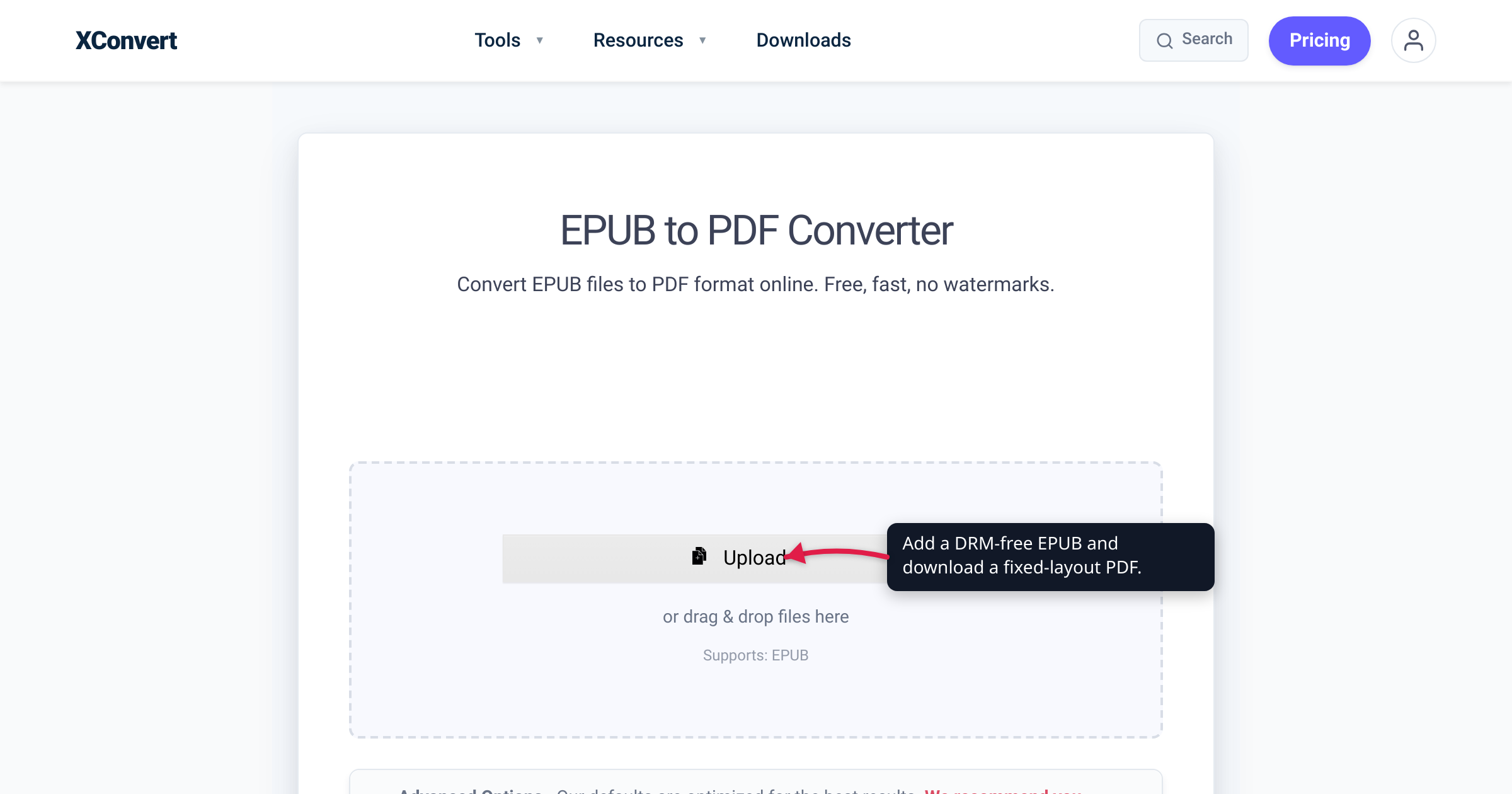
You have an .epub — a course packet, a self-published manuscript, a public-domain classic you pulled from Project Gutenberg — and now you need it as a PDF: to print it, to hand it to someone who has never touched an e-reader, or to mark it up in a PDF app. The snag is that an EPUB and a PDF are built on opposite ideas. An EPUB is reflowable — its text re-wraps to whatever screen and font size you pick — while a PDF is a fixed page that looks identical everywhere and prints exactly as shown. Converting EPUB to PDF has to set the flowing text onto pages, so the result reads like a printed book rather than an adjustable e-book. We verified that format behavior against the W3C EPUB specification, checked the DRM limitation against Calibre’s own documentation, and ran the conversion on xconvert to confirm the real controls.
Quick answer: Convert to PDF when you need a fixed, printable, open-anywhere copy — to print the book, share it with someone who has no e-reader app, annotate it in a PDF reader, or submit it where PDF is required. Because EPUB is reflowable and PDF is fixed-layout, the conversion locks the text onto pages (A4 portrait by default on xconvert), so you trade adjustable fonts and reflow for a stable, printable page. One caveat the one-click pages skip: only DRM-free EPUBs can be converted — a store-purchased, DRM-protected EPUB is encrypted, and no format converter can open it. If you want the reverse — a fixed PDF turned into an adjustable e-reader book — convert PDF to EPUB or MOBI instead.
Jump to a section
- Why turn a reflowable EPUB into a fixed PDF
- When PDF is the right call — and when to stay EPUB
- What carries over, and what shifts
- The DRM catch: only DRM-free EPUBs convert
- Convert EPUB to PDF on xconvert
- FAQ
Why turn a reflowable EPUB into a fixed PDF
Under the hood, an EPUB file is essentially a ZIP archive of web content — XHTML for the text, CSS for styling, plus images and metadata. The W3C, which maintains the EPUB standard, describes the format this way: “content is typically intended to be formatted on the fly rather than being typeset in a paginated manner in advance.” In practice that means the default for EPUB is to reflow to fit the available screen space, so a reader “can change the display to their liking (e.g., increasing font size, line spacing, and word spacing) without causing a publication to become unreadable — the resized content re-adapts itself to the available space.” That is exactly what makes an EPUB pleasant on a phone or a 6-inch e-reader.
A PDF is the opposite by design. It is a fixed-layout document format, standardized as ISO 32000: every glyph, image, and margin is pinned to a coordinate on a page of set physical dimensions, and the file carries its fonts with it so the page looks the same on any device, app, or operating system. The W3C draws the same line from the ebook side — a fixed layout “enables the control of the page dimensions, creating a canvas on which elements can be absolutely positioned.”
So “convert EPUB to PDF” is not a cosmetic rename. It takes flowing, screen-adaptive text and freezes it onto pages. You gain a document that prints predictably, opens in any browser or PDF viewer without a special app, and can be highlighted or signed. You give up the two things an e-reader user loves: the ability to bump the font size and have the text re-wrap. Knowing which side of that trade you want is the whole decision.
When PDF is the right call — and when to stay EPUB
A fixed PDF is the right output when the page matters more than the reflow:
- Printing. Home printers, office copiers, and print-on-demand services expect a paginated file, and PDF is the near-universal print standard. An EPUB has no fixed pages to send to a printer; a PDF does.
- Sharing with someone who has no e-reader. A PDF opens on any laptop, phone, or browser with zero setup. Emailing a colleague or a relative an EPUB often means “what do I open this with?”; a PDF just opens. (If the file is too large for email, see how to email a large PDF file.)
- Annotating and highlighting. PDF readers on every platform let you highlight, comment, and mark up a page and have those notes stay put — handy for study guides, manuscripts, and review copies.
- Submitting where PDF is required. Coursework portals, job applications, and print interiors frequently accept only PDF. Converting first saves a rejected upload.
Stay with EPUB when the goal is reading on a screen. On a Kindle, Kobo, or a phone reading app, the reflowable EPUB is what gives you adjustable fonts, dark mode, and text that re-wraps to the screen — a PDF on a small e-ink display is the tiny, pinch-to-zoom experience people convert away from. If your actual need is to get a PDF onto an e-reader as a proper adjustable book, do the opposite conversion and turn your PDF into an EPUB or MOBI.
What carries over, and what shifts
Because the converter is re-flowing an ebook onto set pages, the output quality tracks how the EPUB was built.
Converts cleanly — plain-prose ebooks. For a single-column, text-first EPUB — a novel, a report, an article, most self-published books — the basic structure carries over well: headings, paragraphs, bold and italic, lists, and embedded images all land on flowing pages with chapter headings intact. This is the common case and it looks like a printed book.
Shifts the most — heavily designed EPUBs. Comics, manga, magazines, cookbooks, and fixed-layout children’s books rely on pixel-exact placement. When that pixel-positioned design is moved onto a standard page, elements can shift, because the precise placement does not always survive the transfer. If your EPUB is design-heavy, expect to review the PDF rather than trust it blind.
Page size: xconvert lays the book out on A4 portrait pages by default, which suits most reading and printing worldwide. Worth knowing if you print in North America: desktop tools such as Calibre default to U.S. Letter instead, so A4 output may sit slightly differently in a Letter tray — usually a non-issue for “print at home,” occasionally worth a “fit to page” tick in your print dialog.
The DRM catch: only DRM-free EPUBs convert
This is the honest limitation every “convert in one click” page leaves out. Many EPUBs bought from a store, or borrowed from a library, are wrapped in DRM (digital rights management) — encryption that ties the file to a specific account or app. The classic sign is a book delivered through Adobe Digital Editions as an .acsm file, or a title locked to one retailer’s reading app.
A format converter reads the file’s bytes and re-encodes them; it cannot decrypt a protected book, so a DRM-protected EPUB simply won’t convert. Calibre, the reference open-source ebook tool, puts it plainly: “People are often surprised that an e-book they have bought in a particular format cannot be converted to another format if the e-book has DRM.” (Kindle store books are a separate case — Amazon uses its own AZW/KFX formats, not EPUB, so they never arrive as an .epub in the first place.)
The good news: most EPUBs you’d actually want to convert are DRM-free. Public-domain books from Project Gutenberg or Standard Ebooks, files you exported yourself from Word, Pages, Vellum, or Sigil, most self-published and freely distributed EPUBs, and un-protected review copies all convert normally. If your file is DRM-protected, a converter — ours or anyone’s — is not the path; read it in the app it’s licensed to, or obtain a DRM-free copy from the publisher.
Convert EPUB to PDF on xconvert
The xconvert EPUB to PDF converter runs the whole conversion for you — no software to install.
- Open the xconvert EPUB to PDF converter and click + Add Files to add your
.epub— From my Computer, From Google Drive, or From Dropbox. You can queue several books at once. - Leave the output as PDF (the page is already set to it).
- (Optional) Open Advanced Options and pick a Compression Type preset. This is the one setting that matters here, and it controls how images are handled in the PDF:
- Screen (Best) — highest image quality, larger file; best for on-screen reading and image-heavy books.
- Ebook — moderate image downsampling for a balanced, email-friendly size.
- Printer — tuned for paper output, for printing at home or a copy shop.
- Prepress — preserves color fidelity for a professional print service.
- Default — a standard balance of size and quality when you’re unsure.
- Click Convert, then download your PDF. The book is laid out on A4 portrait pages; there’s no page-size box to fuss with on this tool, so the default just works for most people.
Your EPUB is uploaded over an encrypted connection, processed on our servers, and deleted automatically a few hours later — no sign-up, no watermark, and files are never shared or made public. For the cleanest result, start from a plain-prose, DRM-free EPUB; heavily designed books are the ones worth eyeballing after conversion.
FAQ
Can I convert a purchased or DRM-protected EPUB to PDF?
No. If the EPUB is wrapped in DRM — for example, a book delivered through Adobe Digital Editions as an .acsm file, or one locked to a single retailer’s app — it’s encrypted, and a format converter can’t open it. Calibre states the same: an e-book you bought “cannot be converted to another format if the e-book has DRM.” DRM-free EPUBs (your own exports, Project Gutenberg, Standard Ebooks, most self-published titles) convert normally.
Why can’t I change the font size in the PDF like I could in the EPUB?
Because you converted a reflowable format into a fixed-layout one. An EPUB re-wraps its text to your screen and font choice; a PDF pins every character to a fixed page so it prints and displays identically everywhere. That stability is the point of a PDF — but it means the text no longer reflows. If adjustable fonts are what you want, keep the EPUB, or convert a PDF back to EPUB.
What page size will the PDF use?
A4 portrait by default, which suits most reading and printing. If you’re printing in North America on U.S. Letter paper, the A4 layout will still print — just use your print dialog’s “fit to page” option if the margins look tight.
How do I make the EPUB-to-PDF file smaller so I can email it?
Open Advanced Options and choose the Ebook compression preset, which downsamples images for a balanced, email-friendly size. If the PDF is still too big for your mail provider, see how to email a large PDF file for the workarounds.
Will my chapters, headings, and images carry over?
For a plain-prose EPUB, yes — headings, paragraphs, bold/italic, lists, and embedded images move onto flowing pages cleanly. Highly designed EPUBs (comics, magazines, fixed-layout children’s books) rely on pixel-exact placement that doesn’t always survive being set onto standard pages, so review those after converting.
Can I convert EPUB to PDF on my phone?
Yes. The conversion runs on xconvert’s servers, so it works from any device with a browser — phone, tablet, Chromebook, or desktop — with nothing to install. Add the file, convert, and download the PDF.
Sources
Last verified 2026-07-16.
- W3C — EPUB 3 Overview (EPUB 3.3) — EPUB is packaged web content (a ZIP of XHTML/CSS/SVG); reflowable is the default (“reflow to fit the available screen space… re-adapts itself”); fixed layout controls page dimensions with absolutely positioned elements.
- W3C — EPUB 3.3 (Recommendation, 25 May 2023) — the current EPUB specification; confirms EPUB as the open, W3C-maintained reflowable ebook standard.
- ISO 32000-1 (PDF 1.7) specification — PDF is the standardized fixed-layout document format that embeds its fonts so pages render identically across devices.
- Calibre — Digital Rights Management (DRM) — a purchased e-book “cannot be converted to another format if the e-book has DRM”; DRM ties the file to an account/app and blocks reformatting.
- xconvert — EPUB to PDF converter — live tool: the + Add Files upload, the Compression Type presets, the A4-portrait default, and the server-side processing / auto-deletion behavior described above.