 By Stephanie Taylor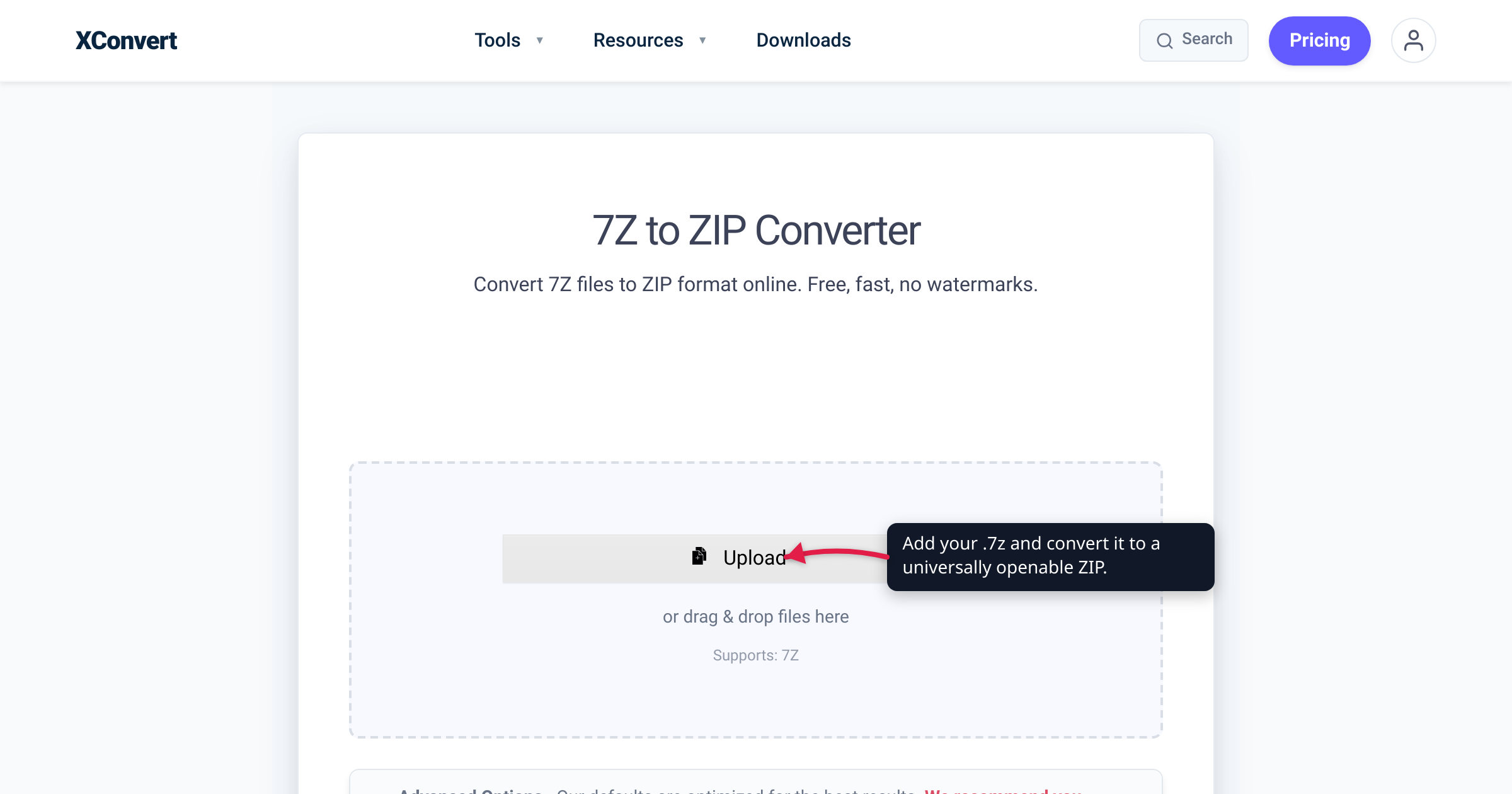
Someone sends you a .7z file, you double-click it, and nothing happens — Windows shrugs, or your Mac throws an error, because neither opens 7z the way it opens a ZIP. The fix is to repackage the archive as a ZIP, the one format that extracts with a double-click on essentially every computer and phone made this century. This guide covers exactly what changes (and what doesn’t) when you convert 7z to ZIP, the one honest tradeoff — a slightly larger file — and the per-OS support behind it, verified against 7‑Zip, Microsoft, and Apple’s own documentation.
Quick answer: Converting a .7z to .zip makes it open with a double-click on any Windows PC, Mac, iPhone, Android, or Chromebook — no 7-Zip install required. It’s a lossless repackage: the tool unpacks the 7z and repacks the identical files into a ZIP, so nothing inside is degraded. The one catch: because 7z’s LZMA2 compresses tighter than ZIP’s Deflate, the ZIP is usually somewhat larger than the 7z — you trade a little size for universal, no-install compatibility. Keep the 7z only when file size matters more than who can open it.
Jump to a section
- Why your .7z won’t open on most computers
- The honest tradeoff: the ZIP is usually bigger
- It’s a repackage, not a re-encode
- When to convert — and when to keep the 7z
- Convert 7z to ZIP on xconvert
- FAQ
Why your .7z won’t open on most computers
A .7z file is an archive — a container that bundles files together and compresses them — created by the free, open-source 7-Zip project. The problem isn’t quality; it’s reach. Unlike ZIP, 7z isn’t built into most operating systems, so a recipient without 7-Zip-compatible software gets an error or a file their computer doesn’t recognize.
ZIP is the opposite. Windows has extracted it from File Explorer since Windows XP (right-click → Extract All…, per Microsoft), and macOS expands it with a double-click through the built-in Archive Utility (per Apple). Phones and Chromebooks read it too. That near-universal native support is the entire reason ZIP remains the default for “send this to anyone.”
Here’s where each format actually opens with no extra software installed:
| Platform | Opens ZIP natively? | Opens 7z natively? |
|---|---|---|
| Windows 10 | Yes — right-click → Extract All… | No — needs 7-Zip or similar |
| Windows 11 (23H2+) | Yes | Yes, unencrypted only (added in 23H2) |
| macOS | Yes — double-click | No — needs The Unarchiver, Keka, etc. |
| iPhone / iPad | Yes — Files app | No |
| Android | Yes — Files by Google | No |
| ChromeOS | Yes — Files app | No |
| Linux | Yes | Often (if p7zip is installed) |
One genuine update worth knowing: Windows 11 gained native extraction for 7z, RAR, and TAR in its late-2023 update (version 23H2), built on the open-source libarchive project — and the 24H2 update went further, letting File Explorer also create 7z and TAR archives. So a recent Windows 11 can open a .7z directly in File Explorer — but not a password-encrypted one, which still needs a dedicated app. That helps only recipients already on a recent Windows 11; anyone on Windows 10, an earlier Windows 11, or a Mac still can’t double-click your 7z. ZIP opens on all of them. When you don’t know what the other person is running, ZIP is the safe bet.
(Deciding which format to make in the first place? ZIP vs RAR vs 7z breaks down the trade-offs.)
The honest tradeoff: the ZIP is usually bigger
There’s no free lunch here, and it’s worth being upfront: the ZIP you get will typically be a bit larger than the 7z you started with. That’s a direct consequence of how each format compresses.
- 7z uses LZMA / LZMA2, the compression methods behind its “high compression ratio,” per 7-Zip’s own site. It also supports solid compression — treating many files as one continuous stream — which squeezes collections of similar or small files especially hard.
- ZIP uses Deflate (RFC 1951) by default and compresses each file independently, with no solid mode. It’s older, faster, and universally supported — but it doesn’t pack as tightly.
7-Zip’s site notes that even when writing ordinary ZIP files, its ratio is “2–10% better than the ratio provided by PKZip and WinZip,” and the native 7z format goes further still. Moving from 7z back to ZIP gives some of that space back.
How much bigger is the ZIP? It depends entirely on the contents:
- Highly compressible data (text, source code, logs, uncompressed documents, lots of small similar files) is where 7z’s LZMA2 and solid mode win most, so the ZIP can be noticeably larger.
- Already-compressed content (JPEGs, PNGs, MP3s, MP4s, most PDFs) barely shrinks in either format, so the ZIP ends up roughly the same size as the 7z.
Either way, you’re trading a little size for the guarantee that the recipient can open it — and for sharing, that’s almost always the right trade.
It’s a repackage, not a re-encode
A common worry: does converting recompress or degrade the files inside? No. Converting 7z to ZIP is a lossless container swap, not a re-encode of your data. The tool:
- Decompresses the 7z, extracting the original files exactly as they were stored.
- Recompresses those same files into a ZIP container using Deflate.
The bytes of every file inside come out identical — a document, spreadsheet, photo, or program is byte-for-byte the same after the round trip; only the wrapper and its compression method change. The folder structure is preserved too: nested folders and relative paths inside the 7z unpack exactly as they were arranged. Nothing is downscaled or re-saved, so there’s no “generation loss” of the kind you’d get re-saving a JPEG or transcoding a video.
The one thing that does not carry across automatically is encryption. A password-protected 7z has to be unlocked before its contents can be repacked, and the resulting ZIP is not re-encrypted by the conversion. If you need a protected result, add a password in your local archiver (7-Zip, Keka, WinRAR) after downloading.
When to convert — and when to keep the 7z
One question decides it: does this archive have to open on someone else’s machine?
Convert to ZIP when:
- You’re emailing or uploading the archive and the recipient must open it with a double-click, on an OS or device you don’t control.
- You’re attaching it to a web form, ticketing system, or CMS that only accepts ZIP.
- You don’t know what software the other person has and want the format with the broadest reach — even if the file ends up a little larger.
Keep the 7z when:
- The archive is for you — your own backup or long-term storage — and you already have 7-Zip, so the smaller size wins.
- You’re sending it to someone you know has a 7z-capable tool.
- Every megabyte counts — a huge, highly compressible dataset where 7z’s tighter ratio saves real space.
Rule of thumb: ZIP to send, 7z to store. And once your recipient has the ZIP, extracting it needs nothing extra — see how to unzip files online or on any OS.
Convert 7z to ZIP on xconvert
The xconvert 7Z to ZIP converter runs in any browser — no 7-Zip install, nothing to buy:
- Open xconvert.com/convert-7z-to-zip and click Upload to add your
.7z— From my Computer, From Google Drive, or From Dropbox — or drag and drop it onto the page. You can queue several 7z files at once. - (Optional) Open Advanced Options (the gear) to choose how to combine them: Individual Archives makes one ZIP per uploaded file (the default), while Single Archive packs everything into one ZIP. ZIP is already set as the target, so there are no codec or quality settings to fiddle with — it’s a lossless container swap.
- Click Convert.
- Download your ZIP. No sign-up, no watermark.
Your file uploads over an encrypted connection, is processed on our servers, and is automatically deleted a few hours later. Nothing stays around.
FAQ
How do I open a 7z file without 7-Zip?
The most reliable route is to convert it to a ZIP, which every OS opens natively — a double-click on Windows or macOS, a tap on your phone. Recent Windows 11 (23H2 or later) can also open an unencrypted 7z directly in File Explorer, and on a Mac you can install a free app like The Unarchiver or Keka. But if you want the archive to just open for anyone, ZIP is the safe choice.
Is ZIP or 7z better?
Neither is universally “better” — they optimize for different things. 7z compresses tighter (LZMA2 plus solid compression), so it makes the smaller file, which is great for your own storage. ZIP compresses a little less but opens everywhere with no extra software, which is what you want for sharing. Pick 7z to store, ZIP to send.
Why is my ZIP bigger than the original 7z?
Because ZIP’s Deflate compression is less aggressive than 7z’s LZMA2, and ZIP has no solid-compression mode, so it can’t squeeze collections of similar files as hard. The larger size is the price of universal compatibility. If the smaller file matters more than who can open it, keep the 7z.
Does converting 7z to ZIP lose any quality?
No. It’s a lossless repackage: the files are extracted from the 7z and repacked byte-for-byte into the ZIP. Documents, photos, and code come out identical — only the container and its compression method change. There’s no re-encoding, so nothing is degraded.
Does the ZIP keep the folders from inside the 7z?
Yes. The relative paths and folder hierarchy stored in the 7z are preserved in the ZIP, so nested folders unpack exactly as they were originally arranged.
Will a password on my 7z carry over to the ZIP?
No — you’ll generally need the password to convert, and the output ZIP isn’t re-encrypted. A password-protected 7z must be unlocked before its contents can be repacked. If you need a protected result, re-add a password in your local archiver after downloading.
Sources
Last verified 2026-07-16.
- 7-Zip official site — 7z uses LZMA/LZMA2 for a “high compression ratio”; 7-Zip’s ratio is “2–10% better than PKZip and WinZip” even when writing ZIP; 7-Zip is free/open-source (mostly GNU LGPL) and can pack/unpack both 7z and ZIP.
- Microsoft Support — Zip and unzip files — Windows extracts ZIP via right-click → Extract All…; Windows 11 version 24H2 supports ZIP, RAR, 7z, and TAR, but not operations on encrypted archives.
- Apple Support — Zip and unzip files and folders on Mac — macOS extracts ZIP by double-click via Archive Utility; 7z is not among the natively documented formats.
- RFC 1951 — DEFLATE Compressed Data Format — the default compression method inside a ZIP.
- TechSpot — Windows 11 adds native RAR/7z/TAR support via libarchive — corroborates the native multi-format extraction (built on the open-source libarchive) and the no-encrypted-archive limitation.