 By Stephanie Taylor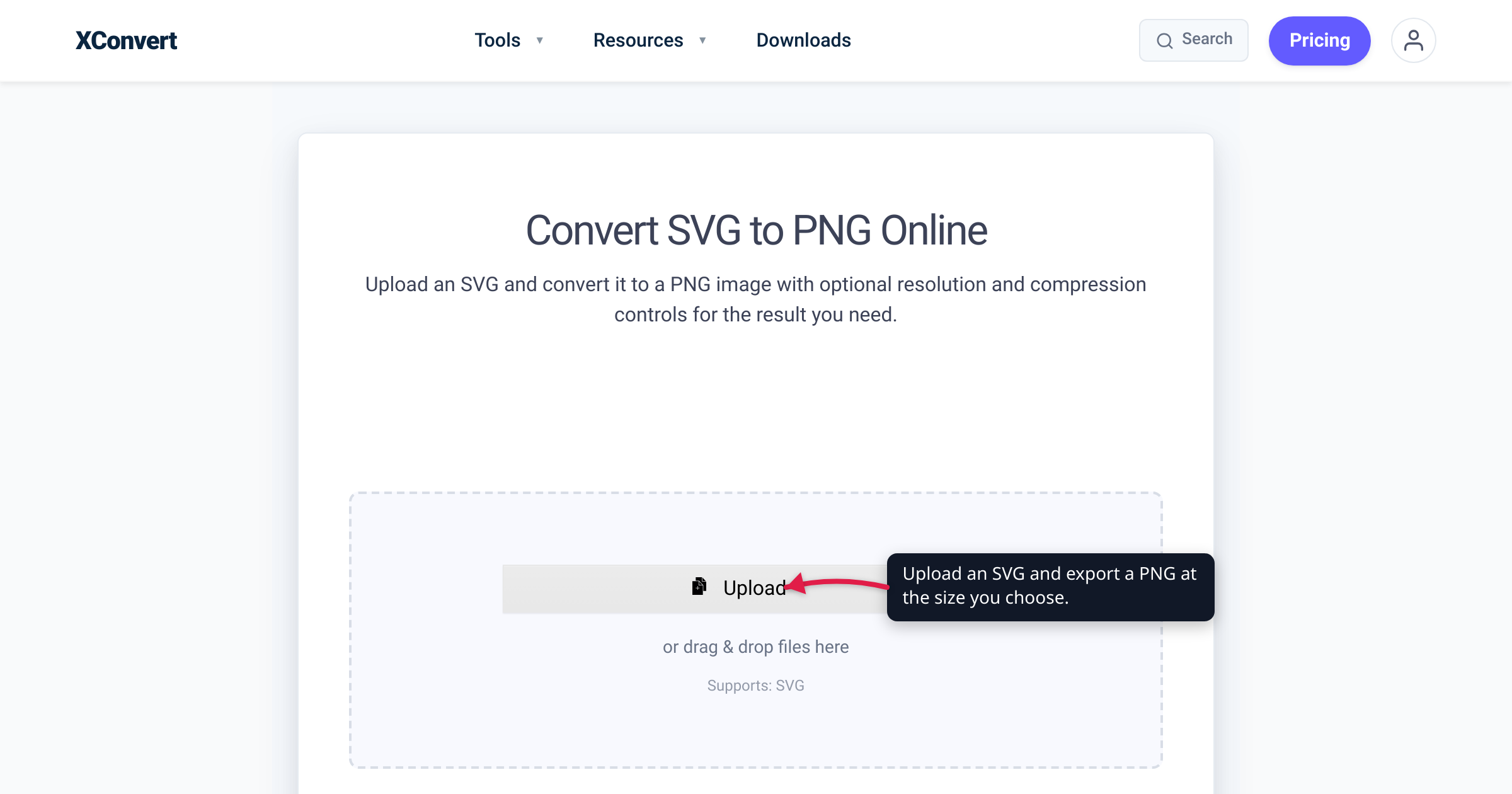
You have a crisp logo.svg that looks perfect in your design tool — and then the upload form rejects it. Social avatars, marketplace listings, email signatures, and plenty of older apps simply won’t take an SVG, or show a broken thumbnail where your logo should be. The fix is to convert it to PNG: a raster image that works almost everywhere and, unlike JPG, keeps a transparent background and razor-sharp edges. The one step people miss is that an SVG has no built-in pixel size — so when you rasterize it, you choose the resolution. We verified the format facts against the W3C SVG and PNG specifications and the export controls against the live tool.
Quick answer: SVG is a vector format — math-defined paths that scale to any size with zero quality loss (W3C). PNG is a raster format — a fixed grid of pixels — that virtually every platform accepts and that keeps transparency and crisp edges (unlike JPG). Converting SVG → PNG means rasterizing at a size you choose: roughly 512 × 512 px for social avatars, 1024 px or larger for retina screens and print, and about 2× the display size for hi-DPI sharpness. Bigger looks sharper but weighs more. Because rasterizing is one-way, keep the original SVG as your master for future sizes.
Jump to a section
- Why convert an SVG to PNG
- Vector vs raster: what actually changes
- What resolution should you export?
- Convert SVG to PNG on xconvert
- FAQ
Why convert an SVG to PNG
SVG is the web’s native format for logos, icons, and diagrams, and it is superb at that job. But an SVG is also XML — a text markup language — and that is exactly why so many destinations refuse it:
- Social media. Instagram, Facebook, X, LinkedIn, and Pinterest accept PNG and JPG for avatars, posts, and covers, but not SVG uploads. To use your logo as a profile picture, you need a raster.
- Email. Even as a linked image, SVG is unreliable in inboxes. Per Can I email, the biggest client — Gmail — only renders a linked SVG for non-Google accounts, and inline/embedded SVG is patchier still. A PNG always shows.
- Security sanitizing. Because SVG is XML that can contain a
<script>element (MDN), many upload forms and email clients strip or reject it outright to avoid running untrusted code. PNG carries no such baggage. - The long tail. Older CMSes, print-on-demand stores, marketplaces, forums, app-icon requirements, and legacy office apps expect a raster image — often at a specific pixel size.
PNG is the universal answer because it is a raster image every platform understands. And for a logo specifically, PNG beats JPG on the two things that matter: it keeps the transparent background (JPG has no transparency and flattens it to a solid fill), and it keeps crisp edges (JPG’s lossy compression adds grey halos around sharp lines and text). If you’re weighing raster formats, see the best image format for photos vs graphics; if you specifically need a photo-style raster instead, convert PNG to JPG covers that trade the other direction.
Vector vs raster: what actually changes
The difference between the two formats is the whole reason this conversion has one unusual step.
SVG is vector. The W3C defines it as “Scalable Vector Graphics, an XML grammar for stylable graphics,” and states that “SVG graphics are scalable to different display resolutions, so that for example printed output uses the full resolution of the printer” and “can be magnified to see fine detail” without degradation. In other words, an SVG stores your logo as math — paths, curves, and shapes — not pixels. There is no fixed pixel count in the file; it re-renders sharply at whatever size it’s drawn.
PNG is raster. The W3C PNG specification describes it as a format “for the lossless, portable, well-compressed storage of static and animated raster images,” whose reference image is “a rectangular array of rectangular pixels, all having the same width and height.” PNG also supports a full alpha channel — each pixel can carry an alpha value where “zero means fully transparent and the maximum value means fully opaque” — which is how it preserves your logo’s transparent background.
Two practical consequences fall out of that difference:
- You choose the output resolution. An SVG has no inherent pixel size, so rasterizing it requires picking one. That’s the key step, and it’s covered next.
- It’s one-way. Vector → raster bakes the shapes into a fixed pixel grid. Going back (PNG → SVG) means “vectorizing” — an AI or manual re-trace that redraws the art from the pixels and rarely reproduces the original exactly. So always keep the SVG.
What resolution should you export?
Because the SVG carries no pixels of its own, the dimensions you pick here are the only thing that determines how sharp your PNG is. Match the size to where the image will live:
| Use | Suggested PNG size | Why |
|---|---|---|
| Social avatar / profile picture | ~512 × 512 px | A standard square that stays sharp on phones and retina; platforms downsize from it cleanly. |
| App icon / marketplace listing | The exact size the store specifies | Stores require precise pixel dimensions — export to spec. |
| Website logo on a hi-DPI screen | ~2× the display size | Retina screens pack roughly 2× the physical pixels; a logo shown at 200 px needs ~400 px to look crisp. |
| Print or large display | 1024 px or more (2000–3000 px for big pieces) | Print packs far more dots per inch, so give it plenty of pixels. |
| Small inline / email signature | Display size, or 2× for sharpness | Small, but export at 2× so it doesn’t soften on retina. |
A few rules of thumb:
- Bigger is sharper but heavier. A 2048-px PNG looks crisp everywhere but is a much larger file than a 256-px one. Don’t ship a billboard-sized PNG for a 48-px favicon.
- Export the largest size you’ll realistically need, then downscale copies. Scaling a PNG down stays clean; scaling it up re-introduces exactly the blur you converted away, because the extra pixels don’t exist.
- Keep the SVG master. The next time you need a different size, re-export from the vector — never enlarge the PNG.
Convert SVG to PNG on xconvert
The xconvert SVG-to-PNG converter rasterizes your vector at whatever dimensions you set:
- Open xconvert.com/convert-svg-to-png and click + Add Files to upload your
.svg(or drag and drop it onto the page; you can also pull it from Google Drive or Dropbox). - Open Advanced Options (the gear icon) and find Image resolution — this is the step that matters for a vector. Leave it on Keep original to use the SVG’s default viewport size, choose a Preset Resolutions value, scale with Resolution Percentage, or pick Width x Height to type exact pixels (e.g. 512 × 512 for an avatar, 1024 × 1024 for retina). Width (Keep aspect ratio) and Height (Keep aspect ratio) let you set just one dimension and lock the proportions.
- (Optional) Leave Quality Preset on Very High (Recommended). PNG is lossless, so it stays crisp; the extra Image Compression and Colors controls only matter if you’re chasing a smaller file.
- Click the convert button and download your PNG — transparent background and sharp edges intact.
Your SVG is uploaded over an encrypted connection, is processed on our servers and deleted automatically a few hours later. Nothing is kept. Your original SVG on your computer is untouched — keep it as the master for future sizes.
FAQ
Does converting SVG to PNG keep the transparent background?
Yes. PNG supports a full alpha channel — the W3C spec defines an alpha value per pixel where “zero means fully transparent” — so the transparent areas of your SVG stay transparent in the PNG. This is the main reason to choose PNG over JPG for a logo: JPG has no transparency and fills those areas with a solid colour (usually white or black).
What size should I export an SVG to PNG?
Match the destination. About 512 × 512 px covers most social avatars, use the exact spec a store or app store gives you for icons, and export at roughly 2× the display size for retina and hi-DPI screens. You set this in Image resolution → Width x Height. Remember the trade-off: bigger dimensions look sharper but produce a heavier file.
Will my PNG look blurry, and how do I keep it sharp?
Only if it’s too small for where you show it. A PNG is fixed-resolution, so export it at the size — or 2× the size — you’ll display it at. If you later need it larger, re-export from the SVG rather than enlarging the PNG, because scaling a raster up adds blur it can’t recover.
Can I convert a PNG back into an SVG?
Not cleanly. Going raster → vector means “vectorizing” — an AI or manual re-trace that redraws the art from the pixels and rarely reproduces the original exactly. Rasterizing is a one-way step, which is why you should keep your SVG master and re-export new PNG sizes from it.
Why won’t a website, marketplace, or email accept my SVG?
Because SVG is XML that can carry a <script> element, many upload forms and email clients sanitize or reject it outright for security, and rendering support (especially in email) is inconsistent. A PNG is a plain raster image that every platform accepts, which is why it’s the safe format for uploads.
Is SVG or PNG better for a logo?
Both, for different jobs. Keep the SVG as your infinitely scalable master — it’s ideal in browsers and design tools. Export a PNG whenever the destination needs a raster (social media, email, app icons, marketplaces). Keep the SVG, ship the PNG. See the best image format for photos vs graphics for the full decision layer.
Sources
Last verified 2026-07-16.
- W3C — SVG 1.1, Concepts — “Scalable Vector Graphics, an XML grammar for stylable graphics”; SVG graphics are scalable to different display resolutions and can be magnified to see fine detail without degradation.
- W3C — SVG 2, Introduction — SVG is a language for describing two-dimensional graphics, using XML syntax.
- MDN — SVG — “an XML-based markup language for describing two-dimensional based vector graphics”; renders cleanly at any size and can be scripted (SVG includes a
<script>element). - W3C — Portable Network Graphics (PNG) Specification (Third Edition) — PNG is a lossless raster image format; the reference image is “a rectangular array of rectangular pixels”; optional alpha channel where zero is fully transparent.
- Can I email — SVG image (linked file) — email-client support for linked SVG; Gmail renders it only for non-Google accounts, so SVG in email is unreliable.