 By James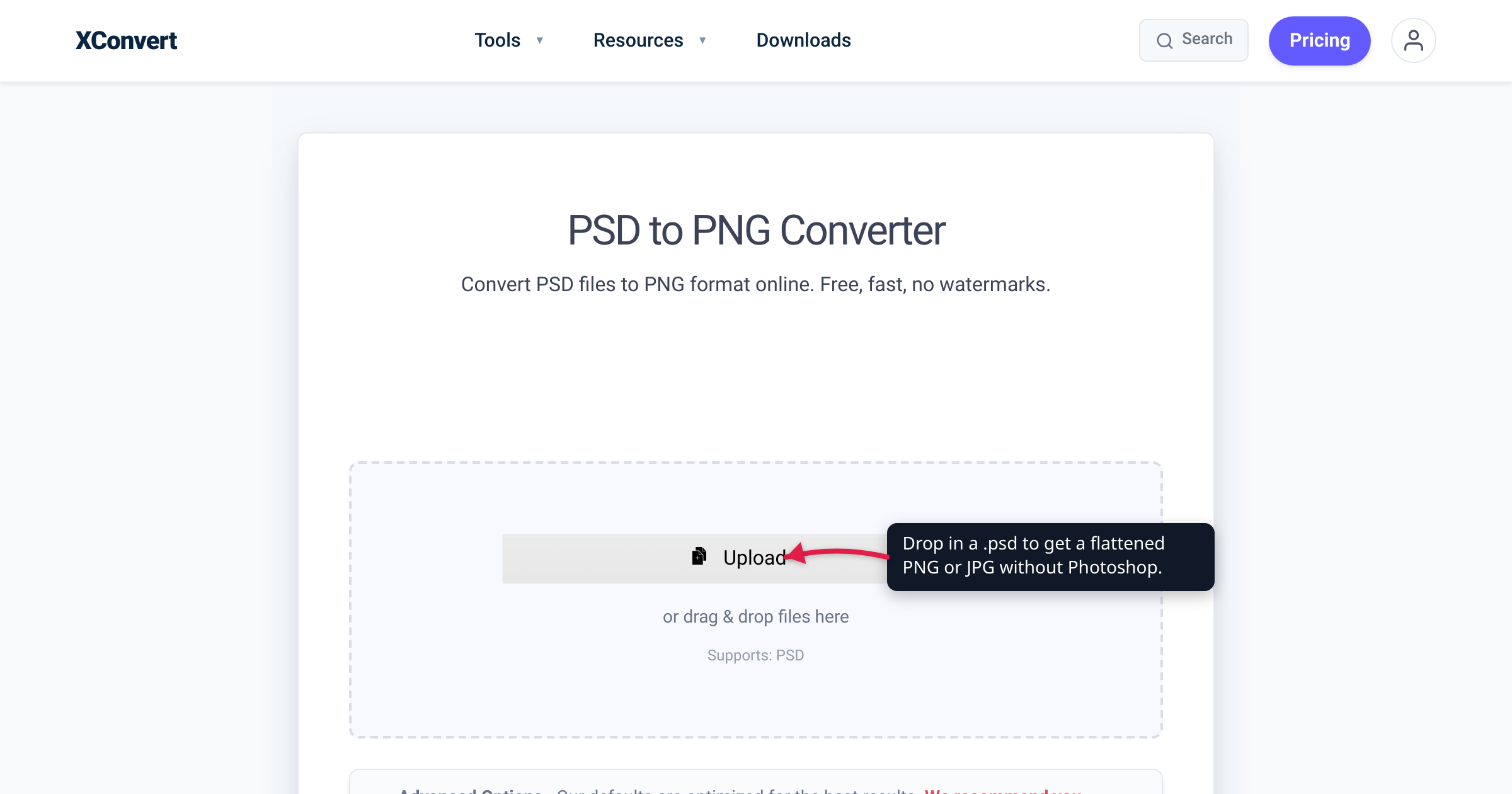
A client emails you homepage-mockup.psd. You buy a .psd flyer template from a marketplace. A colleague exports their design as a layered Photoshop file and drops it in the shared drive. In every case you just want the picture inside — but double-clicking the file opens nothing useful, and paying for a Photoshop subscription to look at one image is absurd. This guide shows how to turn a PSD into a plain PNG or JPG without Photoshop, explains exactly what happens to the layers, editable text, and transparency when you do, and is honest about the cases where you should reach for a real editor instead. The format facts below are checked against Adobe’s own documentation and the W3C and MDN specifications for PNG and JPEG.
Quick answer: A .psd is Adobe Photoshop’s native, layered working file — Adobe’s help calls the Photoshop format “the default file format and the only format, besides the Large Document Format (PSB), that supports all Photoshop features.” To get an image you can actually use, upload it to the xconvert PSD to PNG converter: it flattens every visible layer into one image. Choose PNG when you need transparency or crisp graphics (it’s lossless, with an alpha channel), or PSD to JPG when it’s a photo-like flat and you want the smallest file (JPG is smaller but lossy and can’t hold transparency). Editable text becomes pixels and flattening is one-way — keep the original .psd. If you need to change the layers, open it in Photoshop or the free browser editor Photopea instead.
Jump to a section
- What a PSD file actually is
- PNG or JPG: which flat format to pick
- What conversion does to layers, text, and transparency
- When to open Photoshop or Photopea instead
- Convert PSD to PNG or JPG on xconvert
- FAQ
What a PSD file actually is
PSD stands for “Photoshop Document,” and it is the native format of Adobe Photoshop — the file Photoshop writes while you’re still working. Adobe’s own help is precise about how special that makes it: the Photoshop format is “the default file format and the only format, besides the Large Document Format (PSB), that supports all Photoshop features.” A PSD, in other words, isn’t so much a picture as a complete, still-editable project.
That project holds far more than the flat image you’d see if it were printed:
- Layers and layer groups, each with its own opacity and blend mode
- Layer masks and alpha channels that decide what’s visible and what’s transparent
- Editable type layers — live text you can re-word, not baked-in pixels
- Adjustment layers and smart objects — non-destructive color and tone edits, and re-editable embedded content (all “Photoshop features” that only the PSD/PSB formats keep)
- Paths, spot colors, clipping paths, and duotone settings
Because it stores all of that, a PSD is a working file, not a delivery file — the design counterpart of a word processor’s editable project, great for editing and useless for handing to someone who just needs the result. That’s why a .psd won’t open in your photo viewer, a browser, a chat app, or an Office document: those programs expect a finished raster image like PNG or JPG, and everyday formats such as JPG or GIF plainly “lack the editable features of a PSD file.” (For scale: Photoshop can push a PSD up to 30,000 × 30,000 pixels; the PSB “Large Document Format” extends that to 300,000 pixels for oversized work.)
| PSD (Photoshop project) | PNG (delivery image) | JPG (delivery image) | |
|---|---|---|---|
| Purpose | Editable working file | Final graphic, opens anywhere | Final photo, opens anywhere |
| Layers / masks / smart objects | Yes | No — one flattened raster | No — one flattened raster |
| Editable text | Yes (live type layers) | No — text is pixels | No — text is pixels |
| Transparency | Yes | Yes (alpha channel) | No — fills with a solid color |
| Compression | — | Lossless | Lossy |
| Opens without Photoshop | Rarely | Everywhere | Everywhere |
PNG or JPG: which flat format to pick
Both PNG and JPG discard the layers — that’s the whole point — but they’re built for different kinds of picture, so the right choice depends on what your PSD actually contains.
Pick PNG for graphics, logos, UI, and anything transparent. The W3C defines PNG as a format for the “lossless, portable, well-compressed storage of … raster images,” with “an optional alpha channel.” Lossless means the exported pixels match the flattened composite exactly — no compression fuzz around sharp edges or text. Alpha channel means a transparent PSD background stays transparent. MDN’s guidance agrees: “PNG is preferred over JPEG for more precise reproduction of source images, or when transparency is needed.” So if your PSD is a logo, an icon, a web mockup, a badge with a see-through background, or anything with crisp lines and flat color — export PNG.
Pick JPG for photographs and photo-like flats where size matters. JPEG uses lossy compression, which the MDN image guide calls “the most widely used lossy compression format for still images … particularly useful for photographs.” That trade buys much smaller files on continuous-tone imagery — but it carries two costs: JPEG can’t store transparency at all (“JPEG does not support an alpha channel”), so any transparent area is filled with a solid color, usually white; and on sharp-edged content like “diagrams or charts” the lossy step “can produce unsatisfactory results” — think faint halos around text and hard edges. So reach for JPG when your flattened PSD is essentially a photograph — a retouched product shot, a rendered scene — and you want it small for email or the web.
A quick rule: transparency or crisp edges → PNG; photographic and no transparency → JPG. If you’re unsure which suits a given design, the best image format for photos vs graphics walks through it — and if you export a PNG that turns out huge because the content is photographic, you can convert that PNG to JPG afterward.
What conversion does to layers, text, and transparency
Neither PNG nor JPG has any concept of layers — the W3C notes that “all PNG images contain a single static image,” and JPEG is likewise one grid of pixels. So converting a PSD to either one necessarily means flattening: every visible layer, with its blend mode, opacity, and mask, is composited into a single image — exactly what Photoshop does when you use File → Export As. Here’s what happens to each part of your project:
- Layers: merged into one. Visible layers are combined as Photoshop would display them; hidden layers are dropped. The layer structure itself is gone from the output file.
- Editable text: rasterized. The live type layer you could re-word in Photoshop becomes plain pixels — you can no longer fix a typo in the exported file; you’d correct it in the PSD and convert again.
- Adjustment layers and smart objects: baked in. Their effect is applied to the pixels for good and can’t be dialed back or re-edited from the PNG or JPG.
- Transparency: preserved in PNG (its alpha channel carries transparent backgrounds, soft shadows, and anti-aliased edges) and lost in JPG, which has no alpha and fills empty areas with a solid color.
Two honest caveats. First, flattening is one-way. Opening the resulting PNG or JPG in any editor gives you a single merged layer — the layers, live text, adjustment layers, and smart objects do not come back. Archive the .psd if there’s any chance the design gets revised. Second, JPG shifts your pixels slightly: because JPEG is lossy, a photo-heavy PSD exported to JPG is never quite pixel-identical to the composite — usually invisible at a high quality setting, but it compounds if the same JPG is re-saved over and over. PNG avoids that entirely, which is another reason to prefer it whenever fidelity matters more than file size.
When to open Photoshop or Photopea instead
Converting is the right move when you need the image. It’s the wrong move when you need to change the design, because flattening throws away everything that made the file editable.
Convert to PNG or JPG when:
- you just need to see, post, embed, or place the picture;
- someone sent you a PSD when the flat image was all you wanted;
- you’re on a locked-down work laptop, a Chromebook, or a borrowed machine where installing (or subscribing to) software isn’t an option;
- it’s a one-off you’ll never edit.
Open a real editor when:
- you need to re-word text, move or hide a layer, or adjust a mask;
- you’ll be revising the file back and forth with whoever created it;
- you want control over exactly which layers end up in the export.
Photoshop is the obvious editor, but it’s a paid Adobe subscription you may not have. A genuinely useful free alternative is Photopea, a browser-based editor that, in its own words, “fully supports a popular PSD format, both opening and saving files” — layers included — with “no need to install heavy software.” Unlike a converter, it lets you actually edit the PSD, and its site states “there are no uploads” and that files “never leave your device,” which is reassuring for confidential work. Use Photopea when you need to inspect every layer or make a light edit; use a converter like xconvert when you only need the finished PNG or JPG.
Convert PSD to PNG or JPG on xconvert
The xconvert PSD to PNG converter runs the flatten-and-export on its servers, so nothing installs on your machine:
- Open xconvert.com/convert-psd-to-png and click Upload (or drag the file onto the page). The button’s dropdown also pulls files From my Computer, From Google Drive, or From Dropbox.
- For most files you can convert as-is — under Advanced Options (the gear icon), the Quality Preset is already set for a faithful export. To hit a target instead, the same panel offers Specific file size and an Image resolution control (Keep original by default, or Resolution Percentage, Preset Resolutions, or an exact Width x Height).
- For logos, icons, and flat-color art, open Colors and choose By Color Reduction + Dither to produce a much smaller indexed PNG; leave it on ORIGINAL for full-color work.
- Click Convert, then Download. Batch works too — queue several PSDs and convert them together.
- Want a JPG instead? Use the PSD to JPG converter, where the Image Compression panel adds a Quality Preset and Specific file size so you can trade a little quality for a much smaller photo.
Your file uploads over an encrypted connection, is processed on our servers, and is deleted automatically a few hours later.
FAQ
How do I open a PSD file without Photoshop?
You have two paths. If you only need the image, convert it: upload the .psd to the PSD to PNG converter and you get back a flattened PNG (or JPG) that opens anywhere — with nothing installed, because the conversion runs on xconvert’s servers. If you need to see or edit the layers, open it in the free browser editor Photopea, which supports PSD files including their layers.
Does converting PSD to PNG keep the transparent background?
Yes. PNG supports an alpha channel, so a PSD with a transparent background — or with soft shadows and anti-aliased edges — exports as a PNG with matching transparency. JPG cannot keep it (“JPEG does not support an alpha channel”), so converting to JPG fills the empty areas with a solid color, usually white. For a transparent result, always choose PNG.
Will my layers and editable text survive the conversion?
No. PNG and JPG are single-raster formats with no layers, so every visible layer is flattened into one image and live type layers become pixels — you can’t re-word the text in the exported file. Adjustment layers and smart objects are baked in too. Keep the original .psd as your editable master and re-convert if you need changes.
Should I convert PSD to PNG or JPG?
Match the format to the content. PNG for graphics, logos, screenshots, UI, and anything that needs transparency or crisp edges — it’s lossless. JPG for photographs and photo-like flats where a smaller file matters and you don’t need transparency — it’s lossy but much smaller on continuous-tone images. When in doubt, PNG is the safer, higher-fidelity choice; you can always shrink it to JPG afterward if the PNG is too big.
Can I turn a PNG or JPG back into a layered PSD?
Not meaningfully. You can open a PNG or JPG in Photoshop or Photopea and save it as a .psd, but you’ll have one flattened layer — the original layers, live text, adjustment layers, and smart objects can’t be recovered from a flat image. Flattening is one-way, which is why the PSD, not the exported image, is the file to archive.
Is the online converter safe for a client’s PSD?
The file uploads to xconvert’s servers, is converted there, and is deleted automatically a few hours later — it isn’t kept permanently. If you’d prefer a file that never leaves your machine at all, Photopea processes PSDs in your browser (its site states files “never leave your device”), which can be the better choice for confidential designs.
Sources
Last verified 2026-07-16.
- Adobe — Supported file formats in Photoshop — “Photoshop format (PSD) is the default file format and the only format, besides the Large Document Format (PSB), that supports all Photoshop features.”
- Wikipedia — Adobe Photoshop (file format), citing Adobe’s Photoshop File Formats Specification — .PSD is the default “Photoshop Document”; stores layers with masks, transparency, text, and alpha channels, plus spot colors, clipping paths, and duotone settings; PSD max 30,000 px / PSB max 300,000 px; JPG and GIF “lack the editable features of a PSD file.”
- W3C — Portable Network Graphics (PNG) Specification, Third Edition — PNG provides “lossless, portable, well-compressed storage of … raster images” with “an optional alpha channel”; “all PNG images contain a single static image” (no layers); sample depths up to 16 bits.
- MDN — Image file type and format guide — JPEG is lossy, “does not support an alpha channel,” and is “particularly useful for photographs”; “PNG is preferred over JPEG for more precise reproduction of source images, or when transparency is needed.”
- Photopea — Online Photo Editor — a free, browser-based editor that “fully supports a popular PSD format, both opening and saving files,” layers included; “there are no uploads” and files “never leave your device.”
- xconvert — PSD to PNG converter and PSD to JPG converter — tool behavior and UI verified live: Upload (From my Computer / Google Drive / Dropbox), Advanced Options (Quality Preset, Specific file size, Image resolution, Colors → By Color Reduction + Dither), Convert, Download; a server-side flatten-and-export.