 By Stephanie Taylor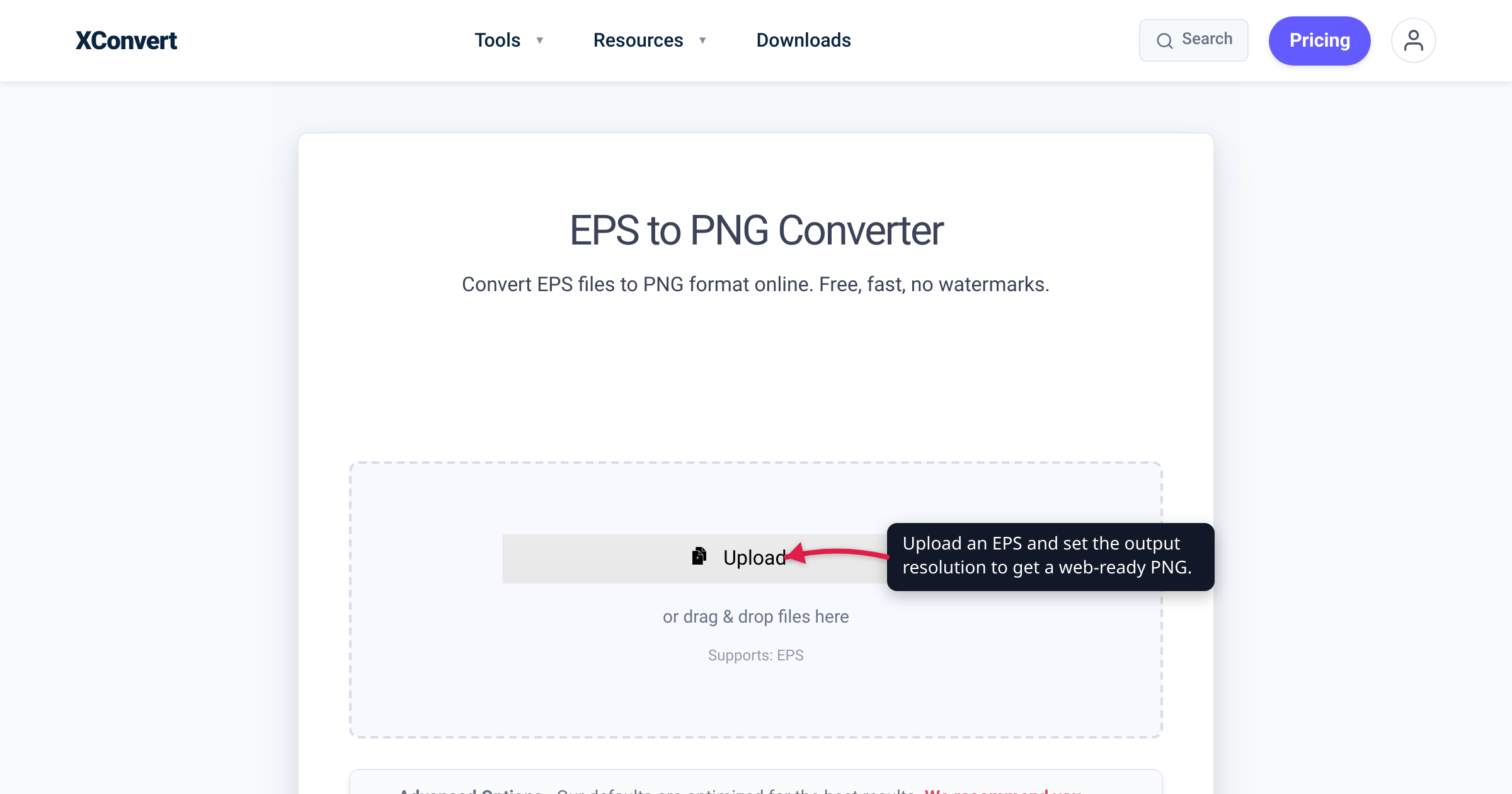
A print shop or a designer hands you the company logo as a .eps file. You double-click it and nothing happens — or Windows shows a blank icon, and dragging it into a slide deck or a web page gives you a “can’t display this picture” placeholder. That’s not a broken file; EPS is a professional print format, not a web one. Converting it to PNG gives you a crisp, transparent, web-ready image you can actually use — and the one setting that matters is the resolution you rasterize it at. We verified the live converter’s controls and every EPS fact below against Adobe, the Library of Congress, and Microsoft’s own documentation.
Quick answer: EPS (Encapsulated PostScript) is a legacy Adobe vector format built for print — logos, clip art, and artwork are often delivered as .eps, but browsers, Office, and most everyday apps can’t display it. Convert EPS to PNG to get a web-usable raster with transparency and sharp edges. Because EPS is vector (no fixed pixels), the key choice is the output resolution: export a web logo around 1000–2000 px on its longest side, or larger for print/retina. Keep the original EPS (or an SVG/AI) as your master — a PNG can’t be scaled back up. Complex print EPS in CMYK may shift colour slightly when rasterized to RGB PNG.
Jump to a section
- What EPS is — and why nothing opens it
- The key step: choosing your output resolution
- Transparency and colour: the honest caveats
- Convert EPS to PNG on xconvert
- FAQ
What EPS is — and why nothing opens it
EPS stands for Encapsulated PostScript. Per the Library of Congress format registry, it was “developed in the late 1980s by Adobe Systems Incorporated to facilitate the incorporation of illustrations into textual documents for printing,” and an EPS file “employs Adobe’s PostScript language to represent a single rectangular graphic.” In plain terms it’s an old, print-oriented vector format — the same PostScript technology that drives professional printers — and it’s what design and print shops still hand out for logos, clip art, and line art. The LoC notes EPS has been “particularly useful for illustrations intended for use at different scales, such as logos and advertisements.”
Two things make it awkward in 2026:
- Almost nothing on a normal computer renders it. PostScript needs a PostScript interpreter to draw, and consumer software has been dropping EPS. Microsoft turned off the ability to insert EPS images into Office — Word, PowerPoint, Excel — as of its April 11, 2017 security update; try it today and you get only a placeholder telling you the picture can’t be displayed. Web browsers never rendered EPS in an
<img>tag in the first place. The LoC flatly calls EPS “a legacy format,” quoting Microsoft’s assessment that “EPS files are a legacy format that has largely fallen out of favor in today’s ecosystem.” - What you see on screen is usually only a preview. The EPS specification embeds “a very simple device-independent representation for an embedded bitmapped preview,” and that preview “is usually of lower resolution” (LoC). So even when a thumbnail shows up, it’s a low-res stand-in — not the real artwork.
That’s why converting to PNG is the practical move: PNG is a raster image every browser, phone, social platform, and Office app displays natively, with transparency and crisp edges intact.
The key step: choosing your output resolution
Here’s the thing that trips people up. EPS is vector: it has no fixed pixel dimensions. It describes shapes with math, so it can be drawn at any size. PNG is the opposite — a raster grid of pixels at a fixed size. Converting EPS → PNG is a rasterization: the converter renders the vector artwork into pixels, and you choose how many. Set it too small and the logo looks soft when it’s scaled up; set it sensibly and it stays razor-sharp.
Pick the resolution for where the PNG will actually live:
| Use | Suggested longest side |
|---|---|
| Social avatar / small web icon | ~500–800 px |
| Standard web logo / header graphic | ~1000–2000 px |
| Retina / 2× (sharp on high-DPI screens) | 2× the display size |
| Print or large-format | Much larger — print dimensions × DPI |
There’s no single “correct” number — it depends on the largest size the image will ever display at. When in doubt, export bigger than you think you need: you can always scale a large PNG down without losing quality, but scaling a small one up re-introduces exactly the blur you converted to escape.
This is also why you should keep the EPS (or an AI/SVG) as your master. Rasterizing is a one-way step — the PNG is frozen at whatever resolution you chose, and there’s no way to recover the infinitely-scalable vector from it afterwards. Need a bigger version later? Go back to the EPS and rasterize again at the new size. If you’d rather hold a modern, web-native vector master, an SVG is the equivalent for logos and icons — see best image format for photos vs graphics for when vector beats raster.
Transparency and colour: the honest caveats
Two things worth knowing before you convert:
Transparency is conditional. PNG supports full alpha transparency, and a logo drawn on no background will rasterize to a transparent PNG — exactly what you want for placing it over a coloured header. But EPS/PostScript itself has no alpha channel (Adobe’s own documentation notes the EPS format does not support transparency), so any transparency in the result comes from the unpainted areas of the artwork, not from the EPS. If the file actually contains a painted — often white — rectangle behind the logo, that background comes through as solid white in the PNG. There’s no reliable way to tell which you have until you convert and look.
CMYK print colour may shift. EPS is a print format, so its colours are frequently defined in CMYK (the four-ink print model). PNG is an RGB format for screens. When a CMYK EPS is rasterized to an RGB PNG, saturated colours — deep blues, bright greens, some reds — can shift slightly, because the two colour models don’t cover exactly the same range. For most logos the difference is invisible; for colour-critical brand work, check the result, and if it matters, get the artwork in the right colour space from the source.
Embedded raster stays raster. EPS can “combine vector graphics with raster data,” so if your file is really a bitmap wrapped in PostScript, converting to PNG won’t make that part any sharper than its original pixels. Only true vector artwork rasterizes crisply at any size you pick.
None of this is a reason to avoid the conversion — it’s just what to expect. For a logo delivered as clean vector EPS, PNG is the right web format. If you later want a smaller, photographic-style file with no transparency, you can convert the PNG to JPG.
Convert EPS to PNG on xconvert
The xconvert EPS to PNG converter rasterizes your vector file on the server and lets you set the output resolution directly:
- Open xconvert.com/convert-eps-to-png and click + Add Files to upload your
.eps(or drag and drop it onto the page). - Open Advanced Options (the gear icon) and find the Image resolution section — this is where you set the output size. Use Width x Height, a Preset Resolutions value, or Resolution Percentage to rasterize at the pixel dimensions your use needs (a web logo around 1000–2000 px wide; larger for print or retina).
- (Optional) Set the Quality Preset — it defaults to Very High (Recommended) — and leave Colors on Original unless you specifically want palette reduction.
- Click Convert and download your PNG. For most logos the defaults are fine; the one setting worth touching is the resolution.
Your file is uploaded over an encrypted connection, is processed on our servers and deleted automatically a few hours later. Nothing is kept.
Not sure PNG is the right target? See best image format for photos vs graphics to choose, then convert PNG to JPG once you have a raster you want to shrink for sharing.
FAQ
How do I open an EPS file?
You need software that can interpret PostScript — a design app like Adobe Illustrator or Photoshop, or the free Inkscape/GIMP — or an online converter. Everyday apps and browsers can’t display EPS, and Microsoft turned off EPS support in Office back in 2017. The simplest fix for a file you just need to use is to convert it to PNG (or JPG), which opens everywhere.
Can I convert EPS to PNG with a transparent background?
Often, yes — if the artwork has no painted background. PNG supports transparency, so a logo drawn on nothing rasterizes with a transparent background. But EPS itself has no alpha channel, so if the file contains a solid (usually white) background behind the logo, that white comes through. Convert it and check; if you see unwanted white, the artwork needs cleaning up at the source or a white-knockout step.
What resolution should I convert EPS to PNG at?
As large as the biggest size it will ever display at. A web logo is usually fine around 1000–2000 px on its longest side; a small avatar can be 500–800 px; for print or high-DPI (retina) screens, go 2× or more. Because EPS is vector you’re free to pick — set the Image resolution in the converter’s Advanced Options. Export big: you can scale a PNG down cleanly, but not up.
Why won’t my EPS open in Word or PowerPoint?
Microsoft disabled EPS support in Office as of the April 11, 2017 security update, because EPS files can carry embedded scripts and were being used as an attack vector. Inserting one now shows only a placeholder saying the picture can’t be displayed. Convert the EPS to PNG and insert that instead.
Is EPS the same as SVG or AI?
They’re related vector formats. EPS is the old PostScript-based one built for print; AI is Adobe Illustrator’s native format; SVG is the modern, web-native vector that browsers render directly. For a logo you’ll reuse, keep a vector master (SVG or AI) and export PNGs for specific uses — see best image format for photos vs graphics.
Will converting EPS to PNG lose quality?
The PNG is sharp at the resolution you export — but it’s frozen there. Unlike the EPS it can’t be scaled up without blurring, and if the EPS colours were CMYK they may shift slightly in the RGB PNG. That’s why you keep the EPS as a master and rasterize a fresh PNG whenever you need a different size.
Sources
Last verified 2026-07-16.
- Library of Congress — Encapsulated PostScript (EPS) File Format, Version 3.x — EPS developed late 1980s by Adobe from the PostScript language; a single rectangular graphic; vector + raster “metafiles”; logos/advertisements at different scales; embedded low-resolution preview; explicitly calls EPS “a legacy format.”
- Microsoft Support — Support for EPS images has been turned off in Office — EPS insert disabled as of the April 11, 2017 security update (embedded-script vulnerability); inserting an EPS now shows a “picture can’t be displayed” placeholder.
- Adobe — About PostScript and EPS files (InDesign) — EPS holds both vector and bitmap graphics, transfers vector artwork between apps, shows a low-resolution on-screen preview while keeping high-resolution PostScript for output, prints via a PostScript printer, and does not support transparency.
- xconvert — EPS to PNG converter — live tool; UI labels (“+ Add Files”, Advanced Options, Image resolution, Quality Preset) verified 2026-07-16.