 By Stephanie Taylor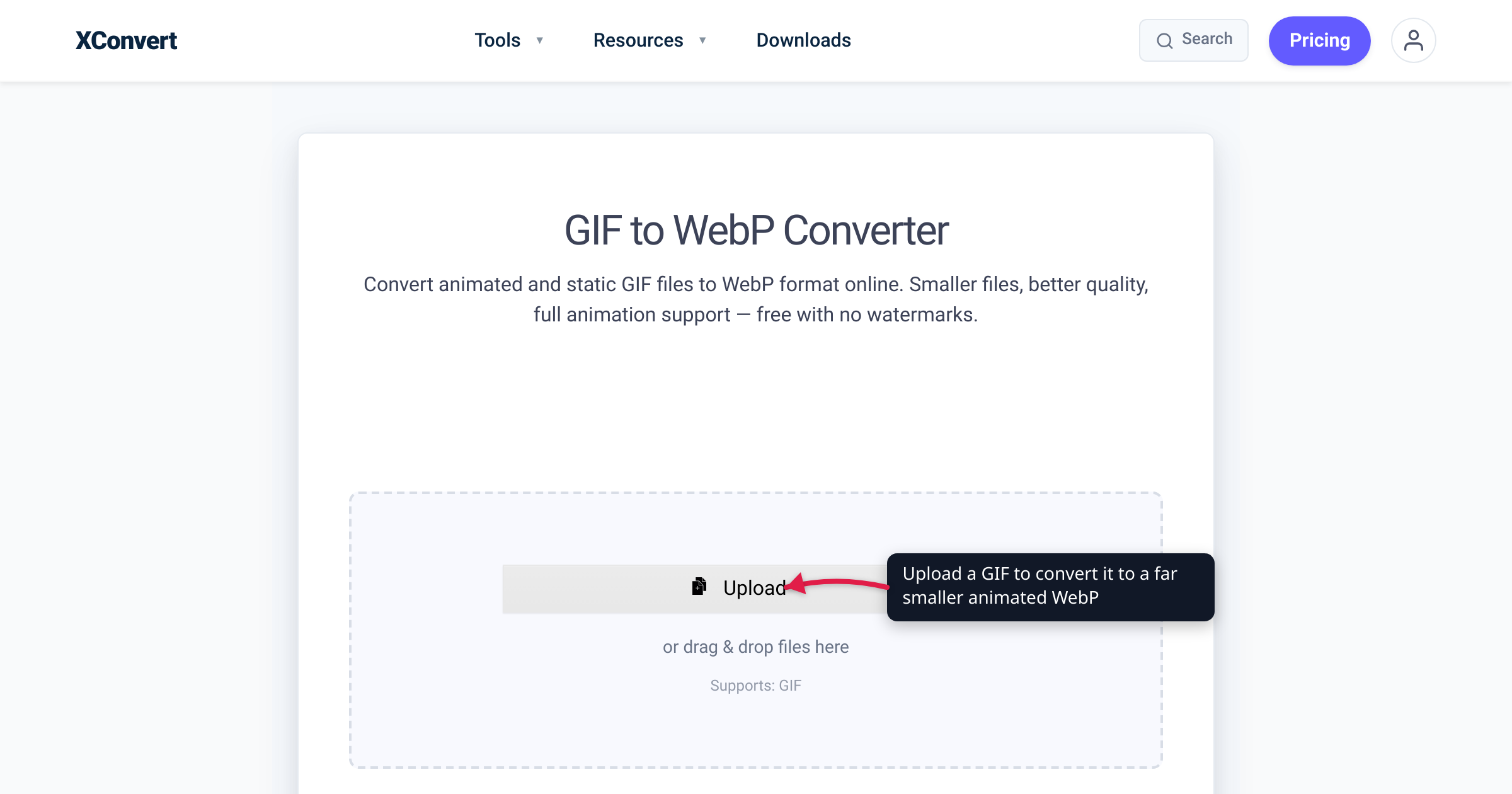
That looping demo or reaction clip on your page is almost certainly an animated GIF — and it is almost certainly the heaviest file on the page. Convert it to an animated WebP and you keep the exact same animation, every frame, at a fraction of the size: Google measured animated GIFs converted to lossy WebP coming out 64% smaller. You also escape GIF’s two ancient limits — a 256-color ceiling and crude on/off transparency — for full 24-bit color and smooth alpha. This guide covers how much you actually save, whether every browser can play the result (yes — about 96% now), the one case where a GIF is still the right call, and how to convert one. The size figures here come straight from Google’s WebP documentation, the support numbers from caniuse, and we verified the converter produces a true, multi-frame animated WebP — not a flattened still.
Quick answer: Converting an animated GIF to animated WebP preserves the whole animation while cutting size dramatically — ~64% smaller with lossy WebP, ~19% smaller even with lossless, per Google. WebP also upgrades GIF’s 256 colors to full 24-bit color and its on/off transparency to smooth 8-bit alpha. Animated WebP now plays in every current major browser (~96% of users globally, per caniuse) and drops straight into a normal
<img>tag — no<video>element needed. Keep a GIF only where the destination won’t accept WebP (many email clients; some chat and forum tools).
Jump to a section
- Same animation, a fraction of the size
- Full color and real transparency, too
- Do all browsers support animated WebP?
- WebP or WebM/MP4 — image or video?
- When a GIF is still the right call
- Convert GIF to WebP on xconvert
- FAQ
Same animation, a fraction of the size
The headline figure comes from Google’s own WebP documentation: “Animated GIFs converted to lossy WebPs are 64% smaller, while lossless WebPs are 19% smaller.” That is the whole pitch in one sentence — the animation is identical, the byte count is not.
The reason GIF is so heavy is structural. GIF is an image format from 1987 that stores animation as a stack of near-complete frames with little compression between them, each locked to a 256-color palette. WebP was designed for the modern web and compresses far more aggressively. You get to choose how aggressively:
- Lossy WebP (the default) trades imperceptible detail for the biggest win — Google’s 64% smaller. For screen recordings, UI demos, and reaction clips this is almost always the right choice; the result is visually indistinguishable from the GIF.
- Lossless WebP reproduces every pixel of the source exactly and still comes out 19% smaller than the GIF. Use it when the animation has hard edges, text, or flat color you refuse to touch.
Either way you win, and the win matters most where it hurts today: page speed. A multi-megabyte GIF is frequently the largest asset on a page, and it blocks nothing but still eats bandwidth and drags your Largest Contentful Paint. Swapping it for a WebP that is a third or a fifth of the size is one of the cleanest performance improvements you can ship.
Treat the exact percentages as representative, not universal — the real number depends on the clip’s length, resolution, colors, and motion — but the direction and magnitude are reliable across real-world GIFs.
Full color and real transparency, too
Size is the headline, but WebP also fixes the two quality problems baked into GIF. Per Google, “WebP supports 24-bit RGB color with an 8-bit alpha channel, compared to GIF’s 8-bit color.” That single sentence is two upgrades:
- Color: 16.7 million vs 256. Every pixel in a GIF is an 8-bit index into a palette of at most 256 colors, per MDN. To fake a gradient or real-world footage, the encoder has to dither — scattering dots to trick the eye — which looks worse and bloats the file. WebP’s 24-bit color reproduces smooth gradients and skin tones directly, with no banding and no dithering.
- Transparency: 256 levels vs on/off. GIF transparency is binary — a pixel is either fully opaque or fully transparent, nothing between. That is why a GIF placed on a colored background so often shows an ugly jagged “halo” around soft edges and drop shadows. WebP’s 8-bit alpha channel gives 256 levels of transparency, so anti-aliased edges blend cleanly onto any background.
| Animated GIF | Animated WebP | |
|---|---|---|
| File size | Baseline | ~64% smaller (lossy), ~19% smaller (lossless) |
| Colors | 256 max (8-bit palette) | 24-bit — ~16.7 million |
| Transparency | 1-bit, on/off only (hard edges) | 8-bit alpha — 256 levels (smooth edges) |
| Animation | Yes | Yes (all frames, looping) |
So a GIF→WebP conversion is not a lossy downgrade you tolerate for the size — it can genuinely look better than the source, because the WebP isn’t bound by the 256-color cap that already degraded the GIF. WebP is the modern general-purpose image format for exactly these reasons; for how it compares on ordinary still images, see PNG vs WebP vs JPG.
Do all browsers support animated WebP?
Effectively, yes. Per caniuse, WebP reaches about 96% of users globally, and every current major browser supports it — including animated WebP, which MDN confirms is a first-class part of the format (“WebP also supports animation… Looping is supported”):
- Chrome — since v32
- Firefox — since v65
- Edge — since v18
- Safari — the latecomer: full desktop support arrived in Safari 16, with iOS support from Safari 14. Older Safari builds (14–15) handled static WebP but were unreliable with animation.
For the small remainder on genuinely old browsers, the clean fallback is a <picture> element — modern browsers take the tiny WebP, everyone else falls back to the original GIF:
<picture>
  <source srcset="clip.webp" type="image/webp">
  <img src="clip.gif" alt="Animated demo">
</picture>
In practice, unless you must support very old Safari or legacy devices, you can serve the WebP directly and retire the GIF.
WebP or WebM/MP4 — image or video?
There are two ways to modernize a heavy GIF, and they land in different places:
- Animated WebP keeps it an image. It drops straight into a normal
<img src="clip.webp">tag — no autoplay attributes, no muted flag, no<video>markup. It autoplays and loops by nature, exactly like a GIF, and it is the lowest-friction swap: change the file, change the extension, done. - WebM or MP4 turns it into video. These codecs usually produce an even smaller file than WebP, but they require an HTML5
<video autoplay loop muted playsinline>element (and ideally two<source>files for fallback). More setup, smaller bytes.
Pick WebP when you want a drop-in image replacement — a favicon-simple swap that behaves like the GIF did, with transparency intact. Pick video when raw size is everything and you are comfortable managing a <video> element. If that is your case, Convert GIF to WebM (stop using GIFs for video) walks through the video path and the exact markup.
One thing to note: transparency is a WebP strength and a video weakness — <video> doesn’t do alpha in any cross-browser way. If your animation needs to sit on a colored or patterned background, WebP is the clear pick.
When a GIF is still the right call
The exception is the destination, not the technology. Some places simply won’t render an animated WebP, and there a GIF is still the reliable choice:
- Email. Many email clients don’t support WebP at all, so an animated GIF remains the dependable way to get inline, autoplaying motion into an inbox.
- Some chat, forum, and code-hosting tools. A number of platforms are built around GIF and accept it everywhere, while WebP support is inconsistent. When you’re posting somewhere that expects a GIF, give it a GIF.
That is the reverse direction — you’d convert your WebP (or the original) back to a GIF for that specific destination. For everything you control, especially your own web pages, animated WebP is the better default.
Convert GIF to WebP on xconvert
The xconvert GIF-to-WebP converter turns your GIF into a true animated WebP — all frames preserved — in a few clicks:
- Open xconvert.com/convert-gif-to-webp and click Upload to add your GIF (from your computer, Google Drive, or Dropbox).
- For most GIFs the defaults are ideal — leave Lossless? on No (Recommended) for the biggest size win (lossy WebP). Switch it to Yes only when you need every pixel identical to the source.
- To fine-tune, open Advanced Options (the gear icon). Under Image Compression you get two choices: leave it on Quality Preset, where Very High (Recommended) is preselected (the ladder runs Highest · Very High (Recommended) · High · Medium · Low · Very Low · Lowest), or switch to Specific file size and type a target in B / KB / MB with the Auto Scale toggle alongside it.
- To shrink further, scale the animation down under the resolution controls — set a Resolution Percentage, pick a Preset Resolution, or enter a Width (Keep aspect ratio).
- Click Convert (it appears once your file is added), then download your animated WebP.
Your file uploads over an encrypted connection, is processed on our servers, and is automatically deleted a few hours later. Nothing stays around.
FAQ
Is WebP smaller than GIF?
Yes — substantially. Google’s WebP documentation states that animated GIFs converted to lossy WebP are 64% smaller, and to lossless WebP are 19% smaller. The exact saving depends on the clip’s length, resolution, and complexity, but converting a GIF to WebP reliably makes it a fraction of the size while keeping the same animation.
Does WebP support animation?
Yes. Animated WebP is a full part of the format: it stores multiple frames and loops just like a GIF, with support in every current major browser. Per MDN, “WebP also supports animation… Looping is supported.” The xconvert converter produces a genuine multi-frame animated WebP, not a single flattened frame.
Does converting a GIF to WebP lose quality?
Barely, if at all — and it can look better. With lossy WebP (the ~64%-smaller option) the result is visually indistinguishable from the GIF at sensible settings, and it gains full 24-bit color the GIF never had. With lossless WebP (still ~19% smaller) every pixel is identical to the source. Either way you’re not bound by GIF’s 256-color ceiling, so gradients and footage often look smoother than the original.
Do all browsers support animated WebP?
Almost universally — about 96% globally, per caniuse. Chrome (v32+), Firefox (v65+), and Edge (v18+) have supported it for years; Safari was the latecomer, with full desktop support in Safari 16 and iOS support from Safari 14. To cover the small remainder on old browsers, serve the WebP inside a <picture> element with the original GIF as the <img> fallback.
When should I still use a GIF instead of WebP?
When the destination won’t render WebP. The big one is email — many email clients don’t support WebP, so an animated GIF is still the reliable way to animate in an inbox. Some chat, forum, and code-hosting tools are built around GIF too. For those, convert back to GIF; for your own web pages, WebP wins.
Does animated WebP work in a plain <img> tag?
Yes — that’s its biggest advantage over video. An animated WebP drops into <img src="clip.webp"> and autoplays and loops on its own, exactly like a GIF, with no <video> element and no autoplay/muted attributes to manage. Converting to WebM or MP4 gets you an even smaller file but requires a <video> tag and doesn’t do cross-browser transparency.
Will the converter keep all my frames?
Yes. We verified that xconvert’s GIF-to-WebP path produces a real, multi-frame animated WebP that preserves the entire animation and its loop — it does not collapse the clip to a single still. (Extracting one frame is a different operation entirely; converting a GIF here keeps the motion.)
Sources
Last verified 2026-08-31.
- Google — WebP Frequently Asked Questions — “Animated GIFs converted to lossy WebPs are 64% smaller, while lossless WebPs are 19% smaller”; “WebP supports 24-bit RGB color with an 8-bit alpha channel, compared to GIF’s 8-bit color.”
- MDN — Image file type and format guide — GIF’s 256-color (8-bit indexed) palette and binary (on/off) transparency; WebP animation and looping support; recommends WebP/AVIF/APNG for animation over GIF.
- caniuse — WebP image format — ~96% global support; Chrome 32+, Firefox 65+, Edge 18+, Safari full from 16 (desktop) / 14 (iOS).
- xconvert — GIF to WebP Converter — control labels verified 2026-08-31 against the live option set: Image Compression offers Quality Preset (Very High (Recommended) preselected) and Specific file size (B / KB / MB plus Auto Scale); Image resolution (Keep original preselected) and Lossless? (No (Recommended) preselected) also render. There is no Image Quality (%) slider on this page — it is hidden for every convert-to-image page.