 By James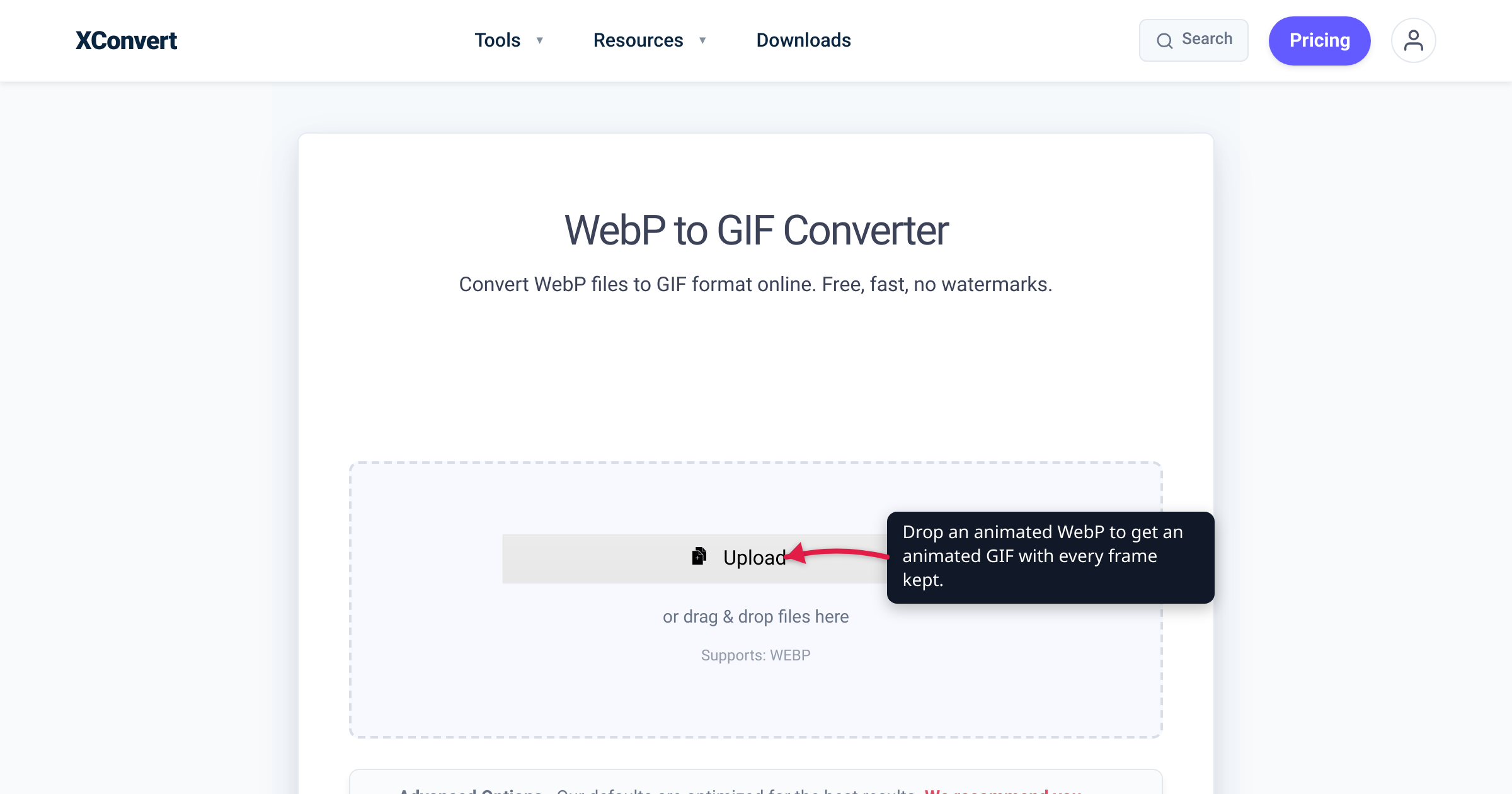
You saved an animated WebP — maybe a sticker from a Discord or Telegram chat, maybe a looping animation you grabbed off a web page — and now the place you want to use it won’t take it. An older email client, a forum, a GitHub comment, some chat apps, an aging CMS: plenty of destinations still accept an animated GIF but reject an animated WebP outright. The fix is to convert the WebP to a GIF, and the one thing people worry about — will it still move? — has a reassuring answer. We tested it on xconvert: a 4-frame animated WebP came out as a 4-frame animated GIF, every frame intact and still looping.
Quick answer: Converting an animated WebP to a GIF keeps the animation — all frames, in order, still looping. Do it when your destination accepts GIF but not animated WebP. The honest tradeoffs run the other way on quality and size: GIF is capped at 256 colors per frame (WebP is full-color), so smooth gradients can band or dither; GIF transparency is 1-bit (a pixel is fully visible or fully invisible), so soft, semi-transparent edges harden; and the GIF you get is usually larger than the WebP, because GIF’s compression is far less efficient. You trade file size and color for near-universal compatibility. Do it with the WebP to GIF converter.
Jump to a section
- Why convert an animated WebP to GIF
- Yes — the animation survives
- What you trade: color, size, and transparency
- WebP vs GIF for animation, at a glance
- Convert an animated WebP to GIF on xconvert
- FAQ
Why convert an animated WebP to GIF
Animated WebP is the better format on paper — smaller, full-color, with real alpha transparency, and Google built it to beat both GIF and APNG on size. Per Google, animation is supported in WebP and “can provide reduced sizes compared to GIF and APNG.” The catch is reach. Animated WebP is a relatively modern format, and a lot of the places you’d want to drop an animation into still don’t render it:
- Older email clients and webmail may show a broken image or freeze it on a single frame.
- Some chat and team apps, forums, and comment fields (Slack messages, GitHub comments, older discussion boards) accept a GIF upload but not a
.webp. - Aging CMSes and upload forms that whitelist
.gif/.png/.jpgreject.webpon sight.
GIF, by contrast, is nearly 40 years old and understood by essentially everything. That universality is the whole reason to step down to it: you’re not converting because GIF is better, you’re converting because GIF is accepted where animated WebP isn’t. (If your WebP is a single still image rather than an animation, you usually want PNG or JPG instead — see Convert WebP to PNG or JPG.)
Yes — the animation survives, frame for frame
The most common fear with this conversion is that you’ll upload a moving sticker and get back a frozen still. That does happen with some conversions — sending an animated WebP straight to a video format like MP4 or WebM can flatten it to a single frame on some converters — but WebP-to-GIF is a like-for-like animated path. Both formats store animation the same fundamental way: a sequence of frames, each with its own timing, plus a loop count. As MDN describes it, “GIF supports simple animation,” and WebP “also supports animation… Looping is supported.” So there’s a clean mapping from one to the other.
We verified it on xconvert directly: a 4-frame animated WebP converted to a 4-frame animated GIF — all four frames present, in order, still looping. The converter handles both static and animated WebP files and carries the loop across. If the motion is the entire point of your file, this is the dependable way to keep it.
What you trade: color, size, and transparency
Compatibility isn’t free. GIF dates to 1987, and three of its limits will change your image on the way in.
256 colors per frame. In a GIF, “each pixel… is represented by a single 8-bit value serving as an index into a palette of 24-bit colors,” and that palette holds at most 256 entries — the GIF89a specification caps the color table at 2⁸ = 256. WebP has no such ceiling: lossless WebP stores 8-bit ARGB, meaning full 24-bit RGB color plus alpha. So an animation with smooth gradients, skin tones, or photographic detail gets its colors crushed down to a 256-entry palette. The encoder papers over the gap with dithering — a stipple of dots that fakes the in-between shades — which is why a WebP-to-GIF often looks slightly grainier, or shows visible banding in skies and fades.
Bigger files. GIF compresses each frame on its own with 1980s-era LZW and has no efficient way to reuse pixels that don’t change between frames. WebP was engineered for exactly this job, which is why Google states animated WebP delivers reduced sizes versus GIF. The practical result: the GIF you get out is usually larger — sometimes several times larger — than the WebP you put in. That’s expected, not a defect. (For the full why-is-GIF-so-heavy story, and when a video format beats it outright, see GIF vs MP4 file size.)
Hard-edged transparency. WebP carries an 8-bit alpha channel — 256 levels of transparency, so genuinely semi-transparent pixels are possible. GIF has no alpha channel at all. In GIF, “pixels are opaque, unless a specific color index is designated as transparent, in which case pixels colored that value are entirely transparent.” Transparency is 1-bit: a pixel is either fully visible or fully invisible, nothing between. Soft, feathered edges, drop shadows, and glassy semi-transparent areas can’t survive — they harden into a jagged edge or get filled against a background color (a matte).
WebP vs GIF for animation, at a glance
| Animated WebP | Animated GIF | |
|---|---|---|
| Colors per frame | Full color (24-bit RGB) | 256 max |
| Transparency | 8-bit alpha (semi-transparent OK) | 1-bit (on/off only) |
| Animation & looping | Yes | Yes |
| File size (same clip) | Smaller | Usually larger |
| Where it’s accepted | Modern browsers; patchy elsewhere | Nearly everywhere |
Every row except the last favors WebP — which is exactly why you’d only convert down to GIF when you have to. The one row that matters for this task is compatibility, and that’s the row GIF wins.
Convert an animated WebP to GIF on xconvert
- Open the WebP to GIF converter and click Upload (the + Add Files button) — add your file From my Computer, From Google Drive, or From Dropbox.
- (Optional) Open Advanced Options — the Options gear — to tune the output. The defaults are set to keep the animation faithful, so you can skip this for a straight conversion.
- The controls on screen straight away are File Compression — which opens on Quality preset, set to High (Recommended) (the ladder runs Highest · Very High · High (Recommended) · Medium · Low · Very Low · Lowest) — and Framerate, which defaults to 10 FPS (Recommended); lower it for a smaller file, at the cost of choppier motion. There’s also a Combine? control, which only matters if you upload several files at once: Single animation merges them into one GIF, Individual files gives you one GIF each.
- To hand-tune instead, switch File Compression to Custom. That reveals Colors (leave at ORIGINAL for the best-looking result, or shrink the file with By Color Reduction + Dither); Image quality (%) with a Quality Percentage slider, starting at 80; and Image resolution — Keep original, a Resolution Percentage, Preset Resolutions, or an exact Width x Height (with Keep aspect ratio). If instead you just need the GIF under a size limit, pick Max file size and set Size limit — Custom size value to type a number, or the Discord (10 MB max) / Email (25 MB max) / Forum (2 MB max) presets.
- Click Convert.
- Download your animated GIF — no sign-up, no watermark.
Your file is uploaded over an encrypted connection, is processed on our servers, and is deleted automatically a few hours later. Nothing is kept.
FAQ
Does converting an animated WebP to GIF keep the animation?
Yes — every frame is preserved. We verified a 4-frame animated WebP converting to a 4-frame animated GIF, in order and still looping. Both formats store animation as a sequence of timed frames with a loop count, so the frames map across cleanly. The xconvert tool handles both static and animated WebP files.
Why is my GIF bigger than the original WebP?
Because GIF’s compression is far less efficient. GIF compresses each frame on its own with 1980s-era LZW and can’t reuse unchanged pixels between frames, while WebP was engineered to compress animation tightly — Google states animated WebP produces reduced sizes versus GIF. A GIF that comes out several times larger than the WebP is normal. To claw some size back, drop the Framerate (it’s on the panel by default), step the Quality preset down a rung, or switch File Compression to Custom and reduce the Colors / scale down the Image resolution. If you have a specific ceiling in mind, Max file size lets you type it and have the converter search for settings that land at or under it.
Why does my GIF look grainy or banded after converting?
The 256-color ceiling. A GIF frame holds at most 256 colors, while WebP is full-color. When your animation has gradients or photographic detail, those colors get mapped down to a small palette and the encoder dithers to fake the missing shades — which reads as graininess or banding. Raising File Compression → Quality preset to Very High or Highest is the quickest improvement; if you’d rather do it by hand, switch File Compression to Custom and keep Colors at ORIGINAL. Reducing colors shrinks the file but makes the graininess worse.
Will transparency survive WebP to GIF?
Only hard-edged transparency. GIF supports a single fully-transparent color, not a real alpha channel, so fully transparent areas stay transparent — but semi-transparent pixels (soft edges, shadows, fades) can’t be represented. They’ll harden into a jagged edge or be filled against a background color. WebP’s 8-bit alpha simply has no equivalent in GIF.
Should I convert to MP4 or WebM instead?
Only if the destination accepts video. For raw size and quality, a video format beats GIF every time. But you’re converting because your target takes a GIF and not an animated WebP — and many of those same targets (email, comment fields, sticker slots) don’t take MP4 or WebM either. When you need it to just play everywhere as an image, GIF is the answer; when the destination is a web page you control, GIF vs MP4 file size explains why video usually wins.
Can I convert an animated WebP to GIF without losing quality?
Not entirely — but you can minimize it. GIF’s 256-color limit and 1-bit transparency are hard format limits; no converter can carry WebP’s full color and soft alpha into a GIF unchanged. To stay as close as possible, set File Compression → Quality preset to Highest and keep the Framerate where it is — or switch File Compression to Custom and keep Colors at ORIGINAL with Image resolution on Keep original. You’ll get the most faithful GIF the format allows.
Sources
Last verified 2026-08-31.
- W3C — GIF89a specification — a GIF color table holds at most 256 entries (2⁸); transparency is a single Transparent Color Index, binary on/off, with no partial alpha.
- MDN — Image file type and format guide — GIF: each pixel is an 8-bit index into a palette of 24-bit colors, ≤256 entries, one designated transparent color, simple animation. WebP: lossless 8-bit ARGB (24-bit RGB plus 8-bit alpha), animation with looping.
- Google — WebP, an image format for the Web — WebP supports lossy, lossless, transparency, and animation; animated WebP “can provide reduced sizes compared to GIF and APNG”; lossless ~26% smaller than PNG, lossy 25–34% smaller than JPEG.
- Google — WebP Container Specification — WebP alpha is stored as 8-bit transparency values (256 levels / true semi-transparency).
- xconvert — WebP to GIF Converter — the 4-frame animated round-trip was verified 2026-07-16; control labels re-verified 2026-08-31 against the live option set: File Compression (Quality preset, default High (Recommended) / Custom / Max file size), Framerate (default 10 FPS (Recommended)) and Combine? (Single animation preselected) render by default; Image quality (%) (default 80), Image resolution and Colors render only in Custom mode.