 By James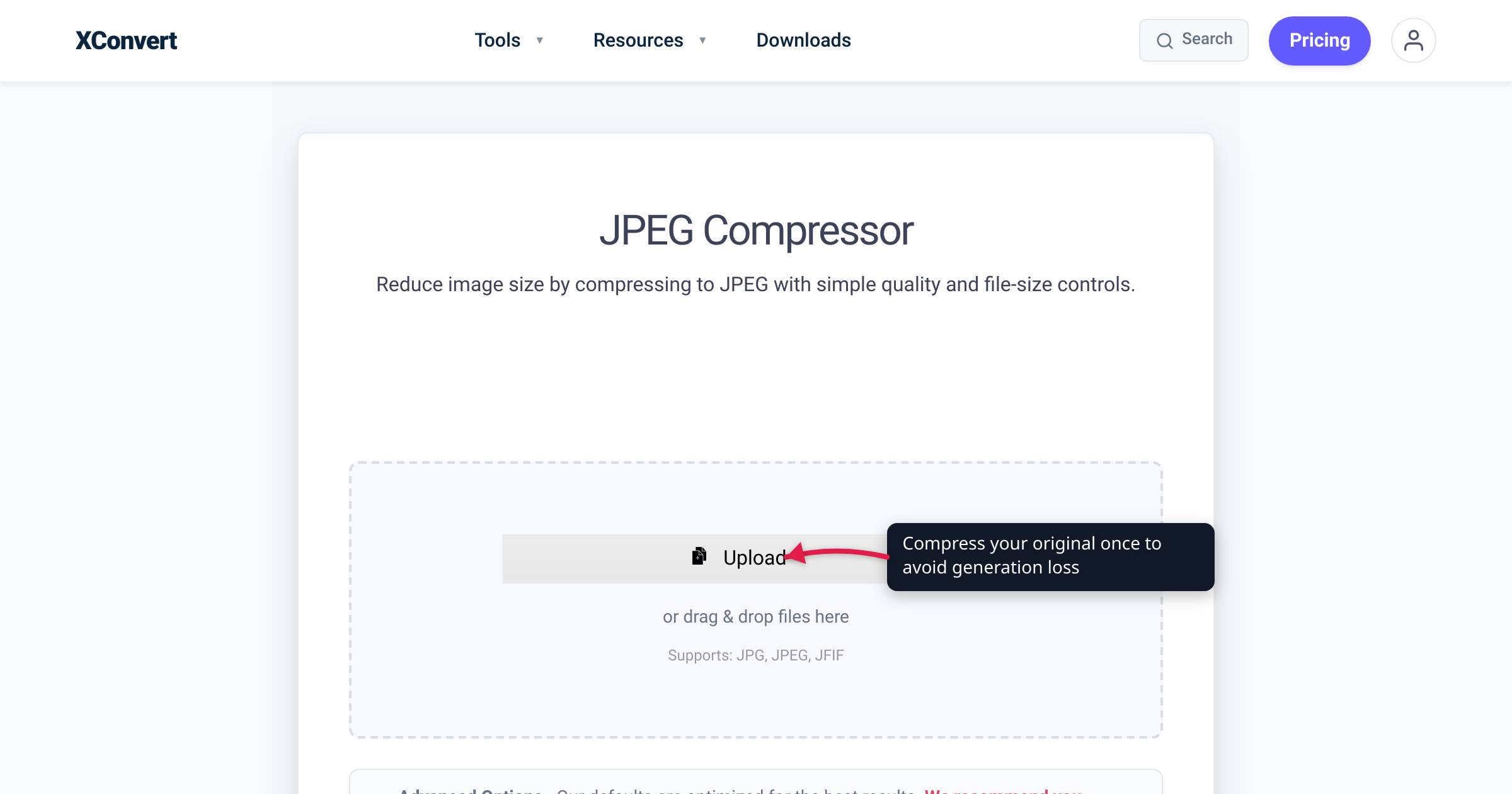
You have probably seen a meme that has been shared so many times it looks deep-fried — blocky, washed-out, ringed with colored noise. That is not a filter or a broken download. It is what happens when a lossy file gets compressed, then re-compressed, then compressed again: each pass throws away a little more real detail, and the damage stacks. The effect has a name — generation loss — and it applies to JPEG photos, MP4 videos, and MP3 audio alike. This guide, checked against the definitions in Wikipedia’s Generation loss and Transcoding articles and Mozilla’s codec documentation, explains what actually happens when you compress a file twice, which formats are immune, and how to compress once without wrecking your file.
Quick answer: Compressing a lossy file (JPEG, MP4/H.264, MP3, AAC) a second time triggers generation loss: the file is decoded back to raw pixels or samples, then re-encoded, and the encoder discards more data on top of what the first pass already threw away. The loss is cumulative and irreversible, and it is worst when the second compress uses a different quality, bitrate, or codec. Lossless formats (PNG, TIFF, FLAC, WAV) do not degrade when re-saved — their decoded output is identical to the original. The rule that avoids the problem: keep the original as your master, edit from it, and compress once, at the end.
Jump to a section
- What generation loss actually is
- Which formats degrade when re-compressed — and which don’t
- Why a second compress at different settings hurts most
- When compressing twice is fine, and the rules that keep quality
- Compress once, from the original, on xconvert
- FAQ
What generation loss actually is
“Generation loss is the loss of quality between subsequent copies or transcodes of data” (Wikipedia: Generation loss). The term comes from analog tape and film, where each copy of a copy was visibly worse than the last. Digital lossy compression recreates the same problem for the same underlying reason: it does not store your file exactly — it stores a smaller approximation and throws the rest away.
Here is the mechanism that matters. A lossy format only exists as compressed data on disk, so any time an app touches it, it first decodes it back into raw pixels or audio samples. Those raw pixels already contain the artifacts from the previous compression — they are baked in as if they were real detail. Edit or re-save, and the encoder re-compresses that already-degraded image, discarding a fresh round of data on top. As the transcoding literature puts it: “If one wishes to edit data in a compressed format (for instance, perform image editing on a JPEG image), one will generally decode it, edit it, then re-encode it. This re-encoding causes digital generation loss” (Wikipedia: Transcoding).
So what happens if you compress a file twice? You stack two generations of loss. Compress it ten times and you stack ten. “Compression artifacts are cumulative, so transcoding causes a progressive loss of quality with each successive generation, known as digital generation loss” (Wikipedia: Transcoding). And none of it comes back — “lossy compression throws away some data which cannot be restored” (Wikipedia: Generation loss). There is no filter, quality slider, or format conversion that recovers detail a lossy encoder has already deleted.
The visible symptoms differ by medium — blockiness and ringing in images, smeared motion in video, a hollow “underwater” quality in audio — but the cause is identical. (The JPEG case has its own signature; see why your JPEG looks blurry after saving.)
Which formats degrade when re-compressed — and which don’t
The single line that decides whether re-compressing hurts is lossy vs lossless.
Lossy formats discard data by design, and they lose more on every re-encode. JPEG is “the most widely used lossy compression format for still images” (MDN: Image file type and format guide); MP3 and AAC are both listed as Lossy in Mozilla’s audio codec tables (MDN: Web audio codec guide); the H.264/HEVC video most phones and cameras produce is lossy too. For all of them, “generation loss can still occur when using lossy video or audio compression codecs as these introduce artifacts into the source material with each encode or reencode” (Wikipedia: Generation loss).
Lossless formats do not have this problem. “Lossless compression is, by definition, fully reversible” (Wikipedia: Generation loss), so re-saving one produces a bit-for-bit identical file. PNG “uses lossless compression” (MDN: Image types); FLAC is lossless, meaning “the decompressed audio is identical to the original” (MDN: Audio codecs). Re-save a PNG a hundred times and it is the same image; re-encode a FLAC to FLAC and you lose nothing.
| Format | Lossy or lossless | Degrades when re-compressed? |
|---|---|---|
| JPEG (photos) | Lossy | Yes — each re-save adds loss |
| MP4 / H.264, HEVC (video) | Lossy | Yes — each re-encode adds loss |
| MP3, AAC (audio) | Lossy | Yes — each re-encode adds loss |
| PNG, TIFF (images) | Lossless | No — re-saves are exact |
| FLAC, ALAC, WAV (audio) | Lossless | No — re-encodes are exact |
One nuance people get backwards: a lossless format protects you only going forward. Converting an already-lossy file into a lossless one does not undo the earlier damage — it just freezes the current, degraded state at a larger file size. Saving a compressed MP3 as FLAC will not restore the frequencies MP3 removed, and re-wrapping a JPEG as PNG will not un-blur it. (This is exactly why converting MP3 to FLAC does not improve quality.) To benefit from lossless, the master has to be lossless from the start.
Why a second compress at different settings hurts most
Not every re-compression is equally bad. The damage is worst when the second pass changes the rules the encoder plays by. Wikipedia is explicit: “Converting between lossy formats – be it decoding and re-encoding to the same format, between different formats, or between different bitrates or parameters of the same format – causes generation loss” (Wikipedia: Generation loss). And loss compounds fastest “if the parameters used are not consistent across generations” (Wikipedia: Generation loss).
In practice, the biggest offenders are:
- Changing the codec or format. Every codec has its own model of what eyes and ears will not miss, so each conversion invents a new set of artifacts on top of the old. Round-tripping a video MP4 → WebM → MP4, or an MP3 → AAC, layers two codecs’ worth of loss — the platform-hopping problem, where a clip re-uploaded across apps that each re-encode it looks worse every hop.
- Changing the quality or bitrate. Re-saving a JPEG at a different quality, or an MP3 at a different bitrate, means the new compression grid no longer lines up with the old, so the encoder re-quantizes everything from scratch.
- Editing that shifts the data. Cropping, rotating, or resizing before the second save moves the underlying blocks out of alignment and forces a full re-encode.
The least-bad re-compression, when you truly cannot avoid one, is the same codec at the same or higher settings — because the parameters stay consistent. It still is not free. Only a lossless format loses nothing.
When compressing twice is fine, and the rules that keep quality
None of this means compression is bad. Compressing an original once is completely normal — a single lossy encode of a clean source usually looks and sounds excellent. Generation loss is a problem of repetition and chaining, not of compressing once.
A second compress is a reasonable, bounded trade-off when:
- You are compressing the master for the first time to hit a size target — that is a first-generation encode, not a stack.
- You have only a compressed copy and must shrink it once more to clear a hard limit (an email cap, an upload ceiling). One extra generation to meet a real constraint is fine; just do not make it a habit, and keep the same format if you can.
To keep quality across a whole project, the guidance from the standards literature is consistent: “the most practical solution insofar as minimizing loss of quality is for the original recording to be deemed the master copy, and for desired subsequent transcoded versions … to be transcoded only from that master copy” (Wikipedia: Transcoding). Mozilla frames the same rule for audio — choose lossless “because you require archival-quality storage, or because the audio samples will be remixed and recompressed, and you wish to avoid the amplification of artifacts in the audio due to recompression” (MDN: Audio codecs).
The workflow that follows from it:
- Keep the original. The camera, screen-recorder, or studio original — or the highest-quality copy you have — is your master. Never delete it.
- Edit from the master, not from a previous export. Reopen the original for each change instead of yesterday’s compressed file.
- Work lossless mid-edit. If you will make several rounds of edits, keep the working copy in a lossless format (PNG or TIFF for images, WAV or FLAC for audio) so the in-between saves lose nothing.
- Compress once, at the end, from the master — a single lossy encode to your target size or quality.
- Need another size? Go back to the master and encode again. Do not re-compress the export.
- Match or reduce, never inflate. Do not enlarge an image or raise a bitrate hoping to recover quality — the detail is gone, and you only add file size.
Compress once, from the original, on xconvert
When you do need a smaller file, the cure for generation loss is procedural: compress the original once, rather than a copy that has already been through the mill. The xconvert JPEG Compressor is the clearest case, because image re-save damage is the most visible:
- Open the JPEG Compressor and click + Add Image Files to upload your original photo — the master, not a version you have already compressed. You can also pull it from Google Drive or Dropbox.
- Open Advanced Options (the gear icon).
- Choose how to size it: Target file size (%) (labeled Best) or Specific file size to hit an exact cap, or Image Quality (%) to set the quality level directly.
- Set your target with the File size (%) slider (or type the size), and leave File extension on JPEG (or Same as source).
- Download the single, cleanly re-encoded result — one deliberate generation of loss instead of a stack of accidental ones.
Your file is uploaded over an encrypted connection, is processed on our servers, and is deleted automatically a few hours later — no install, no sign-up, no watermark. If your source is not a JPEG, the Image Compressor applies the same one-pass approach across 35+ input formats.
The identical logic holds for video and audio: compress the source clip or recording once, rather than re-exporting a file that is already compressed — and if you will edit repeatedly, start from a lossless master, because no later conversion can restore what the first lossy encode removed.
FAQ
Does compressing a file twice reduce quality?
Yes, if it is a lossy file (JPEG, MP4, MP3, AAC). The second compress decodes the already-compressed file and re-encodes it, discarding more data on top of the first pass — Wikipedia calls this generation loss and notes the artifacts are “cumulative” (Wikipedia: Transcoding). Lossless files (PNG, TIFF, FLAC, WAV) are the exception: re-saving them is exact.
What is generation loss?
“Generation loss is the loss of quality between subsequent copies or transcodes of data” (Wikipedia: Generation loss). In digital terms, every time a lossy file is re-encoded the codec throws away a bit more detail, so quality degrades progressively with each generation — like a photocopy of a photocopy. It is irreversible: the discarded data “cannot be restored.”
Does compressing a PNG or other lossless file twice lose quality?
No. PNG “uses lossless compression” (MDN: Image types), and lossless compression is “by definition, fully reversible” (Wikipedia: Generation loss), so re-saving a PNG produces a bit-identical image. The same holds for TIFF, FLAC, and WAV. Only lossy formats accumulate generation loss.
Can I recover quality by converting a compressed file to a lossless format?
No. Converting a lossy file to a lossless one (MP3 → FLAC, or JPEG → PNG) only freezes its current, already-degraded state — it cannot restore data the lossy encoder already deleted, and it makes the file larger for no quality gain. The lossless benefit applies only going forward, from a clean source. See does converting MP3 to FLAC improve quality?
Is it worse to compress with a different format or tool the second time?
Yes. Wikipedia notes that converting “between different formats, or between different bitrates or parameters of the same format” causes generation loss, and that the artifacts are cumulative across generations (Wikipedia: Generation loss). Re-encoding a video MP4 → WebM → MP4, or MP3 → AAC, layers each codec’s artifacts on the last. Re-compressing with the same codec at the same-or-higher settings loses the least — but only lossless loses nothing.
Is it bad to compress an original once?
No — that is normal and usually looks excellent. A single lossy encode of a clean master is exactly what a compressor is for. The damage comes from repeatedly re-compressing an already-compressed copy, or chaining conversions across formats. Compress once, from the master, and keep the original.
Sources
Last verified 2026-07-16.
- Wikipedia — Generation loss — definition of generation loss; that lossy video/audio codecs and repeatedly re-saved JPEGs accumulate loss each encode; that lossy loss “cannot be restored” while lossless compression is “fully reversible”; and that converting between lossy formats, bitrates, or parameters causes loss (worst when parameters are inconsistent).
- Wikipedia — Transcoding — that compression artifacts are cumulative and transcoding causes progressive generation loss with each generation; that decode-edit-re-encode degrades quality; and the recommendation to treat the original as the master copy and transcode only from it.
- MDN — Image file type and format guide — JPEG as the most widely used lossy still-image format; PNG as lossless; guidance to use a lossless format for text, screenshots, and detail-critical images.
- MDN — Web audio codec guide — MP3 and AAC listed as lossy codecs; FLAC lossless with decompressed audio “identical to the original”; and the recommendation to keep lossless when audio will be “remixed and recompressed” to avoid “amplification of artifacts … due to recompression.”