 By James
Someone handed you a number with KB after it — 256 KB for a Discord emoji, 128 KB for a Slack one, 100 KB for a forum signature — and the GIF on your desktop is 4 MB. The advice that works at the MB scale (“turn the quality down”) quietly stops working here, because you are no longer asking for a 50% cut. You are asking for a 97% cut, and at that ratio the thing standing in your way isn’t the quality setting. It’s the number of pixels you’re asking the encoder to store. Here is what a 100 KB, 256 KB or 512 KB budget actually buys, in frames and pixels, and the order to cut in so you land it.
Quick answer: Open xconvert.com/compress-gif, add your GIF, and under File Compression → Max file size set Size limit to Custom size value, type your number and switch the unit dropdown from MB to KB. That alone works when your GIF is already small. When it isn’t, cut pixels first: switch File Compression to Custom, set Image resolution to the size the GIF will actually be displayed at (128 px for an emoji, 240–320 px for a signature), and set Drop Frames to Every 3rd frame. As a planning rule, a KB target is reliable when the GIF’s natural size is within about 10× of it — so 100 KB wants a GIF that would naturally land under ~1 MB.
Jump to a section
- Why a KB target is a different problem
- What a KB budget actually buys
- Where 100, 256 and 512 KB come from
- Cut in this order
- Compress a GIF to a KB target on xconvert
- FAQ
Why a KB target is a different problem
Only one number decides how hard your request is: your target divided by the GIF’s current size. That ratio is what our size solver has to close, and we know how far it reaches. Across all 73,688 GIF-output workflows in a 30-day production window, the requested target was reached essentially 100% of the time when it was 30% or more of the GIF’s natural size, and still 98.1% of the time at 10%.
Now do the arithmetic on a KB target. A 4 MB screen recording asked to fit 256 KB is a ratio of 0.064 — outside the band those numbers describe. Asked to fit 100 KB, it’s 0.025. The MB targets in the 10 MB / 5 MB / 1 MB guide sit comfortably inside the measured band; KB targets usually sit off the end of it.
The reason is structural. Per the GIF89a specification, every frame is an image whose pixels are palette indices of up to 8 bits each — a colour table capped at 256 entries — LZW-compressed, with no motion prediction and no temporal transform anywhere in the format. The one cross-frame saving it allows is geometric rather than predictive: an image block may be smaller than the logical screen and positioned anywhere inside it, and the Graphic Control Extension can nominate a transparency index whose pixels are left “not modified.” Encoders exploit that to store only the rectangle that changed — which is why a talking head on a static background compresses far better than a pan, and why it saves nothing when the whole frame moves.
So a GIF’s size is essentially pixels × frames × how compressible the content happens to be. Quality settings only move the third term. At a 97% cut you have to move the first two.
What a KB budget actually buys
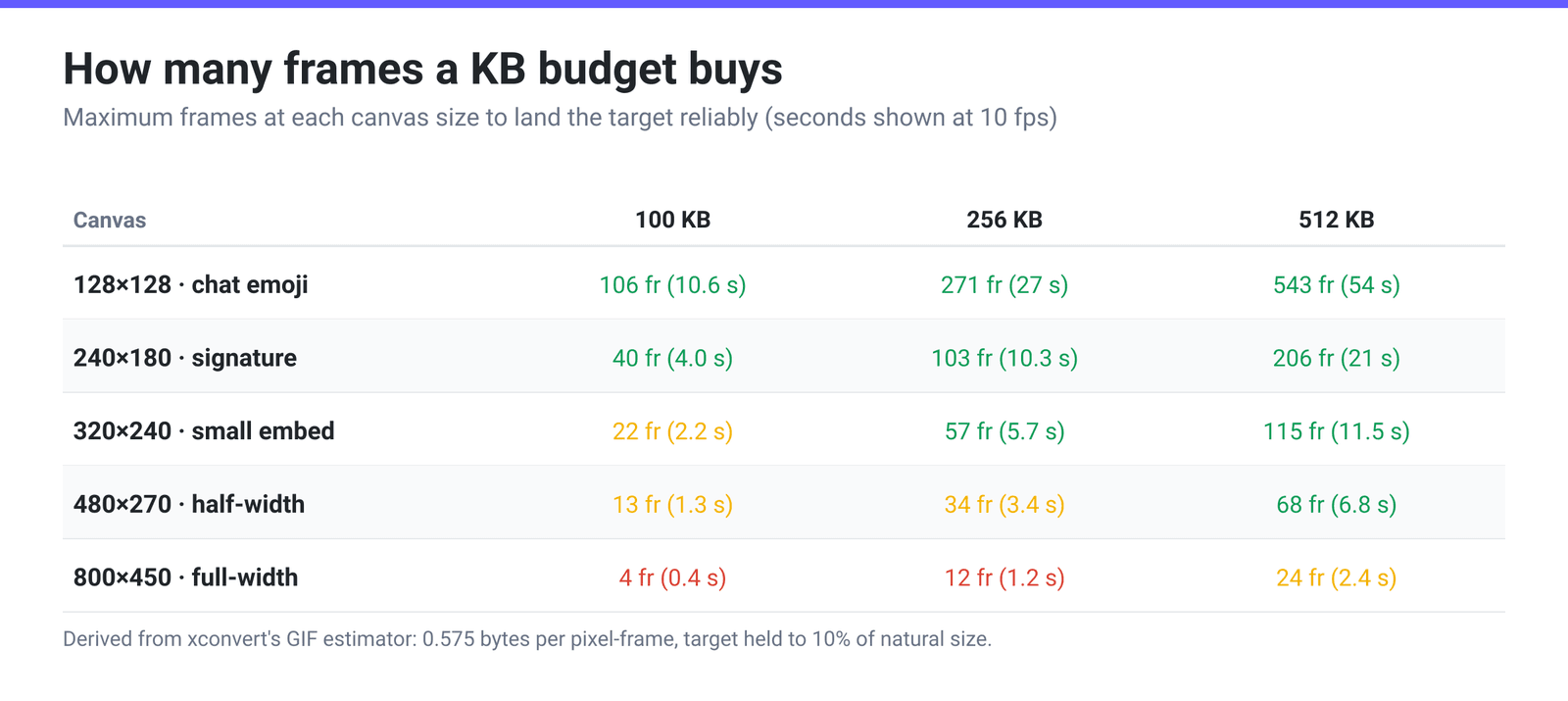
xconvert’s own GIF size estimator models a produced GIF at 0.575 bytes per pixel-frame — the median across our 2026-08-22 production measurement corpus. A “pixel-frame” is one pixel in one frame: a 240×180 GIF with 40 frames is 240 × 180 × 40 = 1,728,000 pixel-frames.
Combine the two facts — 0.575 bytes per pixel-frame, and a target that lands reliably when it’s at least 10% of the natural size — and you get a straight budget. To land 100 KB dependably, keep the GIF under about 1.74 million pixel-frames. For 256 KB, about 4.45 million. For 512 KB, about 8.9 million.
| Canvas | 100 KB | 256 KB | 512 KB |
|---|---|---|---|
| 128×128 (chat emoji) | 106 frames | 271 frames | 543 frames |
| 240×180 (signature / avatar) | 40 frames | 103 frames | 206 frames |
| 320×240 (small embed) | 22 frames | 57 frames | 115 frames |
| 480×270 (half-width capture) | 13 frames | 34 frames | 68 frames |
| 800×450 (full-width capture) | 4 frames | 12 frames | 24 frames |
At the 10 fps that suits most GIFs, 106 frames is over ten seconds of animation and 13 frames is barely over one. That row-to-row swing is the whole article: an emoji-sized canvas makes 100 KB easy and a full-width capture makes it arithmetically hopeless. Nothing in the quality slider closes a 20× pixel gap.
One caveat, because a median is not a promise: flat, few-colour content — UI recordings, line art, text — compresses well below 0.575 and will beat these numbers comfortably, while noisy or heavily dithered photographic content lands above it and won’t reach them. Treat the table as the shape to aim for, not a guarantee.
Where 100, 256 and 512 KB come from
Each of these numbers has an owner, and the owners disagree about what “KB” means — which matters at this scale.
| Target | Where it comes from | Published spec | Notes |
|---|---|---|---|
| 100 KB | Forum signatures, avatars, wiki uploads, legacy CMS | No single owner — set per site | Check the upload form’s own error text |
| 128 KB | Slack custom emoji | “Square images under 128KB”; “GIFs can include up to 50 frames” | The frame cap bites first on long loops — see the Slack emoji guide |
| 256 KB | Discord custom emoji | “Emojis and animated emojis have a maximum file size of 256 KiB”; upload at 128×128 | GIF is an accepted emoji format |
| 512 KB | Discord stickers | “max 512 KiB”, 320×320, animation limited to 5 seconds | Discord’s developer docs list PNG, APNG, GIF and Lottie; PNG/APNG is the long-standing safe choice if a GIF is rejected |
KiB versus KB matters here, and it works in your favour. Discord’s caps are published in kibibytes: 256 KiB is 262,144 bytes, 512 KiB is 524,288. xconvert reads KB as 1,000 bytes — the decimal, smaller reading — so typing 256 + KB caps the file at 256,000 bytes, comfortably under Discord’s 262,144. The decimal number is always the safe side of an ambiguous limit.
Cut in this order
The automatic search under Max file size does a lot of this for you — lossless re-optimise first, then the colour data, then the palette, then a downscale — but it has floors, and at the KB scale you will hit them. The palette floor is 32 colours, and the automatic downscale will not go below 240 pixels wide, or 35% of the source width, whichever is larger. That second clause is the one that catches people: a 1,200-pixel-wide GIF will not be auto-scaled below 420 px. If 420 px × your frame count still overshoots 100 KB, the search cannot reach your target however long it runs. Frame dropping is the last lever it reaches for on a GIF source, so your animation’s timing is left alone unless you ask for it.
Hence the manual order that actually works at the KB scale, in descending order of effect:
- Cut the canvas to the display size. Size scales with pixel count, so halving the width keeps roughly a quarter of the pixels. A Discord emoji renders at 32×32 in chat; there is no reason to upload 480 px of it. Under Custom, Image resolution → Preset Resolutions goes down to 128p, 64p, 32p and 16p, or use Width (Keep aspect ratio) for an exact pixel width.
- Cut the frames. Drop Frames → Frames To Drop offers Every 2nd through Every 10th, with Every 3rd frame preselected — the sweet spot in our production data. Going much thinner is where fast motion starts to judder.
- Cut the palette. Colors → By Color Reduction + Dither defaults to 128 colours and goes down to 2. Flat graphics and UI recordings barely notice 64 or 32; photographic content notices immediately. Leave Dither on for gradients, off for flat colour.
- Then, and only then, the quality slider. Image quality (%) is last because it is the weakest lever at this scale.
If the clip is longer than the target can hold, trim it first — a two-second loop at 100 KB looks far better than a ten-second one squeezed to the same number. And if the destination accepts video at all, stop fighting the format: the same content runs roughly 4.9× smaller as an MP4 at the median in that production data. GIF vs MP4 file size covers why.
Compress a GIF to a KB target on xconvert
- Open xconvert.com/compress-gif and click Upload, or drag your GIF onto the box.
- If your GIF is already near the target — an emoji-sized loop, a short clip — leave File Compression on Max file size, open the Size limit dropdown, choose Custom size value, type your number and switch the unit dropdown from MB to KB. Then skip to step 5.
- If it isn’t, switch File Compression to Custom and set Image resolution to the size the GIF will be displayed at. Preset Resolutions reaches down to 128p, 64p, 32p and 16p; Width (Keep aspect ratio) takes an exact pixel width.
- Still under Custom, set Drop Frames to Every 3rd frame, and drop Colors → Color Palette Size from its default 128 to 64 or 32 if the content is flat.
- Click Compress and download, then check the byte count against your limit. Max file size mode runs several encodes rather than one, so give a large GIF a minute.
Cropping dead space off the edges shrinks every frame at once and costs nothing visually, but do it before the GIF exists — crop the source video, then convert. xconvert’s GIF cropper is a still-frame editor that exports PNG, JPG or WebP, so it cannot hand you back a cropped animation. Your file uploads over an encrypted connection, is processed on our servers, and is deleted automatically a few hours later — nothing stays around.
FAQ
How do I compress a GIF to 100 KB?
Set Size limit → Custom size value, type 100 and change the unit to KB. Whether it’s reachable depends entirely on your GIF’s pixel-frame count: at 128×128 you have room for roughly 100 frames, at 480×270 for about 13. If your GIF is a full-width screen capture, resize it under Custom → Image resolution first — the cap alone cannot close a 20× pixel gap.
Why won’t my GIF go below 256 KB even with quality at minimum?
Because quality is the weakest of the four levers, and the automatic search has floors: a 32-colour palette, and no downscale below 240 pixels wide or 35% of the source width, whichever is larger. On a 1,200-pixel-wide GIF that floor is 420 px. Reduce the resolution yourself under Custom, drop frames, and the target comes into range.
Is Discord’s emoji limit 256 KB or 256 KiB?
Discord’s developer documentation states 256 KiB — 262,144 bytes — for emojis and animated emojis, uploaded at 128×128. xconvert reads KB as 1,000 bytes, so typing 256 + KB caps the file at 256,000 bytes, safely inside Discord’s limit.
Can I put a GIF in a Discord sticker slot?
Stickers are a different budget from emoji: 512 KiB, 320×320, animation capped at 5 seconds. Discord’s developer documentation lists PNG, APNG, GIF and Lottie JSON among accepted sticker formats, but PNG/APNG has long been the safe choice — so if the upload UI rejects your GIF, convert it rather than assuming the size was the problem.
How many frames can a 512 KB GIF have?
At the 0.575 bytes-per-pixel-frame median our estimator uses, and keeping the target within 10% of the natural size, a 512 KB budget covers about 8.9 million pixel-frames — 543 frames at 128×128, 206 at 240×180, 68 at 480×270, or 24 at 800×450. Flat UI content beats those numbers; noisy photographic content won’t reach them.
Should I drop frames or reduce the resolution first?
Resolution, almost always. Halving the width keeps about a quarter of the pixels — a bigger cut than dropping every 3rd frame gives you — and shrinking a GIF to the size it will actually be displayed at costs nothing visually. Drop frames second: Every 3rd frame is the measured sweet spot, and it removes roughly a third of what’s left.
Sources
Last verified 2026-08-31.
- xconvert GIF compressor — live tool; verified the controls named above: File Compression → Max file size / Custom; Size limit → Custom size % / Custom size value (value box plus a B / KB / MB unit dropdown, MB preselected) / Discord (10 MB max) / Email (25 MB max) / Forum (2 MB max); and, under Custom, Image resolution (Preset Resolutions down to 16P; Width / Height), Drop Frames → Frames To Drop with Every 3rd frame preselected, Colors → By Color Reduction + Dither (palette default 128), Image quality (%). The “Best effort — we aim just under your max” note is quoted from the live panel.
- xconvert production measurement — 30-day window covering all 73,688 GIF-output workflows: the target is reached essentially 100% of the time at 30% or more of the GIF’s natural size and 98.1% at 10%; a clip runs about 4.9× larger as a GIF than as its source MP4 at the median; keep-every-3rd-frame is the measured sweet spot. Our GIF size estimator uses 0.575 bytes per pixel-frame, the median of the 2026-08-22 production corpus. Solver floors: 32-colour palette, downscale floor of max(240 px, 35% of source width).
- W3C — GIF89a Specification — colour table capped at 256 entries (8 bits per pixel); each image block carries its own position and size within the Logical Screen; the Transparency Index leaves matching pixels unmodified; no inter-frame prediction exists in the format.
- Discord Developer Documentation — Emoji resource — “Emojis and animated emojis have a maximum file size of 256 KiB”; 128×128 emoji image.
- Discord Developer Documentation — Sticker resource — stickers max 512 KiB, 320×320, PNG / APNG / GIF / Lottie JSON, animation limited to 5 seconds.
- Slack Help — Add custom emoji and aliases — “Square images under 128KB”; “GIFs can include up to 50 frames.”