 By James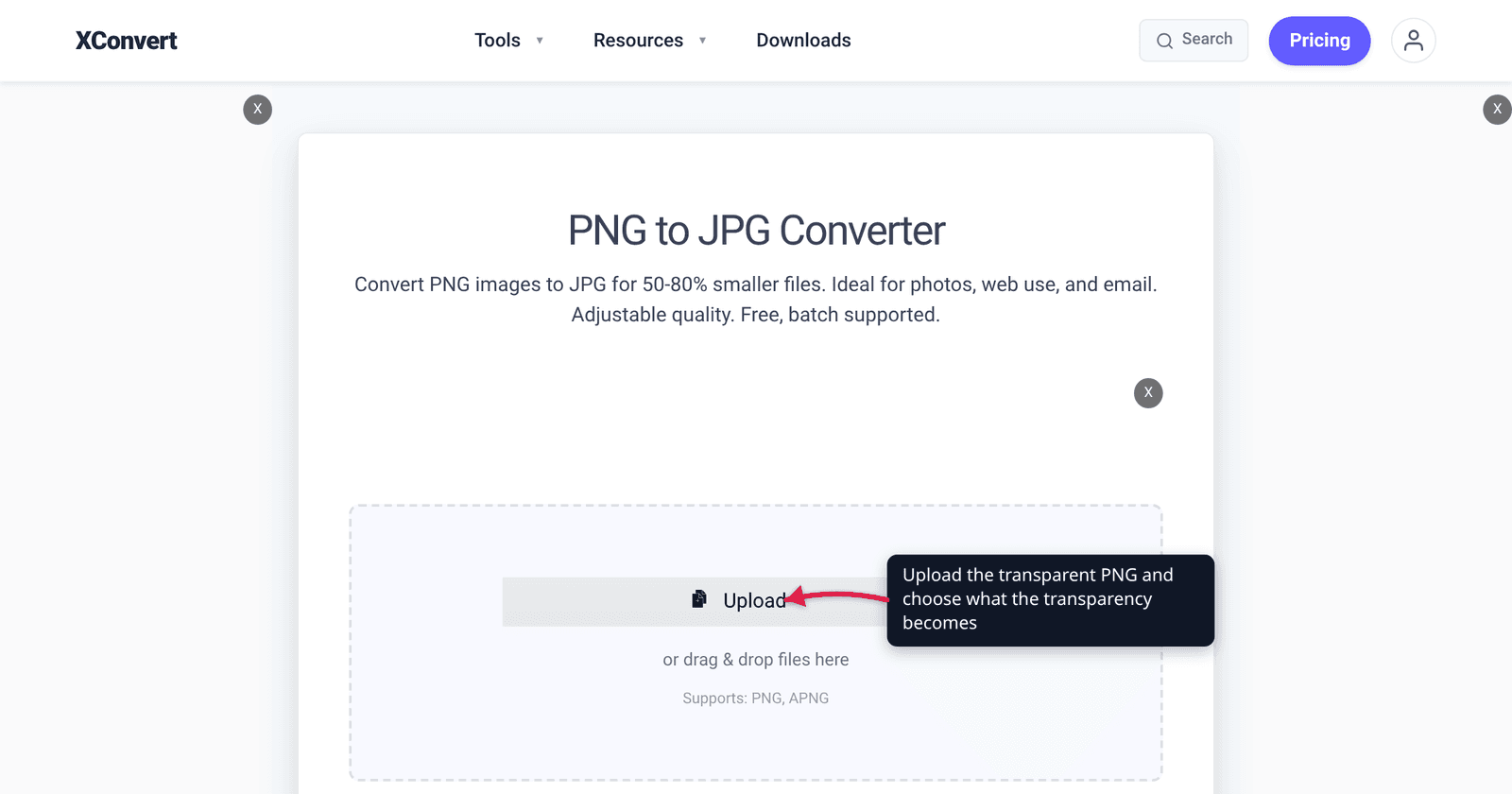
You export a logo with a clean transparent background, convert it to JPG for a client, and open the result to find a solid black rectangle behind it. Or white, when the page it has to sit on is dark. Nothing corrupted the file — JPEG simply has no way to store “nothing here,” so every transparent pixel had to become some colour, and the tool picked one for you without asking. This guide covers which formats actually keep an alpha channel, what happens to those pixels when one doesn’t, and how to choose the fill colour yourself instead of finding out afterwards.
Quick answer: JPEG has no alpha channel — there is no setting that makes it keep transparency. If the transparency must survive, convert to PNG, WebP or AVIF (all three store a full 8-bit alpha channel). If the output really has to be JPG, decide the fill colour deliberately: on xconvert’s alpha-capable-to-JPG pages, such as PNG to JPG, a Background Color dropdown offers 25 named colours with White preselected, so the flattened area is the colour you chose rather than whatever the library defaulted to.
Jump to a section
- Which formats actually keep alpha
- Why your transparent PNG turned black — or white
- If the output must be JPG, pick the fill colour
- Two gotchas that aren’t about JPEG
- Convert without losing transparency on xconvert
- FAQ
Which formats actually keep alpha
Transparency is not one feature. Some formats store a full 8-bit alpha channel — 256 levels of opacity per pixel, which is what lets an anti-aliased logo edge blend smoothly into any background. Others store a single “this index is invisible” flag, which only ever gives you a hard on/off edge. And one of the most commonly requested output formats stores none at all.
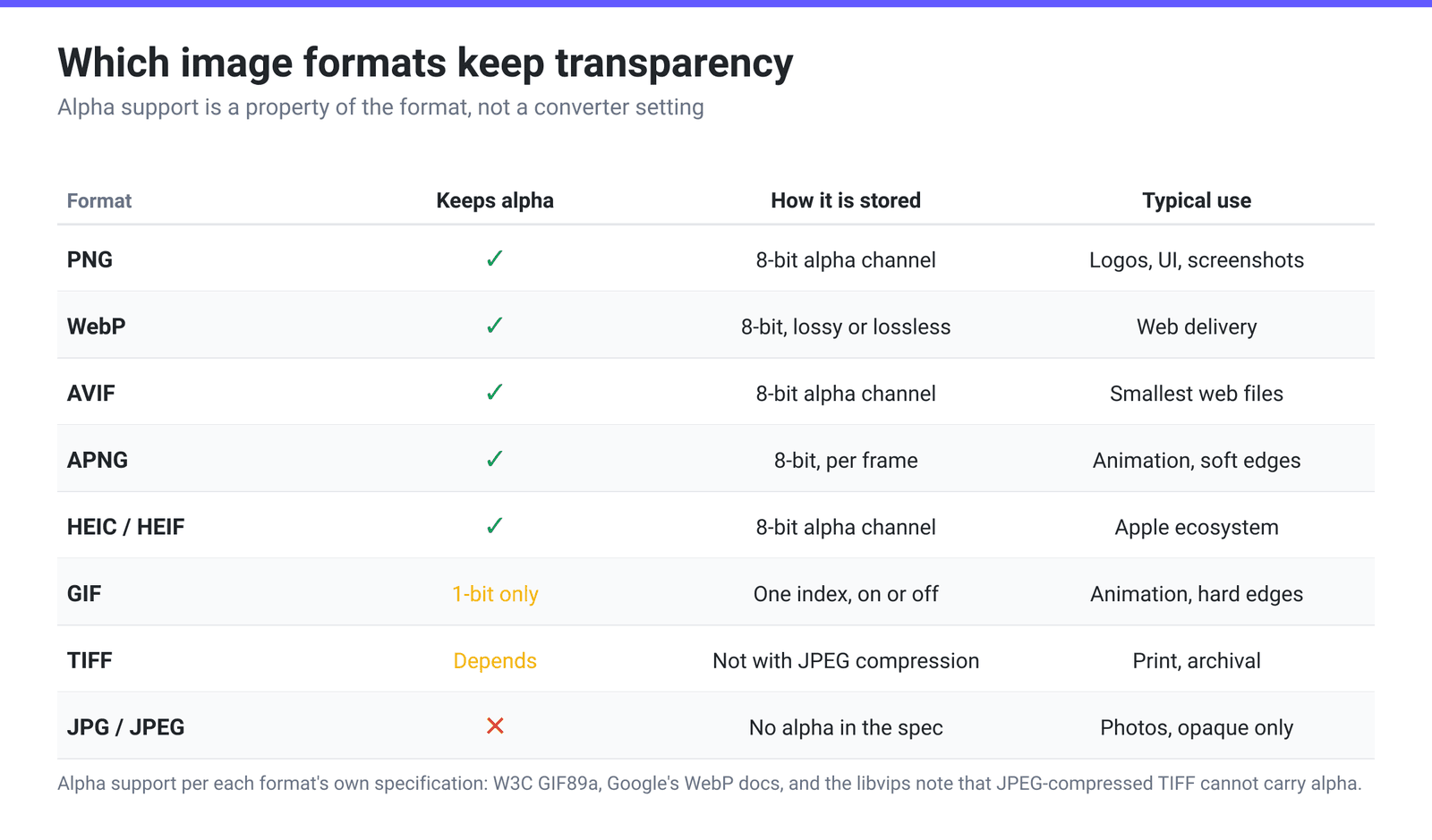
Two of those rows deserve a sentence each.
WebP is the underrated answer. Google’s documentation is specific: “Lossless WebP supports transparency (also known as alpha channel) at a cost of just 22% additional bytes,” and “for cases when lossy RGB compression is acceptable, lossy WebP also supports transparency, typically providing 3× smaller file sizes compared to PNG.” That last one is the important sentence for anyone who reaches for JPG because the PNG was too big — you can usually keep the transparency and get the size win. WebP support sits at roughly 96% of global browser traffic per caniuse, with Safari reaching full support in version 16.
AVIF is smaller again and also carries alpha, at around 95% global browser support (Chrome 85+, Firefox 93+, Safari 16.4+, Edge 121+). It is the right pick when you control the delivery pipeline and can supply a fallback.
Here is the routing table if you already know your constraint:
| Your constraint | Convert to | Why |
|---|---|---|
| Must keep soft, anti-aliased transparent edges | PNG | 8-bit alpha, universally supported, lossless |
| Same, but the PNG is too heavy for the web | WebP | Alpha in both lossy and lossless modes; lossless WebP averages 26% smaller than PNG |
| Smallest possible web file, with a fallback available | AVIF | Alpha plus the strongest compression of the three |
| Needs to animate and keep hard-edged transparency | GIF or APNG | GIF gives 1-bit transparency; APNG gives full alpha |
Recipient explicitly demands a .jpg | JPG, with a chosen background colour | No alpha exists in JPEG — flatten deliberately |
| Print or archival, transparency required | PNG or TIFF (not JPEG-compressed) | See the TIFF caveat below |
Why your transparent PNG turned black — or white
When a converter flattens an alpha channel, it has to composite your image onto something. The colour it picks is not defined by any standard — it is a decision each library makes, and they do not agree.
That is the whole explanation for a symptom people report constantly: the same PNG becomes white in one tool and black in another. Command-line pipelines that simply drop the alpha channel and keep the RGB values tend to produce black, because fully-transparent pixels are frequently stored as RGB (0,0,0) with alpha 0 — the colour data underneath was never meant to be looked at. Tools that composite properly pick white, because white is the safe assumption for a document or a product photo.
Neither is wrong. Both are guesses about your intent. The fix is to stop letting the guess happen:
- Flatten it yourself first, in your editor, onto the exact colour or texture you want. This is the only route if you need a gradient, a photo, or a brand colour that is not in a dropdown.
- Or use a converter that exposes the fill colour so the guess becomes a choice.
There is one more subtlety worth knowing about. Anti-aliased edges are partially transparent — the pixels along a curve might be 30% or 70% opaque. Those get blended with whatever background you pick, so a logo flattened onto white and then placed on a dark page shows a pale halo around every edge. That halo is not a conversion bug; it is the anti-aliasing that was designed for a white background being shown on a black one. Pick the fill colour to match where the image will actually live.
If the output must be JPG, pick the fill colour
On xconvert, converting from a transparency-capable image format to JPG surfaces a Background Color control under Advanced Options. It is a single dropdown listing 25 named colours — White (preselected), Black, Aqua, Blue, Brown, Coral, Crimson, Cyan, Gold, Gray, Green, Indigo, Lime, Magenta, Maroon, Navy, Olive, Orange, Pink, Purple, Red, Silver, Teal, Violet and Yellow.
It appears specifically on conversions from PNG, APNG, WebP, GIF, AVIF, HEIC, HEIF, TIFF, TIF, SVG or ICO to JPG, JPEG or JFIF — the pages where a source can actually have an alpha channel to flatten. Some real examples: PNG to JPG, WebP to JPG, HEIC to JPG, SVG to JPG, GIF to JPG and ICO to JPG. It does not appear on conversions to PNG, WebP, AVIF or TIFF, because nothing needs flattening there — the alpha channel comes along.
Practical picks: White for documents, marketplace listings and anything printed on paper; Black for a logo destined for a dark UI; a brand colour from the list when it matches. If your required colour is not one of the 25 — a specific hex, a gradient, or a photo — flatten in an editor first and then convert the already-opaque result.
Two gotchas that aren’t about JPEG
GIF transparency is one bit, not eight. The GIF89a specification stores transparency as a single index in the colour table: “The Transparency Index is such that when encountered, the corresponding pixel of the display device is not modified.” A pixel is either fully transparent or fully opaque — there is no in-between. So converting a soft-edged PNG logo to GIF gives you a jagged or fringed edge, and the fringe colour depends on what the anti-aliasing was blended against before quantisation. For animation with soft edges, APNG or WebP is the right target, not GIF.
“TIFF supports transparency” is a statement about the container, not about your file. TIFF is a family of sub-formats with a dozen legal compression schemes, and a JPEG-compressed TIFF cannot carry alpha — as the libvips maintainer puts it, “JPEG compression is delegated to libjpeg, and it does not support alpha.” An LZW- or Deflate-compressed TIFF carries an alpha channel fine. If a TIFF has to hold transparency, verify which compression it actually used rather than trusting the extension.
Convert without losing transparency on xconvert
To keep the transparency, send it somewhere that has an alpha channel:
- Open xconvert.com/convert-png-to-webp (or PNG to AVIF) and click Upload.
- Open Advanced Options and leave Image Compression on Quality Preset → Very High (Recommended), or switch to Specific file size if you have a byte budget. The alpha channel comes across either way — there is no transparency toggle to find, because nothing is being discarded.
- Click Convert and download.
If the output has to be JPG, make the flatten deliberate:
- Open xconvert.com/convert-png-to-jpg and click Upload — from your computer, Google Drive or Dropbox.
- Open Advanced Options.
- Under Background Color, choose the colour the transparent area should become. White is preselected; switch it to Black or a brand colour if that is where the image will sit.
- Set Quality Preset (default Very High (Recommended)), and under File extension choose whether the output is named
.jpgor.jpeg— the two are the same format. - Click Convert and download.
Your files upload over an encrypted connection, are processed on our servers, and are deleted automatically a few hours later.
Related reading: How to convert PNG to JPG (and when you shouldn’t) and PNG vs WebP vs JPG for choosing between the three in the first place.
FAQ
Can a JPG have a transparent background?
No. The JPEG standard has no alpha channel, and no converter setting can add one — anything advertising “transparent JPG” is either producing a different format with a .jpg name or flattening onto a colour that happens to match the page. If the transparency has to be real, the output format has to change to PNG, WebP, AVIF or APNG.
Why does my transparency turn black instead of white?
Because the tool dropped the alpha channel rather than compositing. Fully-transparent pixels commonly hold RGB (0,0,0) underneath — nobody ever had to look at that colour, so it was never set to anything meaningful. Strip the alpha and those zeroes become visible black. A converter that composites first, or that lets you name the fill colour, avoids it entirely.
Does converting PNG to WebP keep transparency?
Yes, in both modes. Google’s documentation states that lossless WebP carries an alpha channel “at a cost of just 22% additional bytes,” and that lossy WebP also supports transparency while typically producing files 3× smaller than the equivalent PNG. For a logo or UI asset that is too heavy as a PNG, this is usually a better move than flattening it to JPG.
Will my logo’s soft edges survive a conversion to GIF?
Not cleanly. GIF’s transparency is a single index — fully on or fully off, per the GIF89a specification — so the semi-transparent pixels along an anti-aliased curve have to be forced to one extreme or the other. Expect a hard, sometimes fringed edge. Use APNG or animated WebP if you need animation with genuine soft edges.
Which background colour should I pick when flattening to JPG?
Match where the image will end up. White for documents, print, e-commerce listings and anything on a white page; black or a dark grey for a dark-mode interface. The reason it matters more than it looks is the anti-aliased border: those partly-transparent edge pixels get permanently blended with your choice, so a logo flattened onto white keeps a visible pale halo forever if you later place it on black.
Do PDFs keep transparency from a PNG?
Generally yes — PDF has supported transparency since PDF 1.4, so a transparent PNG placed into a PDF can stay transparent. What varies is downstream: some print workflows flatten transparency during prepress, and some older viewers render it inconsistently. If a printer has asked for “no transparency,” they are asking you to flatten it deliberately before handing the file over, which is exactly the Background Color case above.
Is there any way to remove a background rather than just replace it?
That is a different job. Everything on this page is about what happens to an alpha channel that already exists. Creating one — cutting a subject out of a photo that has a real background — needs a segmentation tool such as Photoshop’s Remove Background or a dedicated cut-out service. Once you have a transparent PNG from that step, the rules on this page take over.
Sources
Last verified 2026-08-31.
- Google — WebP: An image format for the Web — “Lossless WebP supports transparency … at a cost of just 22% additional bytes,” lossy WebP transparency, and the 26% / 25–34% size comparisons.
- W3C — GIF89a specification — the Transparent Color Flag and Transparency Index, confirming GIF’s single-index (1-bit) transparency model.
- caniuse — WebP image format — current global support and the Safari version that reached full support.
- caniuse — AVIF image format — current global support and the Chrome 85 / Firefox 93 / Safari 16.4 / Edge 121 versions.
- libvips discussion #3252 — maintainer statement that JPEG compression inside TIFF cannot carry alpha, because it is delegated to libjpeg.