 By James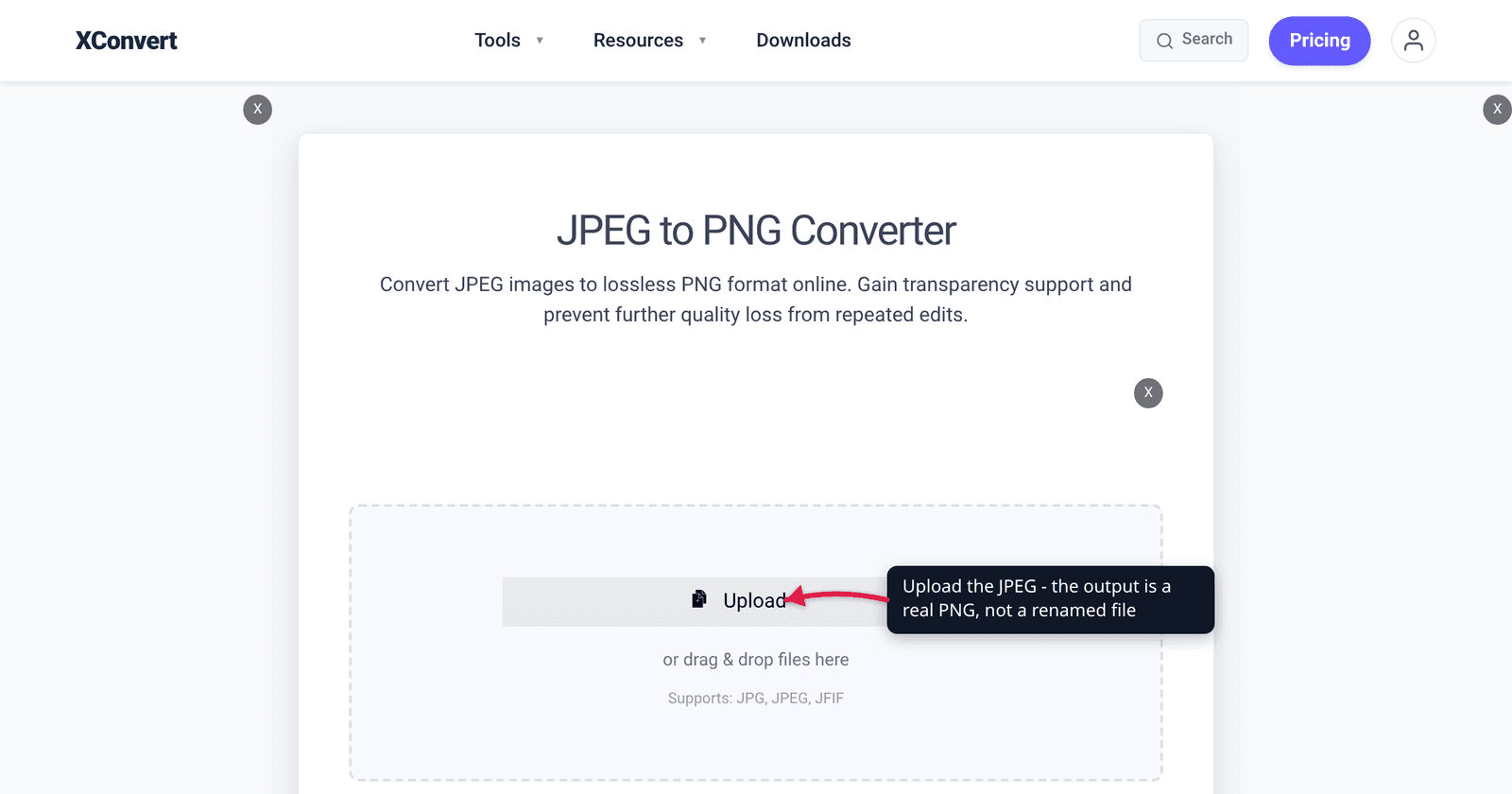
An upload form rejects your file and says “PNG only.” A designer sends you a logo as a JPEG and it arrives with a grey box welded behind it. A colleague pastes a screenshot into a doc and the text comes out fuzzy at the edges. All three are real reasons to convert a JPEG to PNG — and none of them is “PNG is the higher-quality format.” Knowing which case you are actually in decides whether the conversion helps you or just triples your file size for nothing.
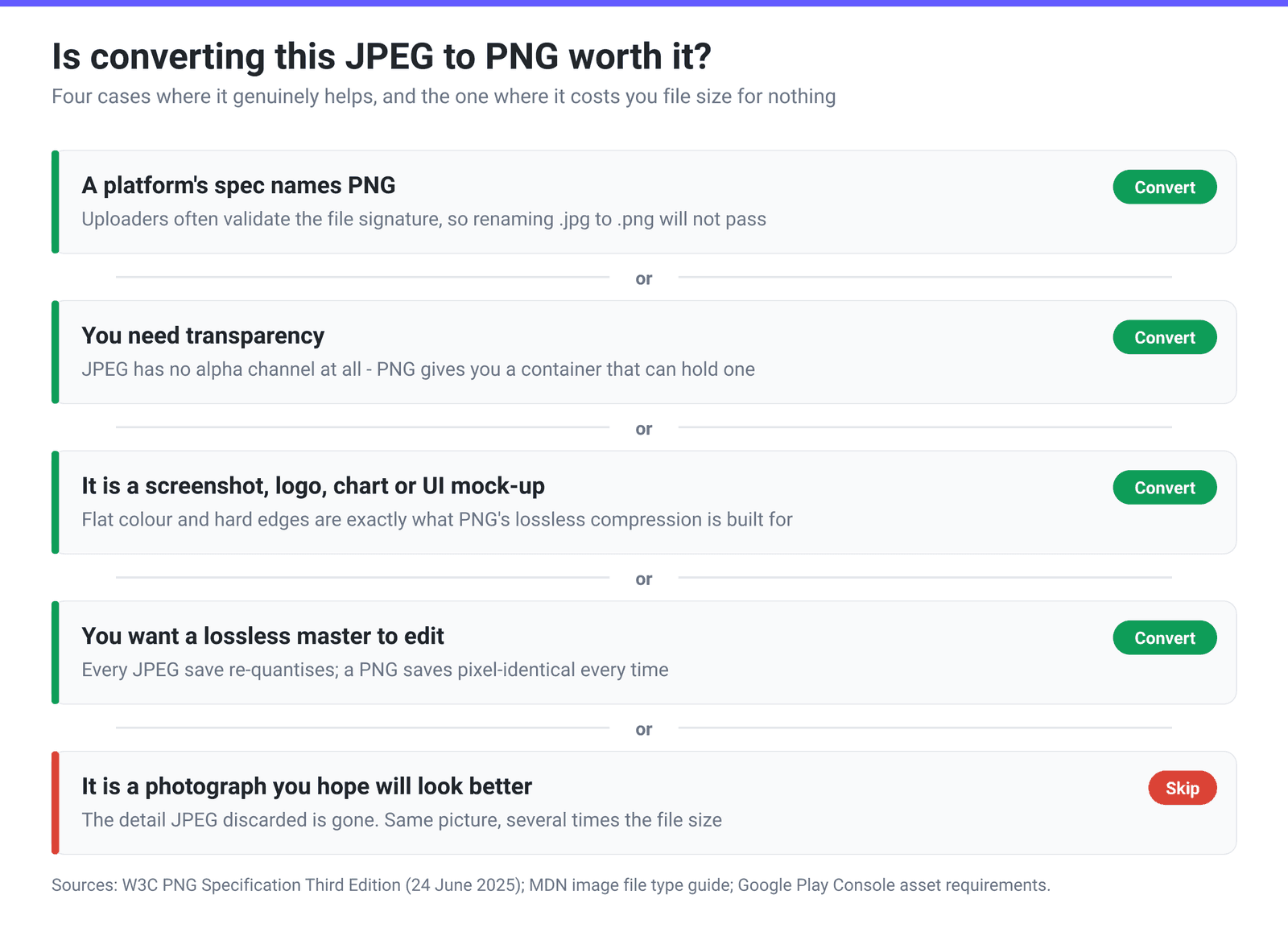
Quick answer: Convert JPEG to PNG when (1) a platform’s spec requires PNG — Google Play’s app icon, for instance, must be “32-bit PNG (with alpha)”; (2) you need transparency, which JPEG cannot store at all; (3) the image is a screenshot, logo, chart or anything with flat colour and sharp edges, where PNG’s lossless compression is both smaller and cleaner than JPEG; or (4) you want a lossless working copy so repeated edit-and-save cycles stop degrading it. Do not convert a photograph to PNG hoping it will look better — it will not, and the file will typically be several times larger. On the JPEG to PNG converter, set Quality Preset to Highest if you want a genuinely pixel-exact PNG.
Jump to a section
- The four cases where it is worth it
- The cases where it is a waste
- What PNG actually gives you
- Convert JPEG to PNG on xconvert
- FAQ
The four cases where it is worth it
| Your situation | Convert? | Why |
|---|---|---|
| A spec says “PNG” | Yes | Some uploaders validate the format, not just the extension. Google Play requires a “32-bit PNG (with alpha)” 512×512 app icon under 1024 KB. |
| You need transparency | Yes | JPEG has no alpha channel — MDN states it plainly: “JPEG does not support an alpha channel.” Converting gives you a format that can hold transparency, so you can then erase the background. |
| Screenshot, logo, chart, UI mock-up | Yes | Flat colour and hard edges are what PNG’s lossless compression is built for. JPEG smears those edges; PNG keeps them exact and is often the smaller file too. |
| Lossless master for editing | Yes | Every JPEG save re-quantises the image. Convert once to PNG and every subsequent save is pixel-identical. |
| A photograph you want to look better | No | The detail JPEG discarded is gone. PNG preserves what you hand it, artifacts included. |
| Anything going straight onto a website | Probably not | For photographic content, a well-tuned JPEG — or WebP/AVIF — will be dramatically smaller at the same visual quality. |
The first row is the one people underestimate. A platform that says “PNG” is often checking the file’s actual signature, so renaming photo.jpg to photo.png does not work — the bytes still say JPEG. You need a real conversion.
The second row deserves a caution: converting to PNG does not create transparency, it only creates the capacity for it. A JPEG with a white background becomes a PNG with a white background. You then need an editor (or a background-removal step) to actually knock the background out. What the conversion buys you is a container that will hold the result.
The cases where it is a waste
A photo you think looks soft. This is the single most common reason people search for this conversion, and it is the one case where it does nothing. JPEG’s compression permanently discards image data; PNG reproduces exactly what it is given, artifacts and all. You get the same picture in a bigger file. Our sibling article, convert JPG to PNG: it won’t improve quality, works through the mechanics in full — this article assumes you have already accepted that and are asking a different question.
Photographic content for the web. PNG’s compression is DEFLATE, which the W3C specification pins to “a sliding window of at most 32768 bytes.” DEFLATE wins by finding repeated byte patterns. A photograph is essentially noise at the byte level — no long repeats to find — so PNG has almost nothing to exploit and the file balloons. That same mechanism is why a screenshot, which is full of long runs of identical pixels, compresses beautifully.
Anything with a hard size limit and no transparency requirement. If a portal caps you at 200 KB, a PNG of a photo is fighting the wrong battle. Compress the JPEG instead.
What PNG actually gives you
PNG is now on its Third Edition, published as a W3C Recommendation on 24 June 2025, which describes the format as “an extensible file format for the lossless, portable, well-compressed storage of static and animated raster images.” Four things it has that JPEG does not:
- A true alpha channel. PNG supports greyscale-with-alpha and truecolor-with-alpha at 8 and 16 bits per component, where “zero means fully transparent and the maximum value means fully opaque.” JPEG has none.
- 16 bits per channel. PNG allows 16-bit greyscale and truecolor; JPEG carries 8 bits per component. That matters for material you intend to grade or composite.
- Exact reproduction. Whatever you put in comes back out. MDN’s own guidance: “PNG is preferred over JPEG for more precise reproduction of source images, or when transparency is needed.”
- Modern extensions. The Third Edition folds in APNG for frame-based animation, coding-independent code points for HDR signalling, and an
eXIfchunk so Exif metadata has a standard home in a PNG.
What it does not give you is smaller photographs. MDN is equally direct in the other direction, recommending WebP or AVIF “if both better reproduction and higher compression are required.”
Convert JPEG to PNG on xconvert
- Open xconvert.com/convert-jpeg-to-png and click Upload — From my Computer, From Google Drive or From Dropbox.
- Open Advanced Options (the gear icon).
- Under Image Compression, set Quality Preset. This is the control that matters. The default is Very High (Recommended), which applies palette quantisation to keep the PNG reasonably small. If you want the pixel-exact, genuinely lossless PNG this article has been describing — for an editing master, an icon that has to match a spec, or anything with fine text — choose Highest.
- Optional: choose Specific file size instead of a preset if you have a hard byte target, and set Image resolution if you need particular pixel dimensions (an app icon at exactly 512×512, for example, via Width x Height).
- Click Convert and download.
Two panels on this page — Colors and Compression speed — do not change the result of a JPEG to PNG conversion, so there is nothing to gain from adjusting them. Quality Preset is the one that decides what you get.
Your file uploads over an encrypted connection, is processed on our servers, and is deleted automatically a few hours later. No sign-up, no watermark.
If your actual goal is the opposite direction — a PNG that is too big for a form — see compress a JPEG to 100 KB or 200 KB for the size-target workflow.
FAQ
A site says “PNG only” but my file is a renamed .png. Why is it rejected?
Because the site is reading the file’s contents, not its name. A JPEG renamed to .png still begins with the JPEG signature bytes, and any uploader doing real validation will spot it. Renaming also breaks the file for anything that trusts the extension and then fails to decode it. Run an actual conversion instead — the output will genuinely be a PNG.
Will the PNG keep my Exif data — camera model, date, GPS?
It can, but do not assume it. PNG only got a standardised home for Exif with the eXIf chunk, which is part of the Third Edition published in June 2025, and not every encoder or reader writes and reads it. If the metadata matters — provenance, timestamps, geotags — keep the original JPEG alongside the PNG rather than relying on the conversion to carry it. If you were converting specifically to strip location data, verify the output rather than trusting it.
PNG-8 or PNG-24 — which do I need?
Those are informal names for PNG’s colour types. “PNG-8” means indexed colour with at most 256 entries, which is small and fine for flat logos and simple icons. “PNG-24” means 8-bit truecolour, and “PNG-32” adds the alpha channel. If you are converting a photograph or anything with gradients, you want truecolour; forcing it to 256 colours produces visible banding. For an app icon that needs transparency, specs usually ask for the 32-bit variant — Google Play, for example, asks for “32-bit PNG (with alpha)”.
Should I use WebP instead of PNG?
Often, yes — for the web specifically. WebP supports both lossless compression and an alpha channel, and it is generally smaller than PNG for the same image. MDN recommends WebP or AVIF “if both better reproduction and higher compression are required.” Stick with PNG when a platform’s spec names PNG, when you need a format every tool on earth reads without question, or when you want a long-term archival master.
Is a converted PNG good enough to send to a printer?
For line art, logos and screenshots, usually yes. For photographic work, a printer will normally prefer the original file — the RAW, or a high-quality TIFF — over a PNG made from a JPEG, because that PNG inherits every artifact the JPEG baked in. PNG also has no native CMYK colour mode, so a print workflow that needs CMYK separations will want TIFF or PDF instead.
My converted PNG is enormous. Can I make it smaller without going back to JPEG?
Yes, and there are two honest levers. Reduce the pixel dimensions — halving both cuts the pixel count to a quarter, and most images are supplied far larger than they are displayed. Or reduce the colour depth if the image genuinely has few colours, which is what indexed PNG is for. What you cannot do is make a PNG of a photograph small; the format is not built for that, and no setting changes it.
Sources
Last verified 2026-08-31.
- Portable Network Graphics (PNG) Specification (Third Edition) — W3C Recommendation, 24 June 2025 — PNG as a lossless format, DEFLATE with a 32768-byte sliding window, permitted bit depths and colour types, the alpha channel definition, and the Third Edition’s APNG, HDR and
eXIfadditions. - MDN — Image file type and format guide — “JPEG does not support an alpha channel”; PNG preferred “for more precise reproduction of source images, or when transparency is needed”; WebP/AVIF where both better reproduction and higher compression are required.
- Google Play Console — graphic assets requirements — app icon must be a “32-bit PNG (with alpha)” at 512×512 and under 1024 KB; the feature graphic is “JPEG or 24-bit PNG (no alpha)” at 1024×500.