 By Stephanie Taylor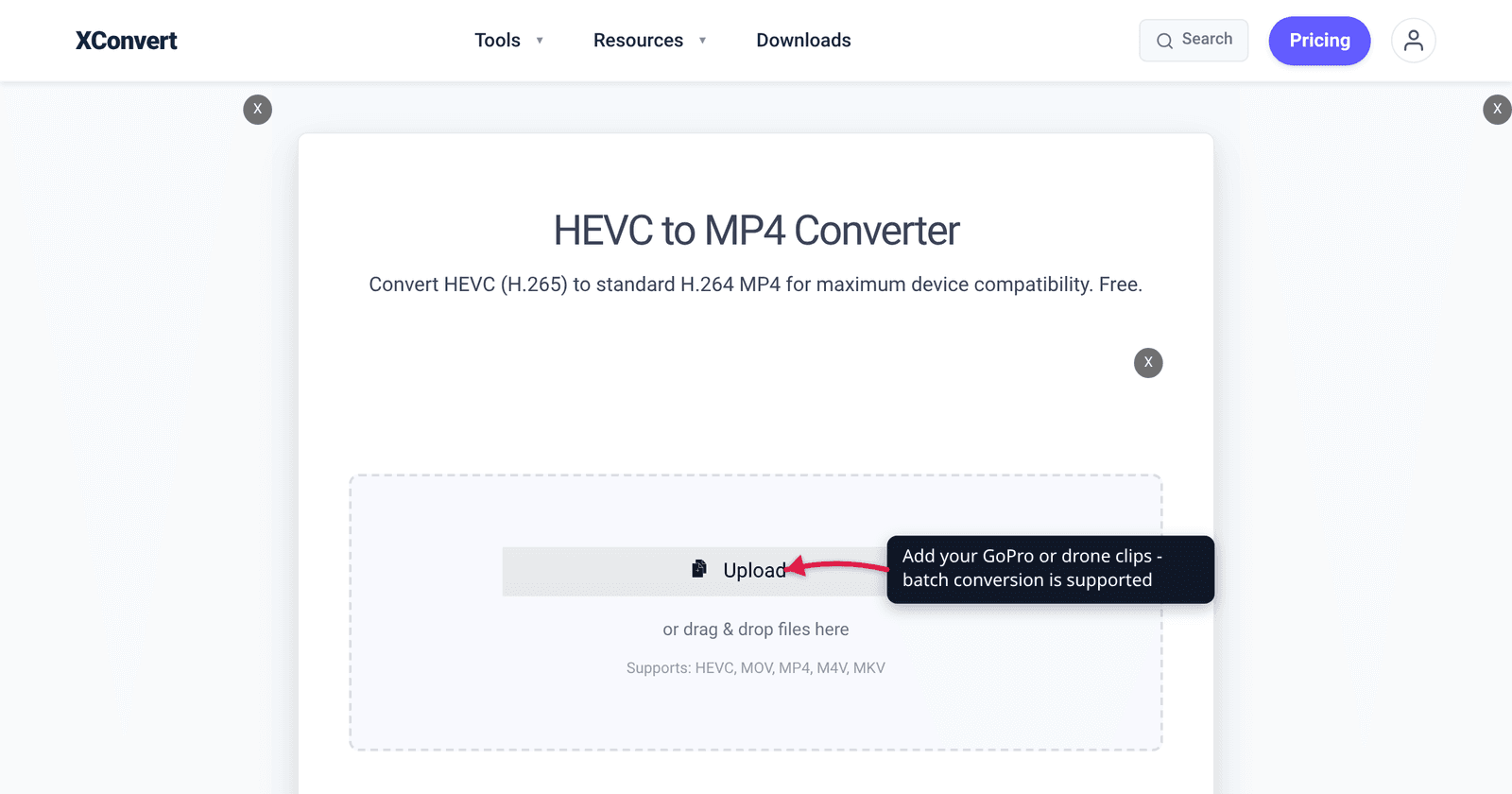
You land the drone, pull the card, and double-click a 4K60 clip. VLC plays it fine. Windows Photos says you need an extension. Premiere imports it but every scrub is a two-second stutter. And the confusing part: the file is already called DJI_0043.MP4, so why does every guide tell you to “convert it to MP4”? Because the container was never the problem. The codec inside it is HEVC, and that is what your PC and your editor are choking on.
Quick answer: Your GoPro or drone clip is already in an MP4 container — what needs changing is the video codec inside, from HEVC (H.265) to H.264. Cameras record HEVC because their highest modes require it: DJI’s own Mini 4 Pro spec sheet states that “4K/100fps and HLG/D-Log M only support H.265 coding”, and recent GoPro HERO cameras behave the same way in their top resolution and frame-rate modes. Make one H.264 edit copy at the start of a project, keep the HEVC originals for archive, and accept a roughly 1.5–2× larger working file in exchange for smooth scrubbing and playback everywhere. On the HEVC to MP4 converter, the setting that matters is Video Codec → H.264.
Jump to a section
- Your file is already an MP4
- Why the camera recorded HEVC
- Where HEVC actually breaks
- The H.264 edit copy workflow
- Convert GoPro or drone HEVC to H.264
- FAQ
Your file is already an MP4
This trips up almost everyone with action-cam footage. A GoPro or DJI clip lands on the card as .MP4 — that is the container, the box holding the video track, the audio track, timecode and metadata. Inside that box, the video track is encoded with a codec. Both H.264 and HEVC sit perfectly happily inside an MP4 container, which is why two files with the same extension can behave completely differently. DJI spells this out in its published specifications, listing the Mini 4 Pro’s video format as “MP4 (MPEG-4 AVC/H.264, HEVC/H.265)” — one container, two possible codecs.
So when a forum answer tells you to “convert your GoPro file to MP4”, it means re-encode the video track to H.264 and put it back in an MP4. The extension will not change. The file will simply start working.
Why the camera recorded HEVC
HEVC exists to solve a storage and card-speed problem. Fraunhofer HHI, one of the institutes behind the standard, puts the design target at about a 50% bit-rate reduction at the same subjective video quality compared with H.264. For a camera writing to a microSD card at high resolution and frame rate, that halving is the difference between a mode being possible and not.
Which is why the highest modes are frequently HEVC-only rather than HEVC-by-preference. DJI’s Mini 4 Pro specification is explicit: the camera supports “H.264/H.265” generally, but “4K/100fps and HLG/D-Log M only support H.265 coding”, with a maximum bitrate of 150 Mbps on either codec. Choose 4K/100 for slow motion, or D-Log M because you want to grade later, and the codec choice is made for you.
Recent GoPro HERO cameras follow the same pattern: the top resolution and frame-rate combinations record as HEVC with no H.264 fallback, while lower modes still offer the older codec. Exactly which modes are HEVC-only has shifted with almost every generation, so check the video settings on your specific camera rather than trusting a model list — but the principle holds: the more demanding the mode, the more likely it is locked to HEVC.
The practical upshot is that you cannot simply “shoot H.264 instead” without giving up the mode you bought the camera for. Converting afterwards is the realistic path.
Where HEVC actually breaks
Three distinct failure points, and they have different causes.
Windows playback. Microsoft’s own codec documentation lists the video formats Media Player handles natively — “MPEG-4 (H.264), H.263, VC-1, WMV, DV, VP8, and Motion JPEG” — and HEVC is not among them. It is offered separately as the “HEVC Video Extension” codec pack from the Microsoft Store. That is the whole explanation for the “you need an extension to use this file” message: H.264 is built in, HEVC is not.
Browsers. caniuse shows around 92% global support for HEVC, which sounds fine until you read the breakdown. Safari on macOS has full support from version 13 (11 to 12.1 are partial, gated on macOS High Sierra or later) and Safari on iOS from version 11; Chrome from 107, Edge, and Firefox from 137 are all marked partial and depend on the operating system providing a hardware decoder. Both Chrome and Firefox have marked broader HEVC support “WontFix” over licensing. Upload a raw HEVC clip to a page and a meaningful slice of visitors will see nothing.
Editor scrubbing. This one is not a support problem at all — the editor imported the file. HEVC’s efficiency comes from doing far more analysis per frame, and decoding is correspondingly more demanding than H.264. When an editor has a hardware HEVC decode path, 4K60 plays back fine; when it falls back to software decode, every scrub, every trim handle drag and every timeline scan has to reconstruct frames the slow way. That is why the same machine can play the clip smoothly in VLC and still crawl on an editing timeline.
| HEVC (H.265) | H.264 | |
|---|---|---|
| Windows Media Player, nothing installed | Store extension needed | Native |
| Chrome / Firefox / Edge desktop | Partial, hardware-gated | Supported |
| Safari (macOS 13+ / iOS 11+) | Supported | Supported |
| File size at matched quality | Roughly half | Roughly 2× the HEVC file |
| Decode cost when scrubbing 4K60 | High without a hardware decoder | Low |
| Available in the camera’s top modes | Often the only option | Often unavailable |
The H.264 edit copy workflow
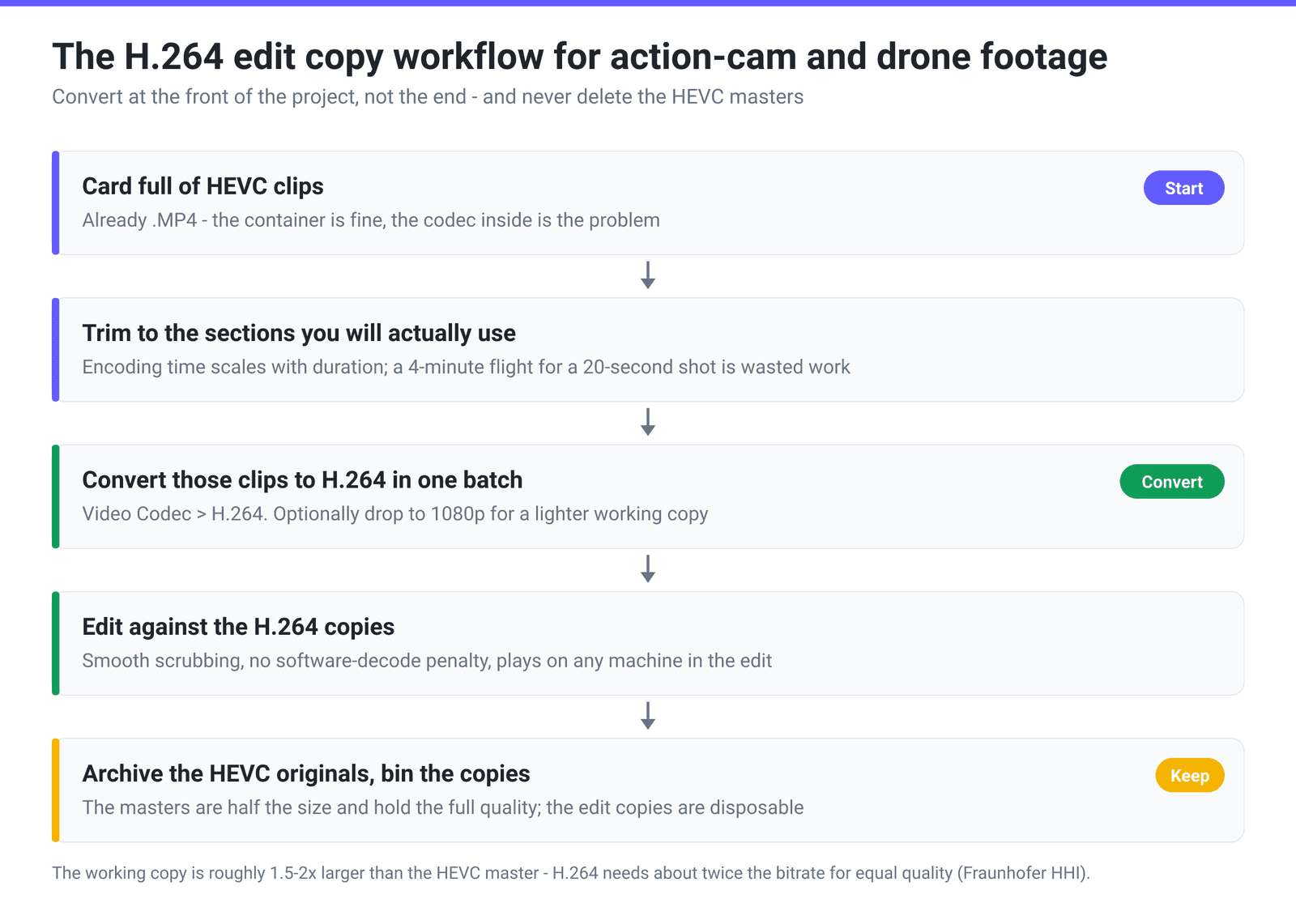
The mistake is converting at the end of a project, or converting nothing and fighting the timeline for hours. Do it at the front:
Convert once, before you start cutting. Batch the day’s clips into H.264 in one pass, point the project at those, and never think about codecs again. Cut first and convert after, and you have paid the decode tax on every scrub of the edit.
Keep the HEVC originals. They are half the size and they are your masters. The H.264 files are a working copy — delete those when the project ships.
Expect the working copy to be bigger, commonly around 1.5–2× depending on the footage. That is the trade: disk space for timeline responsiveness.
Trim before you convert if you only need a slice. A four-minute flight where you want 20 seconds is four minutes of encoding you do not need. The converter’s Trim control takes a start time and a duration.
Consider dropping resolution for the edit copy only. Cutting a 1080p deliverable from 4K footage? A 1080p H.264 working copy is dramatically lighter, and you can conform back to the 4K originals for the final render if your editor supports relinking.
If your goal is only to make a big HEVC file smaller — not to change codec — do not convert to H.264 at all; you will make it bigger. See compress HEVC without re-encoding to H.264 for the keep-the-codec approach.
Convert GoPro or drone HEVC to H.264
The HEVC to MP4 converter accepts HEVC, MOV, MP4, M4V and MKV, so it takes GoPro and DJI files exactly as they come off the card.
- Open xconvert.com/convert-hevc-to-mp4 and click Upload to add your clips — From my Computer, From Google Drive or From Dropbox. Batch conversion is supported, so you can drop in a whole card folder and apply one set of settings to all of it.
- Open Advanced Options (the gear icon).
- Set Video Codec to H.264. This is the setting that actually fixes the problem; everything else is optional. Leave Audio Codec on AAC unless you have a reason not to.
- Under File Compression, the default is Quality Preset at Very High (Recommended), which is the right choice for an edit copy. If you would rather steer quality directly, pick Constant Quality and set a CRF value — lower means better quality and a larger file. Specific file size and Constant Bitrate are there if you have a hard target instead.
- Optional: set Video resolution to a Preset Resolution such as 1080p for a lighter working copy, and use Trim → Time Range with a Start time and Duration to cut out just the section you need before encoding.
- Click Convert and download.
Your files upload over an encrypted connection, are processed on our servers, and are deleted automatically a few hours later. No sign-up, no watermark.
For the phone-side version of the same problem — iPhone footage that arrives as HEVC because of a camera setting rather than a mode restriction — see make your iPhone shoot JPG and MP4 instead of HEIC/HEVC.
FAQ
My GoPro file is already .MP4. Why does everyone say to convert it to MP4?
Because “MP4” is the container and the real issue is the codec inside it. Your camera wrote an MP4 box containing an HEVC video track. Converting produces another MP4 box containing an H.264 video track. The extension stays the same, the file plays everywhere. DJI’s own specification lists the format as “MP4 (MPEG-4 AVC/H.264, HEVC/H.265)” — the same container, two possible codecs.
Will converting to H.264 lose quality?
Re-encoding is always generational, so technically yes — but at a high-quality preset the loss is not visible on footage you are going to grade and export anyway. What is guaranteed is a larger file: H.264 needs roughly twice the bitrate of HEVC for equal quality, per the standard’s own design target. If quality matters more than the working file size, use Constant Quality with a low CRF rather than a fixed bitrate.
Why does my drone footage stutter in Premiere or Resolve even though it plays in VLC?
Because playing a file straight through and scrubbing a timeline are different workloads. HEVC decode is significantly more expensive than H.264, and an editor without a hardware HEVC decode path falls back to software decoding for every frame it needs — including every frame you skip past when you drag the playhead. VLC only ever has to decode forward at 1× speed. An H.264 edit copy removes the problem outright.
Can I just upload the HEVC file to my website?
Not if you want everyone to see it. Safari on macOS has supported HEVC since version 13 and Safari on iOS since version 11, but Chrome, Edge and Firefox are all listed as partial support on caniuse and depend on a hardware decoder being present in the operating system — and both Chrome and Firefox have declined to broaden support over licensing. H.264 remains the safe default for a public web embed.
Should I convert every clip on the card, or only the ones I use?
Only the ones you use, and trim them first. Encoding time scales with duration, so converting a full card of four-minute flights when you need 30 seconds from each is mostly wasted. Use Trim → Time Range to set a start time and duration per clip, then batch the rest.
Does converting fix HDR or Log footage?
Only partly, and be careful here. HLG and D-Log M material is HEVC precisely because those pipelines require it; converting the video to H.264 gives you a file that plays anywhere, but a Log clip still looks flat and grey until you grade it, and HDR metadata is not something an H.264 edit copy is designed to preserve. Convert Log footage for editing convenience, and grade and deliver from the originals.
Sources
Last verified 2026-08-31.
- DJI Mini 4 Pro specifications — “MP4 (MPEG-4 AVC/H.264, HEVC/H.265)”, “4K/100fps and HLG/D-Log M only support H.265 coding”, and the 150 Mbps maximum bitrate on either codec.
- Codecs in Media Player — Microsoft Support — natively supported video formats are “MPEG-4 (H.264), H.263, VC-1, WMV, DV, VP8, and Motion JPEG”; HEVC is a separate Microsoft Store codec extension.
- caniuse — HEVC / H.265 video format — desktop Safari full support from 13 (partial 11 to 12.1) and Safari on iOS full support from 11; Chrome 107+, Edge and Firefox 137+ partial and hardware-decoder dependent; licensing noted as the reason for limited adoption.
- Fraunhofer HHI — H.265 / HEVC — HEVC’s design target of roughly 50% bit-rate reduction at the same subjective video quality versus H.264.
- ITU-T H.265 (HEVC) Recommendation — the standard itself, first version dated April 2013.