 By James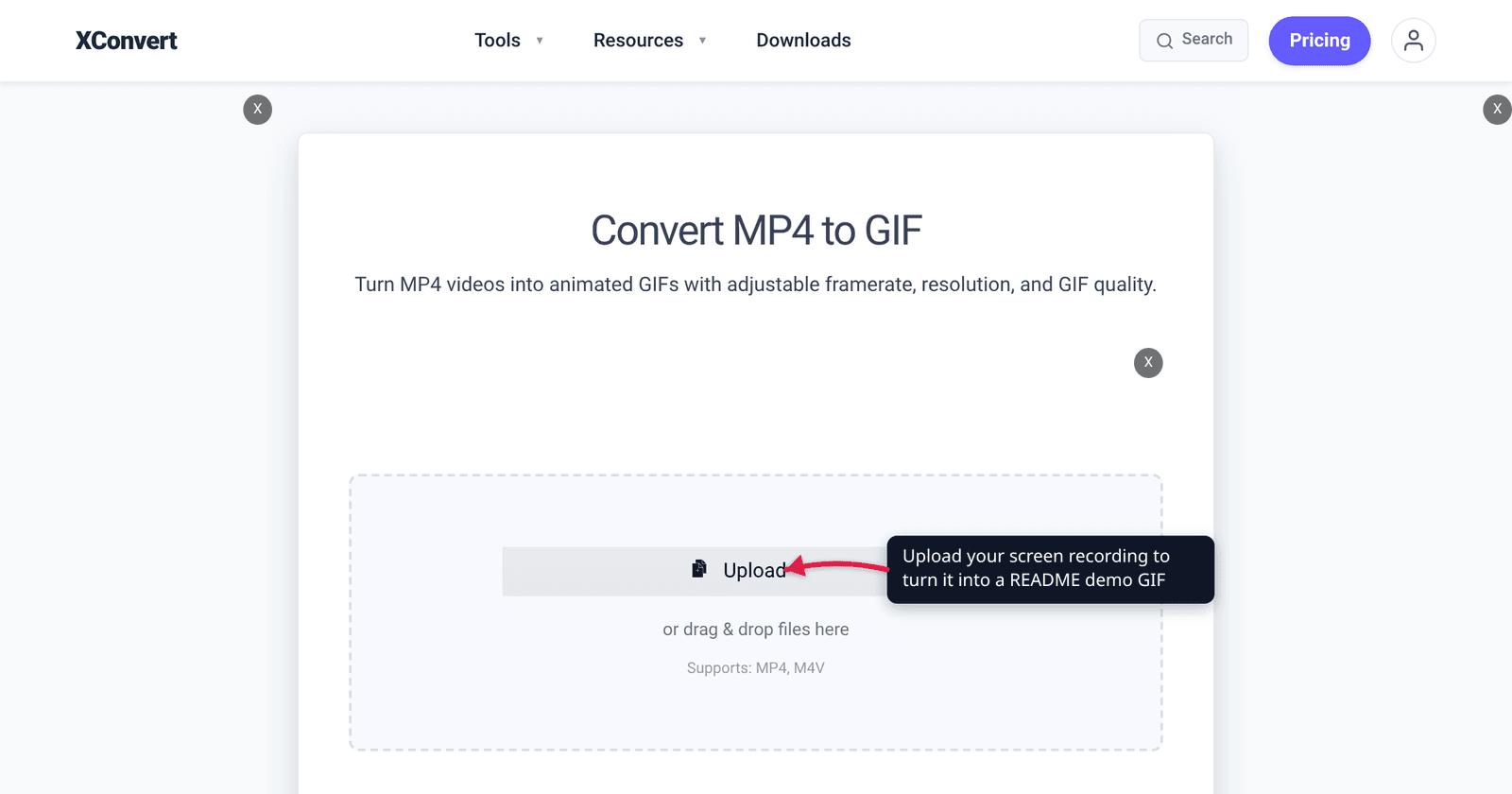
The CLI works, the README is written, and the only thing left is the demo. You record 40 seconds of your tool running full-screen on a retina display, convert it to a GIF, and get back a 68 MB file GitHub will not take. Then you find three different size limits in GitHub’s docs and no two blog posts agree on which applies. Here is the answer, straight from GitHub’s documentation — plus why a GIF is so much larger than the video it came from, and how to land under the cap without the demo turning into a slideshow.
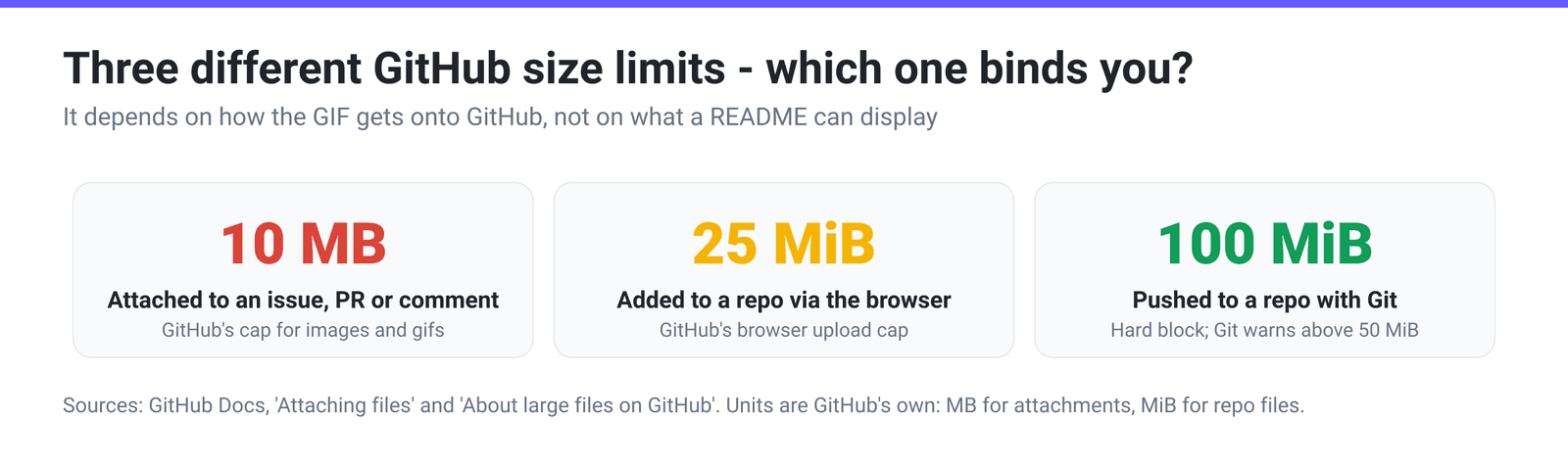
Quick answer: GitHub’s documented cap for attached images and gifs is 10 MB — that is the limit you hit when you drag a GIF into an issue, a pull request, or the README editor. A GIF you commit to the repository is governed by different numbers: 25 MiB through the browser uploader, a Git warning at 50 MiB, and a hard block at 100 MiB. Aim well under 10 MB regardless: record a single window rather than a full screen, keep the demo to roughly 10–15 seconds, and export at 10 FPS. If it is still too big, set an explicit target with Max file size → Custom size value on the MP4 to GIF converter.
Jump to a section
- Which GitHub limit actually applies
- Why the GIF is far bigger than the recording
- Record it small before you compress it
- Convert a screen recording to a GIF under 10 MB
- FAQ
Which GitHub limit actually applies
There is no single “GitHub GIF limit.” There are several, and which one binds depends on how the file gets onto GitHub. These all come from GitHub’s own documentation, including the mixed units — GitHub writes attachment limits in MB and repository limits in MiB.
| How the file gets there | Limit | What it covers |
|---|---|---|
| Dragged into an issue, PR or comment box | 10 MB | “images and gifs” |
| Dragged in as a video (free plan) | 10 MB | .mp4, .mov, .webm on a user or org free plan |
| Dragged in as a video (paid plan) | 100 MB | same file types on a paid plan |
| Any other attached file type | 25 MB | PDFs, ZIPs, logs, etc. |
| Added to a repo through the browser | 25 MiB | “If you add a file to a repository via a browser” |
| Pushed to a repo with Git | Warning at 50 MiB, blocked over 100 MiB | any file in the repository |
Two consequences most guides miss.
The 10 MB number is an attachment limit, not a README limit. If you git add docs/demo.gif and reference it as , you are not attaching anything — the GIF is a repository file and the 50/100 MiB thresholds apply. In practice almost everyone gets their GIF onto GitHub by dragging it into a comment box to obtain a hosted URL, which is exactly the path the 10 MB cap governs.
Committing the GIF makes it permanent. Every clone pulls every version of that file ever committed. Replace a 9 MB demo GIF four times over a project’s life and you have added roughly 36 MB to the clone size forever, because Git history keeps the old blobs. GitHub’s guidance is explicit that repositories should “remain small, ideally less than 1 GB.” That, not the cap, is the real reason to be disciplined.
Worth knowing too: GitHub does not serve README images directly. It proxies them through Camo, which “generates an anonymous URL proxy for each file which hides your browser details.” Images from a private network, or from a server requiring authentication, cannot be displayed at all — which is why a demo GIF linked from your own staging box renders as broken for everyone else.
Why the GIF is far bigger than the recording
Developers are consistently surprised that a 4 MB screen recording becomes a 40 MB GIF. It is not a conversion failure — it is what GIF is. Across all 73,688 GIF-output jobs run on xconvert in a 30-day window, an MP4 converted to GIF came out at 4.9× the size of the source video at the median.
Three properties of the format explain it:
No modern interframe compression. H.264 stores one keyframe and describes subsequent frames as motion vectors and small residuals against it. GIF has only one comparable trick — leaving unchanged pixels out of the next frame — and it collapses the moment anything moves. A terminal demo where one line changes compresses beautifully; a scrolling page or a cursor tracking over a busy background does not.
256 colours, maximum. The GIF89a specification caps a colour table at 256 entries. Your recording is 24-bit, so every frame has to be quantised down. Fine for flat UI and terminal text; punishing for gradients and antialiased text over photographic backgrounds, where the encoder must either band the image or spend bytes on dithering.
Frame delays are stored in hundredths of a second. The spec’s Delay Time field “specifies the number of hundredths (1/100) of a second to wait before continuing.” That makes 10 FPS exact — a delay of 10 — while 15 FPS is 6.67 hundredths and has to round. Nothing between 50 and 100 FPS is representable at all, and the 1-centisecond delay that would give you 100 FPS is replaced with 100 ms by both Chrome and Firefox — so 50 FPS is the real ceiling. There is no 60 FPS GIF.
For a deeper walk through palettes, frame dropping and lossy LZW, see How GIF optimization actually works.
Record it small before you compress it
The cheapest bytes are the ones you never record. A GIF’s size is roughly frames × pixels per frame × how much changes between them, and you control all three at capture time.
Record the window, not the screen. GitHub renders README content in a fixed-width column, so a 2560-pixel-wide capture is downscaled in the browser and you paid for every one of those pixels. Capture the terminal or app window at roughly the width it will be displayed at — halving both dimensions cuts pixels per frame to a quarter.
Keep it to 10–15 seconds. Frame count is linear in duration: at 10 FPS, a 12-second demo is 120 frames; a 40-second one is 400. If your recording is longer, cut the interesting slice out first — the video cutter does that, and the MP4-to-GIF page itself has no trim control.
Export at 10 FPS. It is the converter’s default for a reason: it is an exact GIF delay value, smooth enough for UI motion, and a third of the frames of a 30 FPS capture. Dropping to 5 FPS saves less than you would expect and looks noticeably stuttery.
Avoid gratuitous motion and busy backgrounds. Do not drag windows, page rather than scroll, and turn off animated wallpapers in the captured region — every moving pixel is one GIF cannot skip. A terminal on a solid colour quantises to 256 colours almost losslessly; the same terminal over a photo wallpaper does not.
Convert a screen recording to a GIF under 10 MB
Once the recording is as tight as you can make it, the MP4 to GIF converter can hit a hard size target for you instead of making you guess at quality settings.
- Open xconvert.com/convert-mp4-to-gif and click Upload — or drag the file onto the page. From my Computer, From Google Drive and From Dropbox are all available, and batch upload is supported if you have several demos.
- Open Advanced Options (the gear icon).
- Under File Compression, switch from Quality preset to Max file size. Set the Size limit dropdown to Custom size value, then type
9and leave the unit on MB. Nine leaves headroom under GitHub’s 10 MB attachment cap. (The Discord (10 MB max) preset in the same dropdown is an absolute 10 MB cap and happens to match GitHub’s number exactly, if you would rather not type one.) - Leave Framerate on 10 FPS (Recommended) unless the demo has fast motion; the framerate group is separate from File Compression and is always visible.
- Click Convert, then download. If you want to hand-tune instead, choose Custom in File Compression to expose Image quality (%), Image resolution and Colors (palette size plus a dither toggle).
Files upload over an encrypted connection, are processed on our servers, and are deleted automatically a few hours later. No sign-up and no watermark.
A note on expectations: the target is a best-effort search, not a guarantee. Asking a 60-second 1440p capture to land under 9 MB will get you something under 9 MB, but it gets there by dropping resolution and colours until it does. Trimming and downscaling first always looks better than asking the encoder to perform a rescue.
FAQ
What is GitHub’s actual GIF size limit for a README?
For a GIF attached through the web interface — the usual way people get a hosted URL — GitHub’s documentation states a maximum of 10 MB for images and gifs. For a GIF committed into the repository and referenced with a relative path, the attachment cap does not apply: the browser uploader allows up to 25 MiB, Git warns above 50 MiB, and GitHub blocks files over 100 MiB.
Should I use an MP4 instead of a GIF?
Sometimes, but check your plan first. GitHub lists .mp4, .mov and .webm among the media types supported in all contexts and recommends “using H.264 for greatest compatibility” — but the video attachment cap on a user or organisation free plan is the same 10 MB. Only on a paid plan does it rise to 100 MB. So video buys you real headroom only if you are paying, and it costs you the thing a GIF gives you for free: silent, autoplaying, loop-forever motion that renders identically everywhere.
Why did my 5 MB screen recording turn into a 40 MB GIF?
Because GIF has no interframe compression worth the name and is limited to 256 colours per frame, so it stores much of each frame again rather than describing the difference. On xconvert’s own production data — every GIF-output job over a 30-day window, 73,688 of them — MP4 to GIF came out at 4.9× the source size at the median. Inflation is normal; the fix is fewer frames, fewer pixels and less motion, not a different converter. Why is my GIF file so big goes through the arithmetic.
My README GIF shows as a broken image. What went wrong?
If it is hosted somewhere other than GitHub, the likely cause is GitHub’s Camo proxy. GitHub documents that an image “being served from a private network or from a server that requires authentication … can’t be viewed by GitHub”, and that unsupported content types also fail. Serving the GIF from the repository itself, or from an attachment URL GitHub gave you, sidesteps the whole class of problem. If the GIF changed but GitHub still shows the old one, that is Camo caching — GitHub’s guidance is to check your Cache-Control headers.
Does a demo GIF in the repo slow down clones?
Yes, permanently. Git keeps every version of every committed file, so each time you replace the demo the old blob stays in history and is downloaded by everyone who clones. GitHub recommends repositories “remain small, ideally less than 1 GB.” If you expect to iterate on the demo, host it as an attachment and reference the URL instead.
Can I get a sharp 30 FPS README GIF under 10 MB?
Only for a short, small, low-motion demo. Tripling the frame rate roughly triples the frame count, so a 30 FPS capture needs about a third the duration or a third the pixel area to fit the same budget. For a terminal demo the honest trade is 10 FPS at full readable size rather than 30 FPS at half size — legible text is what a README demo is for.
Sources
Last verified 2026-08-31.
- Attaching files — GitHub Docs — “10MB for images and gifs”, 25 MB for other files, 10 MB / 100 MB video caps by plan, the supported media type list, and the H.264 recommendation.
- About large files on GitHub — GitHub Docs — 25 MiB browser upload, 50 MiB Git warning, 100 MiB hard block, and the “ideally less than 1 GB” repository guidance.
- About anonymized URLs — GitHub Docs — the Camo image proxy, why private or authenticated hosts fail, and image cache behaviour.
- GIF89a specification (W3C copy) — the Graphic Control Extension Delay Time field measured in hundredths of a second, and the 256-entry colour table maximum.
- Chromium
deferred_image_decoder.ccand Geckoimage/FrameTimeout.h— both engines replace any frame duration of 10 ms or less with 100 ms, which is what puts the practical ceiling at 50 FPS. - xconvert production data,
GIF_EXACT_SIZE_DESIGNanalysis — all 73,688 GIF-output workflows over a 30-day window; MP4 to GIF inflates 4.9× the source video size at the median.