 By Stephanie Taylor
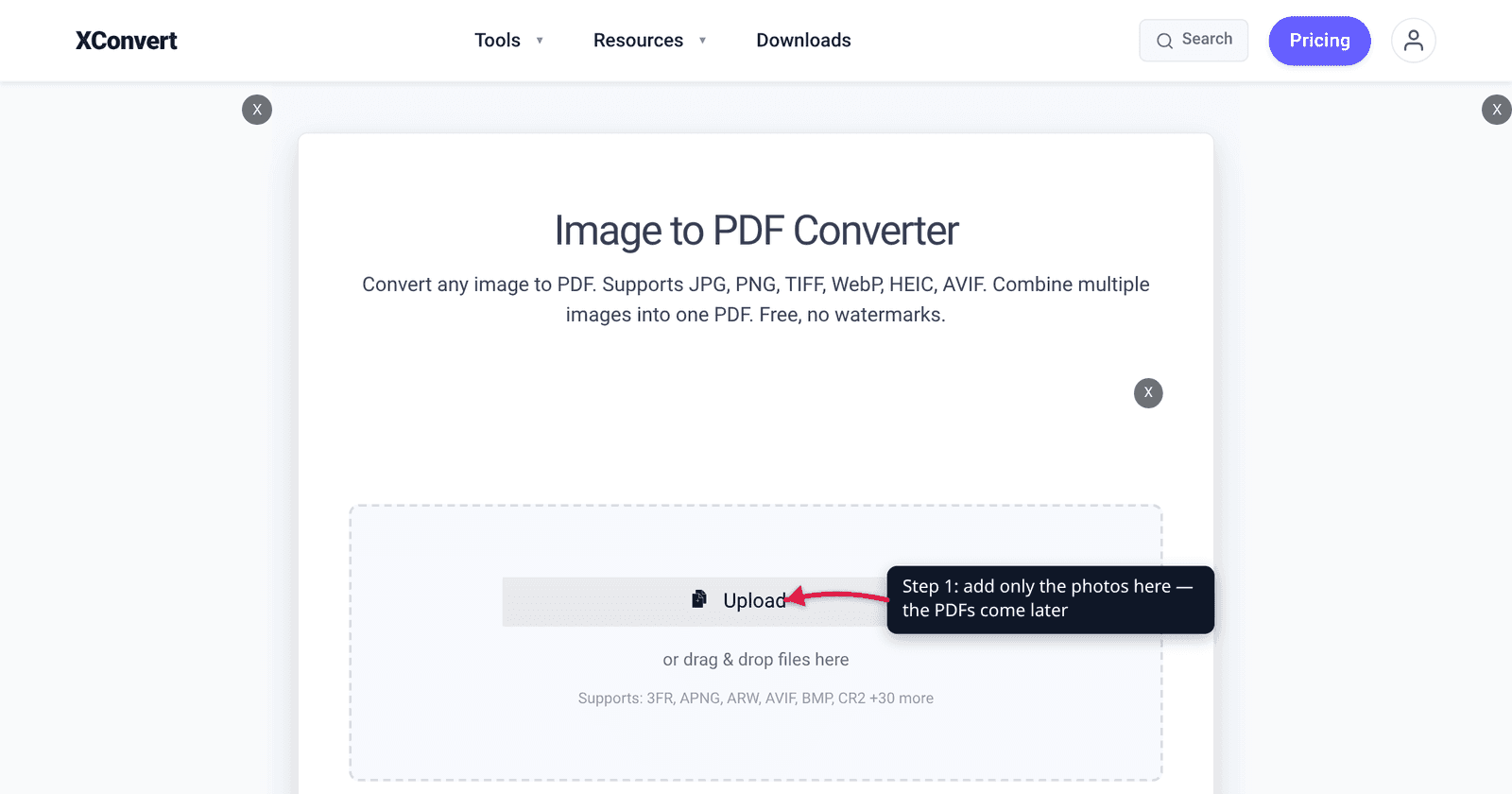
You have eight phone photos of receipts, a signed PDF contract, and a two-page invoice that arrived as a PDF — and the portal wants exactly one file. Every “merge PDF” tool rejects the photos; every “images to PDF” tool rejects the PDFs. That is not a bug, it is a real split in what each tool is built to read. The fix is two passes in a specific order, and it takes about a minute once you know which settings actually change the output.
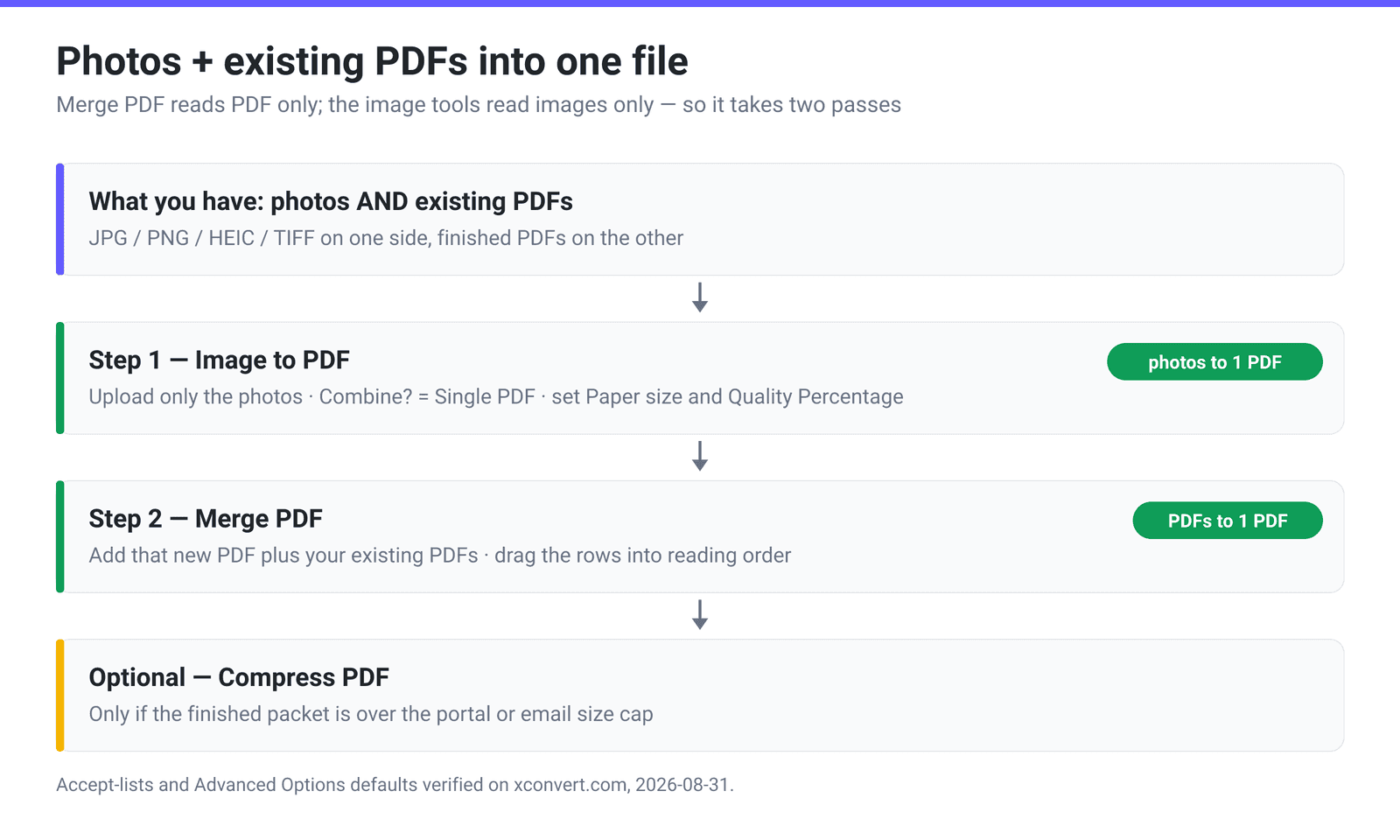
Quick answer: Do it in two steps. First, upload only the photos to the Image to PDF converter, leave Combine? on Single PDF, and download one PDF of all your images. Second, upload that new PDF plus your existing PDFs to Merge PDF, drag the file rows into the order you want, and merge. Step two copies pages rather than re-rendering them, so nothing you set in step one gets squeezed again on the way through.
Jump to a section
- Why no single upload box takes both
- Step 1 settings that actually change the output
- Getting the page order right
- Mixed page sizes, and when to force one
- When the combined file is too big
- Combine photos and PDFs on xconvert
- FAQ
Why no single upload box takes both
A PDF merger and an image-to-PDF converter do genuinely different jobs.
Merging PDFs is a structural operation: the merger opens each source document, copies its page objects into a new document, and writes the result. Nothing is re-rendered — text stays text, fonts stay embedded, and an image inside a source page keeps the encoding it already had.
Turning photos into a PDF is a layout operation. There are no pages yet, so the tool has to invent them: pick a paper size, decide how the picture sits inside that rectangle, add margins, encode the pixels. The two code paths share almost nothing, which is why the accept-lists differ:
| xconvert tool | Accepts | Produces | Under the hood |
|---|---|---|---|
| Merge PDF | PDF only | One PDF | Page-object copy — no re-render |
| Image to PDF | JPG, PNG, HEIC, TIFF, WebP, BMP, GIF, PSD, EPS + camera RAW (CR2, CR3, NEF, ARW, DNG, RAF, ORF and more) — no PDF | One PDF, or one per image | Lays each image onto a new page |
| Merge Image to PDF | Same image list — no PDF | One PDF, or one per image | Same layout engine, and the same Combine? control — Single PDF by default, Individual PDFs if you want one file per photo |
So: make the photos into a PDF first, then merge PDFs with PDFs. The photo side is the only side that needs decisions from you.
Step 1 settings that actually change the output
Open xconvert.com/convert-image-to-pdf, add your photos, then open Advanced Options.
| Control | Default | Change it when |
|---|---|---|
| Combine? | Single PDF | Leave it. Individual PDFs gives you one file per photo — the opposite of what you want here. |
| Paper size | A4 | Switch to LETTER for US recipients and forms. Original keeps each image’s own dimensions instead of fitting it to a sheet. |
| Margin | Narrow (0.5") | No margin (0") when the image is already a full-page scan and you don’t want a white border added. |
| Image placement | Contained | Cover fills the page and crops the overflow. Contained fits the whole picture inside the page — safer for documents, because nothing gets cut off. |
| Image Compression → Quality Percentage | 75 | Raise it toward 90–95 when the photo contains small text. |
| Image Transparency | Unchanged | Set to Removed if a PNG with a transparent background prints with unexpected dark areas. |
| Page layout | Portrait | Landscape when most of your images are wider than they are tall. |
The one people get wrong is Quality Percentage. Your photos are re-encoded at that quality as they are placed onto pages, and 75 is tuned for photographs, not for 8-point print. A receipt at 75 looks fine on screen and turns to mush the moment someone zooms in to read a line item. If the point of the photo is text, push it up.
Getting the page order right
Order is decided entirely by the order of the rows on screen, in both steps. Each staged file is a draggable row: pick one up, drop it above or below its neighbours. The first row’s pages land first in the output, the last row’s pages land last.
Two habits that save a re-do. Name files so alphabetical order is already correct before you upload — 01-cover.pdf, 02-receipts.pdf, 03-contract.pdf — because browsers hand over multi-file selections in an order you do not control, and numbered names make any shuffle obvious. And decide where the photo block goes before step 2: your photos arrive at the merge stage as one file, so you can place it at the front, the back, or between two other PDFs, but not interleaved between pages of an existing PDF.
If you do need that — page 1 of a contract, then a photo, then page 2 — split the contract first with Split PDF, then merge the pieces in the order you want.
Mixed page sizes, and when to force one
In the PDF format, page geometry is a per-page property. The MediaBox entry — the rectangle defining “the boundaries of the physical medium on which the page shall be displayed or printed” — is required for a page and inheritable from the page tree, and an individual page “may override this inherited value with a MediaBox entry of its own” (ISO 32000-1, Table 30 and §7.7.3.4, “Inheritance of Page Attributes”). That is why a merged file can legitimately hold A4 pages from your contract and Letter pages from your photo PDF, and why no merger has to normalise them.
On screen this is invisible; every viewer fits each page to the window. It matters in two places:
- Printing. A duplex job on a mixed-size PDF can come out scaled or shifted depending on the driver. If the packet is going to paper, match step 1’s Paper size to the PDFs you are merging with.
- Portals that check page size. Some legal e-filing and government systems want everything uniformly Letter or uniformly A4. Set it deliberately in step 1 rather than hoping.
You cannot change the page size of the PDFs you already have from the merge screen — that side is a copy by design. Set the photo side to match them.
When the combined file is too big
Photos dominate a mixed packet: ten phone photos at full resolution will outweigh a 40-page text PDF several times over.
Get one thing straight first — choosing a smaller paper size does not shrink the file. Each photo is embedded at its own full pixel dimensions and then drawn scaled to fit the page, so a 12-megapixel photo carries the same pixels whether it lands on A4 or Letter. Paper size is a layout decision, not a size decision. Three levers actually move the number:
- Lower Quality Percentage in step 1. The photos are re-encoded at that quality on the way in, so it is the most direct control you have over the image pages.
- Shrink the pixels before you upload. A 4000 px-wide phone photo carries far more detail than anyone will ever see on a page of a shared PDF, and those pixels are pure weight — run the photos through the image resizer first.
- Run the merged file through Compress PDF afterwards. Its presets downsample embedded images to a target resolution, and it is the only pass that also reaches the pages that came from your existing PDFs.
For a concrete ceiling: Gmail caps attachments on personal accounts at 25 MB, while on work and school accounts the limit is whatever the Google Workspace administrator set — so treat 25 MB as an upper bound, not a promise. Hitting a hard number is covered in merge photos into a PDF under a size limit.
Combine photos and PDFs on xconvert
- Open xconvert.com/convert-image-to-pdf and click Upload to add only the photos (from your computer, Google Drive, or Dropbox). JPG, PNG, iPhone HEIC, TIFF scans and camera RAW all work.
- Open Advanced Options and confirm Combine? is on Single PDF. Set Paper size (A4 or LETTER) to match the PDFs you will merge with, and raise Image Compression → Quality Percentage above the default 75 if the photos contain text that must stay readable.
- Drag the photo rows into the order you want, convert, and download — one PDF containing all your images.
- Open xconvert.com/merge-pdf and upload the PDF you just made plus your existing PDFs.
- Drag the file rows so they read top-to-bottom in the order the final document should run, then click Merge and download the combined PDF.
- Optional: if it is over a size cap, send the result through Compress PDF.
Both steps run on our servers. Your files upload over an encrypted connection and are deleted automatically a few hours later — no account, no watermark.
If your job is only photos, skip step two: merging images into one PDF in the right order covers that single-pass case.
FAQ
Why does the merge tool reject my JPG?
Because it only reads PDF. The merger works by copying page objects out of PDF documents, and a JPG has no page objects — no page size, no margins, no orientation. Something has to invent those, which is exactly what the Image to PDF step does. Convert the images first, then merge.
Can I put a photo between page 3 and page 4 of an existing PDF?
Not in one pass. Merging appends whole documents in sequence. To interleave, use Split PDF to cut the original into a 1–3 part and a 4-to-end part, convert your photo to a PDF, then merge the three pieces in order.
Will merging re-compress the pages from my existing PDFs?
No. The merge copies each source page into the output rather than re-rendering it, so text stays selectable, embedded fonts stay embedded, and images inside those pages keep their original encoding. The only pages whose image quality you control are the ones built in step 1 from your photos.
My iPhone photos are HEIC — do I need to convert them to JPG first?
No. HEIC and HEIF are both in the accepted list on the Image to PDF converter, alongside JPG, PNG, TIFF, WebP, BMP, GIF, PSD, EPS and a long list of camera RAW formats. Upload them directly; they are decoded server-side as the pages are built.
What happens to a digitally signed PDF in the merge?
Its signature is invalidated. A digital signature covers the bytes of the document it was applied to, and adding pages changes those bytes, so compliant viewers report that the document was modified after signing. If a signature has to stay valid, sign the combined packet after merging rather than signing a part beforehand.
Can I merge a password-protected PDF?
Only if it opens without a password. A PDF carrying just owner-level restrictions — no printing, no copying, but viewable by anyone — normally merges without any intervention. A PDF that demands a password before it will display is encrypted, and the merge cannot read it; remove the protection in a tool that supports it, using the password you legitimately hold, and merge the unlocked copy.
Should I compress before or after combining?
After, with one exception. A single pass over the finished document is more efficient than compressing each source separately, and it is the only pass that also reaches pages that came from your existing PDFs. The exception is the photo side: lowering Quality Percentage in step 1 is cheaper and more targeted than compressing those same pages twice.
Sources
Last verified 2026-08-31.
- ISO 32000-1:2008 (PDF 1.7), Adobe-hosted authorized copy — Table 30 (“Entries in a page object”) and §7.7.3.4:
MediaBoxis a required, inheritable per-page rectangle that an individual page may override, which is why merged PDFs can legitimately mix page sizes. - Google — Send attachments with your Gmail message — personal Gmail accounts cap attachments at 25 MB; Workspace administrators set the limit for work and school accounts.
- xconvert Merge PDF — the live page states “Supports: PDF”; PDF is the only accepted input.
- xconvert Image to PDF converter — live accept-list and the Advanced Options defaults quoted above (Single PDF, A4, Narrow margin, Contained placement, Quality Percentage 75, Transparency Unchanged).