 By James
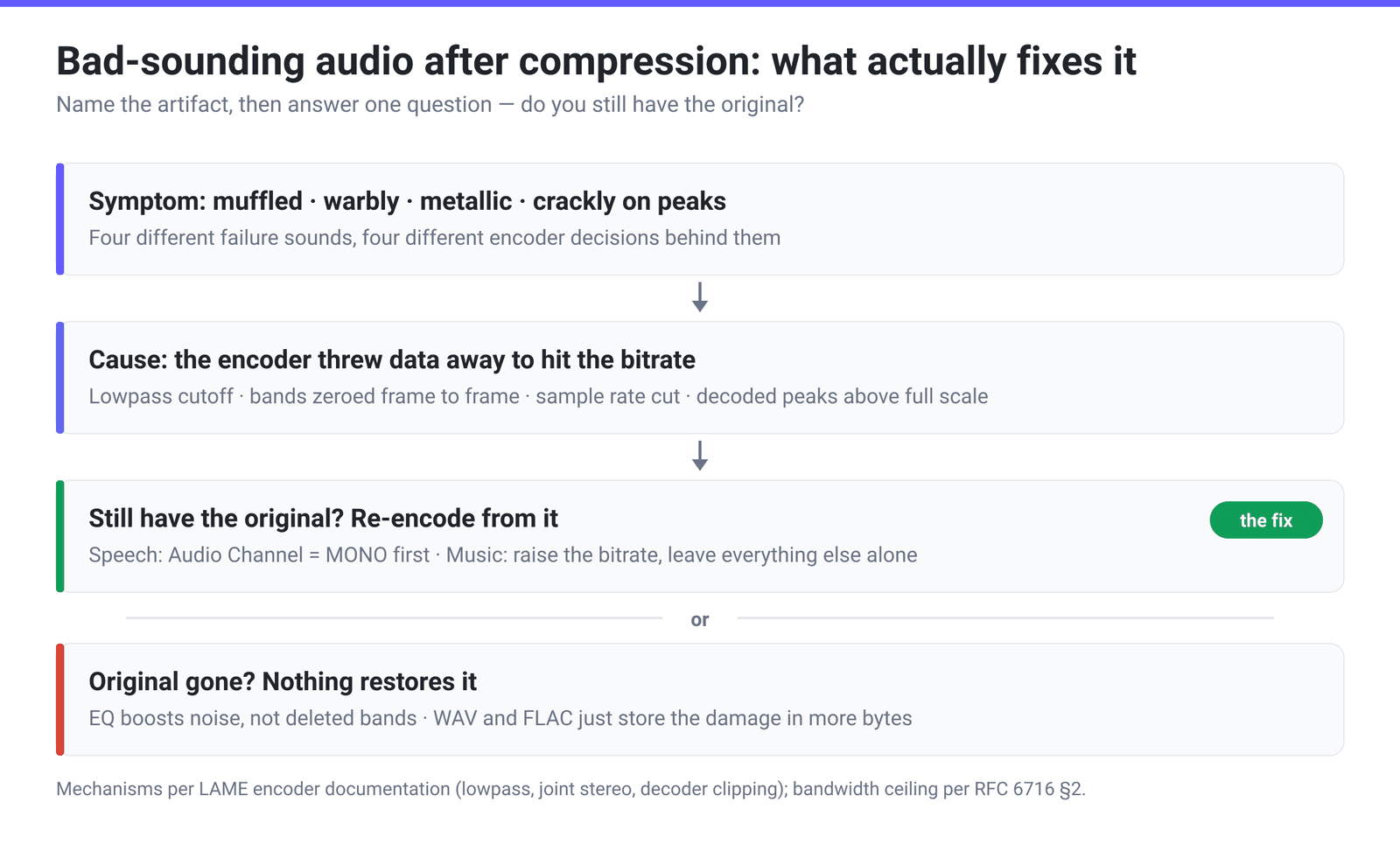
You compressed a podcast episode to get it under an upload cap, played it back, and it sounds wrong — dull and blanketed, or swimming and warbly on the reverb tails, or crackly on the loud bits. The instinct is to reach for an equaliser and put the sparkle back. That instinct is the problem: the parts you are trying to restore were deleted. What you can do is name the artifact, work out which encoder decision produced it, and re-do the compression from the original with a different setting.
Quick answer: Muffled means the encoder’s lowpass filter cut the high frequencies — its default cutoff moves with the target bitrate. Warbly or “underwater” means the encoder ran out of bits and which spectral bands survive keeps changing frame to frame. Metallic and telephone-like means the sample rate was dropped too far. Crackly on peaks means the decoded output is clipping. All of these are fixed the same way: go back to the original file and re-encode it with more bits — never re-compress the damaged copy. No EQ, enhancer, or conversion to WAV or FLAC restores what was discarded.
Jump to a section
- Which artifact are you actually hearing?
- Why no EQ or “enhancer” brings it back
- The fix: re-encode from the original
- Picking the right lever for your content
- About loudness, and what we don’t do
- Re-compress an MP3 properly on xconvert
- FAQ
Which artifact are you actually hearing?
Lossy compression is not one process that degrades smoothly. It is several separate decisions, each with its own failure sound. Naming yours tells you which knob to move.
| What you hear | What the encoder actually did | The lever that fixes it |
|---|---|---|
| Muffled, dull, no “air” — cymbals lose their shimmer, voices lose their edge | Applied a lowpass filter, discarding everything above a cutoff. In LAME “the default value depends on the target bitrate/quality” — the lower the bitrate, the lower the cutoff | Re-encode the original at a higher bitrate |
| Warbly, watery, “underwater” — a swirling shimmer over reverb tails, applause, rain | Ran short of bits, so it zeroed whole high-frequency bands. Which bands survive changes from frame to frame, and the flicker is what you hear | Higher bitrate; for speech, mono first |
| Metallic, telephone-like — a voice that sounds like a bad call | The sample rate was reduced. Half the sample rate is a hard ceiling on audio bandwidth, so a 16 kHz stream carries at most 8 kHz | Set Audio Sample Rate back to Original / 44100 Hz |
| Hollow, phasey, a stereo image that wanders | Joint stereo — LAME’s default mode switches between L/R and mid/side per frame. The docs warn that inappropriate mid/side “can result in audible compression artifacts” and “too much switching … can also sound bad” | More bits for music; mono for speech, which sidesteps the decision entirely |
| Crackle or distortion on the loudest moments | Clipping on playback. A decoded lossy file’s peaks do not match the original’s — they can land above full scale, which “introduces distortion into sound” | Reduce the level of the source before encoding, in your editor or DAW |
| A smear or splash just before a drum hit | Pre-echo: the quantisation noise for a sharp transient is spread across the whole analysis window, so some of it lands ahead of the sound | Higher bitrate — encoders spend bits specifically to control this |
| Each copy worse than the last | Lossy-to-lossy transcoding. The second encoder is told to model the first encoder’s artifacts as if they were music, and adds its own on top | Always re-encode from the original, not from the compressed copy |
Why no EQ or “enhancer” brings it back
A lowpass filter does not turn the top end down; it removes it. There is no quiet residue of 17 kHz content under the noise floor waiting to be lifted. Boost a treble shelf above the cutoff and you are amplifying the only thing up there — quantisation noise — so the file gets hissier without getting brighter.
The same logic disposes of the other reflexes:
- “Audio enhancer” and “AI upscaler” tools synthesise plausible high frequencies from what remains. Sometimes that is pleasant. It is not your recording, and on speech it commonly adds a sibilant, artificial edge.
- Converting to WAV or FLAC changes nothing. It stores the already-damaged signal in a bigger container — larger file, identical sound. Full explanation here.
- Re-encoding at a higher bitrate does not help. Encoding a 64 kbps MP3 at 320 kbps just spends a lot of bits faithfully preserving the 64 kbps version’s artifacts.
Lossy compression is a one-way door. The only way back through is a file that never went through it.
The fix: re-encode from the original
So the real question is not “how do I repair this file” but “do I still have the thing it was made from?”
- A master, a WAV, a DAW export, the original recorder file — you are fine. Delete the bad export and encode again with more bits or a different channel setting.
- A higher-bitrate copy — good enough. A 320 kbps MP3 is a far better source than the 64 kbps one you just made, even though it is itself lossy.
- Only the damaged file — keep it and move on. Nothing gets the discarded bands back. If it matters enough, re-record.
One habit worth building: when a job needs several operations — trim, downmix, hit a size target — do them in one pass, not three. Every extra encode is another generation of loss, and the compressor’s Trim control means cutting and shrinking happen in a single encode.
Picking the right lever for your content
Most “it sounds bad” outcomes come from turning the wrong knob for the material.
| Content | Pull this first | Why |
|---|---|---|
| Interview, podcast, voice memo, lecture | Audio Channel → MONO | Speech recorded on one mic has almost no genuine stereo information. Downmixing removes a whole channel’s worth of data before bitrate is even considered, and it removes the joint-stereo artifacts along with it |
| Voice that is still too big in mono | Audio Sample Rate → 24000 or 16000 Hz | Speech intelligibility lives well below 8 kHz. Dropping the sample rate costs air you were not using — but go too far and you get the telephone sound |
| Music, anything with cymbals, reverb, or applause | Bitrate — leave everything else alone | The lowpass cutoff and the number of bands the encoder can afford both move with bitrate. Sample-rate and mono tricks that are free on speech are destructive here |
| Music that must hit a hard size target | Specific file size, then check by ear | The encoder back-solves the bitrate from the file’s duration, so a long track forced into a small target lands at a bitrate that hurts — shorten it or accept the loss |
The asymmetry is the point: on speech, mono and sample rate are nearly free; on music they are destructive and bitrate is the only honest lever. Our MP3 bitrate guide has the per-step detail, and the prevention-side companion to this article is compress an audio file without losing quality.
About loudness, and what we don’t do
A common follow-up: “it also came out quieter — can you normalise it?”
No, and we would rather say so than pretend. xconvert has no loudness processing of any kind — no normalise, no gain, no limiter, no ReplayGain, no LUFS target. The compressor changes bitrate, channels, sample rate and duration; it does not touch level.
That cuts both ways. Raise a quiet file in an editor before you upload. And if your master already peaks near full scale, lower it a decibel or two before encoding — the decoded lossy output does not share the input’s peaks, and a hot master is exactly where crackle appears that was not in the original.
Re-compress an MP3 properly on xconvert
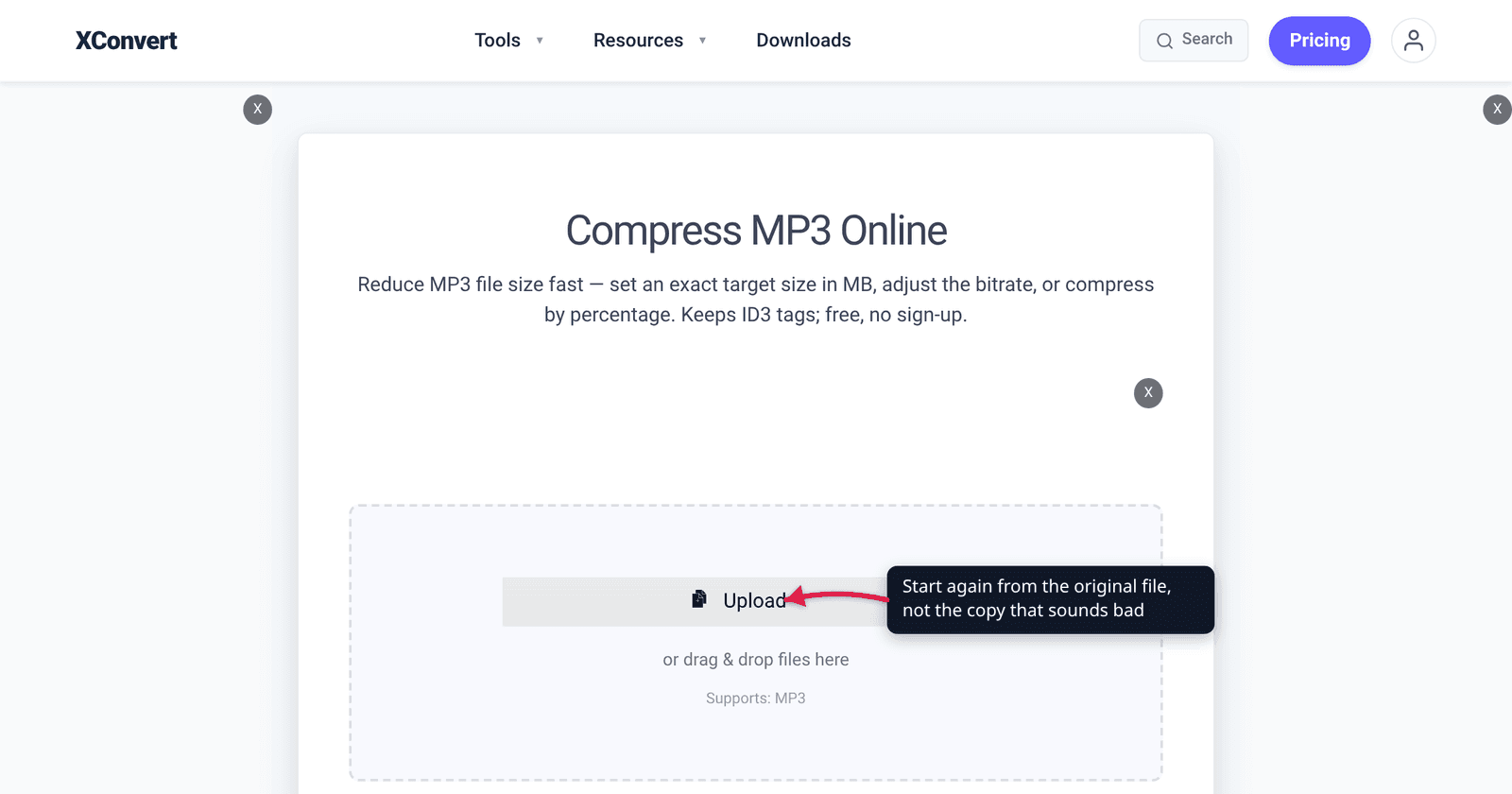
- Open the audio compressor and click Upload to add the original file — not the compressed one you are unhappy with. That page takes MP3, WAV, FLAC, AAC, M4A, OGG, OPUS, WMA, AIFF, AC3, AMR, AU, WEBA and more, and outputs MP3 by default, so a WAV master is a better starting point than an MP3. (The MP3 compressor has the same controls but accepts MP3 only, so it cannot take your master.)
- Open Advanced Options and choose a File Compression mode: File Size Percentage to shrink relative to the source, Specific file size to hit an exact number in MB, or Custom Bitrate / Constant Bitrate / Variable Bitrate to control quality directly.
- For speech, set Audio Channel to MONO — the single largest saving on voice recordings, and it costs nothing you were actually hearing.
- Leave Audio Sample Rate on ORIGINAL for music. Drop it to 24000 or 16000 Hz only for voice, and only if mono alone missed your limit.
- If you also need the file shorter, use Trim to set a start time and duration in the same pass rather than encoding twice.
- Click compress and download. Files upload over an encrypted connection, are processed on our servers, and are deleted automatically a few hours later.
FAQ
Can I fix a muffled MP3 with an equaliser?
No. Muffling at low bitrates is a lowpass filter, and a lowpass filter removes the content rather than turning it down. Boosting a treble shelf on such a file amplifies quantisation noise, which makes it hissier without making it brighter. The only fix is a new encode from a source that still has those frequencies.
Why does my voice recording sound like a phone call now?
Because the sample rate was cut too far. Half the sample rate is the absolute ceiling on the audio bandwidth a stream can carry, so 8000 Hz gives you 4 kHz of bandwidth — genuinely telephone-grade. For speech that should still sound natural, keep the sample rate at 44100 Hz (or step no lower than 24000) and save your size elsewhere by downmixing to mono.
I compressed an already-compressed MP3 and it got much worse. Why?
The second encoder cannot tell your first encoder’s artifacts apart from real audio, so it spends bits preserving them and adds a fresh layer of its own. Damage compounds across generations. Start from the least-processed file you still have, and make all your changes in one pass.
Will converting the file back to WAV or FLAC undo the damage?
No. Lossless formats store whatever they are given with perfect fidelity — including a signal that has already had most of its high frequencies deleted. You get a much larger file that sounds exactly the same. The full explanation is here.
The compressed version crackles on the loud parts, but the original doesn’t. What happened?
That is clipping introduced by the decode, not by your speakers. A lossy encoder does not preserve sample values exactly, so the decoded waveform’s peaks can land above full scale even when the original sat just under it. Masters that are already pushed hard are the ones this happens to. Pull the source level down a decibel or two in your editor before you encode.
Can xconvert normalise or boost the volume while compressing?
No. There is no gain, normalise, limiter, or ReplayGain option anywhere in the tool — the compressor only changes bitrate, channels, sample rate and duration. Set your level in an audio editor first, then compress.
Sources
Last verified 2026-08-31.
- LAME MP3 encoder — detailed option documentation —
--lowpass: “The default value depends on the target bitrate/quality”; joint stereo is the default mode and inappropriate mid/side use or excessive switching “can result in audible compression artifacts”; the ReplayGain section describes decoder-side clipping that “introduces distortion into sound”. xconvert encodes MP3 with libmp3lame, so these are the behaviours in play. - RFC 6716 — Definition of the Opus Audio Codec, §2 — states the sampling-theorem ceiling used above (“the sampling theorem allows a bandwidth as large as half the sampling rate”) and tabulates effective sample rate against usable audio bandwidth.
- xconvert audio compressor — the live control set quoted in the steps: the five File Compression modes, Audio Channel, Audio Sample Rate and Trim, with MP3 as the default output. Its accepted input list runs to twenty audio extensions, where compress-mp3 accepts
mp3alone. There is no loudness, gain or normalisation control on this or any other xconvert page.