 By James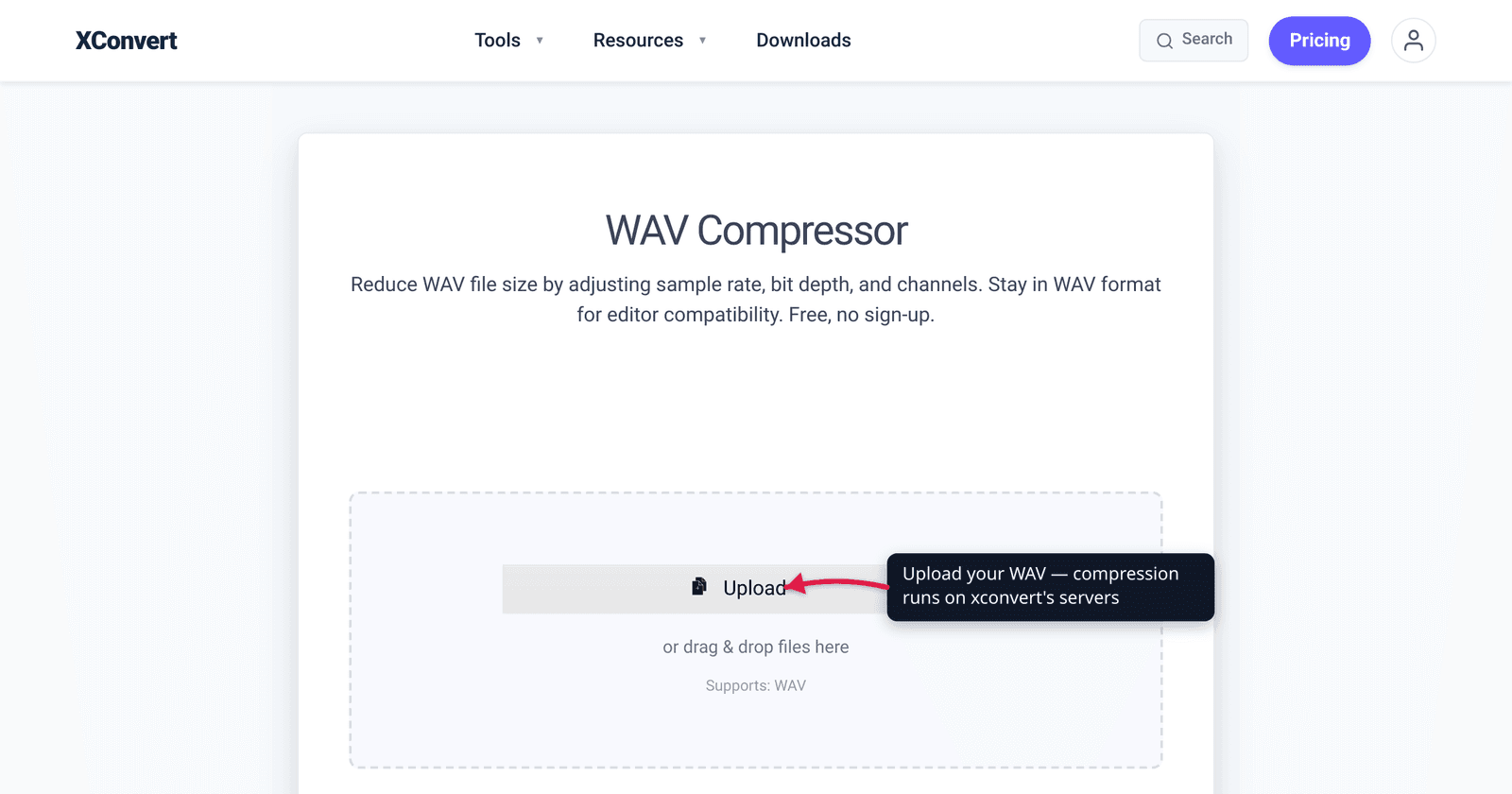
You exported a three-minute song to WAV and it came out around 31 MB — ten times the size of the MP3 you started with. That’s not a bug; it’s the whole point of WAV. A WAV file stores uncompressed PCM audio, writing every single sample to disk at full resolution with no compression of any kind, so its size is fixed by simple arithmetic rather than by how the music sounds. This guide explains why WAV is so big (with the bytes-per-second math, verified against the standards), then walks the one decision that actually matters when you compress one: stay lossless or go lossy? We’ll be explicit about which path keeps your audio bit-for-bit perfect and which trades quality for a dramatically smaller file.
Quick answer: WAV is huge because it’s uncompressed PCM — its size is sample rate × bit depth × channels ÷ 8 bytes per second, which works out to 176,400 bytes/sec (~10.58 MB per minute) at CD quality (44.1 kHz, 16-bit, stereo) no matter what the audio is. To shrink it you pick a lane: convert to FLAC for a smaller file that decodes back bit-for-bit identical (lossless, ~30–50% smaller), or convert to MP3/AAC for the smallest file at some permanent quality cost (lossy, commonly ~80–90% smaller). Use the xconvert WAV Compressor.
Jump to a section
- Why WAV is so big
- The math: where every byte comes from
- The only decision that matters: lossless or lossy?
- Path 1 — stay lossless (convert to FLAC)
- Path 2 — go lossy (convert to MP3 or AAC)
- Compress a WAV on xconvert
- FAQ
Why WAV is so big
WAV (WAVE) is a RIFF container originally specified jointly by IBM and Microsoft, and in almost every case it holds uncompressed PCM (Pulse-Code Modulation) audio. PCM is just the raw measurement of the waveform — the amplitude of the signal sampled tens of thousands of times per second, each measurement stored as a number, with nothing thrown away and nothing packed down.
That has one consequence that explains everything about WAV’s size: the audio content is irrelevant to the file size. A second of silence, a second of a single sine tone, and a second of a dense orchestral climax all occupy exactly the same number of bytes, because all three store the same number of samples at the same resolution. MP3, AAC, and even FLAC look at the actual signal and store it more cleverly; uncompressed PCM doesn’t look at anything. It’s the difference between writing down every digit of a measurement versus describing the pattern — WAV always writes down every digit.
This is genuinely useful in the right place. WAV is the working format for recording, editing, and mastering, because there’s no compression to decode, no generation loss when you re-save, and no codec quirks to fight. It’s the wrong format the moment you need to move the file — email it, upload it to a podcast host, attach it in a chat app — because it’s carrying far more data than playback requires.
The math: where every byte comes from
For uncompressed PCM, file size is fully determined by four numbers and a divide-by-eight (to convert bits to bytes):
Worked through for standard CD quality — 44,100 Hz, 16-bit, 2 channels (stereo):
So one second of CD-quality stereo WAV is 176,400 bytes, one minute is 10,584,000 bytes (~10.58 MB), and a three-minute track is ~31.75 MB. That 1,411 kbps figure is the well-known “1411” number quoted for CD audio, and it dwarfs a typical 192 kbps MP3 (under 4.5 MB for the same three minutes) precisely because the MP3 is compressed and the WAV isn’t. (These are decimal MB, where 1 MB = 1,000,000 bytes.)
The formula is the whole story, and it tells you the two ways to make a WAV smaller:
- Capture less data per second while staying a WAV — fewer bits per sample (24-bit → 16-bit), fewer samples per second (lower sample rate), or fewer channels (stereo → mono). These keep the
.wavextension but only chip away at the size, and beyond the safe trims they start to be audible. If staying in the WAV container is a hard requirement, our companion guide walks each lever with worked examples: How to Reduce WAV File Size. - Replace the uncompressed container with a compressed one — this is where the real size reductions live, and where the lossless-vs-lossy decision below applies.
The only decision that matters: lossless or lossy?
When you compress a WAV by changing its format, every option falls into one of two camps, and picking the right camp matters far more than fiddling with individual settings:
| Lossless (FLAC, ALAC) | Lossy (MP3, AAC, Opus) | |
|---|---|---|
| Audio preserved? | Bit-for-bit identical to the WAV | Some data permanently discarded |
| Typical size vs WAV | ~30–50% smaller | ~80–90%+ smaller |
| Reversible? | Yes — decodes back to the exact PCM | No — the original is gone |
| Best for | Archiving, masters, sending editable files | Email, web, podcasts, messaging, listening |
The honest framing is simple: lossless gives you a smaller file with zero quality cost; lossy gives you a much smaller file by accepting a quality cost. There is no format that gives you both “as small as MP3” and “perfectly identical” — that’s a contradiction, because MP3’s size win comes from throwing data away.
So ask one question: does this file need to stay perfect?
- If it’s a master you’ll edit again, an archive copy, or a file a collaborator will work on, the answer is yes → stay lossless, convert to FLAC.
- If it just needs to play and be small — an email attachment, a podcast upload, a voice note, a track for your phone — the answer is no → go lossy, convert to MP3 or AAC.
The next two sections cover each path.
Path 1 — stay lossless (convert to FLAC)
If you need to preserve every bit of the original — archiving a master, or sending a producer something they can edit without degradation — convert the WAV to FLAC (Free Lossless Audio Codec). Per the official Xiph.Org FLAC project, “audio is compressed in FLAC without any loss in quality,” which means the file decodes back to PCM that is bit-for-bit identical to your source WAV. FLAC simply stores that identical audio more efficiently, the way a ZIP archives a document without altering a single character inside it.
How much smaller depends entirely on the audio — quiet, repetitive, or simple material compresses more than dense, noisy material — so there’s no fixed ratio. For typical music a FLAC file commonly lands around 30–50% smaller than the equivalent WAV. That’s a real, useful reduction with no audible (or measurable) quality loss whatsoever, which is exactly why FLAC is the right answer whenever “smaller but identical” beats “smallest possible.” It’s also the format to reach for if you ever want to convert back to WAV later — because it’s lossless, the round-trip is exact.
The trade-off is reach: FLAC plays in most modern apps and platforms but isn’t as universally supported as MP3 on old or simple hardware. If your destination is a studio, a NAS, or anyone audio-literate, FLAC is ideal. If it’s “anything with a speaker,” consider Path 2. For a deeper format-by-format comparison, see MP3 vs WAV vs FLAC.
Path 2 — go lossy (convert to MP3 or AAC)
For the smallest possible file — email attachments, web playback, podcast feeds, messaging apps, your phone’s music library — convert to a lossy format like MP3 or AAC. These codecs use psychoacoustic modeling to discard the audio data your ear is least likely to notice, which is why they routinely shrink a WAV by 80–90% or more. A three-minute CD-quality WAV of ~31 MB becomes roughly 4–7 MB as a 192–320 kbps MP3.
The cost is that the loss is permanent: you can’t recover the original audio from an MP3 or AAC, and re-encoding a lossy file to another lossy format compounds the damage. For final delivery and listening that’s fine; for archiving or further editing, use FLAC (Path 1).
Two practical pointers for keeping the quality cost minimal:
- Bitrate is the dial. Higher bitrate = better quality and a bigger file. 192 kbps is a sensible middle ground for music; 320 kbps is near-transparent to most listeners; 128 kbps or lower is fine for voice. For the trade-offs at each step, see MP3 Bitrate: 128 vs 256 vs 320.
- AAC is more efficient than MP3 at the same bitrate. AAC at ~128 kbps is broadly comparable in quality to MP3 at ~192 kbps, so it gives you a smaller file for similar quality — useful when a platform has a hard size cap. (At 256–320 kbps the two are effectively indistinguishable; see AAC vs MP3 for the details.) Pick MP3 when maximum device compatibility matters most.
Compress a WAV on xconvert
The xconvert WAV Compressor handles both paths — and if you want to stay in the WAV container, it exposes the channel and sample-rate controls too. Here’s the flow:
- Open xconvert.com/compress-wav and click + Add Files to upload your WAV (from your computer, Google Drive, or Dropbox).
- Decide your path. For the lossless route, choose FLAC as the output (or use the dedicated WAV to FLAC Converter); for the lossy route, choose MP3 or AAC (or the Audio Compressor when you want to target a specific file size).
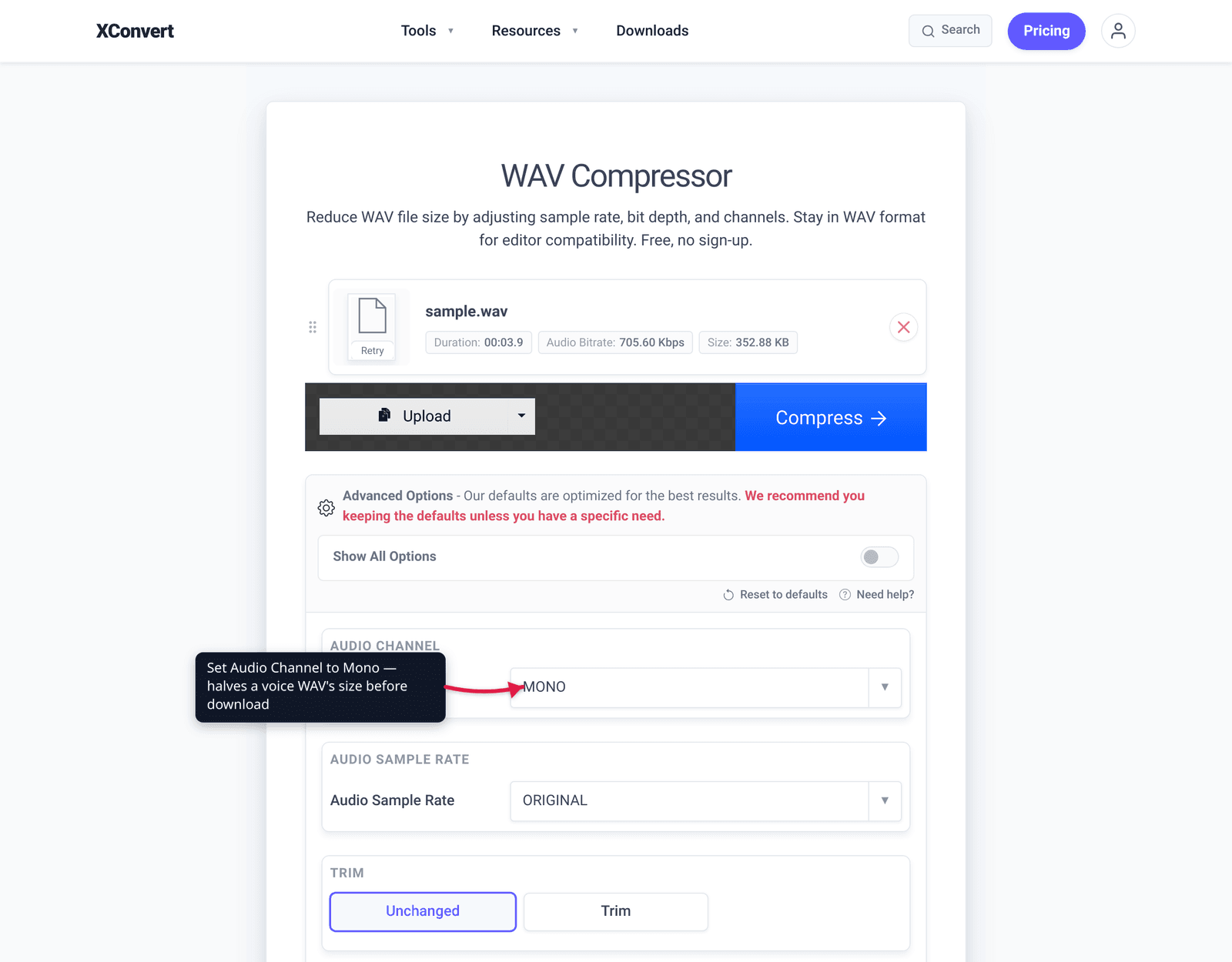
- Open Advanced Options (the gear) to fine-tune. For a lossy output, set the bitrate (e.g. 192 or 320 kbps). To trim a file that must stay WAV, set Audio Channel (defaults to ORIGINAL) to Mono, or lower the Audio Sample Rate — both default to ORIGINAL. Use Show All Options for the full set, or leave the defaults, which are tuned for good results.
- Click Compress and download the result.
Your file is uploaded over an encrypted connection, processed on our servers, and deleted automatically a few hours later. No account, no watermark, nothing kept.
For the in-WAV trimming methods in depth (bit depth, sample rate, stereo→mono, with worked numbers), see the companion guide How to Reduce WAV File Size.
FAQ
Why are WAV files so big?
Because WAV stores uncompressed PCM audio — every sample is written at full resolution with no compression, so the size is fixed by sample rate × bit depth × channels ÷ 8 per second, regardless of what the audio contains. At CD quality that’s 176,400 bytes/sec (~10.58 MB per minute). Compressed formats like FLAC and MP3 store the same audio in far fewer bytes.
How do I compress a WAV without losing quality?
Convert it to FLAC. FLAC is lossless — the audio decodes back bit-for-bit identical to the original WAV, while the file is typically ~30–50% smaller. That’s the only way to make a WAV meaningfully smaller with zero quality cost. If you must keep the .wav extension, dropping 24-bit to 16-bit (~33% smaller) is the one transparent trim; lowering sample rate or channels for music starts to be audible.
Should I convert my WAV to FLAC or MP3?
Ask whether the file needs to stay perfect. FLAC if it’s an archive, a master, or something you’ll edit again — smaller but bit-for-bit identical. MP3 (or AAC) if it just needs to play and be small — far smaller (~80–90%), but the quality loss is permanent. A good rule: store in FLAC, share/listen in MP3.
How much smaller is FLAC than WAV?
There’s no fixed ratio because FLAC adapts to the audio, but for typical music a FLAC file is commonly around 30–50% smaller than the equivalent WAV. Quiet or simple material compresses more; dense, noisy material compresses less. Crucially it’s lossless, so you get the smaller file with no quality cost.
Will compressing a WAV reduce the audio quality?
It depends on the method. FLAC is lossless — no quality change at all. MP3 and AAC are lossy — they permanently discard some data, though at 192 kbps and above most listeners can’t tell on most material. Staying in WAV and lowering bit depth from 24-bit to 16-bit is inaudible for normal playback; going below 16-bit, or dropping the sample rate below 44.1 kHz for music, will be audible.
Can I get a WAV back from a compressed file?
From FLAC, yes — because it’s lossless, converting FLAC back to WAV gives you the exact original PCM. From MP3 or AAC, no — the discarded data is gone, so converting back to WAV just wraps the already-degraded audio in an uncompressed container (a bigger file, but not better quality). This is why you archive in FLAC, not MP3.
Sources
Last verified 2026-06-25.
- Xiph.Org — FLAC (Free Lossless Audio Codec) — primary source confirming FLAC is lossless (“audio is compressed in FLAC without any loss in quality”) and that FLAC stands for Free Lossless Audio Codec.
- Library of Congress — WAVE Audio File Format — authoritative format description: WAV is a RIFF container for (typically uncompressed) PCM audio, originally a joint IBM/Microsoft specification.
- Colin Crawley — Audio File Size Calculator — confirms the PCM file-size formula (sample rate × bit depth × channels ÷ 8) and the 1,411.2 kbps / ~10.58 MB-per-minute CD-quality figures.
- SoundGuys — CD quality / bitrate explainer — cross-check on the 1,411 kbps uncompressed CD-audio bitrate (16 × 44,100 × 2).