 By Stephanie Taylor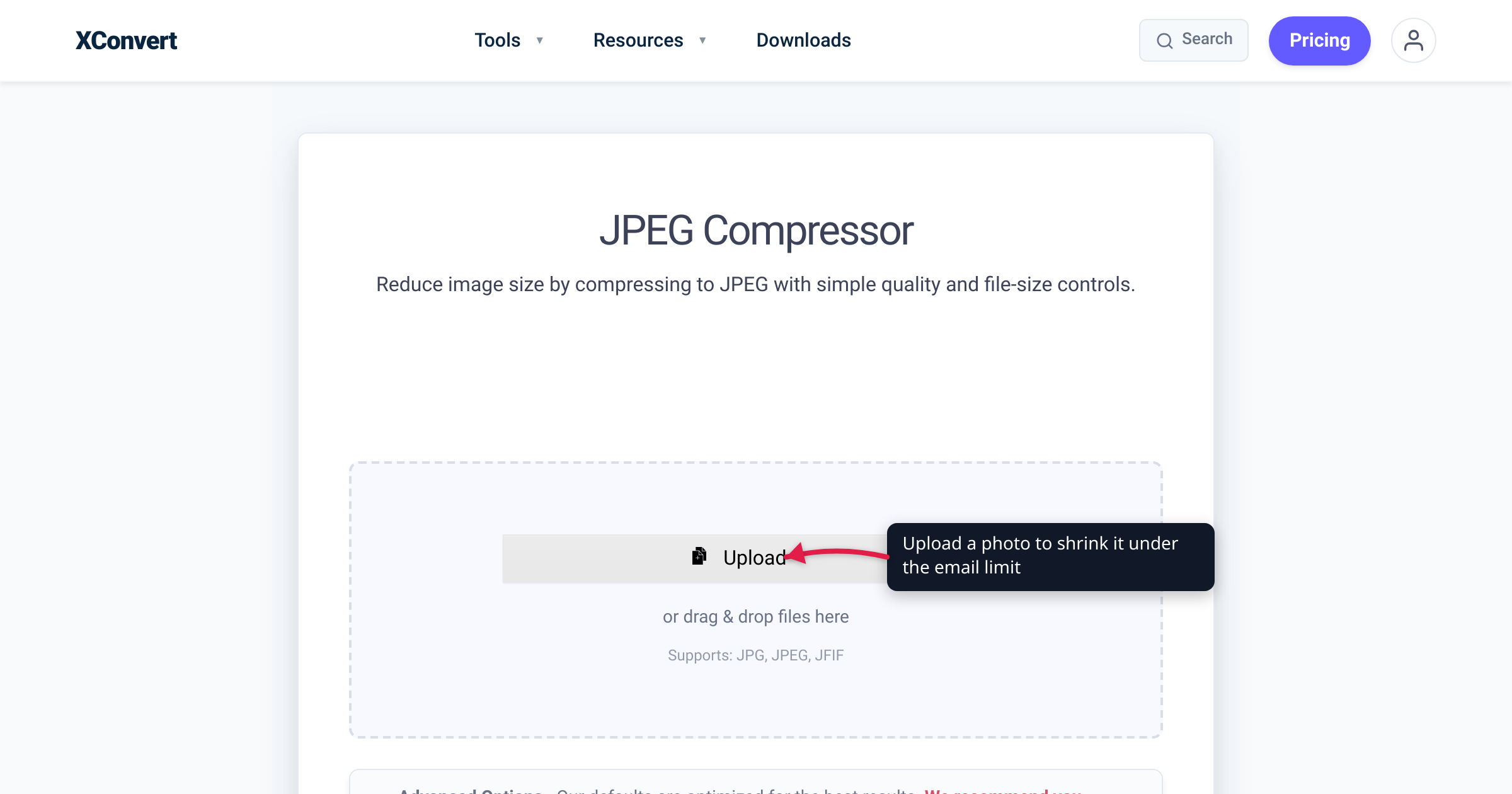
You hit “Send,” wait, and get bounced: “Attachment size exceeds the allowable limit.” A single photo from a modern phone routinely runs 4–12 MB, and a handful of them blows past every mailbox cap. The fix is not a different email account — it is making the photos smaller before they ever reach the attach button. This guide gives you exact target sizes that clear any major provider, the resize-then-compress order that does the heavy lifting, and the one format trap (HEIC) that makes photos look “broken” on the other end even when they sent fine.
Quick answer: Compress each photo to under 500 KB and attach up to about ten of them — that clears Gmail (25 MB), Outlook.com (25 MB), Yahoo Mail (25 MB), and iCloud Mail (20 MB) with room to spare. First resize the longest edge to ~2048 px, then compress to JPEG quality ~70–80%. If your photos end in .HEIC, convert them to .JPG first so every recipient can open them. Do it in one step with the xconvert JPEG compressor.
Jump to a section
- Why your photos are too big to email
- The attachment limits that actually matter
- Target-size recipes: pick a number, hit it
- Resize first, then compress — the order that matters
- The HEIC trap: it sends fine but won’t open
- How to shrink your photos with xconvert
- FAQ
Why your photos are too big to email
Two things have quietly inflated photo sizes:
- Higher resolution. A 12-megapixel phone photo is 4000 × 3000 pixels; a 48 MP sensor pushes 8000 × 6000. A recipient viewing on a phone or laptop screen will never see more than a couple thousand pixels of that detail, yet you’re sending all of it.
- You attach several at once. A single JPEG off the camera is often 4–8 MB. One photo might squeak under the cap; five will not.
The bytes you are sending are mostly resolution the recipient cannot perceive on screen — exactly the slack compression reclaims. Shrinking a photo for email is not “ruining” it; it is removing detail nobody on the receiving end was going to see.
The attachment limits that actually matter
Every mainstream provider caps the total size of a message — text plus all attachments combined — not each file individually. Here are the limits straight from each provider’s own help documentation:
| Provider | Send limit (total message) | Over-limit behavior |
|---|---|---|
| Gmail (personal) | 25 MB | Auto-converts the attachment to a Google Drive link |
| Outlook.com (web) | 25 MB (text + inserted + attached files) | Suggests a OneDrive link instead |
| Yahoo Mail | 25 MB (sum of all attached files) | Message won’t send |
| iCloud Mail | 20 MB, up to 5 GB with Mail Drop | Offers Mail Drop for larger files |
A few practical notes:
- The smallest common cap is 20 MB (iCloud Mail). If you do not know what the recipient — or your own outbound server — uses, design for 20 MB, not 25.
- Corporate and ISP mail servers are often stricter. Many company mail gateways reject anything over 10 MB regardless of what your webmail allows, and the bounce comes from their server, not yours. The only safe assumption is “smaller is better.”
- “Total message” includes the email body and any inline/embedded images, so leave headroom rather than packing attachments right up to the cap.
Because every cap above is 20 MB or higher, a batch of photos compressed to under 500 KB each is the simplest universal target: ten of them is about 5 MB, comfortably inside even the strictest mainstream mailbox.
Target-size recipes: pick a number, hit it
Instead of guessing at quality sliders, decide how much total you are willing to send, then divide by how many photos you are attaching. These recipes assume a normal landscape/portrait photo, not a giant panorama.
Recipe 1 — “Just make it send” (universal safe target) Compress each photo to under 500 KB. At that size you can attach roughly 10 photos and stay under 5 MB, which clears every provider in the table — including stricter corporate servers. This is the recipe to use when you don’t know the recipient’s setup.
Recipe 2 — “A few high-quality photos” If you only need to send two or three photos and want them sharper, target 1–2 MB each. Three photos at 2 MB is 6 MB — fine for Gmail, Outlook.com, Yahoo, and iCloud. Use this for a portfolio sample or a print-intent shot where detail matters more than count.
Recipe 3 — “A whole album in one email” For 15–25 photos, you need each one closer to 300–400 KB. Twenty photos at 350 KB is about 7 MB. Drop the resolution to ~1600 px on the long edge (screen-viewing is fine at that size) and let quality settle around 70%.
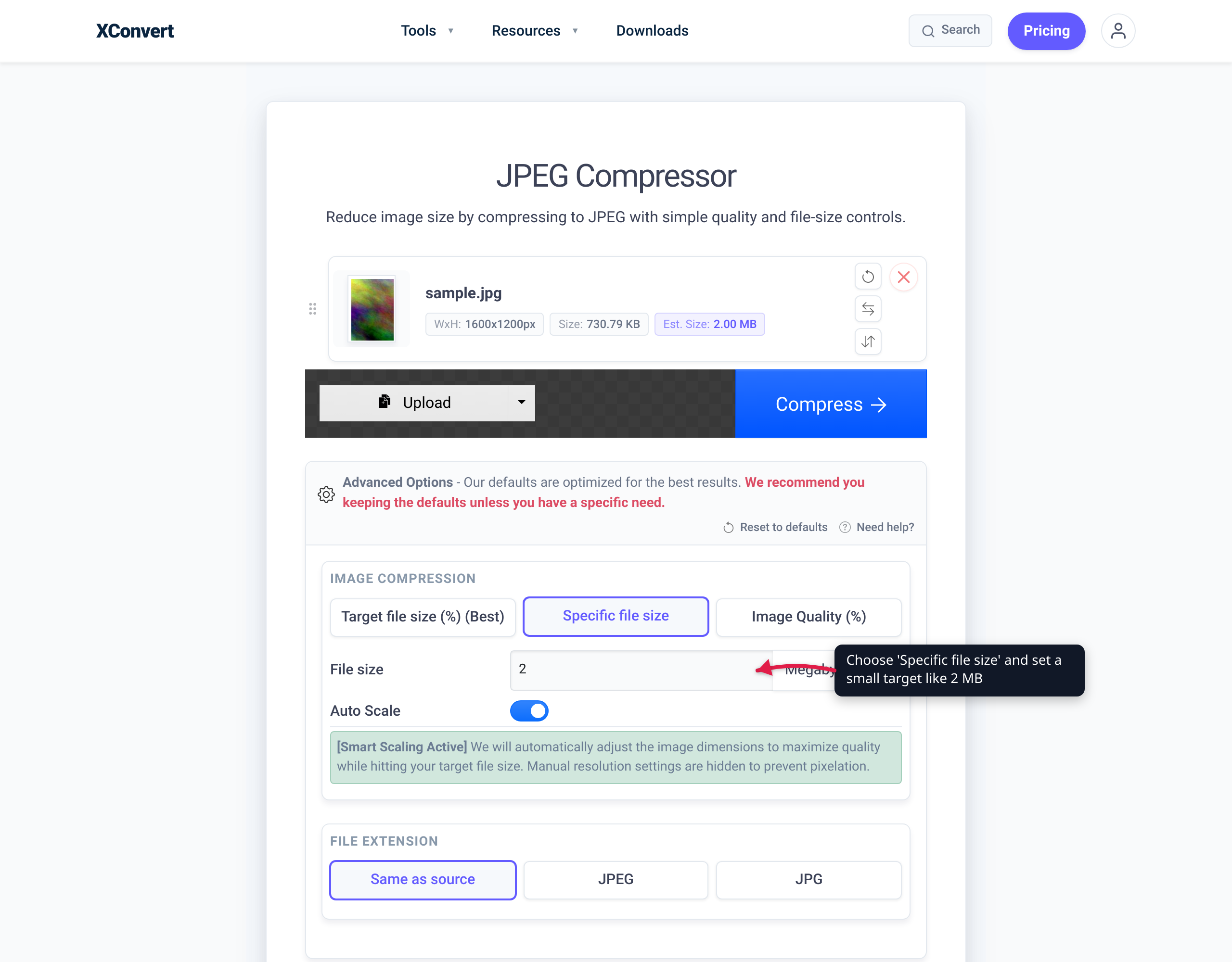
How target sizing works in the tool: the xconvert compressor lets you set a “Specific file size” or a “Target file size (%)” rather than guessing at quality — so you can say “get this under 500 KB” and it solves for the settings, turning each recipe into a one-field operation.
Resize first, then compress — the order that matters
People reach for the quality slider first, but resizing the pixel dimensions is what reclaims the most bytes, and doing it before compression gives a cleaner result.
- Resize = fewer pixels. Going from 4000 px wide to 2048 px wide drops the pixel count by roughly 75% before any quality compression even runs. For an email a recipient views on a screen, 2048 px on the longest edge is plenty; 1600 px is fine for casual sharing.
- Compress = fewer bits per pixel. JPEG quality of 70–80% is the sweet spot — visually nearly identical to the original for photos, at a fraction of the size. Below ~50% you start seeing blocky artifacts in skies and smooth gradients.
Do them in that order: resize down to a sensible dimension, then apply JPEG compression. Compressing a full-resolution image and then shrinking it wastes effort and can soften edges.
The xconvert compressor has an “Auto Scale” option (shown as “Smart Scaling Active”) that handles the resize step for you while hitting your target size, so you don’t have to calculate dimensions by hand. If you want full control, you can still set the extension and quality manually under Advanced Options.
The HEIC trap: it sends fine but won’t open
This is the failure that confuses people most. You attach photos from an iPhone, the email sends successfully, and the recipient replies: “I can’t open these.”
The cause is the format, not the size. Recent iPhones save photos as HEIC (the High Efficiency Image File format, HEIF) by default. HEIC is smaller than JPEG at the same quality — great for storage — but it is not universally supported. Many Windows machines, older Android phones, and some web-based mail viewers can’t render a .heic file without extra software. So the attachment arrives intact and completely unviewable.
The fix: convert HEIC to JPG before sending. JPEG is the most universally supported photo format on the planet — every operating system, browser, and email client opens it. Converting also pairs naturally with compression, since you’re re-encoding anyway.
So the full pipeline for iPhone photos is:
- Convert HEIC → JPG (so everyone can open it) — see convert HEIC to JPG.
- Resize the long edge to ~2048 px.
- Compress to your target size (under 500 KB for the universal recipe).
If your photos are already JPEGs you skip step 1 — but if there’s any chance they’re HEIC, convert first. A photo that won’t open is worse than a photo that’s slightly larger.
How to shrink your photos with xconvert
The xconvert JPEG compressor does resize and compress in one pass, with target-size control built in:
- Click Upload (“Add files”) and select your photos. They are sent over an encrypted connection and processed on our servers — nothing is installed.
- Under image compression, choose “Specific file size” and enter your target (e.g. set it under 500 KB), or pick “Target file size (%)” for percentage-based reduction. Leave Auto Scale on so dimensions are reduced intelligently to help hit the target.
- Set File extension to JPEG (or “Same as source” if the inputs are already JPEG).
- Click Compress, then Download — individually or as a ZIP for the whole batch.
Once processing finishes, your files are automatically deleted from our servers after a few hours, so you don’t have to manage cleanup.
Related tools for the same job:
- Image Compressor — for PNG, WebP, and mixed-format batches, not just JPEG. Same target-size and Auto Scale controls.
- Convert HEIC to JPG — run this first on any iPhone photos, then compress the JPGs.
For a batch of vacation photos: convert any HEIC files to JPG, set a “Specific file size” under 500 KB, compress, download the ZIP, and attach. Every photo clears every mainstream mailbox in one shot.
FAQ
What size should I compress photos to for email?
Under 500 KB per photo is the universal safe target. At that size you can attach about ten photos and stay under 5 MB, which clears Gmail (25 MB), Outlook.com (25 MB), Yahoo Mail (25 MB), and iCloud Mail (20 MB) — and even most stricter corporate servers. If you only need to send two or three photos and want them sharper, 1–2 MB each is fine.
What is the maximum attachment size for email?
It depends on the provider, and the cap is on the total message (text plus all attachments), not per file. Per their own help pages: Gmail is 25 MB, Outlook.com is 25 MB, Yahoo Mail is 25 MB, and iCloud Mail is 20 MB (up to 5 GB with Mail Drop). Because corporate and ISP mail servers are often stricter, design for the smallest realistic cap — 10–20 MB — rather than the maximum.
Why won’t my recipient open my iPhone photos?
They’re almost certainly HEIC files. Recent iPhones save photos in HEIC by default, and many Windows PCs, older Android devices, and web mail viewers can’t open .heic without extra software. The attachment sends fine but appears broken. Convert the photos to JPG before sending — JPEG opens everywhere.
Does resizing or compressing reduce more size?
Resizing the pixel dimensions reclaims more bytes, especially for high-megapixel photos. Dropping a 4000 px image to 2048 px on the long edge cuts the pixel count by roughly 75% before quality compression even runs. The best approach is to do both, in order: resize first to a screen-friendly dimension (~2048 px), then apply JPEG compression at 70–80% quality.
Will compressing my photos make them look bad?
Not at email/screen sizes. JPEG quality of 70–80% is visually nearly identical to the original for typical photos, while cutting the file size dramatically. You only start seeing artifacts — blocky skies, banding in gradients — below about 50%. Since recipients view emailed photos on a screen, the resolution and quality you shed are detail they couldn’t perceive anyway.
How do I email more photos than will fit under the limit?
Two options. First, compress harder: target 300–400 KB each and you can fit 15–25 photos in one message. Second, use a cloud link: Gmail auto-converts oversized attachments to a Google Drive link, Outlook.com offers OneDrive, and iCloud Mail uses Mail Drop (up to 5 GB) — the recipient downloads from the link instead of receiving an attachment.
Is it safe to compress photos online?
With xconvert, files are uploaded over an encrypted connection, processed on our servers, and automatically deleted after a few hours — you don’t have to delete anything manually. Nothing is installed, and the tool produces new, smaller copies for you to download while your original files stay as they are.
Sources
Last verified 2026-06-18.
- Gmail Help — Send attachments with your Gmail message — personal Gmail 25 MB total attachment limit and Google Drive link behavior.
- Microsoft Support — Unable to attach files in Outlook.com — “The size limit for an email in Outlook.com is 25 MB. This includes all text, inserted and attached files.”
- Yahoo Help — Message size limits in Yahoo Mail — “The sum of all attached files in a single message… must not exceed 25MB.”
- Apple Support — Mailbox size and message sending limits in iCloud — iCloud Mail 20 MB message limit, up to 5 GB with Mail Drop.
- Apple Support — Mail Drop limits — Mail Drop allows attachments up to 5 GB.