 By James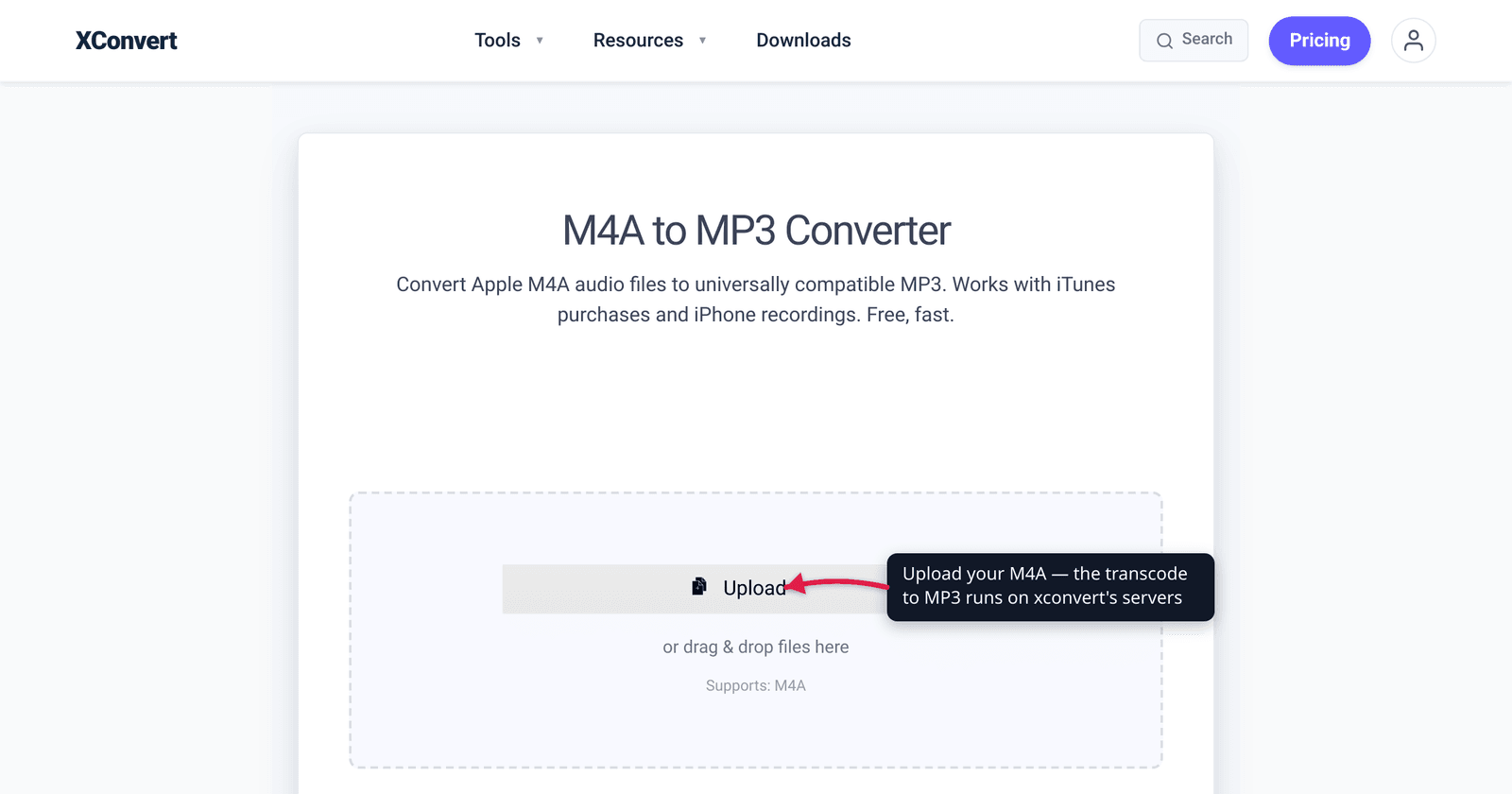
You dragged a folder of M4A files into an old car stereo, a Windows app, or a friend’s Android phone — and nothing played. M4A is Apple’s preferred audio wrapper, and while it’s excellent, it isn’t universal. Converting to MP3 trades a little of that Apple-ecosystem efficiency for a format that plays on essentially everything made in the last 25 years. This guide explains exactly what’s inside an M4A, what you actually lose in the conversion (and why it’s usually fine), and how to do it cleanly. The container, codec, and browser-support facts here are verified against MDN, Apple Support, and caniuse.
Quick answer: M4A is an MPEG-4 (MP4) audio container — almost always holding AAC (lossy), occasionally ALAC (Apple Lossless). Convert to MP3 when you need universal playback: every media player, OS, and device handles MP3 (caniuse: ~97% browser support). If your M4A is AAC, this is a lossy→lossy step — a little extra quality is shed in re-encoding, but at 256–320 kbps it’s perceptually transparent for almost everyone. If it’s ALAC (lossless), MP3 is your first lossy step, so use a high bitrate. You gain compatibility; you don’t gain quality.
Jump to a section
- What an M4A file actually is
- What you gain — and lose — converting to MP3
- Pick the right MP3 bitrate
- Convert M4A to MP3 on xconvert
- FAQ
What an M4A file actually is
M4A is not a codec — it’s a container. Per MDN, .m4a is one of the file extensions for the MPEG-4 (MP4) container (MIME type audio/mp4). It’s the same family as the .mp4 you know from video; .m4a is just the convention for an MP4 file that holds audio only.
What’s inside that container is what matters, and it’s almost always one of two codecs (Apple Support):
- AAC (Advanced Audio Coding) — the common case. This is what you get from iTunes/Apple Music downloads, iPhone voice memos, and most “Export as M4A” workflows. AAC is lossy (some original audio data is permanently discarded) but very efficient — at a given bitrate it generally sounds as good as or better than MP3.
- ALAC (Apple Lossless Audio Codec) — much rarer. ALAC is Apple’s lossless format, so it preserves the full original quality at the cost of a much larger file. You’d see it from Apple Music’s lossless tier or a deliberate lossless rip.
Why this distinction matters: it determines what “convert to MP3” costs you. The vast majority of M4A files are AAC, so most readers are in the first case.
What you gain — and lose — converting to MP3
What you gain: compatibility. MP3 (MPEG-1 Audio Layer III) is the most universally supported audio format in existence. caniuse puts browser support around 97% globally, with full support in Chrome, Firefox, Safari, and Edge — and that’s just the web. Every media player, every car stereo, every smart TV, every phone music app, every DAW, every editing tool reads MP3 without a second thought. If “will this just play?” is the question, MP3 is the safest possible answer.
What you lose depends on the source codec:
| Your M4A holds | Converting to MP3 is… | Practical impact |
|---|---|---|
| AAC (common) | lossy → lossy | The audio is already compressed once; re-encoding to MP3 sheds a little more. At a high bitrate (256–320 kbps) the difference is inaudible to almost everyone. |
| ALAC (rare) | lossless → lossy | This is the first lossy step. You lose data permanently, so use a high MP3 bitrate to keep it transparent — or keep a copy of the original if you may want lossless later. |
The honest framing for the common AAC case: it’s a lossy-to-lossy “transcode.” You can’t add quality back, and re-encoding always sheds a little, but the loss is small and — at a sensible bitrate — perceptually negligible for normal listening. You are not getting a better-sounding file; you are getting a more-compatible one.
One myth worth correcting: people often say MP3 files are smaller than M4A at the same quality. It’s the opposite. AAC is the more efficient codec, so to match an AAC file’s quality, the MP3 typically needs an equal or higher bitrate and ends up a similar size or slightly larger. Convert for compatibility, not to save space — if shrinking is your real goal, see How to compress an M4A file instead. And if you’re still deciding whether you even need MP3, M4A vs MP3 lays out the full comparison.
Pick the right MP3 bitrate
Bitrate is the single biggest quality lever for the output MP3. Higher bitrate = more data preserved = larger file. Because M4A→MP3 is a re-encode, lean toward the higher end to avoid stacking compression artifacts:
- 320 kbps — the safe default for music and anything you care about. At this rate the re-encode is transparent to virtually all listeners; pick it if you’re unsure.
- 256 kbps — still excellent for music; a noticeably smaller file than 320 with no meaningful audible penalty for most people.
- 128 kbps — fine for podcasts, audiobooks, and spoken-word voice memos, where the source is simple and small size matters. Too low for full-range music if you’ve already been through one lossy codec.
- Below 128 kbps — only for voice where size is critical; expect audible compression on music.
If the source is ALAC (lossless), definitely use 320 kbps — this is your one and only lossy step, so don’t be stingy. For a deeper dive on what each rate actually sounds like, see MP3 bitrate: 128 vs 256 vs 320.
Convert M4A to MP3 on xconvert
The xconvert M4A to MP3 converter handles the transcode and lets you set the bitrate so you control the quality:
- Open xconvert.com/convert-m4a-to-mp3 and click Upload to add your file — From my Computer, From Google Drive, or From Dropbox. Batch upload is supported, so you can drop a whole folder.
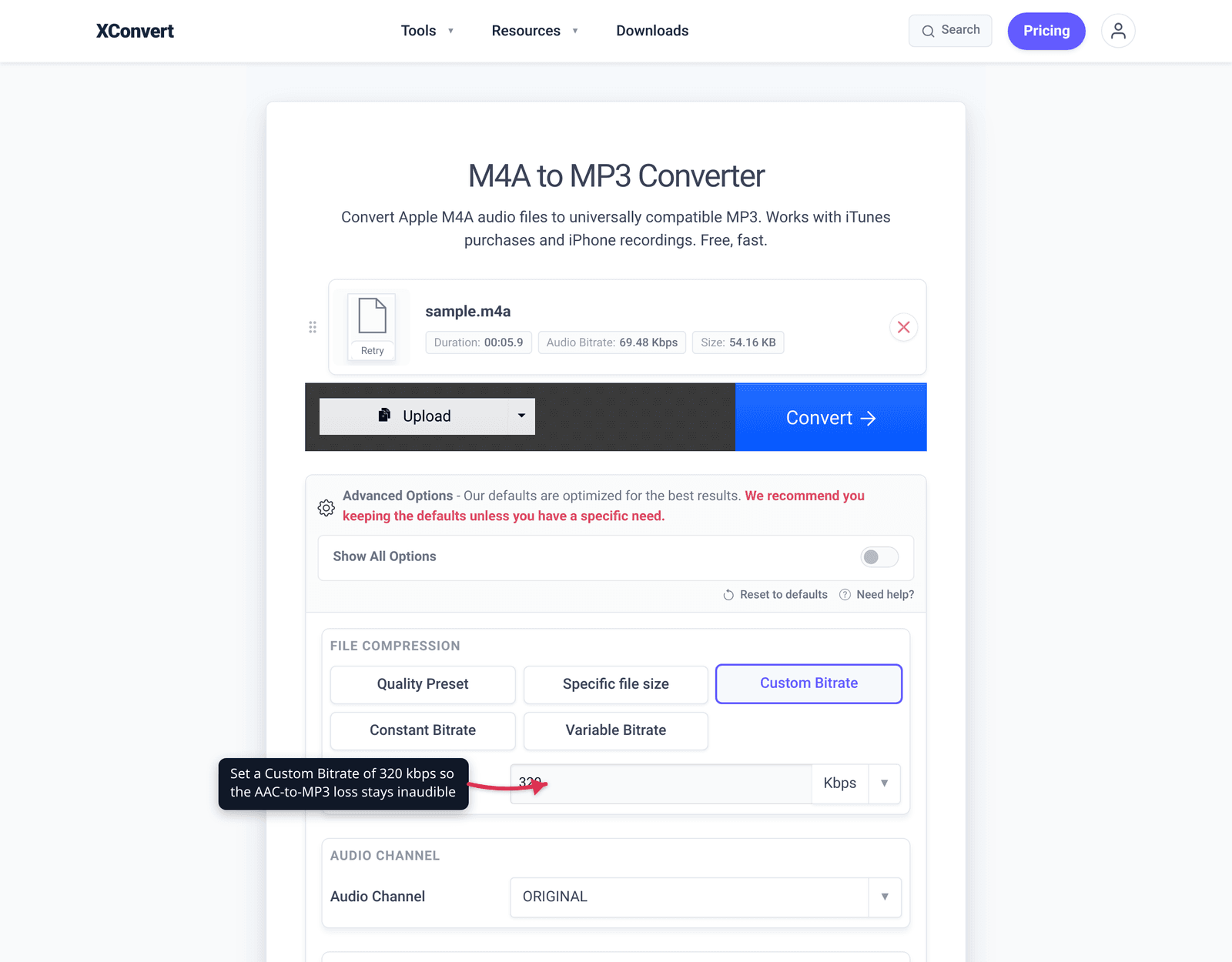
- Open Advanced Options (the gear icon) if you want to control quality — the defaults are tuned for good results.
- Set the quality: pick a Quality Preset (defaults to Highest) or choose Custom Bitrate and enter your target (use 320 kbps for music, 128 kbps for spoken-word). You can also switch between Constant Bitrate and Variable Bitrate.
- Optionally adjust Audio Channel (e.g. set voice recordings to mono) and Audio Sample Rate, or use Trim to clip a section — all default to ORIGINAL/unchanged.
- Click Convert and grab the MP3 files individually or as a ZIP.
Your file uploads over an encrypted connection, is processed on our servers, and is deleted automatically a few hours later. No sign-up, no watermark, nothing left behind.
FAQ
Does converting M4A to MP3 lose quality?
A little, but usually not noticeably. Most M4A files hold AAC, which is already lossy, so converting to MP3 is a lossy-to-lossy re-encode that sheds a small amount of additional data. At 256–320 kbps the result is perceptually transparent for almost everyone. You can’t recover or add quality — you’re trading a sliver of fidelity for universal compatibility. If your M4A is ALAC (lossless), MP3 is the first lossy step, so use 320 kbps.
Why convert M4A to MP3 at all?
Compatibility. MP3 plays on essentially every device, app, and platform ever made — old car stereos, Windows apps, Android phones, DAWs, USB players. M4A is excellent but tied closely to the Apple ecosystem, and some older or non-Apple hardware won’t open it. If you need a file that just works everywhere, MP3 is the answer.
Is M4A better quality than MP3?
At the same bitrate, usually yes — slightly. M4A’s typical codec, AAC, is more efficient than MP3, so it preserves a bit more detail per kilobit. That’s exactly why converting to MP3 doesn’t make the file smaller at equal quality — to match AAC you often need an equal or higher MP3 bitrate. You convert for reach, not for a quality or size upgrade.
What bitrate should I use for the MP3?
320 kbps for music, 128 kbps for spoken word. Because you’re re-encoding an already-compressed file, the higher end avoids stacking artifacts. Use 320 kbps for anything musical or important, 256 kbps for a smaller music file with no real audible loss, and 128 kbps for podcasts, audiobooks, and voice memos where the source is simple.
Will converting M4A to MP3 make the file smaller?
Not reliably — and often not at all. Because AAC is more efficient than MP3, matching the quality usually means an equal or higher MP3 bitrate, so the file ends up a similar size or slightly larger. If your goal is a smaller file rather than compatibility, lower the bitrate deliberately or use a dedicated M4A compressor.
How do I know if my M4A is AAC or ALAC?
Check the file’s info, or assume AAC. Most M4A files — iTunes/Apple Music downloads, voice memos, typical exports — are AAC. ALAC is the rarer lossless case (Apple Music’s lossless tier or a deliberate lossless rip), and ALAC files are noticeably larger for the same length. On a Mac, “Get Info” in Music/Finder shows the codec; otherwise, a large file size relative to its length is a hint it might be ALAC. When in doubt, use 320 kbps and you’re covered either way.
Sources
Last verified 2026-06-25.
- MDN — Media container formats (MPEG-4 / MP4) — confirms
.m4ais an MPEG-4 (MP4) container with MIME typeaudio/mp4, and that the container holds codecs like AAC. - Apple Support — M4A file options (Logic Pro) — M4A can be encoded as AAC (lossy, smaller) or Apple Lossless / ALAC (lossless, larger).
- caniuse — MP3 audio format — MP3 has ~97% global browser support; full support in Chrome, Firefox, Safari, and Edge.
- MDN — Web audio codec guide — AAC and MP3 are both lossy; AAC is generally more bitrate-efficient than MP3.