 By James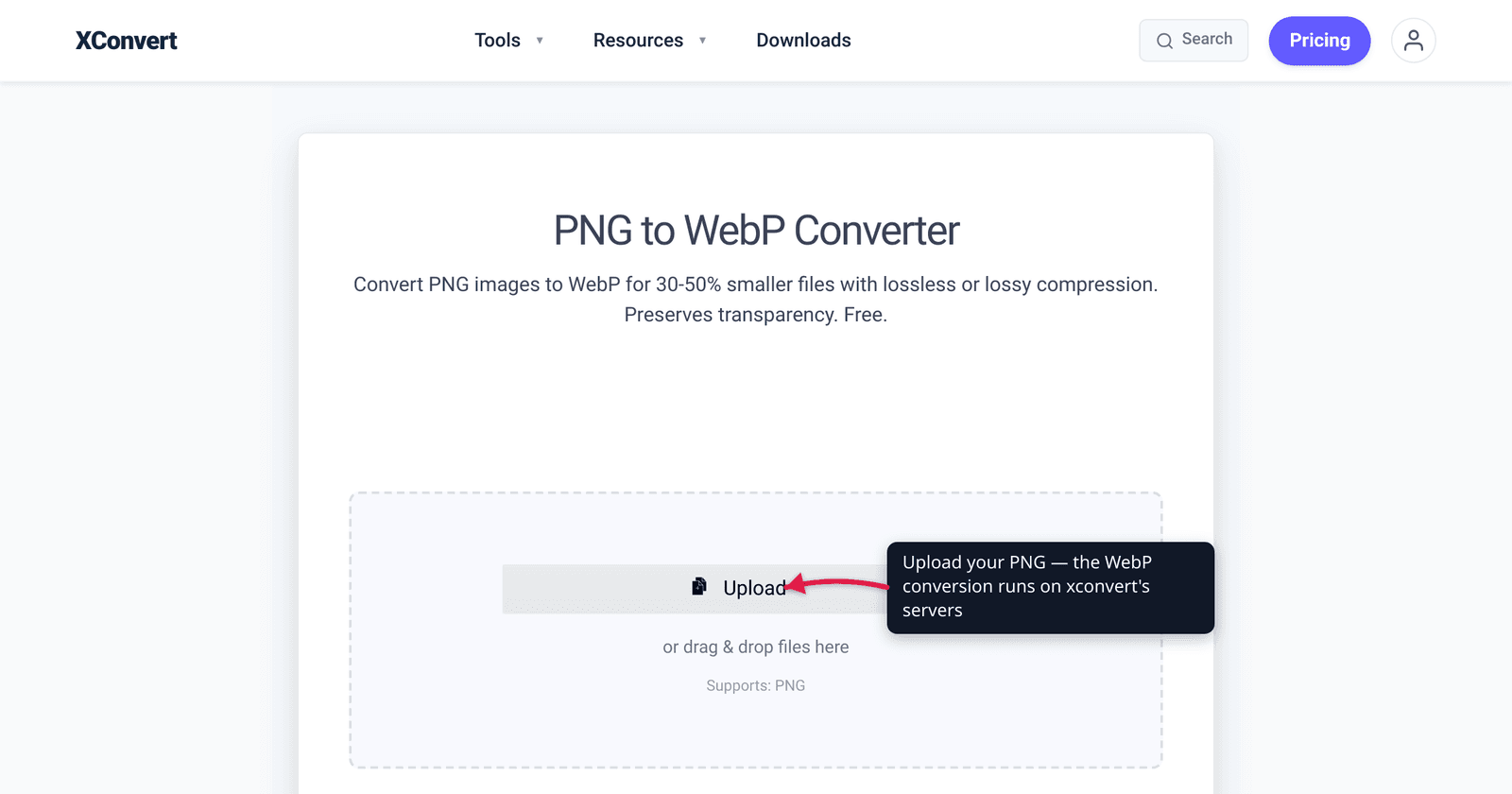
You exported a clean PNG logo, dropped it on your homepage, and PageSpeed flagged it: “Serve images in next-gen formats.” The fix is WebP — Google’s image format that holds the same picture (transparency and all) in a noticeably smaller file. We verified the size figures against Google’s own WebP documentation and the current browser-support state against caniuse, then walked the real converter UI so the steps below match what you’ll actually click.
Quick answer: Convert PNG to WebP to ship smaller web images that look identical. Use lossless WebP to keep perfect quality — Google measures these at about 26% smaller than the original PNG, transparency included. Use lossy WebP when you can accept imperceptible loss for a much bigger size cut. WebP plays in every modern browser (global support ~96%), so it’s safe for web delivery — but it’s a web format: keep PNG for editing masters and printing.
Jump to a section
- What WebP is (and why it’s smaller)
- How much smaller: the real numbers
- Lossless vs lossy WebP — which to pick
- Browser support: is WebP safe to ship?
- When to keep PNG instead
- Convert PNG to WebP on xconvert
- FAQ
What WebP is (and why it’s smaller)
WebP is an image format developed by Google specifically to make web images smaller without an obvious quality drop. Its key trick is that one format covers two compression modes:
- Lossless — reconstructs every pixel exactly, like PNG, but with a more efficient encoder. Nothing is thrown away.
- Lossy — discards visual detail the eye is unlikely to notice (like JPEG), trading a little fidelity for a much smaller file.
Crucially, WebP supports transparency (the alpha channel) in both modes — so a transparent PNG logo stays transparent after conversion, whether you go lossless or lossy. That’s the property that lets WebP replace transparent PNGs on the web, which JPEG never could.
So converting a PNG to WebP isn’t changing what the image is — it’s re-encoding the same picture with a smarter algorithm built for the web. A .png and the resulting .webp look the same on screen; the .webp just weighs less.
How much smaller: the real numbers
Google publishes its own measurements, and these are the figures to trust:
| Conversion | Size change (per Google) |
|---|---|
| PNG → lossless WebP | ~26% smaller than the PNG |
| Adding transparency to lossless WebP | costs only ~22% extra bytes |
| Lossy WebP with transparency | typically ~3× smaller than the equivalent PNG |
| JPEG → lossy WebP (for reference) | 25–34% smaller at equal quality |
Read those together and the practical takeaway is clear: even the no-quality-loss path (lossless) shaves roughly a quarter off a PNG, and the lossy path with transparency can shrink a transparent PNG to about a third of its size. For a homepage full of logos, icons, and screenshots, that compounds into a meaningfully faster page.
A caveat on honesty: 26% is Google’s average across a corpus of images — your specific file can land above or below it depending on how compressible the original was. A PNG that was already small and simple has less fat to trim; a large, detailed one usually saves more. Treat the percentages as a reliable ballpark, not a guarantee for one file.
Lossless vs lossy WebP — which to pick
The converter exposes a Lossless? toggle, and choosing correctly is the whole game.
Pick lossless WebP when:
- The image has sharp edges, text, line art, or flat color — UI screenshots, logos, icons, diagrams. Lossy compression is what makes text look fuzzy and edges look haloed; lossless avoids that entirely.
- You want a drop-in PNG replacement with zero visible change — same pixels, ~26% smaller.
- The PNG is your source of truth and you don’t want to introduce any generational loss.
Pick lossy WebP when:
- The image is photographic or has smooth gradients — a hero photo, a product shot — where the eye won’t notice discarded detail.
- File size is the priority and you can spend a little fidelity to get a much smaller file (often dramatically smaller than lossless).
- You’re delivering at web scale and a few percent of imperceptible loss is an acceptable trade for speed.
Rule of thumb: lossless for graphics and text, lossy for photos. If you’re unsure, start lossless — it can never make the picture look worse than the PNG, and you still get the size win. For a deeper comparison of when each format earns its place, see PNG vs WebP vs JPG.
Browser support: is WebP safe to ship?
In 2026, yes — for web delivery, WebP is no longer a gamble. Per caniuse, global browser support sits around 96%, and every current major browser handles it:
| Browser | WebP support from |
|---|---|
| Chrome | version 32+ |
| Firefox | version 65+ |
| Edge | version 18+ |
| Safari (iOS) | version 14+ (Sept 2020) |
| Safari (macOS) | version 14 added WebP; caniuse marks full support from 16+ |
| Internet Explorer | never (unsupported in all versions) |
Apple added WebP to Safari with iOS 14 and macOS Big Sur in September 2020, which is what closed the last big gap. One nuance worth knowing: older Safari 14–15 builds could be flaky with lossless and animated WebP specifically, and full coverage lands at Safari 16 — so if you serve lossless WebP to a known older-Mac audience, that’s the version to keep in mind. For the vast majority of visitors on up-to-date browsers, WebP simply works.
The only place WebP genuinely fails is legacy Internet Explorer and ancient devices — and the standard web pattern handles that gracefully with the <picture> element, which lets a browser fall back to the original PNG/JPEG if it can’t read WebP. If you’re weighing WebP against the even-newer format, see AVIF vs WebP.
When to keep PNG instead
WebP is a web-delivery format. It’s the wrong choice for a few jobs, and PNG (or the original) wins:
- Editing masters. Keep your editable source as PNG (or the native project file). Re-export to WebP at publish time; don’t make WebP your archive format.
- Printing. WebP is built for screens and RGB web delivery, not print workflows — keep print-bound graphics as PNG or a print-appropriate format.
- Maximum universal compatibility. If a file has to open in every tool a recipient might have — old software, certain email clients, design apps that don’t import WebP — PNG is still the safer lingua franca.
- Tools that won’t import WebP. Some older editors and platforms still don’t read it; check before committing a workflow to WebP-only assets.
The clean mental model: author and store in PNG, deliver to the browser in WebP. You get a faster site without losing your high-fidelity source.
Convert PNG to WebP on xconvert
The xconvert PNG to WebP converter gives you the lossless/lossy choice directly:
- Open xconvert.com/convert-png-to-webp and click + Add Files to upload your PNG (from your computer, Google Drive, or Dropbox).
- Open Advanced Options (the gear icon) to reveal the controls.
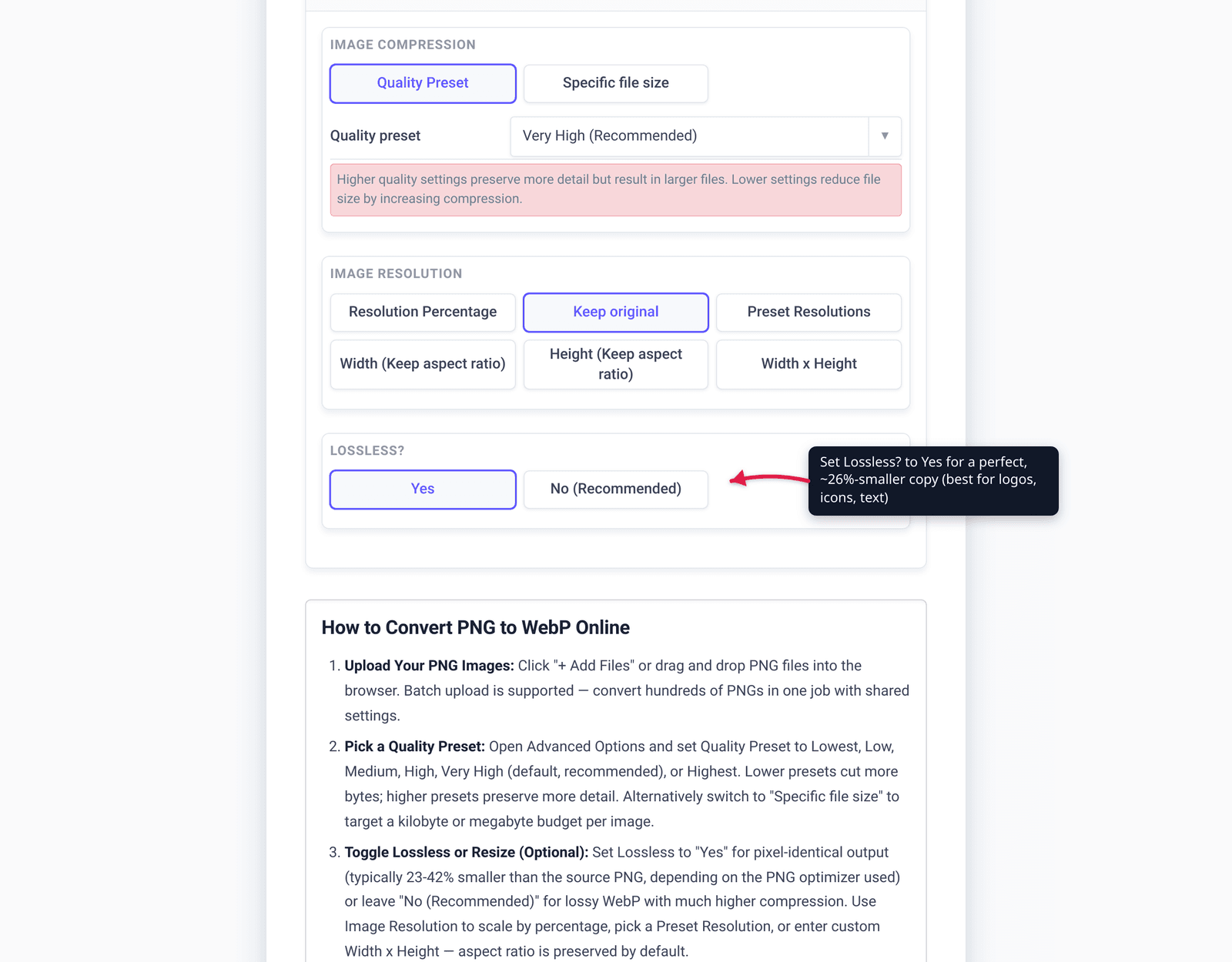
- Set the Lossless? toggle: choose Yes for a perfect, ~26%-smaller copy (best for logos, icons, text), or leave No (Recommended) for a smaller lossy file (best for photos).
- For lossy output, set the Quality Preset (default Very High (Recommended)) — or use Specific file size if you need to hit an exact target in MB.
- Optionally adjust Image Resolution (Resolution Percentage, a preset, or exact Width/Height) to downscale at the same time.
- Click Convert, then download your WebP.
Your file is uploaded over an encrypted connection, processed on our servers, and automatically deleted a few hours later. Nothing lingers.
FAQ
Does converting PNG to WebP lose quality?
Not if you choose lossless — lossless WebP reconstructs every pixel exactly, like PNG, so the result is visually identical while being about 26% smaller (Google’s figure). Lossy WebP does discard some detail for a smaller file, but at high quality settings the loss is usually imperceptible, especially on photos. For text, logos, and screenshots, pick lossless to avoid any artifacts.
Does WebP keep transparency from a PNG?
Yes. WebP supports the alpha channel (transparency) in both lossless and lossy modes, so a transparent PNG stays transparent after conversion. Google notes transparency costs only about 22% extra bytes in lossless WebP, and lossy WebP with transparency is typically around 3× smaller than the equivalent PNG.
How much smaller is WebP than PNG?
Per Google, lossless WebP images are about 26% smaller than PNGs while keeping identical quality. Lossy WebP can be far smaller still. The exact saving depends on the image — already-simple PNGs save less, detailed ones usually save more — so treat 26% as a reliable average rather than a fixed number for every file.
Is WebP supported in all browsers?
Effectively yes for modern browsers — global support is around 96% (caniuse). Chrome (32+), Firefox (65+), Edge (18+), and Safari (iOS 14+, macOS 16+ for full support) all handle WebP. The main exception is legacy Internet Explorer, which never supported it; the <picture> element lets you fall back to PNG for those rare cases.
Should I use WebP for printing?
No — WebP is a web-delivery format optimized for on-screen RGB images, not print workflows. Keep print-bound graphics as PNG (or a print-appropriate format). The same goes for editable masters: author and archive in PNG, then export to WebP only for serving on the web.
Lossless or lossy WebP — which should I choose?
Use lossless for graphics with sharp edges, text, or flat color (logos, icons, UI screenshots) — it never degrades the image. Use lossy for photographs and gradients, where the eye won’t notice discarded detail and you get a much smaller file. When in doubt, start lossless: it can’t look worse than the PNG and still saves roughly a quarter of the size.
Sources
Last verified 2026-06-25.
- Google — WebP: A new image format for the Web — “WebP lossless images are 26% smaller than PNGs”; lossy WebP 25–34% smaller than JPEG; alpha costs ~22% extra in lossless and lossy-with-transparency is ~3× smaller than PNG.
- caniuse — WebP image format — current browser support (~96% global); Chrome 32+, Firefox 65+, Edge 18+, Safari iOS 14+ / macOS full from 16+.
- MacRumors — Apple Adds WebP Image Support in Safari 14 — confirms Safari/iOS gained WebP with version 14 (macOS Big Sur / iOS 14, Sept 2020).