 By Stephanie Taylor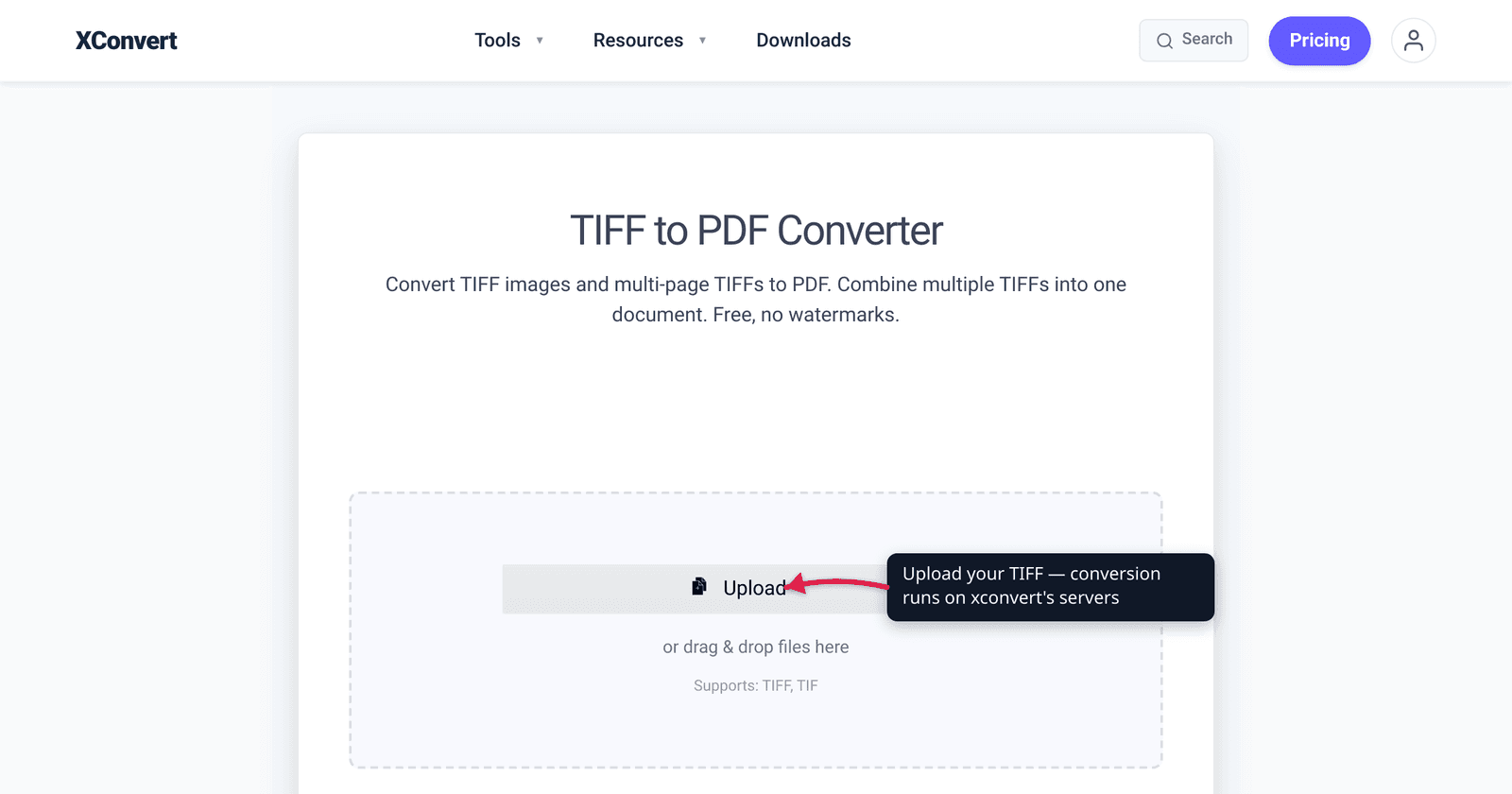
Your scanner spat out a 50-page contract as a single .tiff file, and now the recipient can’t open it — most people don’t have a TIFF viewer, and the file is enormous. TIFF is what scanners, fax machines, and document-archive systems have used for decades because one TIFF file can hold every page of a multi-page scan. PDF is what everyone else can actually open. This guide covers converting a single TIFF, flattening a multi-page TIFF into a multi-page PDF, and merging several separate TIFFs into one document — and it’s honest about what the converter does and doesn’t compress. We verified the format facts against Adobe’s TIFF specification and the ISO PDF standard.
Quick answer: A multi-page TIFF (one file holding many scanned pages) converts to a multi-page PDF — each TIFF page becomes a PDF page, in order. To merge several separate TIFF files into one document, upload them all and choose the Single PDF combine mode; choose Individual PDFs to get one PDF per file. PDF is the right target because, unlike TIFF, it opens on virtually any device with no special viewer. The conversion can embed the scan losslessly or recompress it to shrink the file.
Jump to a section
- Why TIFF, and why convert it to PDF
- Single-page vs multi-page TIFF
- Combining multiple TIFFs into one PDF
- Lossless vs recompressed: file size
- Convert TIFF to PDF on xconvert
- FAQ
Why TIFF, and why convert it to PDF
TIFF (Tagged Image File Format) was created by Stephen Carlsen at Aldus Corporation in 1986 for desktop publishing; Adobe published the still-current TIFF 6.0 specification in 1992 and took over the copyright after acquiring Aldus in 1994. Its defining trait for documents is that a single TIFF file can hold multiple images — what the spec calls subfiles. As Adobe’s specification puts it, “the basic use case for having multiple subfiles is to encode a multipage telefax in a single file.” That is exactly why scanners, fax systems, and records-management software have leaned on multi-page TIFF for so long: a 50-page scanned contract is one tidy 50-page TIFF.
The problem is the other side of the handoff. TIFF is not natively viewable in most environments — web browsers won’t render it, email previews choke on it, and the average recipient has no TIFF viewer installed. PDF is the opposite. Developed by Adobe in 1993 and now an open ISO standard (ISO 32000, standardized in 2008), PDF “encapsulates a complete description of a fixed-layout document” that looks the same on any platform — a PDF made on a Mac renders identically on Windows or a phone. Converting TIFF to PDF keeps the page-faithful scan but wraps it in the one format everyone can open, print, and email.
Single-page vs multi-page TIFF
There are two kinds of TIFF you might be holding, and the converter handles both:
- Single-page TIFF — one scanned page (or photo) in the file. It converts to a one-page PDF.
- Multi-page TIFF — many pages in one file, each stored as a separate image directory inside the TIFF. It converts to a multi-page PDF, one PDF page per TIFF page, in the same order.
This is the case people most often get wrong with desktop tools: some converters read only the first directory of a multi-page TIFF and silently drop the rest, turning a 50-page scan into a one-page PDF. (That exact complaint shows up repeatedly in scanning forums.) A converter that understands multi-page TIFF walks every directory and lays each one onto its own PDF page, so your 50-page contract stays a 50-page document.
You don’t have to do anything special for this — upload the multi-page TIFF and the page count is preserved automatically.
Combining multiple TIFFs into one PDF
The other common scan scenario is the reverse: you have several separate TIFF files — page1.tiff, page2.tiff, page3.tiff — and you want one PDF, not three. The xconvert tool handles this with an explicit combine mode, so you’re not guessing:
| Combine mode | What you get |
|---|---|
| Single PDF | All uploaded TIFFs (and all pages within each) bundled into one PDF, in upload order |
| Individual PDFs | One PDF per TIFF file — three TIFFs in, three PDFs out |
So the merge is real, not improvised: choose Single PDF and the tool stitches every file into a single document. Mixing inputs works too — a multi-page TIFF and several single-page TIFFs all flow into one PDF in the order you add them. If you instead want to keep each scan as its own file (say, separate invoices), pick Individual PDFs. Verify the order before you convert; the PDF page order follows the upload order.
Lossless vs recompressed: file size
Here’s the honest nuance most “TIFF to PDF” pages skip. A PDF doesn’t store pixels in some PDF-native way — it embeds the image inside the document. How big the result is depends on whether that embedded image is kept as-is or recompressed.
TIFF itself supports several compression schemes — uncompressed, LZW and ZIP/Deflate (lossless), JPEG (lossy), and CCITT Group 3/4 for black-and-white fax/scan images. An uncompressed or lightly compressed scan can be very large. When you convert to PDF, you have a choice:
- Embed losslessly — keep the scan’s pixels intact. No quality loss, but a bulky uncompressed TIFF stays bulky inside the PDF.
- Recompress — apply JPEG-style image compression on the way in. This can shrink the file dramatically, at the cost of some image fidelity (more visible the harder you compress).
On xconvert, the Image Compression quality slider (1–100%, default 75%) controls this. Leave it high for an archival-quality scan; lower it when you need a small, emailable PDF. If your converted PDF is still enormous, the usual culprit is scan resolution and color depth, not the format itself — our guide on why scanned PDFs get so big breaks down DPI, color mode, and compression. And if you’re still deciding which format to archive scans in before you even convert, see TIFF vs PNG for scanned documents.
Convert TIFF to PDF on xconvert
The xconvert TIFF to PDF converter handles single TIFFs, multi-page TIFFs, and merging multiple files — free, with no watermarks:
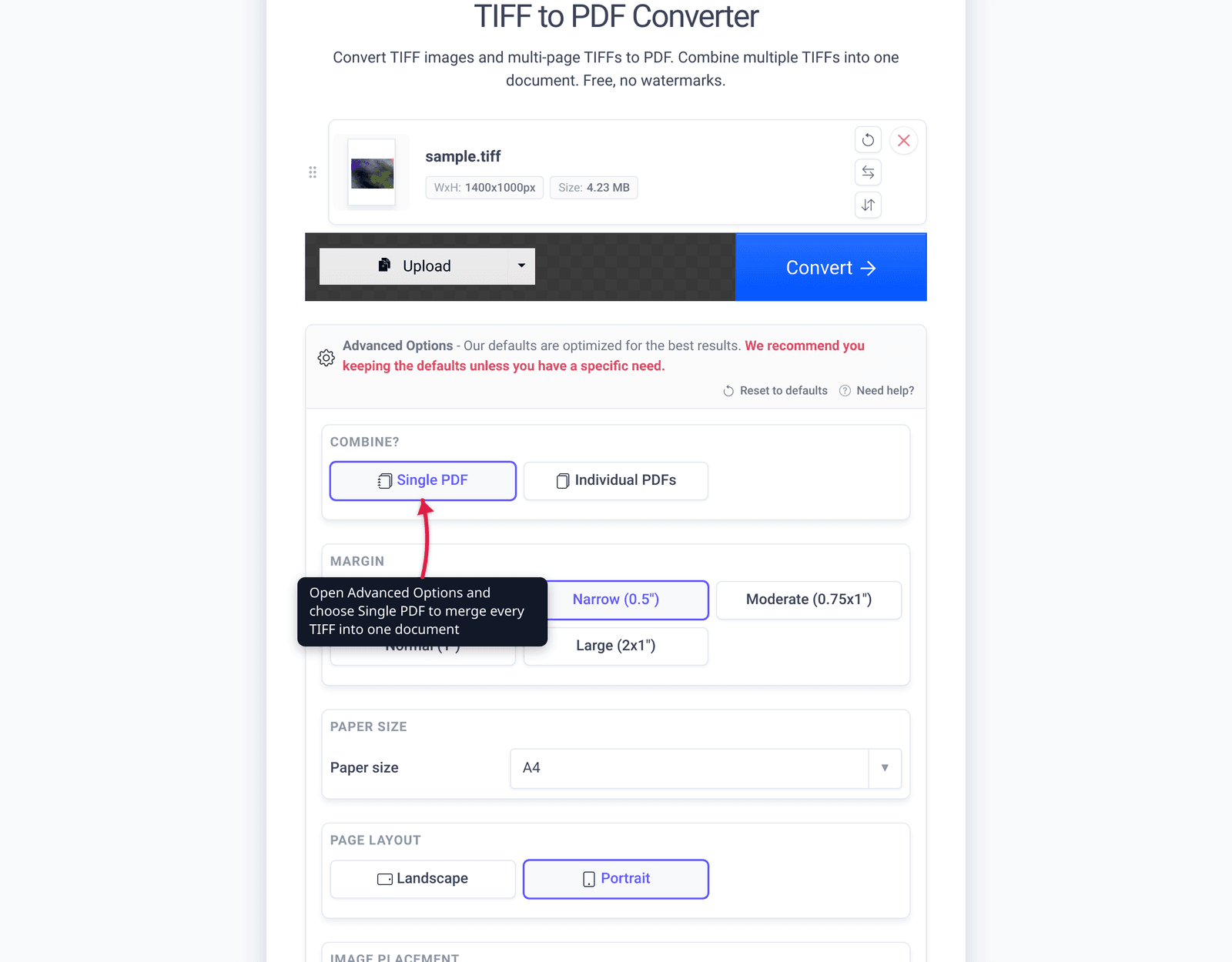
- Open xconvert.com/convert-tiff-to-pdf and click Upload to add your file(s) — From my Computer, From Google Drive, or From Dropbox. A multi-page TIFF can go in on its own; for a merge, add every TIFF.
- Open Advanced Options (the gear icon) — the defaults are tuned for good results, so this step is optional.
- Set the combine mode: Single PDF to merge all files into one document, or Individual PDFs for one PDF per file.
- Adjust the page look if needed — Paper size (A4 default, plus Letter, Legal, Tabloid), page layout (Portrait/Landscape), margins (No margin through Large), and image placement (Cover/Contained) and alignment.
- Set Image Compression quality (default 75%) — higher for a sharper archival PDF, lower for a smaller, emailable one.
- Click Convert, then download the finished PDF.
Your files upload over an encrypted connection, are processed on our servers, and are deleted automatically a few hours later. Nothing stays around.
FAQ
Will a multi-page TIFF stay multi-page when I convert to PDF?
Yes. Each page (image directory) inside a multi-page TIFF becomes its own page in the PDF, in the original order — a 50-page scanned TIFF produces a 50-page PDF. This is the behavior to insist on: some basic desktop converters read only the first page of a multi-page TIFF and drop the rest. A TIFF-aware converter preserves the full page count automatically.
How do I combine several TIFF files into one PDF?
Upload all the TIFFs and choose the Single PDF combine mode. Every file — and every page within each file — is merged into one PDF in upload order. Choose Individual PDFs instead if you want each TIFF to become its own separate PDF. Check the upload order before converting, since it sets the page order.
Does converting TIFF to PDF lose quality?
Only if you recompress. A PDF embeds the scanned image; you can keep it lossless (no quality change, but a large TIFF stays large) or apply JPEG-style compression to shrink the file at some cost to fidelity. On xconvert the Image Compression quality slider (default 75%) sets the balance — keep it high for archival scans, lower it for a small emailable file.
Why is my converted PDF still so large?
Usually it’s not the format — it’s the scan resolution (DPI) and color depth baked into the original TIFF. A 600-DPI full-color scan carries a lot of pixels no matter what container holds them. Lower the compression-quality slider during conversion, or see why scanned PDFs get so big for the DPI and color-mode fixes that actually move the needle.
Why convert TIFF to PDF at all instead of just sending the TIFF?
Because almost nobody can open a TIFF without special software — browsers won’t display it, email previews fail, and most people have no TIFF viewer. PDF is an open ISO standard that renders identically on any device, so the recipient can open, print, and email it with no extra tools.
Can I convert a TIFF to PDF for free without a watermark?
Yes. The xconvert TIFF to PDF converter is free and adds no watermark. Files are processed on our servers and deleted automatically a few hours later.
Sources
Last verified 2026-06-25.
- Adobe TIFF 6.0 specification (June 3, 1992) — the authoritative TIFF spec; defines multi-image/multi-page TIFF (subfiles) and supported compression schemes.
- TIFF — Wikipedia — Aldus 1986 origin, TIFF 6.0 (1992), Adobe ownership after the 1994 Aldus acquisition; “the basic use case for having multiple subfiles is to encode a multipage telefax in a single file.”
- PDF — Wikipedia — PDF developed by Adobe in 1993, standardized as ISO 32000 in 2008; platform-independent fixed-layout document.
- ISO 32000-1:2008 — Portable document format — the PDF ISO standard.
- xconvert TIFF to PDF converter — the live tool; verified UI labels (Upload sources, Single PDF / Individual PDFs combine modes, paper size, margins, Image Compression quality slider).