 By James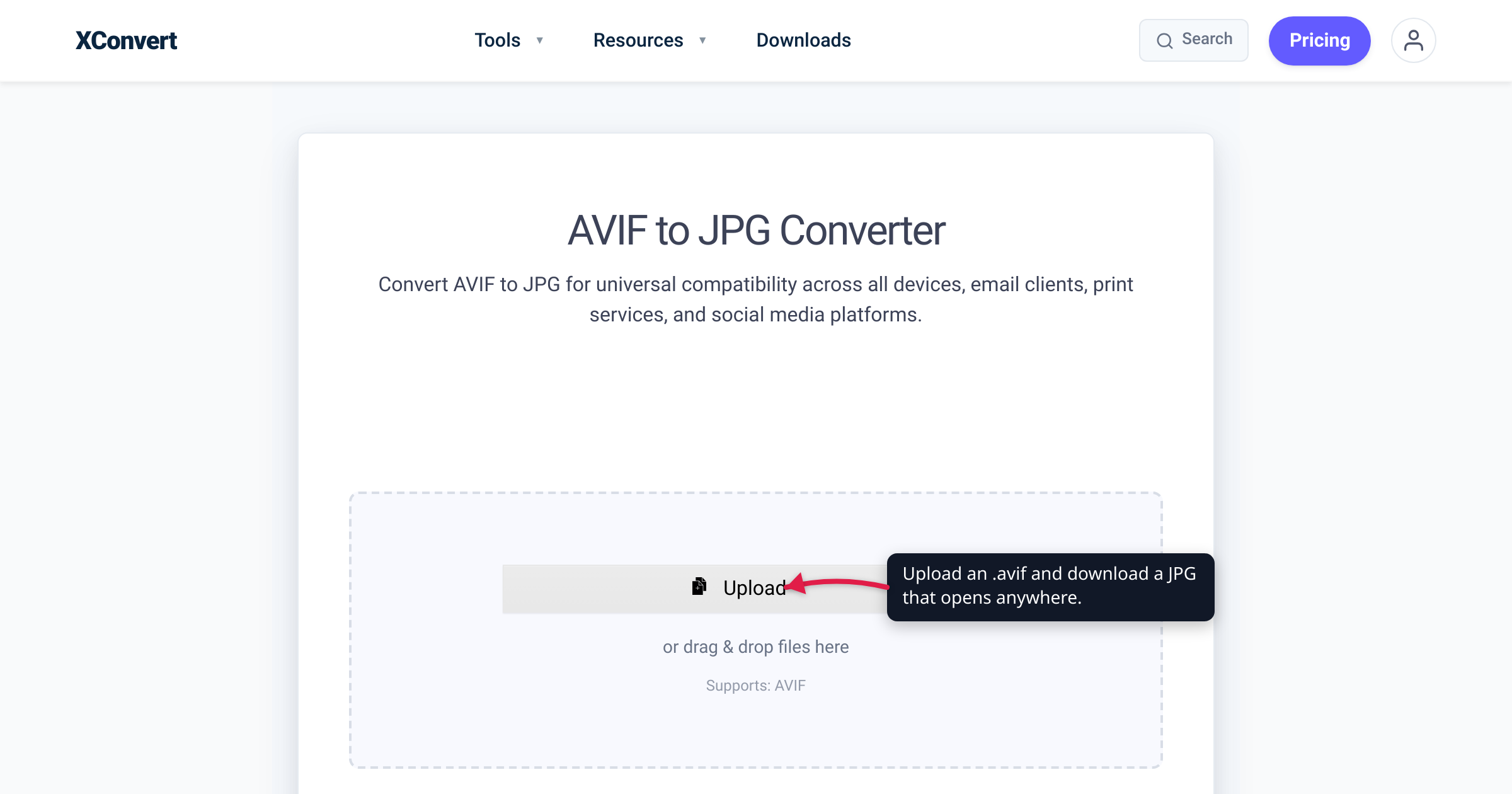
You right-clicked a photo on a news site, chose Save image as…, and got photo.avif — a file the Windows Photos app shrugs at, your photo editor won’t import, and the next upload form rejects. Nothing is corrupt. AVIF is a real (and genuinely excellent) image format; it’s just newer than a lot of the software around it. This guide explains what an AVIF file actually is, why they’re suddenly showing up in your Downloads folder, exactly what opens one natively — verified against caniuse, Apple’s WebKit release notes, Microsoft’s Store listings, and the AOMedia spec — and the 30-second escape hatch: converting it to a JPG that opens anywhere.
Quick answer: An .avif file is an image in the AV1 Image File Format — an open, royalty-free format from the Alliance for Open Media that compresses much harder than JPEG (AOMedia cites over 50% file-size savings vs JPEG). Your file won’t open because the app you’re using has no AV1 decoder. Three fast fixes: drag it into any modern browser (Chrome, Firefox, Edge, and Safari all display AVIF), install Microsoft’s free AV1 Video Extension on Windows, or convert it to JPG so it opens everywhere, forever.
Jump to a section
- What an AVIF file actually is
- Why you suddenly have .avif files
- What opens AVIF natively (and what doesn’t)
- Three ways to open it right now
- Convert AVIF to JPG on xconvert
- FAQ
What an AVIF file actually is
AVIF stands for AV1 Image File Format. Technically, it’s a still image (or image sequence) encoded with the AV1 video codec and stored in a HEIF container — MDN describes it as “a powerful, open source, royalty-free file format that encodes AV1 bitstreams in the High Efficiency Image File Format (HEIF) container.” In plain terms: it borrows the compression smarts of a modern video codec and applies them to a single picture.
The format is published by the Alliance for Open Media (AOMedia) — the industry consortium behind the AV1 codec, organized as a project of the Joint Development Foundation and backed by companies including Google, Apple, Microsoft, Amazon, Netflix, and Mozilla. The current specification is version 1.2.0. Two properties matter most:
- It’s dramatically smaller. AOMedia’s own figures: over 50% file-size savings compared to JPEG and over 30% compared to WebP at comparable quality. MDN reports the same ballpark (lossy AVIF around 50% smaller than JPEG; a median 50% vs WebP’s 30% on the same test set). As always with compression, the exact saving is content-dependent — treat these as typical, not guaranteed.
- It’s royalty-free and feature-rich. The spec supports lossy and lossless compression, transparency (alpha), animation, HDR, and wide color gamut — things JPEG structurally can’t do.
So AVIF isn’t some proprietary oddity — it’s the web’s next-generation image workhorse. The catch is purely one of age: mainstream support only began with Chrome 85 in August 2020, and plenty of desktop software still hasn’t caught up. (For how it stacks up against the other modern format, see AVIF vs WebP.)
Why you suddenly have .avif files
You almost certainly didn’t choose AVIF — a website chose it for you. Because AVIF cuts image weight so much, news sites, e-commerce platforms, and image CDNs increasingly serve AVIF to any browser that advertises support for it (browsers announce image/avif in the HTTP Accept header, and the server picks the best format it can send). The page even looks like it’s showing you a JPEG — same picture, same layout.
The surprise comes at save time. Right-click → Save image as… saves the exact bytes the server sent, so what lands on disk is image.avif, not image.jpg — even if the URL said “jpg” somewhere. Chrome and Edge have no setting to change this (there’s a long-standing open Chromium feature request asking for a “download as JPG/PNG” option), so the AVIF files pile up in Downloads until you hit an app that can’t read one.
WebP owners of a few years ago will recognize this exact story — the same serve-modern-formats mechanism made .webp the mystery extension of 2020 (see convert WebP to PNG or JPG). AVIF is simply the next, more aggressive round.
What opens AVIF natively (and what doesn’t)
Browser support is now excellent — about 93% of web users globally (caniuse, June 2026). Desktop apps and OS utilities are the weak spot. Verified state:
| Where | Opens AVIF? |
|---|---|
| Chrome | Yes — since Chrome 85 (Aug 2020) |
| Firefox | Yes — still images since 93 (Oct 2021); animated AVIF since 113 |
| Edge | Yes — but only since Edge 121 (Jan 2024); older Edge fails |
| Safari | Yes — Safari 16 on iOS 16 / iPadOS 16 / macOS Ventura; Safari 16.4 (Mar 2023) extended it to macOS Big Sur and Monterey and added animated AVIF |
| macOS | Ventura (13) and later decode it system-wide — Preview and Quick Look open it like any JPEG; on Big Sur/Monterey it’s Safari-only |
| iPhone / iPad | iOS 16 and later ship an AVIF decoder (Safari, Files; individual apps vary) |
| Android | Android 12 and later — platform-level AVIF support per Google’s Android 12 release notes |
| Windows 10 / 11 (Photos, File Explorer) | Not reliably out of the box — Microsoft’s fix is the free AV1 Video Extension (plus the HEIF Image Extension) from the Microsoft Store |
| Older software: Photoshop before 26.8, many upload forms, assorted editors and viewers | Generally no — this is where conversion earns its keep |
Two rows deserve expansion:
Windows. Microsoft’s HEIF Image Extension listing states the AV1 Video Extension package must be installed to view images stored in HEIF files that use the .avif extension — i.e., stock Windows typically has no AVIF decoder until you add the free extensions. Even then, community reports on Microsoft’s Q&A forums describe some AVIF files still refusing to open in Photos, so the browser (or a converted JPG) remains the dependable path.
Creative apps. Adobe only added native open/edit/save for AVIF in Photoshop 26.8 (June 2025). Anything older — and a long tail of other editors, printers’ upload portals, CMS media libraries, and form uploaders — will bounce the file. That long tail is why “just convert it to JPG” stays the pragmatic answer even in 2026.
Three ways to open it right now
- Drag it into a browser. Any current Chrome, Firefox, Edge, or Safari window will render the file instantly — this is the zero-install way to at least see the image. Viewing isn’t editing or uploading, though.
- Add the decoder to your OS. Windows: install Microsoft’s free AV1 Video Extension and HEIF Image Extension from the Microsoft Store. Mac: update to Ventura or later. This fixes double-click viewing on your machine — but not the file’s compatibility with other people, older software, or upload forms.
- Convert it to JPG or PNG. The only fix that travels with the file. One important non-fix first: renaming
photo.aviftophoto.jpgdoes nothing — the extension changes but the bytes are still AV1, and apps decode the bytes. A real conversion re-encodes the image, which is what the step below does.
Pick JPG for photos you’ll share, email, or upload; pick PNG if the image has transparency you need to keep (JPEG has no alpha channel).
Convert AVIF to JPG on xconvert
The xconvert AVIF to JPG converter turns the file into a universally supported JPG in under a minute, no account needed:
- Open xconvert.com/convert-avif-to-jpg and click Upload — add one or more
.aviffiles From my Computer, From Google Drive, or From Dropbox (drag & drop works too). - That’s genuinely all that’s required — the defaults are tuned for the best result, with the Quality Preset set to Very High (Recommended).
- Optionally, open Advanced Options (the gear) to take control: pick a different Quality Preset, set a Specific file size if the JPG must fit under an upload cap, or shrink dimensions under Image resolution.
- The File extension dropdown lets you choose JPEG or JPG — same format, just whichever extension your workflow expects.
- Click Convert, then download your files — individually or as a ZIP, with no watermark.
Your image is processed on our servers and deleted automatically a few hours later — nothing stays around.
FAQ
Why can’t I open an AVIF file?
Because the app you’re opening it with has no AV1 decoder. AVIF is young — browser support only started in 2020 (Chrome 85), Windows needs Microsoft’s free extension, and Photoshop couldn’t open one natively until version 26.8 in mid-2025. The image itself is fine. View it in any modern browser, or convert it to JPG for software that will never learn AVIF.
How do I open an AVIF file on Windows 10 or 11?
Install Microsoft’s free AV1 Video Extension (and the HEIF Image Extension) from the Microsoft Store — Microsoft’s own listing notes the AV1 extension is required to view .avif images. If Photos still balks (a known, community-reported issue with some AVIF files), drag the file into Edge or Chrome to view it, or convert it to JPG so it opens in everything.
Why are images suddenly saving as AVIF instead of JPG?
Websites and CDNs now serve AVIF to browsers that support it because it’s dramatically lighter than JPEG — and “Save image as…” writes exactly what the server sent. You never picked AVIF; the site did. The same thing happened with WebP a few years earlier.
Can I make Chrome save JPG instead of AVIF?
No — there’s no built-in setting. The format is the website’s choice, and Chromium’s issue tracker has an open feature request for a save-as-JPG/PNG option, but it hasn’t shipped. Practical options: take the converted route after download, or on some sites, find a direct link to the original file. Renaming the extension does not convert it.
Is AVIF better than WebP or JPEG?
For compression, yes: AOMedia cites over 50% savings vs JPEG and over 30% vs WebP at comparable quality, and AVIF adds HDR, wide gamut, transparency, and animation. Its weaknesses are ecosystem age (Edge only added it in 2024) and no progressive rendering. Full comparison: AVIF vs WebP.
Does converting AVIF to JPG lose quality?
Marginally — JPEG is a lossy format, so re-encoding always costs a little, and JPEG can’t keep AVIF-only features (transparency gets flattened; HDR is tone-mapped down to standard range). At a high quality setting like the converter’s Very High (Recommended) preset the difference is rarely visible for everyday photos. Keep the original .avif if you may need those extras later; convert a copy for compatibility.
Sources
Last verified 2026-07-15.
- AOMedia — AVIF specification — publisher of the format; spec v1.2.0; “over 50%” savings vs JPEG and “over 30%” vs WebP; lossy/lossless, HDR, WCG, transparency, animation. (AOMedia is a project of the Joint Development Foundation, per aomedia.org.)
- caniuse — AVIF image format — browser support matrix: Chrome 85, Firefox 93, Edge 121, Safari 16.0/16.4, Opera 71; ~93.4% global support as of June 2026.
- MDN — Image file type and format guide — AVIF = AV1 bitstream in HEIF container; royalty-free; ~50% smaller than JPEG; Firefox 113+ for animated AVIF; no progressive rendering.
- WebKit — Safari 16.4 release post — Safari 16 brought AVIF to iOS 16/iPadOS 16/macOS Ventura; 16.4 extended it to Monterey and Big Sur and completed animated-AVIF support.
- Android 12 features — developer.android.com — “Android 12 introduces support for images that use the AV1 Image File Format (AVIF).”
- Microsoft Store — AV1 Video Extension and HEIF Image Extension listings — the free decoders Windows needs; the HEIF listing states the AV1 Video Extension is required to view
.avifimages. - Adobe — Photoshop June 2025 release notes — native open/edit/save for AVIF arrived in Photoshop 26.8.
- Chromium issue 340303232 — open feature request to let users download AVIF/WebP sources as JPG/PNG; confirms no built-in setting exists.