 By Stephanie Taylor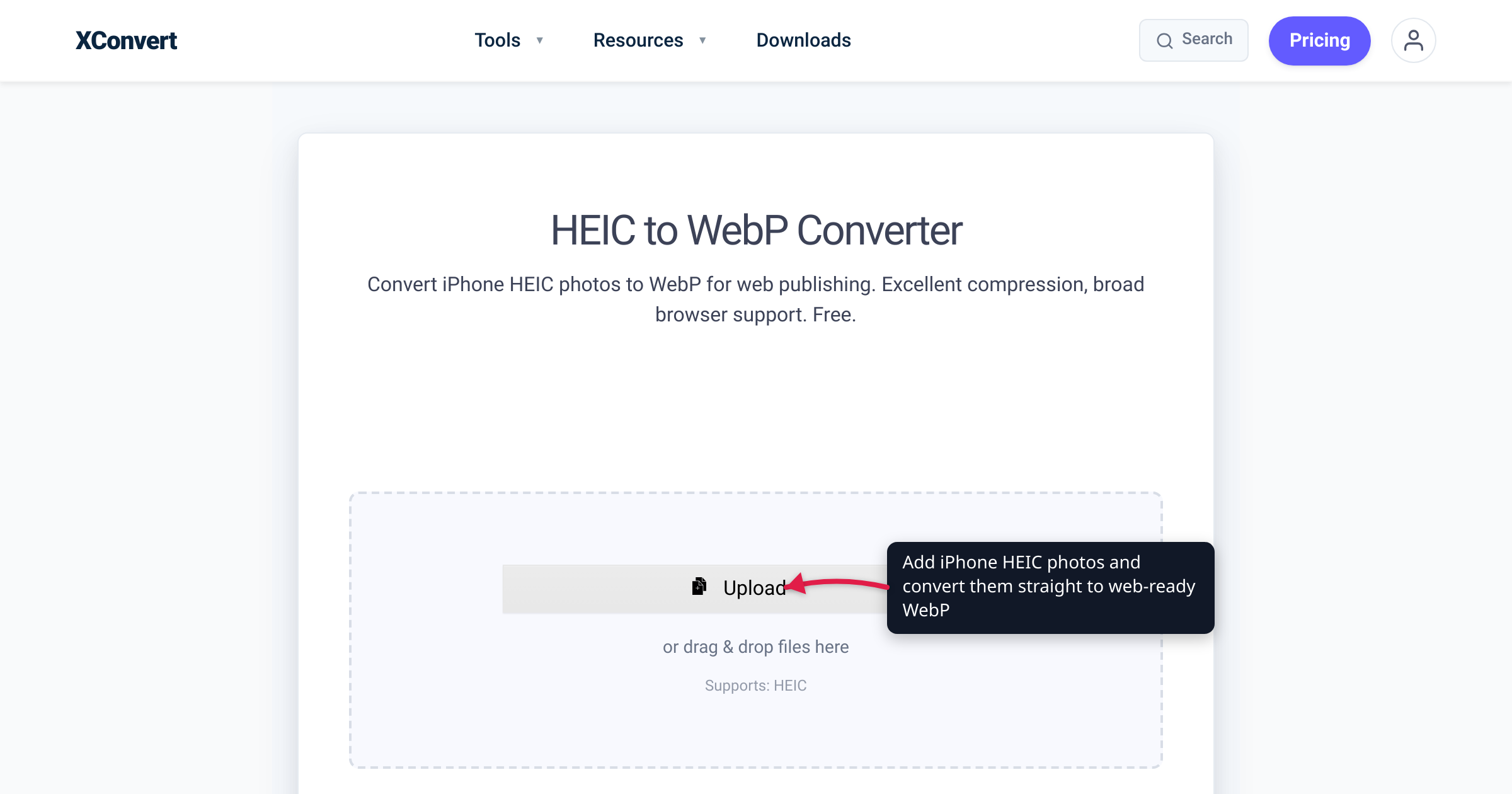
Your iPhone shoots the hero images for your blog posts, product pages, and portfolio — and saves every one as a .heic file most browsers can’t display. The reflexive fix is “convert it to JPG,” but if the photo is headed for a website, that’s a detour: you re-encode once into JPG, and then your CMS or optimizer plugin often re-encodes it again into WebP. Converting HEIC straight to WebP skips the middleman — one lossy step instead of two — and lands directly on the format the modern web actually wants. We verified the browser-support state against caniuse, the compression figures against Google’s and Apple’s own documentation, and the steps below against the live converter.
Quick answer: For photos going onto a website or blog, convert HEIC directly to WebP. WebP displays in roughly 96% of browsers in use (HEIC: about 14%, Safari 17+ only), and Google measures lossy WebP at 25–34% smaller than comparable JPEGs. The usual HEIC → JPG → WebP pipeline re-encodes your photo twice; HEIC → WebP re-encodes it once, from the best source you have. Keep JPG for email, upload forms, and anything that must open on unknown devices.
Jump to a section
- Why HEIC can’t go on the web as-is
- Why WebP beats JPG as the destination
- One lossy step instead of two
- When JPG is still the right target
- Convert HEIC to WebP on xconvert
- FAQ
Why HEIC can’t go on the web as-is
HEIC is the format iPhones (iPhone 7 and later) have saved photos in by default since iOS 11 in 2017 — a HEIF container holding an image compressed with the HEVC (H.265) video codec. Apple’s reasoning is storage: “HEIF and HEVC offer better compression than JPEG and H.264, so they use less storage space on your devices and iCloud Photos, while preserving the same visual quality.” As a capture-and-storage format, it’s genuinely excellent.
As a web format, it’s a dead end. Per caniuse, the only browser that displays HEIC natively is Safari 17 and later — Chrome, Firefox, and Edge don’t support it at any version — leaving HEIC at roughly 14% global browser support. caniuse is blunt about why: “It is hard for browsers to support HEIC because it is complex and expensive to license.” Embed a .heic in a page and the overwhelming majority of your visitors see a broken image.
The ecosystem treats HEIC accordingly: as something to transcode on sight. WordPress added automatic handling in version 6.7 — HEIC uploads are converted to JPEG on the server where the host’s Imagick build supports it, with a warning to convert manually where it doesn’t. Note the fallback it picks: JPEG, the universal choice, not the efficient one. Getting the smaller, web-optimized file is on you, before upload.
Why WebP beats JPG as the destination
Two facts make WebP the right landing spot for web images in 2026:
Support is effectively universal in modern browsers. Per caniuse, WebP sits at roughly 96% global support: Chrome since version 32, Firefox since 65, Edge since 18, and Safari since version 14 (caniuse notes Safari 14–15.6 requires macOS Big Sur or later).
It’s meaningfully smaller than JPEG. Google’s own measurement: “WebP lossy images are 25–34% smaller than comparable JPEG images at equivalent SSIM quality index.” Lossless WebP is about 26% smaller than PNG, and the format supports transparency and animation — both things JPEG can’t do at all. On an image-heavy post, those savings compound across every photo and every page load.
The three-format picture for a photo headed to the web:
| HEIC | JPG | WebP | |
|---|---|---|---|
| Browser support (caniuse) | ~14% — Safari 17+ only | Universal | ~96% — all modern browsers |
| Size at comparable quality | Best of the three | Baseline | 25–34% smaller than JPEG (Google) |
| Transparency | Yes | No | Yes |
| Best role | Capture & storage on Apple devices | Email, forms, universal sharing | Web delivery |
HEIC actually compresses best — caniuse notes it “generally has better compression than WebP, JPEG, PNG and GIF” — but compression browsers can’t display doesn’t help a website. WebP is where efficiency and compatibility overlap.
One lossy step instead of two
The part most guides miss: HEIC, JPG, and (standard) WebP are all lossy formats — every encode throws away detail to hit its size. The common pipeline looks like this:
- HEIC → JPG — lossy re-encode #1. JPEG quantization discards fine detail and introduces its own artifacts.
- JPG → WebP — lossy re-encode #2, done by your CMS, a plugin, or a CDN. The WebP encoder now spends bits faithfully reproducing JPEG’s artifacts along with the photo, and discards a little more on top.
That’s generation loss — the same reason a photocopy of a photocopy looks worse than either copy alone. Converting HEIC → WebP re-encodes exactly once, from the highest-quality version of the photo you own.
To be honest about the magnitude: at high quality settings, one extra generation is often invisible. But it’s pure downside — more artifact risk in smooth gradients like skies and skin, bytes wasted encoding JPEG’s blocking, and an extra batch step. When you already know the destination format, convert straight to it.
When JPG is still the right target
None of this makes JPG obsolete. It’s still the universal image format, and the right target whenever the file leaves your website context:
- Email and messaging. You don’t control the recipient’s device or software; JPG opens on all of it.
- Upload forms that whitelist extensions. Government portals, job applications, marketplaces, and print services commonly accept
.jpg/.png, often reject.webp— and almost always reject.heic. - Handing files to other people. Clients, print shops, editors: JPG never triggers a “can’t open this” reply.
- Anywhere maximum compatibility beats file size. Older CMSs, kiosk software, legacy tools.
The rule of thumb: publish WebP, share JPG. If the photo goes on a site you control, WebP. If it goes to a person, a form, or an inbox, JPG — that job is covered in convert HEIC/HEVC photos to JPG.
Convert HEIC to WebP on xconvert
The xconvert HEIC to WebP converter does the direct conversion, in batch:
- Open xconvert.com/convert-heic-to-webp and click + Add Files — choose From my Computer, From Google Drive, or From Dropbox, or drag and drop your photos. You can queue a whole shoot’s worth of HEICs at once.
- Optionally open Advanced Options (the gear icon). The Quality Preset defaults to Very High (Recommended), and the page’s own advice holds: keep the defaults unless you have a specific need.
- Resize there too if the photos are larger than your layout will ever render: Resolution Percentage, Preset Resolutions, Width (Keep aspect ratio), Height (Keep aspect ratio), or an exact Width x Height. Downsizing an oversized camera photo usually saves more bytes than any format choice.
- Leave Lossless? on No (Recommended) for photographs — lossless WebP adds no new compression loss, but on camera photos it produces much larger files; it’s the setting for graphics and screenshots.
- Click Convert, then download your WebP files — individually, or as a ZIP for a batch.
Your photos upload over an encrypted connection; each file is processed on our servers and deleted automatically a few hours later.
FAQ
Is WebP better than HEIC?
For pure compression, no — caniuse notes HEIC “generally has better compression than WebP, JPEG, PNG and GIF.” For the web, WebP wins decisively: roughly 96% browser support versus about 14% for HEIC (Safari 17+ only). HEIC is a capture-and-storage format; WebP is a delivery format.
Does converting HEIC to WebP lose quality?
It’s a lossy-to-lossy conversion, so some information is discarded, but at a high quality preset the difference is generally not visible — and it’s still one fewer lossy generation than the HEIC → JPG → WebP route. If you need zero new loss, the converter’s Lossless? toggle encodes the decoded pixels exactly, at the cost of a much larger file.
Why is my WebP bigger than the HEIC original?
That can happen because HEIC generally compresses better than WebP, per caniuse. The goal of the conversion isn’t a file smaller than the HEIC — it’s a file browsers can actually display, which still comes out meaningfully smaller than an equivalent-quality JPG (Google measures 25–34%).
Why not just use JPG on my website?
It works everywhere, but every image carries a 25–34% size penalty versus WebP at comparable quality — paid on every page load. And if your stack converts uploads to WebP later anyway, routing through JPG added a second lossy step for nothing. Save JPG for email, forms, and sharing outside the web.
Can I upload HEIC photos straight to WordPress?
Since WordPress 6.7, HEIC uploads are converted to JPEG automatically on hosts whose Imagick build supports HEIC (check Site Health → Info → Media Handling); otherwise WordPress warns you to convert the file manually. Either way you end up with JPEG, not WebP — so converting to WebP yourself before uploading still produces the smaller, web-ready result.
Should I convert to AVIF instead of WebP?
AVIF is typically smaller again than WebP and adds HDR/wide-gamut support, with slightly narrower reach (~93% vs ~96% global support). WebP alone is the simple, safe choice; AVIF with a WebP fallback is the maximum-optimization setup. Full comparison: AVIF vs WebP.
Can my iPhone save WebP directly?
No. The camera’s Settings → Camera → Formats options are High Efficiency (HEIF/HEVC) and Most Compatible (JPEG/H.264) — there is no WebP capture option, so web-bound photos always need a conversion step.
Sources
Last verified 2026-07-15.
- caniuse — WebP image format — ~96% global browser support; Chrome 32+, Firefox 65+, Edge 18+, Safari 14+ (14–15.6 requires macOS Big Sur or later).
- caniuse — HEIF/HEIC image format — ~14% global support; native only in Safari 17+; Chrome, Firefox, and Edge unsupported; HEIC compression-vs-licensing notes.
- Google WebP documentation — “WebP lossy images are 25–34% smaller than comparable JPEG images at equivalent SSIM quality index”; lossless WebP ~26% smaller than PNG; transparency and animation support.
- Apple Support — Using HEIF or HEVC media on Apple devices — “HEIF and HEVC offer better compression than JPEG and H.264 … while preserving the same visual quality”; iOS 11 / macOS High Sierra support; iPhone 7 and later capture; Settings → Camera → Formats options.
- Make WordPress Core — Automatic conversion of HEIC images to JPEG in WordPress 6.7 — HEIC uploads auto-convert to JPEG where the server’s Imagick supports it; manual-conversion warning otherwise; Site Health check location.