 By James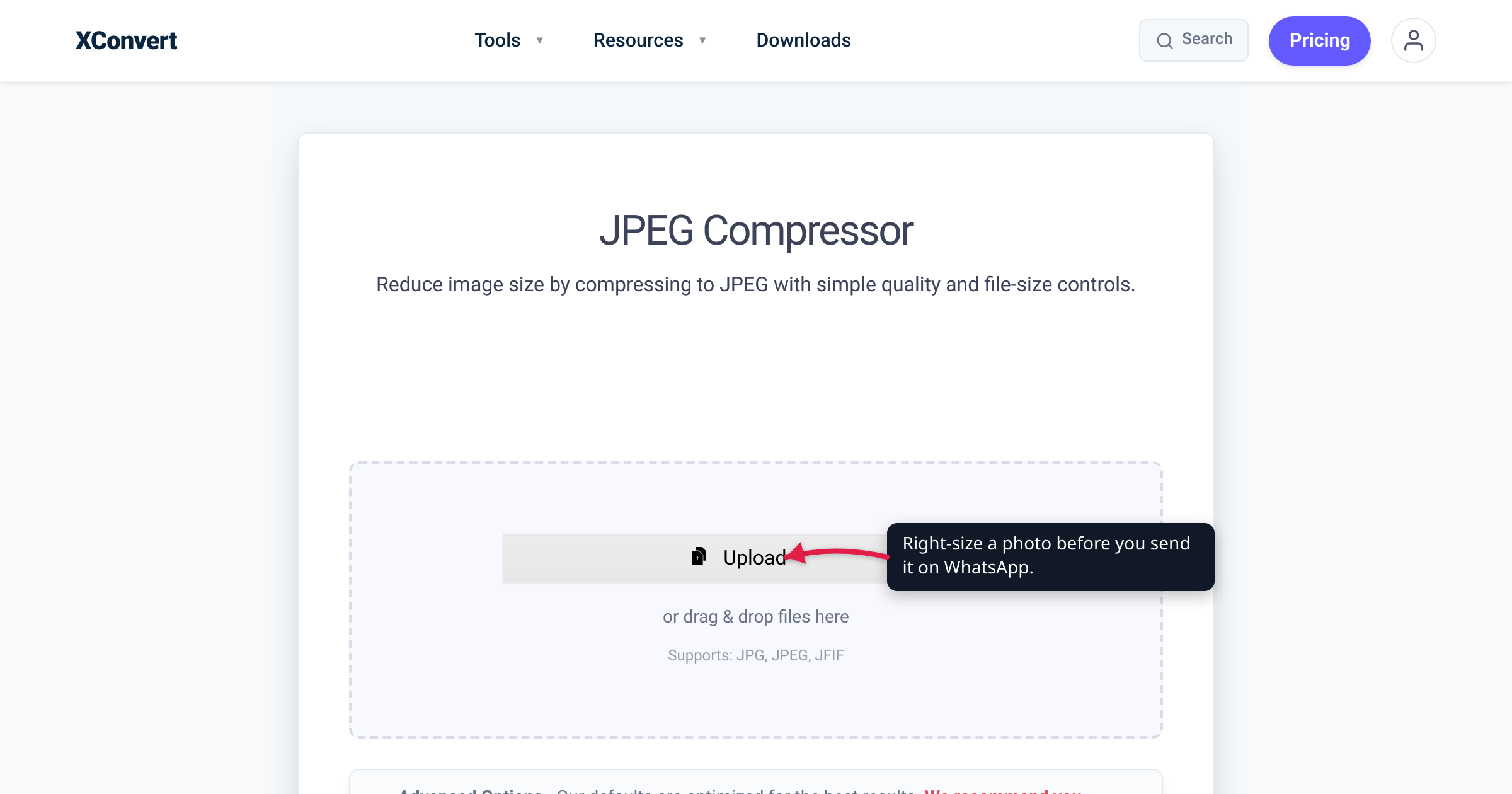
You send a photo that looks crisp in your camera roll, and the person on the other end gets back something soft, muddy, and faintly blocky — text in the picture is suddenly hard to read and the fine detail is gone. That is not your camera or their screen. It is WhatsApp re-compressing and shrinking the image on the way through, because by default it sends photos in a bandwidth-saving “Standard” quality. The good news: you can stop it. This guide covers the three fixes that actually work — one of which sends your photo completely untouched — each checked against WhatsApp’s own Help Center, with the specifics hedged where WhatsApp doesn’t publish them.
Quick answer: By default WhatsApp sends photos in Standard quality, which downscales and re-compresses them. For a photo delivered at full, untouched quality, attach it as a Document (paperclip / + → Document) instead of using the photo picker — it’s transferred as a file, so it skips the photo-compression pipeline. To keep the inline chat preview while looking better, tap the HD button when attaching, or set Settings → Storage and data → Media upload quality → HD quality so every photo goes out in HD. HD is “clearer than Standard quality” in WhatsApp’s own words — but still a processed version; Document is the only route that sends the original file.
Jump to a section
- Why WhatsApp softens your photos
- Fix 1: Send it as a Document (full quality)
- Fix 2: Turn on HD for a photo
- Fix 3: Make HD your default
- Which fix should you use?
- Right-size a photo before an in-chat send
- FAQ
Why WhatsApp softens your photos
When you send an image the normal way — through the photo/gallery picker — WhatsApp does two lossy things to it before it reaches the other person:
- Downscaling. It reduces the pixel dimensions of the image. WhatsApp doesn’t publish the exact figure, but it’s commonly reported to resize photos to roughly 1,600 pixels on the longest side in Standard quality — so a 12-megapixel phone shot arrives far smaller than you captured it.
- Re-compression. It re-encodes the result as a smaller JPEG at WhatsApp’s own quality setting to cut bandwidth and speed up delivery.
Both steps throw away detail, and the re-compression stacks a second lossy JPEG pass on top of the one your camera already applied — which is exactly what produces the soft edges and blocky artifacts around text and fine texture.
You don’t have to take a blog’s word that Standard is the compressed tier: WhatsApp itself added an HD option and describes it as “clearer than Standard quality photos and videos” — an admission that the default (Standard) is the reduced one. Note that this is about the photo-picker path, not WhatsApp’s 16 MB media size cap: a typical phone photo is well under 16 MB, so the cap isn’t your problem — the automatic compression is.
Fix 1: Send it as a Document — full, untouched quality
This is the real fix, and the one to reach for when quality genuinely matters. Instead of picking the photo from the gallery, attach it as a Document:
- Android: open the chat, tap the paperclip icon, tap Document, then browse to (or choose from your gallery) the image file.
- iPhone: tap + → Document → Choose File. If the photo isn’t already in the Files app, save it first (in Photos: Share → Save to Files), then attach it.
- WhatsApp Web / Desktop: click the attach (paperclip / +) icon → Document → pick the image file.
Why it works: WhatsApp’s photo compression runs on images sent through the photo/gallery picker; a file sent as a Document is delivered as a file. WhatsApp’s Help Center documents the Document attachment (and files up to 2 GB, per WhatsApp — moot for a photo, which is tiny) but it does not explicitly state that a photo sent as a document skips recompression. In practice, and as widely reported, the image arrives at its original resolution and file size. Treat that as the well-established behavior rather than an official WhatsApp guarantee.
The one tradeoff: a Document has no inline preview. The recipient sees a file to tap and open, not a thumbnail in the chat — the same tradeoff you hit when sending a video as a document. For photos where detail counts — product shots, screenshots with small text, anything you’d print — that’s a fair price for zero quality loss.
Fix 2: Turn on HD for a photo
If you’d rather keep the inline preview and just want the photo to look noticeably better, current versions of WhatsApp have an HD toggle (it began rolling out in 2023, so make sure your app is up to date).
- Attach the photo the normal way: tap + / the paperclip, then Photos / Gallery, and select your image.
- An HD button appears at the top — tap it and choose HD quality.
- Send. The recipient sees a small “HD” label on the image, confirming they got the higher-quality version.
Per WhatsApp, HD photos are “clearer than Standard quality photos and videos, but use more data and take longer to send.” HD isn’t available for Status updates or profile photos (per WhatsApp), and if you’re on cellular you may get a “Continue without Wi-Fi?” prompt because of the larger upload.
The honest caveat: HD is higher quality than Standard, not lossless. WhatsApp calls it “clearer,” and it doesn’t publish the exact HD resolution in its Help Center (press coverage reports much larger limits than Standard, but that’s not WhatsApp’s own figure). So HD reduces the quality loss — it doesn’t eliminate it. For the untouched original, use the Document method above.
Fix 3: Make HD your default
Tapping HD on every photo gets old. To send in HD automatically, change the default upload quality:
Settings → Storage and data → Media upload quality → HD quality.
WhatsApp sends media in Standard quality by default, so flipping this setting makes new photo and video uploads default to HD without the per-photo tap. It’s still the HD (processed) tier rather than a Document-level original, but it’s the easiest way to stop accidentally sending the most-compressed version of everything.
Which fix should you use?
| Your goal | Use | Quality delivered | Inline preview? |
|---|---|---|---|
| The exact original, no compression | Document (Fix 1) | Original file (reported) | No |
| A better-looking photo, one-off, keep preview | HD button (Fix 2) | Higher than Standard | Yes |
| Better photos every time | HD default setting (Fix 3) | Higher than Standard | Yes |
| Just send it fast, size over quality | Standard (default) | Most compressed | Yes |
Rule of thumb: if the detail matters, send it as a Document; if you want it to look good but still preview in the chat, turn on HD (and set HD as your default so you never forget). Standard is fine only when speed and data use beat quality.
Right-size a photo before an in-chat send
To be clear about the order of operations: the real full-quality fix is Send as Document (Fix 1) — nothing beats delivering the original. A compressor helps on the in-chat path. If you send a large, multi-megapixel original inline to keep the preview, WhatsApp downscales and re-compresses it hard on its own terms, and you get no say in the result. Doing that step yourself first lets you choose the dimensions and quality for a predictable outcome — and if you then send that file as a Document, the recipient gets exactly what you made.
The xconvert JPEG compressor gives you that control:
- Open it and click Upload (the Add files button) to add your photo — From my Computer, Google Drive, or Dropbox.
- Under Image Compression, pick a method: Target file size (%) (the default, marked “Best”), Specific file size to type an exact size, or Image Quality (%) to hold a set quality level.
- Use Auto Scale (Smart Scaling) to bring oversized dimensions down to something sensible — WhatsApp downscales anyway, so controlling it yourself keeps detail where it matters. For finer control over dimensions, resize the image for the web first.
- Keep File extension on JPEG (or Same as source); open Advanced Options (the gear) for more.
- Compress, download, then send it on WhatsApp — as a Document for the untouched version, or in-chat with HD on.
This won’t “restore” quality WhatsApp would strip; what it does is let you make the one compression pass, predictably, instead of leaving it to WhatsApp’s aggressive default. Your file uploads over an encrypted connection, is processed on our servers, and is deleted automatically a few hours later.
FAQ
Why does WhatsApp reduce my photo quality?
Because by default it sends photos in Standard quality, which downscales the image and re-compresses it as a smaller JPEG to save bandwidth. WhatsApp added an HD option precisely because Standard is the compressed tier — it describes HD as “clearer than Standard quality.” The fixes are to send the photo as a Document (original, untouched) or to turn on HD.
How do I send a photo on WhatsApp without losing any quality?
Attach it as a Document, not through the photo picker. Tap the paperclip (Android) or + (iPhone), choose Document, and pick the image file. It’s transferred as a file, so WhatsApp’s photo compression doesn’t touch it and the recipient gets the original resolution and file size (widely reported behavior; WhatsApp documents the Document feature but doesn’t spell this out). The tradeoff: no inline thumbnail — they download it to view.
What’s the difference between HD and sending as a Document?
HD sends a higher-quality version that still previews inline in the chat, but it’s a WhatsApp-processed image — “clearer than Standard,” not the raw original. Document sends the exact file with no photo compression at all, but loses the inline preview. For true full quality use Document; for a good-looking photo that still previews, use HD.
Does turning on HD send the full original photo?
Not exactly. WhatsApp describes HD as clearer than Standard quality and says it uses more data — but it doesn’t call HD lossless, and it doesn’t publish the exact HD resolution in its Help Center. HD reduces the compression; it doesn’t remove it. If you need the untouched original, the Document method is the only reliable route.
How do I make every photo send in HD automatically?
Open Settings → Storage and data → Media upload quality and choose HD quality. WhatsApp sends media in Standard quality by default, so this switches new photo and video uploads to HD without tapping the HD button each time.
Should I compress a photo before sending it on WhatsApp?
Only if you’ll send it in-chat (keeping the preview) and it’s a large original — then compressing or right-sizing it yourself first means you control the dimensions and quality instead of WhatsApp’s automatic pass, giving a more predictable result. If you want maximum quality, skip compression and send it as a Document instead.
Does the Document method work on iPhone and WhatsApp Web?
Yes. On iPhone you may first need to save the photo into the Files app (Share → Save to Files), then attach it via + → Document. On Android you can usually pick it straight from the Document browser or gallery. On WhatsApp Web / Desktop, use the attach (paperclip / +) icon → Document → choose the image file.
Sources
Last verified 2026-07-16.
- WhatsApp Help Center — About HD photos and videos — HD is “clearer than Standard quality photos and videos, but use more data and take longer to send”; Standard is the default; recipient sees an “HD” label; HD unavailable for Status/profile; how to toggle HD when attaching.
- WhatsApp Help Center — Media upload quality setting — default media upload quality is Standard, changed via Settings → Storage and data → Media upload quality → HD quality.
- WhatsApp Help Center — How to send media, contacts, or location — attaching a Document (paperclip / + → Document) and the 16 MB cap for photos/videos sent as media.
- WhatsApp Blog — Reactions, 2GB File Sharing, 512 Groups — official statement that files up to 2 GB can be sent as documents.
- Hedged, not officially documented by WhatsApp: (a) exact Standard/HD pixel resolutions (the ~1,600 px long-edge Standard figure is community/press-reported, not published by WhatsApp); (b) the explicit statement that a photo sent as a Document is uncompressed — this “original, no compression” behavior is widely reported and consistent with WhatsApp compressing only photo-picker media, but is not stated verbatim in WhatsApp’s Help Center.