 By Stephanie Taylor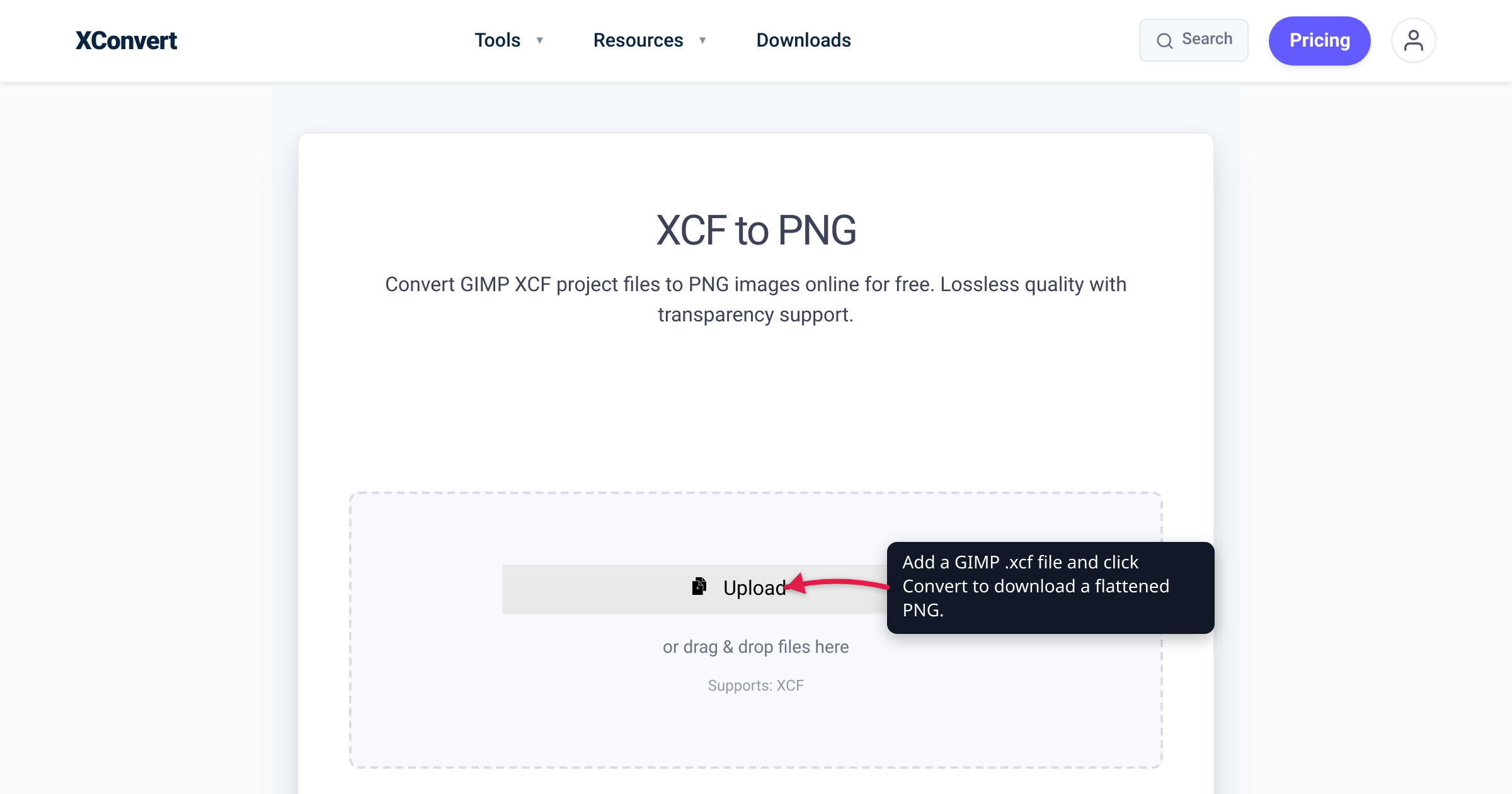
A designer hands off logo-final.xcf, or you dig an old design out of a backup, and nothing on the machine will open it — the photo viewer shrugs, and even Photoshop doesn’t recognize it. That’s because XCF is GIMP’s native project format, not a shareable image, and the usual advice — “just install GIMP” — is overkill when all you need is the picture inside. This guide shows the faster path (convert the .xcf to a PNG online), explains exactly what happens to layers, text, and transparency when you do, and is honest about when installing GIMP — which is free — is the better move. The format claims below are verified against GIMP’s official documentation and file-format specification.
Quick answer: An .xcf file is a GIMP project — layers, channels, and paths — and almost nothing else opens it. To get a usable image without installing anything, upload it to the xconvert XCF to PNG converter: it flattens all visible layers into one PNG, keeps transparency as PNG alpha, and returns a file that opens anywhere. Text layers become pixels, not editable text, and the conversion is one-way — keep the original .xcf. If you need to edit the layers rather than just use the image, install GIMP instead; it’s free.
Jump to a section
- What an XCF file actually is
- What conversion does to layers, text, and transparency
- When you should install GIMP instead
- Convert XCF to PNG on xconvert
- FAQ
What an XCF file actually is
XCF is the native image format of GIMP, the long-running free image editor. GIMP’s file-format specification describes its job as storing “the whole state of GIMP that is specific to one image” — which is much more than the pixels you see. An XCF holds:
- Layers and layer groups, with their opacity and blend modes
- Layer masks and selection masks
- Channels
- Vector paths
- Guides and other editing state
GIMP’s user manual is blunt about how special that makes it: XCF “is the only format that can store everything about an image (with the exception of ‘undo’ information).” Every other format — PNG included — “preserves some image properties and loses others.”
The flip side is that XCF was never meant to leave GIMP. The same specification says plainly: “Interchanging image data with other applications is not the goal of the XCF format.” That’s why double-clicking an .xcf on a machine without GIMP gets you nowhere — it’s a working file, the GIMP counterpart of Photoshop’s PSD, not a delivery format like PNG or JPG.
| XCF (GIMP project) | PNG (delivery image) | |
|---|---|---|
| Purpose | Editable working file | Final image, opens anywhere |
| Layers | Yes — with modes, masks, groups | No — single flattened raster |
| Editable text | Yes (text layers store real text) | No — text is pixels |
| Paths / channels / guides | Yes | No |
| Transparency | Yes | Yes (alpha channel) |
| Opens in browsers, chat apps, Office | No | Yes |
One variant worth knowing: GIMP can also save projects compressed, producing .xcf.gz or .xcf.bz2 files — the Save dialog offers a compressed file type for exactly this. They’re still XCF inside.
What conversion does to layers, text, and transparency
PNG is defined by the W3C as a format for the “lossless, portable, well-compressed storage of static and animated raster images.” The key word is raster: one grid of pixels. PNG has no concept of layers. So converting XCF to PNG necessarily means flattening — compositing every visible layer, with its blend mode, opacity, and any layer mask applied, into a single image. It’s the same operation GIMP performs when you use File → Export As with a .png name; the converter just runs it on a server instead of your desktop.
What that means for each part of your project:
- Layers: merged into one. Visible layers are composited exactly as GIMP would display them; hidden layers are left out. The layer structure itself does not exist in the output file.
- Text layers: rasterized. In an XCF, a text layer “contains more information than the pixel data that you see: it also contains a representation of the text in a text-editor format,” as GIMP’s manual puts it — that’s why the wording stays editable in GIMP. In the PNG, that text is just pixels. You can’t fix a typo in the PNG; you’d fix it in the XCF and re-convert.
- Paths, channels, guides: dropped. They’re editing aids, and PNG has nowhere to put them.
- Transparency: preserved. If the XCF has an alpha channel — a transparent background, soft shadows, anti-aliased edges — the exported PNG carries a matching alpha channel, which PNG supports natively. A flat opaque background simply produces an opaque PNG.
- Bit depth: PNG supports up to 16 bits per channel, so ordinary 8-bit and high-precision 16-bit GIMP projects export cleanly; 32-bit-float projects are reduced to 16-bit on export.
Two honest caveats. First, conversion is one-way: opening the PNG in any editor gives you one merged layer — the layers, editable text, and paths do not come back. Archive the .xcf if there’s any chance the design gets edited again. Second, XCF itself evolves: GIMP 2.10 alone added high-bit-depth precision, zlib compression, and 64-bit offsets to the format, and newer GIMP releases can write newer XCF revisions. If a file saved by a very recent GIMP build fails to convert, have it re-saved from GIMP with backward-compatible settings (whoever has GIMP installed can do that) and try again.
When you should install GIMP instead
An online converter is the right tool for the don’t-want-to-install cases. It is not a substitute for the editor, so choose honestly.
Convert online when:
- you just need to see or use the image — post it, embed it, drop it into a document;
- someone sent you an .xcf when the flat image is all you wanted;
- you’re on a locked-down work machine, a Chromebook, or a borrowed computer where installing software isn’t an option;
- it’s a one-off and you’ll never edit the design.
Install GIMP when:
- you need to change anything — reword a text layer, toggle or rearrange layers, tweak a mask or a path;
- you’ll be going back and forth on the file with whoever made it;
- you need a layered handoff to Photoshop: Photoshop can’t open XCF, but GIMP can export a layered PSD (with the caveat that not every blend mode maps exactly);
- you want per-layer control over what ends up in the export.
And to be clear about the economics: GIMP is free. It’s a “freely distributed program” under the GNU General Public License, with installers for Linux, macOS, and Windows (current stable release 3.2.4, April 2026). Converting online isn’t a way to avoid paying for anything — it’s a way to skip a desktop install you don’t otherwise need.
Convert XCF to PNG on xconvert
The xconvert XCF to PNG converter does the flatten-and-export for you, server-side:
- Open xconvert.com/convert-xcf-to-png and click Upload (or drag and drop the file onto the page). The button’s dropdown adds files From my Computer, From Google Drive, or From Dropbox. Compressed projects (
.xcf.gz,.xcf.bz2) can be uploaded as-is — the converter unpacks them first. - For most files you can skip the settings: under Advanced Options (the gear icon), the Quality Preset defaults to Very High (Recommended).
- If you need to hit a target, the same panel offers Specific file size, an Image resolution control (Keep original by default, or Resolution Percentage, Preset Resolutions, or exact Width x Height), and a Colors option — By Color Reduction + Dither produces a much smaller indexed PNG for logos, icons, and flat-color art.
- Click Convert. Batch works too — queue several .xcf files and convert them together.
- Click Download and check the result: layers flattened, transparency intact.
Your file uploads over an encrypted connection, is processed on our servers and deleted automatically a few hours later.
Two follow-ups, depending on what the flattened image turns out to be: if it’s photographic and the PNG lands huge, convert the PNG to JPG for a much smaller file; if you’re not sure which delivery format the design should ship in at all, see the best image format for photos vs graphics.
FAQ
How do I open an XCF file without installing GIMP?
Convert it. XCF is GIMP’s private working format — GIMP’s own specification says interchange with other applications “is not the goal” — so photo viewers and mainstream editors don’t read it. Upload the file to the XCF to PNG converter and you get back a flattened PNG that opens anywhere; the conversion runs on xconvert’s servers, so nothing is installed on your machine.
Can Photoshop open XCF files?
No — Photoshop has no native XCF import, a long-standing gap confirmed on Adobe’s own community forum. If you only need the image, convert the XCF to PNG. If you need the layers in Photoshop, open the file in GIMP (free) and use its Export Image as Photoshop image (PSD) feature — noting that GIMP and Photoshop blend modes don’t all translate exactly.
Will my layers survive the conversion to PNG?
No. PNG is a single-raster format with no layer support, so every visible layer is flattened into one composite image — blend modes, opacity, and masks are applied in the process, matching what GIMP shows on screen. Hidden layers are omitted. Keep the original .xcf as your editable master.
Does XCF to PNG keep transparency?
Yes, when the project has an alpha channel. Transparent backgrounds, semi-transparent areas, and soft anti-aliased edges come through, because PNG natively supports alpha. A project with a flat opaque background simply produces an opaque PNG.
Can I convert a PNG back into a layered XCF?
You can open a PNG in GIMP and save it as .xcf, but you’ll get one flattened layer — the original layers, editable text, and paths are not recoverable from a PNG. Flattening is one-way; that’s why the .xcf, not the PNG, is the file to archive.
Can I convert .xcf.gz or .xcf.bz2 files?
Yes. GIMP’s Save dialog can write XCF with gzip or bzip2 compression to shrink big projects, and the converter accepts those files directly — it unwraps the compression before flattening, so there’s no need to extract anything yourself.
Sources
Last verified 2026-07-15.
- GIMP Developer — Documentation of the XCF file format — XCF stores “the whole state of GIMP” (layers, channels, paths, guides, masks); “interchanging image data with other applications is not the goal of the XCF format”; GIMP 2.10 format additions (high bit depth, zlib compression, 64-bit offsets).
- GIMP 3.0 User Manual — Getting Images out of GIMP — XCF “is the only format that can store everything about an image (with the exception of ‘undo’ information)”; Save (XCF) vs Export (other formats); every other format “preserves some image properties and loses others.”
- GIMP 2.10 User Manual — Save File dialog — the Save dialog’s file-type expander lets you “select a compressed format for your XCF file” (
.xcf.gz/.xcf.bz2). - GIMP User Manual — Text Management — a text layer “contains more information than the pixel data that you see: it also contains a representation of the text in a text-editor format.”
- GIMP 2.10 User Manual — Discard Text Information — discarding a text layer’s text information produces a normal bitmap layer.
- GIMP 3.2 User Manual — Export Image as Photoshop image — GIMP exports layered PSD; not all blend modes convert to an exact equivalent.
- gimp.org — About GIMP — GIMP is “a freely distributed program,” licensed under the GNU General Public License.
- gimp.org — Downloads — current stable release 3.2.4 (2026-04-17); builds for Unix-like systems (Linux), macOS, and Windows.
- W3C — Portable Network Graphics (PNG) Specification, Third Edition — PNG provides “lossless, portable, well-compressed storage of static and animated raster images”; optional alpha channel; sample depths up to 16 bits; no layer concept.
- Adobe Community — Opening a XCF (GIMP) File Format in Photoshop — no native XCF support in Photoshop; the workable layered route is via GIMP/PSD.
- xconvert — XCF to PNG converter — tool behavior and UI verified live: flattens visible layers respecting blend modes/opacity/masks; alpha preserved; 16-bit export, 32-bit float reduced to 16-bit; batch and compressed-XCF input.