 By James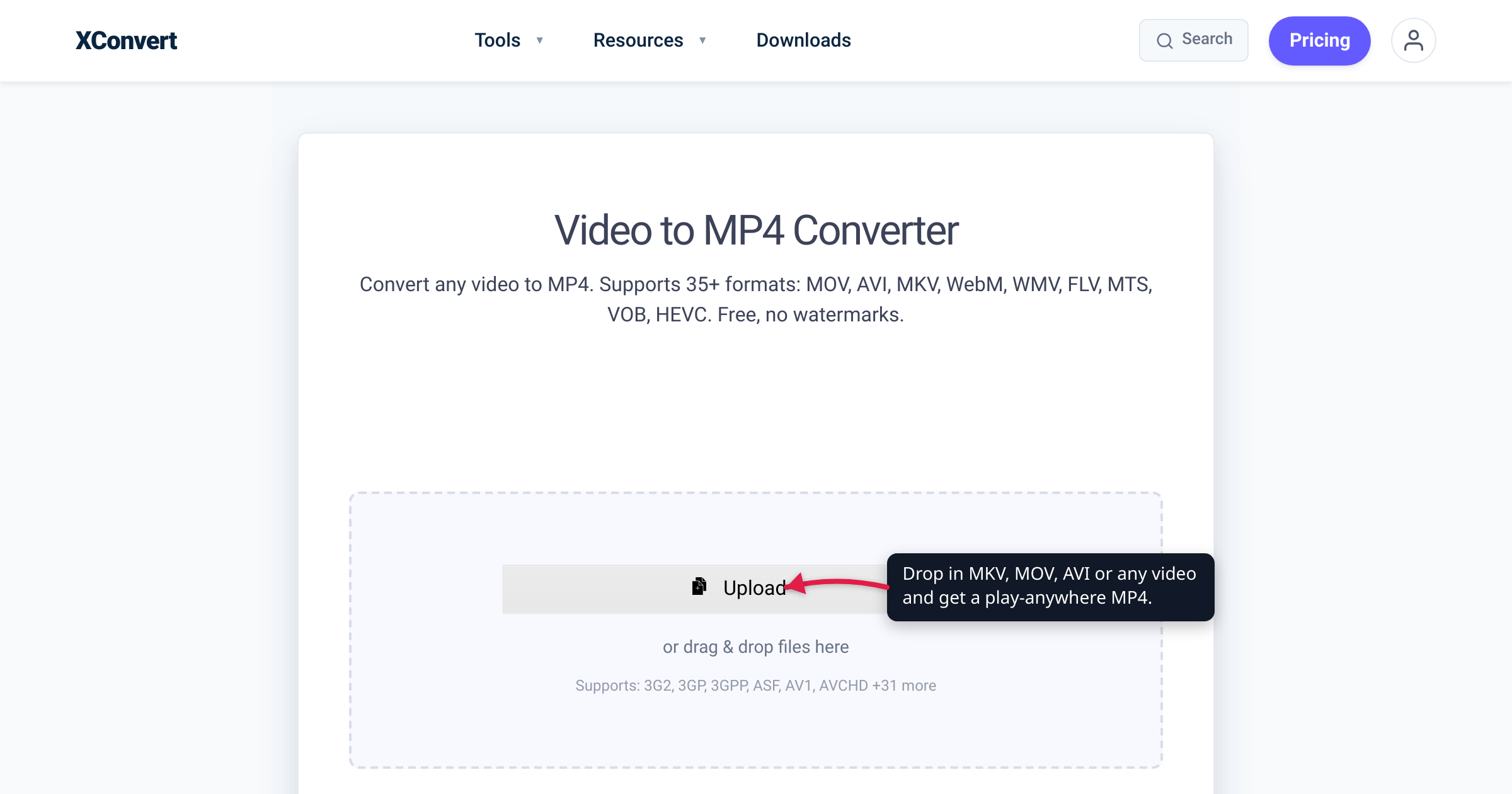
You exported a clip from your phone and the upload form rejected it. You copied an .mkv onto a USB stick, plugged it into the TV, and got “unsupported file.” You double-clicked an old .avi and heard the audio play over a black screen. Different symptoms, one cure — three letters: MP4. Convert the file to an MP4 built on the H.264 video codec with AAC audio and it plays almost everywhere: browsers, phones, smart TVs, editors, and upload forms alike. We verified that this MP4 + H.264 + AAC combination is “broadly-supported… by every major browser, in fact” against MDN, and cross-checked H.264’s reach at 96.9% of tracked browsers on caniuse.
Quick answer: Whatever your source — MKV, MOV, AVI, WMV, WebM, FLV, MTS/M2TS, 3GP, or MPG — the recipe is identical: convert it to an MP4 with H.264 video and AAC audio, the combination every major browser and device supports. Drop the file into a video-to-MP4 converter, leave the quality preset on Very High (Recommended), and click Convert. One caveat: if your file is already an MP4 that plays everywhere you need it, you don’t have to convert — re-encoding just costs a little quality for no gain.
Jump to a section
- Why MP4 plays almost anywhere
- Codec vs container, in 30 seconds
- Your source format → what MP4 fixes
- When you don’t need to convert
- Quality and file size: what to expect
- Convert any video to MP4 on xconvert
- FAQ
Why MP4 plays almost anywhere
MP4 (formally MPEG-4 Part 14) is the closest thing video has to a universal language. MDN calls it “the industry standard for video content, widely supported across devices and browsers,” and its official advice is blunt: if you can only ship one video format, ship MP4.
What makes it the compatibility baseline isn’t the container alone — it’s a specific trio inside it. MDN’s most-compatible recommendation is an MP4 container with the AVC (H.264) video codec, “ideally with AAC as your audio codec… a broadly-supported combination — by every major browser, in fact.” caniuse backs this from the usage side: the MPEG-4/H.264 video format is supported by 96.9% of tracked global browser usage.
That near-universality is why upload forms, social platforms, messaging apps, video editors, and set-top players all quietly standardize on H.264 MP4. Hand almost anything an MP4 with H.264 + AAC and it just works.
Codec vs container, in 30 seconds
Two words explain every “why won’t this play” mystery. A container is the box — MP4, MKV, MOV, AVI, WebM. A codec is how the picture and sound inside the box are compressed — H.264, HEVC, AV1 for video; AAC, MP3, AC-3 for audio. As MDN puts it, a media container “encapsulates one or more media streams… along with metadata,” and separate codecs compress those streams.
So “MP4” and “H.264” are not the same thing: MP4 is the box, H.264 is what’s usually inside it. This matters because a file can have the right box and the wrong contents — a .mp4 carrying HEVC video will still choke a device that only speaks H.264. When we say “convert to MP4 for compatibility,” what we really mean is: put H.264 video and AAC audio into the MP4 box.
Your source format → what MP4 fixes
People search “mkv to mp4,” “mov to mp4,” and “wmv to mp4” as if each is a different task. It isn’t. Every one of these is a container holding compressed streams; converting to MP4 means decoding those streams and (re)packaging them as the universally-playable H.264 + AAC combination. Here’s what you’re usually starting from — and what the conversion resolves:
| Source | What it usually holds | Why it fights you | Converting to MP4… |
|---|---|---|---|
| MKV (Matroska) | H.264 or HEVC video, often several audio + subtitle tracks | A flexible, “future-proof” container (matroska.org) that most TVs, phones, and browsers don’t play natively | Repackages the streams into the box everything opens; the video is often already H.264 |
| MOV (QuickTime) | H.264 or HEVC video + AAC (iPhone/Mac recordings) | Great on Apple, but Windows apps, Android, and upload forms often reject it; HEVC adds a second hurdle | Standardizes to H.264 MP4 that non-Apple targets accept |
| AVI (Microsoft) | Older codecs — DivX, Xvid, MPEG-4 Part 2 | An ancient container with no modern features and large files | Re-encodes to H.264 MP4 — usually smaller and playable everywhere |
| WMV (Windows Media) | VC-1 / WMV3 video + WMA audio | Microsoft-centric; poor support on Mac, iPhone, Android, and browsers | Re-encodes to H.264 MP4 for cross-platform playback |
| WebM | VP8/VP9/AV1 video + Opus/Vorbis audio (screen recordings, browser downloads) | Excellent in browsers, but many editors, phones, TVs, and social apps won’t take it | Converts to H.264 MP4 that hardware and apps recognize |
| FLV / F4V (Flash) | Legacy Flash video | Flash reached end-of-life on Dec 31, 2020 (Adobe) — almost nothing plays FLV now | Re-encodes to a living format: H.264 MP4 |
| MTS / M2TS (AVCHD) | H.264 video in an MPEG-2 transport stream + AC-3 audio (camcorders) | The transport-stream wrapper and odd extension confuse editors and upload forms | Rewraps the H.264 into MP4 so editors and phones accept it |
| 3GP / 3G2 | Older mobile codecs + AMR/AAC audio, low resolution | A legacy cellphone format with spotty modern support | Converts to MP4 for consistent modern playback |
| MPG / MPEG | MPEG-1 or MPEG-2 video (DVDs, old captures) | Old and inefficient; big files, dated support | Re-encodes to H.264 MP4 — smaller and universally playable |
Want a format-specific walk-through? See MKV to MP4, MOV to MP4, or AVI to MP4. The steps below work for all of them.
When you don’t need to convert
Converting isn’t always the answer. If your file is already an MP4 that plays everywhere you need it, leave it alone — re-encoding a video means decoding and recompressing it, which throws away a little quality each time (generational loss) for zero benefit.
The classic exception is the MP4 that won’t play. Nine times out of ten the codec inside is the problem, not the box: newer iPhones record HEVC/H.265, and some tools output AV1. HEVC in particular has limited support outside recent Apple hardware (MDN notes it’s restricted on Chrome/Edge and needs hardware support on many platforms), and AV1 still depends on a hardware decoder on many devices. Converting that file to an MP4 with H.264 + AAC swaps the picky codec for the universal one.
One nuance worth knowing: because MKV, MTS/M2TS, and many MOV files already carry H.264 video, moving them into MP4 can be nearly lossless. A pure container swap — “remuxing” — changes zero pixels, and even a high-quality re-encode is visually near-identical. Whichever a converter does, keeping the quality preset high means the result looks essentially the same as the source.
Quality and file size: what to expect
At the default Very High (Recommended) preset, a converted MP4 looks essentially indistinguishable from the source. What changes more noticeably is the file size, and the direction depends on where you started:
- Size usually shrinks when you convert from an older, less-efficient codec — the MPEG-2 in an
.mpg, VC-1 in a.wmv, or DivX/Xvid in an.avi— because H.264 packs the same picture into fewer bits. - Size can grow when you convert from a newer, more-efficient codec — HEVC, AV1, or VP9 — into H.264, which is less efficient. That’s the price of universal playback, and it’s usually worth paying when a file simply won’t open otherwise.
If you need to hit a hard limit (an email cap, a form’s max upload), you don’t have to guess: xconvert lets you target an exact output size or dial quality directly (see the steps below), and you can scale the resolution or trim the clip to shrink it further.
Convert any video to MP4 on xconvert
The xconvert video-to-MP4 converter accepts 30+ inputs — MOV, MKV, AVI, WMV, WebM, FLV, MTS/M2TS, 3GP, MPEG/MPG and more — so the steps are the same no matter what you start with:
- Open xconvert.com/convert-video-to-mp4 and click Upload to add your video (from your computer, Google Drive, or Dropbox).
- Once the file is in, open Advanced Options (the gear) to reveal the controls — most settings, and the Convert button, appear after your file is uploaded.
- Leave Quality Preset on Very High (Recommended) for a near-identical-looking MP4. That single default gives you the play-anywhere H.264 + AAC output most people want.
- (Optional) Need to hit an upload limit? Switch the rate-control mode to Specific file size and enter a target, or pick Constant Quality (CRF) for a quality-first result. Shrink further under Video resolution (Resolution Percentage, Preset Resolutions, or Width/Height) and Trim (Time Range) to keep only the part you need.
- Click Convert and download your MP4 — H.264 video + AAC audio by default, the play-anywhere combination.
Your video uploads over an encrypted connection, is processed on our servers, and is deleted automatically a few hours later. Nothing lingers.
FAQ
Will converting to MP4 make my video look worse?
Usually not noticeably. A pure container swap (“remux”) changes zero pixels, and a re-encode at a high-quality preset loses only a little — almost always invisibly. Converting from an older codec (the MPEG-2 in an .mpg, VC-1 in a .wmv, or DivX/Xvid in an .avi) to H.264 often looks the same and yields a smaller file. Keep the preset on Very High (Recommended) and you’re fine.
Is MP4 the same thing as H.264?
No. MP4 is the container (the box); H.264 is the video codec (how the picture inside is compressed). An MP4 usually holds H.264 video and AAC audio, but the same .mp4 box can hold HEVC/H.265 or AV1 instead — which is exactly why one .mp4 plays everywhere and another won’t.
My file is already an MP4 but it still won’t play — why?
Because the codec inside isn’t universally supported. The usual culprit is HEVC/H.265 (what newer iPhones record by default); AV1 can also require a hardware decoder your device lacks. Both are narrower than H.264, per MDN. Re-converting the file to an MP4 with H.264 + AAC replaces the picky codec with the universal one and restores playback.
Can I convert MKV, MOV, AVI, WMV, and WebM to MP4?
Yes — and the steps are identical for every one. The converter accepts 30+ video inputs, so the container you start with (MKV, MOV, AVI, WMV, WebM, FLV, MTS/M2TS, 3GP, MPG…) only changes how the file is decoded; the MP4 you get out is the same.
Does the MP4 keep the audio?
Yes. Unlike GIF, MP4 carries a full audio track — xconvert outputs AAC, the audio codec every MP4-aware device plays — so your sound comes across intact.
What’s the most compatible MP4 setting?
H.264 video + AAC audio in an MP4 container — the exact combination MDN calls “broadly-supported… by every major browser.” xconvert produces that by default, so for maximum compatibility you don’t need to change a thing; just keep Very High (Recommended).
Sources
Last verified 2026-07-16.
- MDN — Web video codec guide — the MP4 + AVC (H.264) + AAC combination is “broadly-supported… by every major browser”; H.264 is supported across all major browsers, while HEVC/H.265 and AV1 have narrower device/browser support.
- MDN — Media container formats — the container-vs-codec distinction; “MP4 is the industry standard for video content, widely supported across devices and browsers,” and the advice to choose MP4 when you can offer only one video format.
- caniuse — MPEG-4/H.264 video format — ~96.9% of tracked global browser usage supports H.264, cross-verifying its near-universal reach.
- Matroska.org — Matroska basics — MKV is a flexible, “future-proof” multi-track container, not positioned for universal hardware/browser playback.
- Adobe — Flash Player end of life — Flash reached end-of-life on December 31, 2020, and Adobe blocked Flash content from running on January 12, 2021 (FLV is obsolete).
- Wikipedia — .m2ts / AVCHD — MTS/M2TS wrap H.264 video in an MPEG-2 transport stream, the AVCHD camcorder format from Sony and Panasonic.
- xconvert — Video to MP4 Converter — the live tool UI (Upload, Advanced Options, Quality Preset “Very High (Recommended),” rate-control including Specific file size and Constant Quality/CRF, Video resolution, Trim, Convert) and 30+ accepted inputs; default output H.264 + AAC.