 By James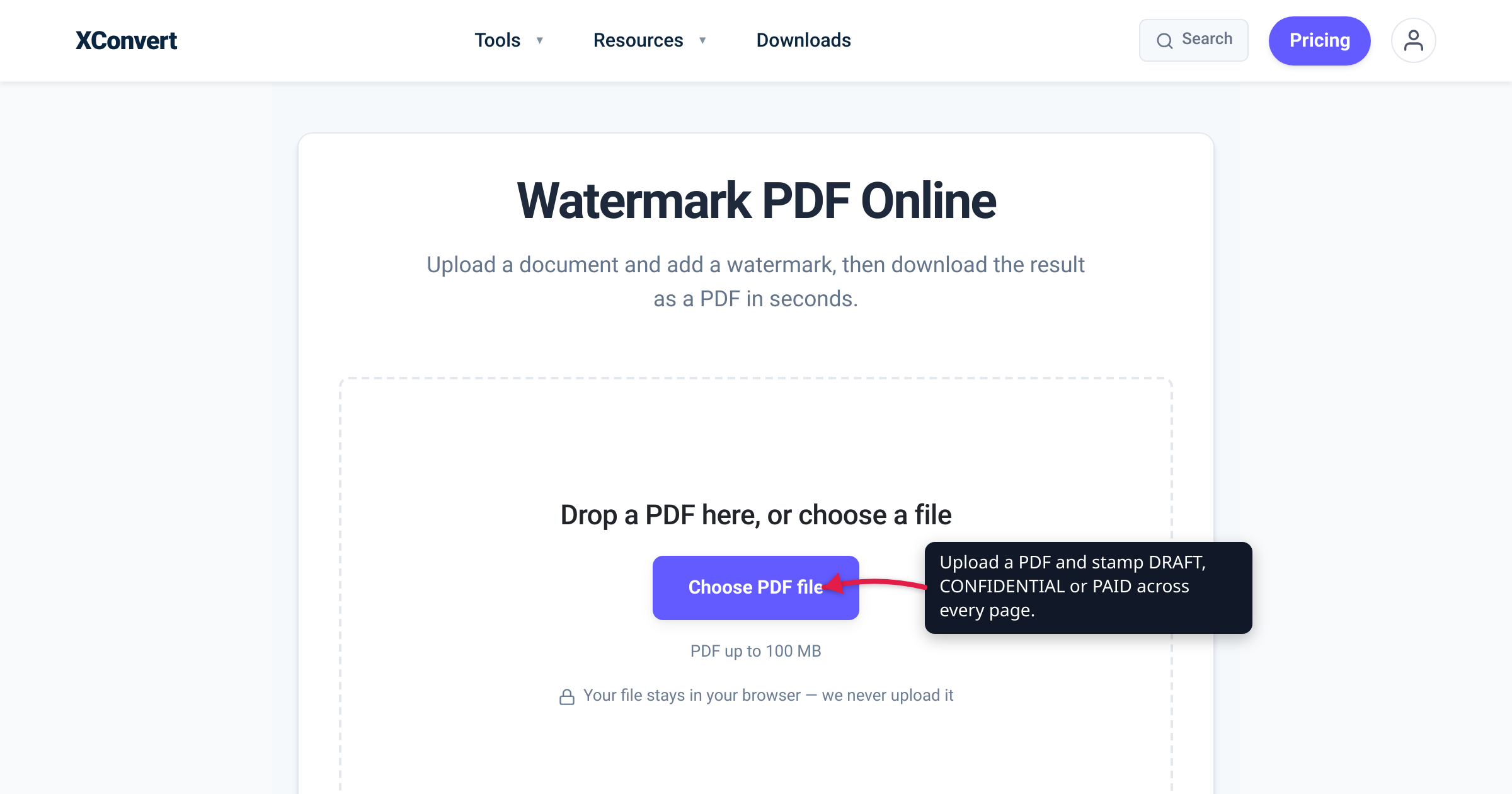
You email a contract “for review,” and weeks later someone signs the version you never finalised. Or an invoice goes out and nobody can tell at a glance whether it’s been settled. A watermark fixes both: stamp DRAFT, CONFIDENTIAL, or PAID diagonally across every page and the document’s status becomes unmissable. This guide covers what a PDF watermark is actually good for, exactly which controls xconvert’s tool gives you (we opened the live page and checked every one), and the one thing a watermark quietly does not do — protect the file.
Quick answer: To stamp a status across a PDF, upload it to xconvert’s Watermark PDF tool, type your label (DRAFT, CONFIDENTIAL, PAID, a company name, a © line), set the opacity and font size, and download. The mark is text, drawn as a red diagonal across every page. You control the text, opacity (0–1, default 0.30) and size (10–120pt, default 50pt); the font, colour, −30° angle and centred position are fixed. And remember what it is — a visible deterrent, not security. Anyone can remove it, so use password/encryption if the file genuinely needs protecting.
Jump to a section
- What a PDF watermark is (and isn’t)
- What you can control on xconvert
- Draft, Confidential, Paid: choosing the stamp
- A watermark deters, it doesn’t secure
- Watermark a PDF on xconvert
- FAQ
What a PDF watermark is (and isn’t)
A watermark is a visible mark — text or an image — laid over the content on every page, like a rubber stamp. On a PDF it’s most often a single word set on the diagonal: DRAFT, CONFIDENTIAL, SAMPLE, INTERNAL USE ONLY, PAID, a company name, or a copyright line. Its jobs are practical:
- Mark status so a draft isn’t mistaken for the final, or a quote for an invoice.
- Brand a shared document so its origin is obvious at a glance.
- Deter casual copying or forwarding — the reader is constantly reminded the document isn’t theirs to reuse.
What a watermark is not is a lock. It adds marks on top of your pages; it doesn’t encrypt them, hide them, or stop anyone opening the file. Hold that thought — we come back to it below — because it’s the single most misunderstood thing about watermarks.
What you can control on xconvert
xconvert’s watermark tool is deliberately narrow: it adds a text watermark (there’s no image/logo option in this version) and draws it the same way on every page. We opened the live tool and noted exactly what’s adjustable and what’s baked in.
| Setting | Adjustable? | Detail |
|---|---|---|
| Watermark text | Yes | Any label you type; the field starts on the CONFIDENTIAL placeholder. |
| Opacity | Yes | Slider from 0 to 1 (default 0.30, i.e. 30%, in steps of 0.05). Lower lets the page show through; higher is more assertive. |
| Font size | Yes | Slider from 10pt to 120pt (default 50pt), so the diagonal label fits the page width. |
| Font | Fixed | Helvetica Bold — chosen so it stays legible when printed in greyscale. |
| Colour | Fixed | Dark red. |
| Rotation | Fixed | A single diagonal at −30°. |
| Position | Fixed | Centred horizontally and vertically. |
| Pages | All pages | Applied to every page; there is no per-page selector. |
Two useful consequences of how it works. First, the watermark is drawn as a separate text object on top of your page, so the underlying text stays selectable and searchable and any existing OCR layer is preserved — the tool doesn’t rasterise or flatten your document. Second, because it hits every page, if you only want to stamp some pages (say, just the cover), you split the PDF, watermark that subset, and merge it back with the rest.
Draft, Confidential, Paid: choosing the stamp
The text field is free-form, so the “right” watermark is whatever your reader needs to see. A few field-tested pairings:
| Use case | Text | Suggested opacity |
|---|---|---|
| Circulating a work in progress | DRAFT | Light (~0.2–0.3), so it reads but doesn’t fight the content |
| Sharing sensitive material | CONFIDENTIAL / INTERNAL USE ONLY | Medium (~0.3–0.4) — clearly visible on every page |
| Marking a settled invoice | PAID | Medium–strong; unambiguous at a glance |
| Distributing a sample or preview | SAMPLE | Medium |
| Branding / ownership | Company name or © 2026 Acme Ltd | Light, so it brands without obscuring |
Keep the label short — one or two words carry across a diagonal far better than a sentence, and a long string forces you to shrink the font. If the stamp overpowers the body text, drop the opacity a notch rather than the size, so the label still spans the page.
A watermark deters, it doesn’t secure
This is the honest part, and xconvert’s own tool says so out loud: asked “Is the watermark removable?”, the page answers “Yes.” A text watermark is content painted on top of your pages — and anything that can be added can be taken away. Someone can edit it out, cover it, or simply screenshot each page and rebuild a clean PDF. Document-security specialists put it bluntly: users “can just as easily remove these watermarks as add them.”
So treat a watermark as a social and visual deterrent — it makes misuse obvious and reminds people of a document’s status — not as protection. If a file genuinely must be kept from the wrong hands, that’s a different mechanism entirely: encryption. Adobe’s PDF security works by adding a Document Open password (the file won’t open without it) and/or a Permissions password that restricts printing, editing and copying — the contents are actually encrypted, not merely overprinted. Reach for password/encryption when the requirement is “keep people out”; reach for a watermark when the requirement is “make sure everyone who reads it knows what it is.” They solve different problems, and the watermark is the lighter of the two.
Watermark a PDF on xconvert
The xconvert Watermark PDF tool handles the whole job — the processing happens on the server:
- Open xconvert.com/watermark-pdf and drag-and-drop your PDF, or click “Add Files” to load it.
- In Watermark Text, type the label you want on every page —
DRAFT,CONFIDENTIAL,PAID, your company name, or a © line. (The field starts on theCONFIDENTIALplaceholder.) - Drag Opacity (0–1) to taste — around 0.30 is legible without burying the text.
- Drag Font size (10–120pt) so the diagonal label spans the page without being cropped.
- Click Watermark and download the stamped PDF.
There’s no sign-up, and xconvert adds no branding watermark of its own — the only mark on the output is the one you typed. Your file is uploaded over an encrypted connection, is processed on our servers, and deleted automatically a few hours later; nothing is kept or shared. If the stamped PDF is now too big to email, shrink it with compress a PDF without losing quality.
FAQ
Can I watermark every page of a PDF at once?
Yes — the stamp is applied to all pages automatically. There’s no per-page selector: the same diagonal label is drawn on every page. To mark only some pages, split the PDF, watermark that subset, and merge the pages back together.
Can I use my logo or an image as the watermark?
Not in this tool — it’s text only. You can type any label (including a company name or a © line), but there’s no image or logo upload for the watermark in this version.
Can I change the watermark’s colour, font, or angle?
No — those are fixed. The watermark is drawn in Helvetica Bold, dark red, on a −30° diagonal, centred on the page. What you control is the text, the opacity, and the font size; the fixed styling is tuned to stay readable, including in greyscale prints.
Does a watermark protect my PDF or stop people copying it?
No. A watermark is a visible deterrent, not security. It doesn’t encrypt the file or prevent it being opened, edited, or copied. For genuine protection, add a password/encryption instead — a Document Open password to control who can open the file, or a Permissions password to restrict printing and editing. That’s a different job from stamping.
Can the watermark be removed?
Yes — and the tool says so plainly. Because it’s text laid over your pages, it can be edited out, or defeated by screenshotting each page and rebuilding the PDF. That’s exactly why you shouldn’t rely on it to secure anything sensitive.
Will the watermark make my text unselectable or break search and OCR?
No. The watermark is added as a separate text object on top of the page, so the underlying text stays selectable and searchable and any OCR layer is preserved — the tool doesn’t flatten or rasterise your document.
Is it free, and does xconvert add its own watermark?
It’s free with no sign-up, and xconvert adds no watermark of its own. The only mark on your finished PDF is the label you entered.
Sources
Last verified 2026-07-16.
- xconvert — Watermark PDF tool — the live tool: confirms the text-only watermark, the adjustable Watermark Text / Opacity (0–1, default 0.30, step 0.05) / Font size (10–120pt, default 50pt) controls, the fixed Helvetica-Bold dark-red −30° centred styling, the all-pages behaviour, preserved searchable text, that the watermark is removable, and the “Add Files” / “Watermark” labels plus the processing and retention wording.
- Adobe Acrobat — Add passwords to PDFs — the real-protection contrast: a Document Open password and a Permissions password encrypt a PDF and restrict opening, printing, editing and copying.
- LockLizard — How to remove a watermark from a PDF — document-security specialist confirming standard watermarks can be removed “just as easily … as add them,” i.e. a deterrent rather than security.