 By James
A 15-second, 4 MB phone clip becomes a 120 MB GIF and everyone is surprised — including people who convert GIFs every week. The reason nobody can guess is that the source file’s size tells you almost nothing about the output’s size. A GIF’s weight is set by pixels and frames, not by how well the video was compressed. Once you know that, the answer becomes arithmetic you can do before you upload anything. This article gives you the formula, the numbers behind it from our own production data, and the reason our percentage cap defaults to 350% instead of something that sounds sane like 100%.
Quick answer: Estimate with width × height × fps × seconds × 0.575 bytes. That constant is the median bytes-per-pixel-frame across xconvert’s production video corpus. A 5-second clip at 10 fps therefore lands near 1.7 MB at 320×180, 6.6 MB at 640×360, 26 MB at 720p and 60 MB at 1080p. Do not estimate by multiplying the video’s file size — across all 73,688 GIF-output workflows in a 30-day window, mp4→gif inflated 4.9× at the median, but an H.265 source of the same footage inflates about 9.8× because it stored the same picture in half the bytes.
Jump to a section
- The one formula you need
- What your GIF will actually weigh
- Why “multiply the video by 5” is the wrong estimator
- The four levers, ranked by how much they move the number
- Predict and cap your GIF on xconvert
- FAQ
The one formula you need
estimated GIF bytes ≈ output width × output height × fps × duration in seconds × 0.575Every term matters, and three of them are things you choose rather than things the video gives you.
Why the formula is shaped like that. GIF has no inter-frame compression in the video sense. The GIF89a specification (CompuServe, 1989; W3C reference copy dated 31 July 1990) gives you a palette of at most 256 colors, LZW compression within each frame, and frame disposal — “Do not dispose,” “Restore to background color,” “Restore to previous.” What it does not give you is motion compensation: there is no way to say “the background is unchanged, this object moved 12 pixels left,” which is where H.264 and H.265 spend most of their intelligence. So a GIF’s cost scales with the raw number of pixel-frames, and the constant just says how many bytes the LZW step gets each one down to.
Where 0.575 comes from. It is not a guess or a textbook figure — it is the median bytes per pixel-frame from a calibration run over xconvert’s production video corpus, and it is the constant our GIF size estimator uses. Being a median, busy high-motion footage lands above it and flat screen recordings with large unchanging areas land well below it. Treat it as the centre of a spread, not a promise.
What your GIF will actually weigh
Run the formula for a 5-second clip at the default 10 fps and the shape of the problem becomes obvious:
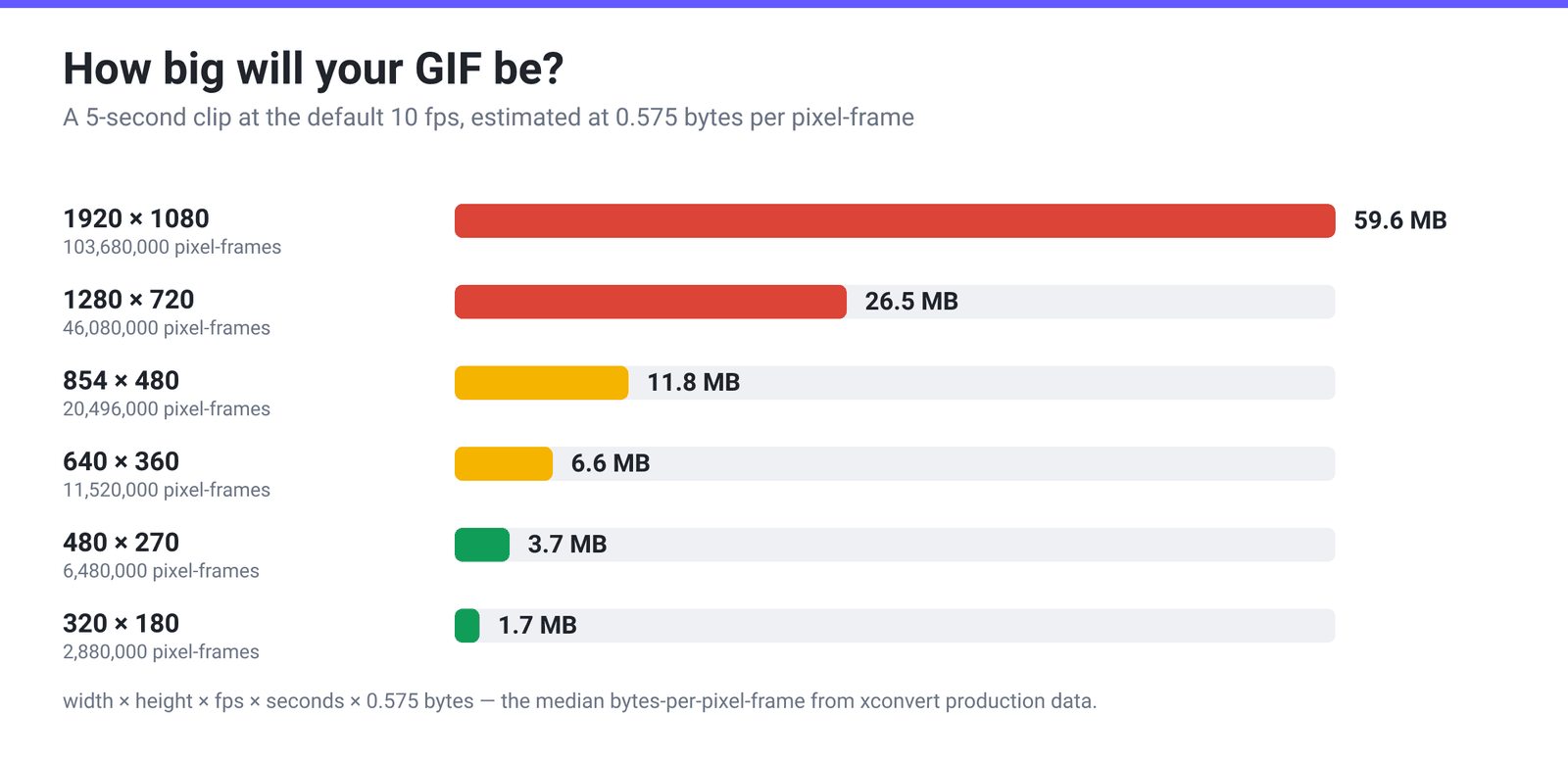
Resolution is quadratic in disguise: doubling both dimensions quadruples the pixel count and therefore quadruples the file. That is the whole reason a 1080p GIF is unusable and a 480×270 GIF is fine.
Here is the same arithmetic across the combinations people actually make. Every figure below is decimal — KB is 1,000 bytes and MB is 1,000,000:
| Output | fps | Duration | Pixel-frames | Estimated GIF |
|---|---|---|---|---|
| 128 × 128 (chat emoji) | 10 | 3 s | 491,520 | ~283 KB |
| 320 × 180 | 10 | 5 s | 2,880,000 | ~1.7 MB |
| 320 × 180 | 10 | 10 s | 5,760,000 | ~3.3 MB |
| 480 × 270 | 10 | 5 s | 6,480,000 | ~3.7 MB |
| 480 × 270 | 10 | 10 s | 12,960,000 | ~7.5 MB |
| 640 × 360 | 10 | 5 s | 11,520,000 | ~6.6 MB |
| 640 × 360 | 15 | 5 s | 17,280,000 | ~9.9 MB |
| 640 × 360 | 30 | 5 s | 34,560,000 | ~19.9 MB |
| 1280 × 720 | 10 | 5 s | 46,080,000 | ~26.5 MB |
| 1920 × 1080 | 10 | 5 s | 103,680,000 | ~59.6 MB |
Two entries are worth staring at. A 128×128 emoji at 3 seconds lands around 283 KB — already over the 256 KiB custom-emoji ceiling in Discord’s developer documentation (262,144 bytes, so about 268 KB decimal) at exactly the dimensions Discord renders emoji at, so that one needs real compression, not just small dimensions. And 1080p at 5 seconds is roughly 60 MB, which is why “just convert it and see” is such an expensive habit.
Why “multiply the video by 5” is the wrong estimator
The intuitive shortcut is to take the MP4’s file size and multiply. We can tell you exactly what that multiplier is at the median, because we measured it: across all 73,688 GIF-output workflows in a 30-day window, mp4 → gif inflated 4.9× at the median.
And you still should not use it, because the multiplier is a property of the source codec, not of the GIF. Consider the same clip encoded two ways:
| Same footage, two sources | Source size | GIF output | Inflation |
|---|---|---|---|
| H.264 (the median case) | 10 MB | ~49 MB | 4.9× |
| H.265 / HEVC, same picture | ~5 MB | ~49 MB | ~9.8× |
The GIF is identical in both rows — same pixels, same frames, same palette work. Only the denominator changed. H.265 stores roughly half the bytes of H.264 for the same content, so an estimator anchored to source bytes reports double the inflation for a file that produces exactly the same output. That is why our own estimator models pixel-frames, not bytes × multiple.
This is also why the percentage cap defaults to 350%. On the video→GIF pages, choosing Max file size → Custom size % gives you a Max % of original slider running from 1% to 500%, preset at 350%. That looks strange until you put it next to the 4.9× median: 350% of the source is about 71% of the GIF the file would naturally produce — a real but gentle squeeze. Set it to 300% and you are asking for about 61% of the natural GIF, which is where quality starts to be a live question. And for an H.265 source, that same 300% asks for roughly 31% — a deep, visible compression that the number “300%” does nothing to warn you about. A cap expressed as a percentage of the source means something different depending on the source codec, which is exactly the trap the default is set to avoid.
The four levers, ranked by how much they move the number
Read the formula as a shopping list. Three of the four terms are yours to set:
- Duration — linear, and usually the cheapest win. Halving 10 seconds to 5 halves the file. There is no Trim control on the video→GIF pages, so cut first: run the clip through xconvert’s video cutter, then convert the trimmed result. Most GIFs that are “too big” are simply too long.
- Resolution — quadratic, and the biggest single lever. 720p → 480×270 is a 7× reduction in pixel-frames. Under Advanced Options → Custom, the Image resolution controls let you pick a preset or set a width. Note that the encoder never upscales and width wins on aspect, so setting a width is the predictable way to drive this.
- Framerate — linear. The default is 10 FPS (Recommended); 15 fps costs 50% more bytes and 30 fps costs 3×. Going the other way has a floor: in our production data, 5 fps lands in the worst-performing bucket — the motion judder is more noticeable than the bytes are worth, so 8–10 fps is the sensible bottom.
- Palette and dithering — marginal. Cutting the palette from 256 to 64 colors and choosing a cheaper dither trims a modest percentage. Worth doing at the end; not worth doing instead of any of the three above.
The ranking matters because the first three multiply together. A 10-second 720p 30 fps GIF trimmed to 5 seconds, scaled to 480×270 and dropped to 10 fps is not a bit smaller — it is roughly 1/40th the pixel-frames (276.5 million down to 6.5 million).
Predict and cap your GIF on xconvert
Rather than converting and hoping, set a ceiling and let the encoder work to it:
- Open xconvert.com/convert-mp4-to-gif and click Upload to add your video.
- Open Advanced Options. Under Framerate, confirm or change 10 FPS (Recommended) — this is one of the two terms in the formula you control directly.
- Leave File Compression on Quality preset → High (Recommended) for a straight conversion, or switch to Max file size if you have a hard ceiling to hit.
- Under Max file size → Size limit, pick Custom size value to type an absolute target (8 MB to start), Custom size % for the 350%-of-original default, or a preset: Discord (10 MB max), Email (25 MB max), Forum (2 MB max).
- For the resolution lever, switch File Compression to Custom, which reveals Image quality (%), Image resolution and the Colors controls.
- Click Convert and download.
Your file uploads over an encrypted connection, is processed on our servers, and is automatically deleted a few hours later.
If the number came back bigger than you wanted, why is my GIF file so big covers the shrinking side of the same physics, and MP4 to GIF in high quality covers the settings that buy the most quality per byte.
FAQ
How do I know how big a GIF will be before I convert it?
Multiply output width × output height × fps × duration in seconds × 0.575 bytes. Use the output geometry, not the source: if you are scaling a 1080p video down to 480×270, the 480×270 figure is the one that counts. The 0.575 constant is the median bytes per pixel-frame measured on xconvert’s production video corpus, so busy footage comes in above the estimate and flat screen recordings below it.
Why is my GIF bigger than the MP4 it came from?
Because the MP4 was compressed by a codec that predicts each frame from its neighbours, and GIF cannot do that at all. The GIF89a specification gives you at most 256 colors per palette, LZW compression within a frame, and frame disposal — but no motion compensation. Every frame is stored more or less as its own indexed image. Across all 73,688 GIF-output workflows we analysed over 30 days, mp4→gif inflated 4.9× at the median.
My source is HEVC. Will the GIF be bigger than from an H.264 file?
No — the GIF will be the same size. What changes is the ratio. H.265 stores roughly half the bytes of H.264 for the same picture, so the same GIF looks like a ~9.8× inflation instead of 4.9×. This is precisely why estimating from source bytes misleads, and why any percentage-of-original cap means something different depending on the source codec.
Why does the percentage cap default to 350%?
Because a GIF is normally bigger than the video it came from, so a cap below 100% would be unreachable for most files. At the measured 4.9× median inflation, 350% of the source works out to about 71% of the GIF that file would naturally produce — a genuine but comfortable reduction. 300% would ask for around 61%, which is close to where quality becomes a real question, and for an H.265 source the same 300% would ask for about 31%.
What is the single most effective way to make a GIF smaller?
Resolution, because pixel count is quadratic: halving both dimensions cuts the file to roughly a quarter. Duration comes second and is linear — and it is usually the easiest, because most oversized GIFs contain several seconds nobody needed. Trim first with the video cutter, then scale, then set the framerate, and only then reach for palette size and dithering.
Should I drop the framerate to 5 fps to save space?
Not below about 8 fps. It does work arithmetically — fps is linear, so 5 fps is half the bytes of 10 fps — but in our production data 5 fps lands in the worst-performing bucket for how conversions actually turn out. The judder becomes the thing people notice, and you have spent visible quality on a saving that a small resolution change would have delivered invisibly. Take the pixels off before you take the frames off.
Sources
Last verified 2026-08-31.
- GIF89a Specification (CompuServe, 1989; W3C reference copy dated 31 July 1990) — the 256-color color-table maximum, Variable-Length-Code LZW compression, and the frame-disposal model (no motion compensation).
- xconvert production analysis,
ironman/docs/GIF_EXACT_SIZE_DESIGN.md— all 73,688 GIF-output workflows over a 30-day window: 4.9× median mp4→gif inflation, the ~9.8× H.265 equivalent, the 5 fps outcome bucket, and the 0.575 bytes-per-pixel-frame estimator constant, the median of a calibration run over the production video corpus. - Emoji resource — Discord developer documentation — “Emojis and animated emojis have a maximum file size of 256 KiB,” and the 128×128 emoji render size.
- Live option surface on xconvert.com/convert-mp4-to-gif — Quality preset / Custom / Max file size modes, the 10 FPS default, and the 1–500% Max % of original slider preset at 350%.