 By Stephanie Taylor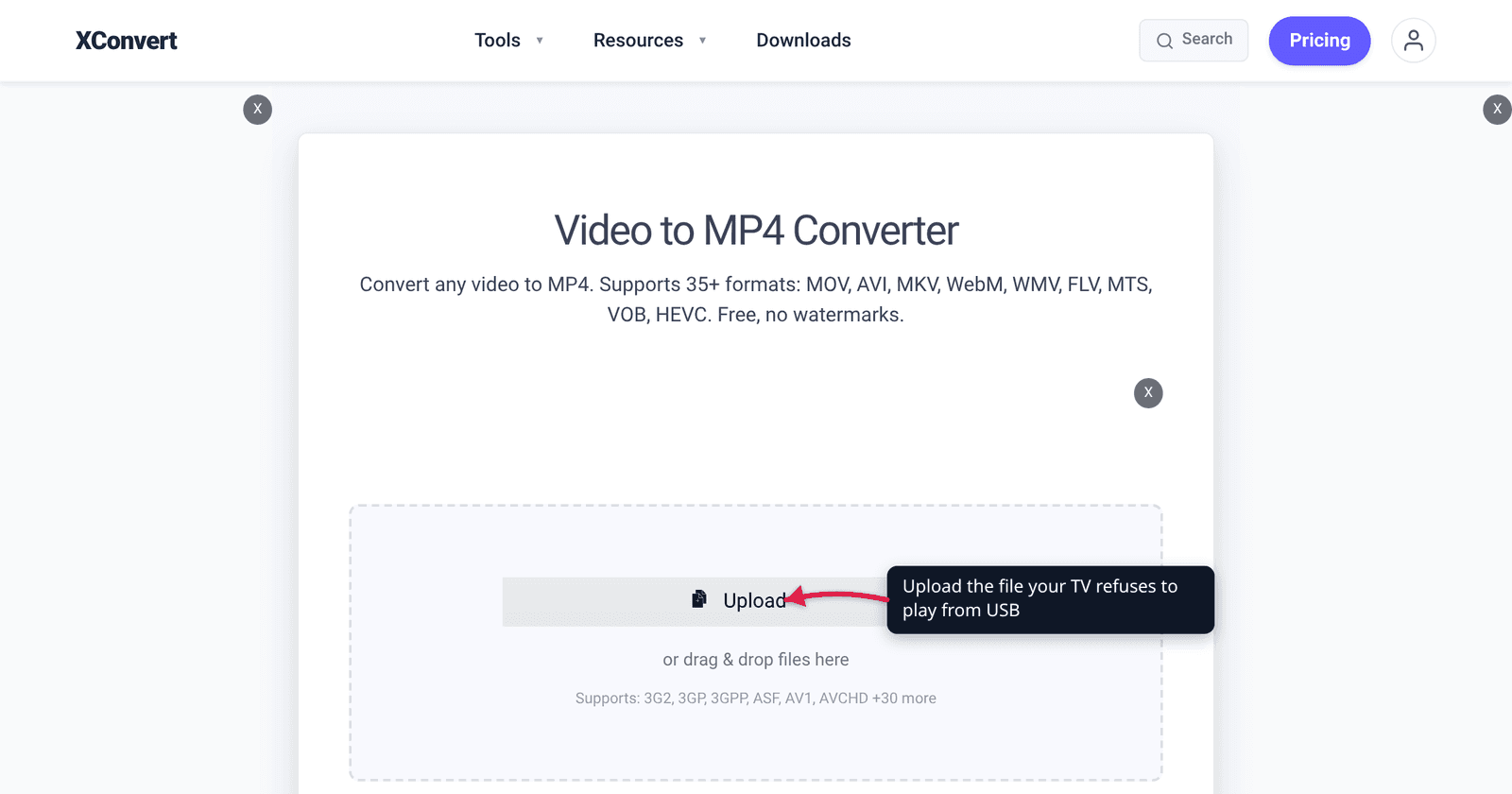
You copy a film onto a USB stick, plug it into the TV, and the TV either doesn’t list the file, lists it and refuses to open it, plays it silently, or plays it for eight seconds and stutters to a halt. Four different symptoms, four completely different causes — and the fix for one will not help the others. This is a diagnostic guide: read your symptom off the list, then apply the specific fix. The single most common cause has nothing to do with video at all.
Quick answer: The format that plays on essentially every TV made in the last fifteen years is MP4 container / H.264 video / AAC audio, at 1080p or below. But check the file size first: FAT32 — the format most USB sticks ship with — has a hard 4 GiB maximum file size per Microsoft’s own specification, so a 5 GB movie simply cannot be written to it, and a partially copied file will not appear on the TV. Reformat the stick to NTFS or exFAT, or get the file under 4 GB. Then, if the file is listed but won’t open, re-encode with xconvert’s video to MP4 converter using Video Codec → H.264 and Audio Codec → AAC.
Jump to a section
- Match your symptom to the cause
- The file system trap: FAT32’s 4 GB ceiling
- The format that always works
- Why it plays but has no sound
- Why it stutters or freezes partway through
- Convert for TV playback on xconvert
- FAQ
Match your symptom to the cause
TVs give terrible error messages, so the symptom is the diagnostic. Start here:
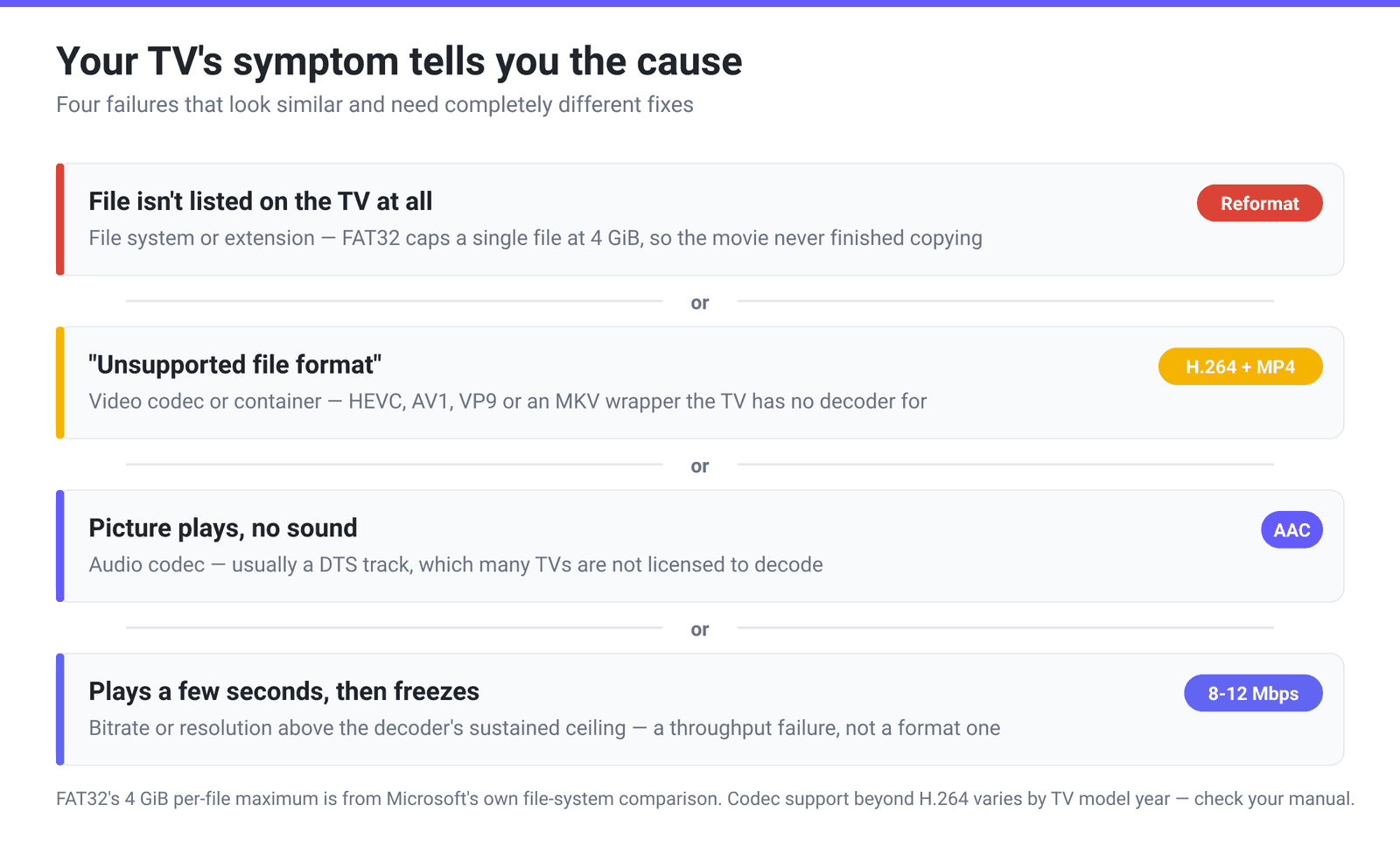
| Symptom | Almost always | Fix |
|---|---|---|
| The file isn’t in the list at all | The USB drive’s file system, or an extension the TV doesn’t index | Reformat to NTFS/exFAT, or get the file under 4 GB; make sure the extension is .mp4 |
| “Unsupported file format” / “Cannot play” | Video codec or container the TV has no decoder for | Re-encode to MP4 + H.264 |
| Picture plays, no sound | Audio codec the TV can’t decode — usually DTS, sometimes E-AC-3 or Opus | Re-encode audio to AAC (or AC3) |
| Plays, then stutters or freezes | Bitrate or resolution above what the TV’s decoder can sustain | Cap the bitrate; drop to 1080p |
| Plays but no subtitles | Subtitles are in a track type or sidecar the TV won’t read | Use an .srt sidecar named to match the video |
| Fast-forward doesn’t work | Index/metadata placement in the container | Re-encode to MP4 rather than remuxing |
The file system trap: FAT32’s 4 GB ceiling
This is the cause people spend the longest missing, because it presents as a video problem and is not one.
Microsoft’s own file-system comparison gives FAT32 a maximum file size of 4 GiB, against 2^64−1 bytes for both NTFS and exFAT. USB sticks are overwhelmingly shipped preformatted as FAT32, because that is the format everything can read. So any single file of 4 GB or more — which is most feature-length films at decent quality, and plenty of 4K phone recordings — cannot be written to the stick at all.
What makes it confusing is how it presents. Windows or macOS throws a vague “file is too large for the destination” error people click past; an interrupted copy leaves a truncated file the TV skips or refuses; and everything else on the stick works fine, so the drive looks healthy.
Your options, in order of least hassle:
- Get the file under 4 GB. Often the right call anyway — a 6 GB 1080p rip re-encoded to 3.5 GB is visually indistinguishable on a TV at normal viewing distance. Use File Compression → Specific file size and type a target.
- Reformat the stick to exFAT. Both Windows and macOS write it, and most TVs from roughly the last decade read it — but this is the one to verify against your TV’s manual, because exFAT support is genuinely not universal.
- Reformat to NTFS. Widely readable by TVs, but macOS can only read NTFS, not write it, without third-party software.
Reformatting erases the drive, so move anything you care about off it first.
The format that always works
If you only remember one line: MP4 container, H.264 video, AAC audio, 1080p or below.
That combination is the lowest common denominator because of hardware. TVs decode video in fixed-function silicon, and H.264 decoders have been standard in that silicon for well over a decade. MDN’s codec guide makes the same point about AVC, though its sentence is explicitly about the web rather than about televisions: “In HTML content for web browsers, AVC is broadly compatible and many platforms support hardware encoding and decoding of AVC media.” It is the second half — the breadth of hardware AVC decoders — that carries across to a TV. Everything newer is a gamble that depends on your set’s model year:
| Codec | TV support |
|---|---|
| H.264 / AVC | Effectively universal. Use this unless you have a specific reason not to |
| H.265 / HEVC | Common on 4K sets from roughly 2015 onward; absent from most older 1080p sets |
| VP9 | Common on Android TV / Google TV sets; patchy elsewhere |
| AV1 | Only on newer sets, typically 2020 onward, and not all of those |
| MPEG-2 | Widely supported (it is the DVD/broadcast codec) but very inefficient |
| Xvid / DivX / MPEG-4 Part 2 | Supported by many older TVs specifically because of the DivX era; increasingly dropped on newer ones |
No standards body publishes TV-by-TV codec support, and manufacturers rarely state it in one place, so read that table as the general pattern across the market rather than a specification. Your own set’s manual or specification sheet is the only authority for your set.
Container matters separately from codec — the two are independent, which is why renaming a file changes nothing. MP4 is the safest container; MKV support varies a lot by brand and model year even when the video inside is plain H.264, which is why an MKV that plays perfectly in VLC on your laptop can be rejected by the TV. That mismatch is the second most common cause after file size.
Why it plays but has no sound
If you get picture and no audio, the video codec is fine and the audio codec is the problem. The usual suspect is DTS, which is extremely common inside MKV rips and which many TVs cannot decode. DTS is a licensed codec rather than a freely implementable one, and avoiding the royalty is the explanation usually given for its absence from mid-range sets — no manufacturer publishes that reasoning, so treat it as the common account rather than a documented one. The symptom is not in doubt: picture, no sound.
Other audio codecs that trip TVs: E-AC-3 (Dolby Digital Plus) on older sets, Opus and FLAC in MKV containers, and multi-channel tracks a 2.0 TV speaker system won’t downmix.
The reliable fix is to re-encode the audio to AAC, which is the audio companion to H.264 in the MP4 baseline and is as close to universal as audio gets. AC3 (Dolby Digital) is the other safe choice and is the better one if you are feeding a surround receiver over HDMI ARC — both are available in the Audio Codec control.
Why it stutters or freezes partway through
A file that starts, plays for a few seconds and then judders or stalls has passed the codec check and is failing on throughput. Either the bitrate exceeds the decoder’s sustained ceiling — a 60 Mbps 4K HDR file is a very different workload from an 8 Mbps 1080p file even though both are H.264, and some sets state a maximum supported bitrate in their specification sheet while many do not — or the resolution or profile is above what the chip handles, since older sets cap H.264 at a specific profile and level.
Both are fixed the same way: re-encode with a bitrate ceiling and, if needed, at 1080p. File Compression → Constant Bitrate at 8–12 Mbps is comfortable for 1080p and well inside what any TV of the H.264 era sustains. Slow USB sticks contribute too — if a file plays fine from an internal source but stutters from USB, try a different stick before re-encoding.
Convert for TV playback on xconvert
- Open xconvert.com/convert-video-to-mp4 and click Upload to add your MKV, AVI, MOV, WMV or other video.
- Open Advanced Options and switch on the Show All Options toggle at the top of the panel. Video Codec and Audio Codec are advanced controls and are not on the default panel. Then, under Video Codec, select H.264 — this is the default, and it is the right answer for TV playback.
- Under Audio Codec, select AAC for maximum compatibility, or AC3 if you are sending Dolby Digital to a receiver. This is the step that fixes a silent DTS track.
- Under Video resolution, choose Preset Resolutions → 1080p if your source is 4K and your TV is struggling, or leave it on Keep original.
- To land under FAT32’s 4 GB ceiling, set File Compression → Specific file size and type your target in MB. To cap throughput instead, use Constant Bitrate at around 8–12 Mbps for 1080p.
- Click Convert, download the MP4, and copy it to the stick.
Your file uploads over an encrypted connection, is processed on our servers, and is automatically deleted a few hours later.
Related reading: MKV to MP4 covers the container swap in detail, and container vs codec explains why renaming .mkv to .mp4 never works.
FAQ
What video format works on all TVs from a USB stick?
MP4 with H.264 video and AAC audio, at 1080p or below. H.264 decoders have been standard hardware in televisions for well over a decade, MP4 is the container with the broadest support, and AAC is the audio codec that ships alongside it. Newer codecs — HEVC, VP9, AV1 — depend entirely on your TV’s model year, so they are a fine choice when you know your set supports them and a bad default when you don’t.
Why does my TV not show the video file on the USB drive at all?
If the file is invisible rather than unplayable, it is almost never a codec issue. Check the size first: FAT32 caps a single file at 4 GiB, so a larger file either never finished copying or was rejected outright. After that, check the extension — some TVs only index a fixed list of extensions and skip anything else — and check that the file is in a normal folder rather than nested many levels deep, which some sets also skip.
Should I format my USB drive as FAT32, NTFS or exFAT for a TV?
exFAT is usually the best compromise: no practical file size limit, and both Windows and macOS read and write it. NTFS is also widely readable by TVs but macOS cannot write to it without extra software. FAT32 is the most universally readable and the reason most sticks arrive that way — but its 4 GB per-file ceiling makes it unsuitable for films. Whichever you choose, confirm it against your TV’s manual, because file-system support is one of the things that genuinely varies between brands.
My video plays but there’s no sound on the TV. How do I fix it?
Re-encode the audio to AAC. The overwhelming cause is a DTS track — very common inside MKV rips — which many TVs simply cannot decode; DTS is a licensed codec, which is the reason usually given, though manufacturers do not say so themselves. E-AC-3, Opus and FLAC tracks cause the same silence on some sets. Use Audio Codec → AAC for the safest result, or AC3 if you are passing Dolby Digital through to a receiver.
Why does my TV play the file for a few seconds then freeze?
That is a throughput failure rather than a format failure — the TV recognised and started decoding the file, then could not keep up. Either the bitrate exceeds what the decoder sustains (very high bitrate 4K files are the usual culprit) or the resolution/profile is above what the chip handles. Re-encode with Constant Bitrate around 8–12 Mbps at 1080p. If the same file plays fine from the TV’s network or an internal source, a slow USB stick may be the bottleneck instead.
Do I need to re-encode, or can I just rename the file to .mp4?
You have to re-encode. The extension is a label; the container and the codecs inside are the actual structure, and a rename changes none of it — the TV opens the file, reads a Matroska header where it expected an MP4 one, and gives up. This is also why an MKV holding plain H.264 video still fails on TVs that don’t do MKV: the video is fine, the wrapper isn’t. Re-encoding at the Very High (Recommended) preset costs no visible quality at TV viewing distance, and it is a far better outcome than a file that won’t play at all.
Sources
Last verified 2026-08-31.
- Microsoft Learn — File System Functionality Comparison — maximum file size: FAT32 4 GiB, NTFS and exFAT 2^64−1 bytes.
- Microsoft Learn — exFAT file system specification — exFAT “is the successor to FAT32,” uses 64 bits for file size to “enable very large files and storage devices.”
- MDN — Web video codec guide — “In HTML content for web browsers, AVC is broadly compatible and many platforms support hardware encoding and decoding of AVC media”, and the relative support position of HEVC, VP9 and AV1. The sentence is scoped to web browsers; it is quoted here for the hardware-decoder point, not as a statement about televisions.
- Live option surface on xconvert.com/convert-video-to-mp4 — Video Codec and Audio Codec (both behind the Show All Options toggle), File Compression (Quality Preset default Very High (Recommended), Specific file size, Constant Bitrate) and Video resolution presets.
- The codec/TV-support table, the DTS-royalty explanation and the decoder bitrate ceiling are not sourced to a published document. No vendor or standards body publishes per-TV codec or bitrate support in one place; those rows summarise the general market pattern and are hedged as such in the body.