 By Stephanie Taylor
You have a folder of H.264 MP4s eating a drive, you have read that AV1 is dramatically more efficient, and you are about to re-encode the lot. Before you start: AV1 will take far longer to encode than the H.264 file took, the output will not play on everything, and the file you get back from most tools will not even be an .mp4. All three of those are manageable — but only if you know them going in.
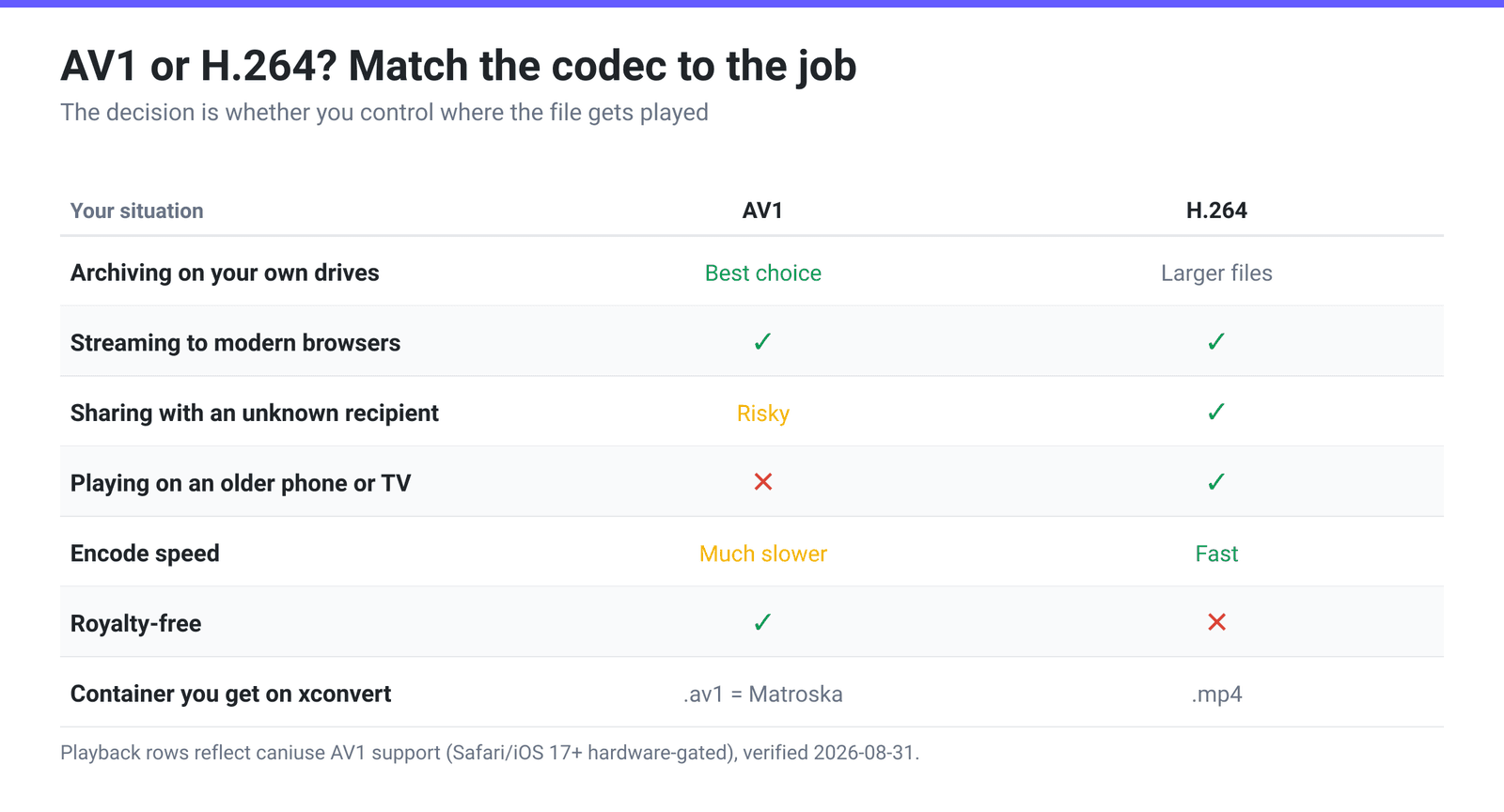
Quick answer: Convert to AV1 when the file is going into your own archive or onto hardware you control, and you can afford a slow encode. Keep H.264 when the file has to be shared, emailed, or played on unknown devices. On xconvert, MP4 to AV1 defaults to Quality Preset → Very High (Recommended) with Opus audio, and writes a Matroska file with an
.av1extension. If you specifically want AV1 inside a real.mp4, use the MP4 compressor and switch Video Codec to AV1 instead. AV1 cannot go into a.movat all.
Jump to a section
- What you gain, and what it costs
- Where AV1 plays in 2026
- The
.av1file is really a Matroska file - Which setting to use: preset, CRF, or target size
- Convert MP4 to AV1 on xconvert
- FAQ
What you gain, and what it costs
AV1 is the Alliance for Open Media’s royalty-free codec, described by AOMedia itself as “designed to provide high-quality video compression with greater efficiency than previous codecs” and “optimized for high-resolution content such as 4K and 8K video.” The efficiency claim is the reason anyone bothers; the head-to-head numbers against HEVC and H.264 are covered in AV1 vs HEVC vs H.264, so this post is about the encode itself.
The costs are real and they are three:
Encode time. AV1’s efficiency comes from a much larger search space — more block sizes, more prediction modes, a more flexible transform stage. Every one of those options is CPU work. Re-encoding a 1080p clip to AV1 takes substantially longer than the same clip to H.264, and it is not a small multiple; expect minutes where H.264 took seconds. Because xconvert encodes on the server, your own machine is not tied up, but the wall-clock wait is still there.
Playback. More on this below, but the headline is that AV1 decoding on Apple platforms is gated on a hardware decoder, so “my Mac plays it” is not a statement about all Macs.
A generation loss. Re-encoding H.264 to AV1 is lossy-to-lossy. At a sane quality setting the loss is usually invisible, but you are re-compressing rather than converting — the original detail is gone for good. Keep the source until you have checked the output.
Where AV1 plays in 2026
Browser support is genuinely good now, with one large asterisk. Current state from caniuse:
| Environment | AV1 playback |
|---|---|
| Chrome | Supported since version 70 |
| Firefox | Partial from 65 — Windows 64-bit only in 65, Windows and macOS in 66 — and fully supported from 67 |
| Edge | Supported since version 121. Before that Edge never had it on by default: 18–115 are listed as unsupported but can be given AV1 by installing Microsoft’s AV1 Video Extension on Windows 10 or later, and 116–120 have no support at all |
| Safari (macOS) | Supported from Safari 17 — only on devices with a hardware AV1 decoder |
| Safari (iOS/iPadOS) | Supported from iOS 17 — only on devices with a hardware AV1 decoder |
| Samsung Internet | Supported since version 12 |
| Older phones, older smart TVs, most set-top boxes | Assume no |
Caniuse puts full support at about 79% of tracked traffic, with a further 15% partial — and that partial slice is almost entirely the hardware-gated Apple case. Caniuse’s own example devices for the hardware requirement are the iPhone 15 Pro and the M3 MacBook Pro, which is a good rule of thumb: recent Apple silicon yes, anything older no.
The practical translation: a modern Windows or Android machine will play AV1 in a browser. An iPhone from a few years ago will not, and neither will a smart TV bought before AV1 decoders became common. If the file has to reach “whoever I send it to”, H.264 is still the answer — the same conclusion H.264 vs H.265 reaches for the previous generation, only more so.
The .av1 file is really a Matroska file
This trips people up, so bluntly: .av1 is not a container format. AV1 is a codec — a way of compressing the picture — and it has to live inside a container that also carries the audio, timing and metadata. There is no official .av1 container, so when a tool hands you a file with that extension, something else is inside.
On xconvert, the MP4 to AV1 page writes Matroska — the same container as .mkv — and names it .av1. If a player refuses to open the download, rename it to .mkv and try again; a lot of software dispatches on the extension rather than sniffing the bytes. VLC and MPV open it either way.
Which containers can legitimately carry an AV1 stream, and how to get one on xconvert:
| You want | Can it hold AV1? | Page to use | Default video codec there |
|---|---|---|---|
.mp4 | Yes | MP4 compressor — set Video Codec to AV1 | H.264 |
.mkv | Yes | MP4 to MKV — set Video Codec to AV1 | H.264 |
.webm | Yes | MP4 to WebM — set Video Codec to AV1 | VP9 |
.av1 (Matroska inside) | — | MP4 to AV1 | AV1, and it is the only choice |
.mov | No | — | QuickTime’s codec list here is H.264, H.265/HEVC, MPEG-4 and MJPEG |
On all three of those pages, Video Codec lives behind Show All Options inside Advanced Options — it is an advanced control and is not on the default panel, which is the usual reason people conclude the setting isn’t there.
If you are handing the file to someone else, .mp4 or .mkv is the friendlier choice for no cost — the same video stream with a filename software recognises. MKV vs MP4 covers which one to keep.
Which setting to use: preset, CRF, or target size
The File Compression group is where the real decision sits. It opens on Quality Preset, with Very High (Recommended) selected.
- Quality Preset — pick from Highest down to Lowest and let the encoder choose the numbers. Fine for a one-off; you cannot predict the output size.
- Constant Quality — AV1’s native control, a CRF slider running 16 to 63, where lower means better quality and a bigger file. This is the right mode for archiving, because it holds quality steady and lets the size land where it lands.
- Specific file size — type a target in MB when you have a hard cap to hit. An Auto Scale toggle sits alongside it, which lets the encoder reduce the resolution if the target cannot be met at the original size.
- Constant Bitrate and Variable Bitrate — for feeding a streaming ladder, where a predictable bitrate matters more than consistent quality.
Two more defaults worth knowing before you press Convert. Audio Codec defaults to Opus on this page, which is the natural partner for AV1 in a Matroska file — but if the result has to play somewhere old, switch it to AAC. And Video resolution defaults to Keep original; downscaling from 4K to 1080p will save far more bytes than any codec change, so decide that first if the source is oversized.
Convert MP4 to AV1 on xconvert
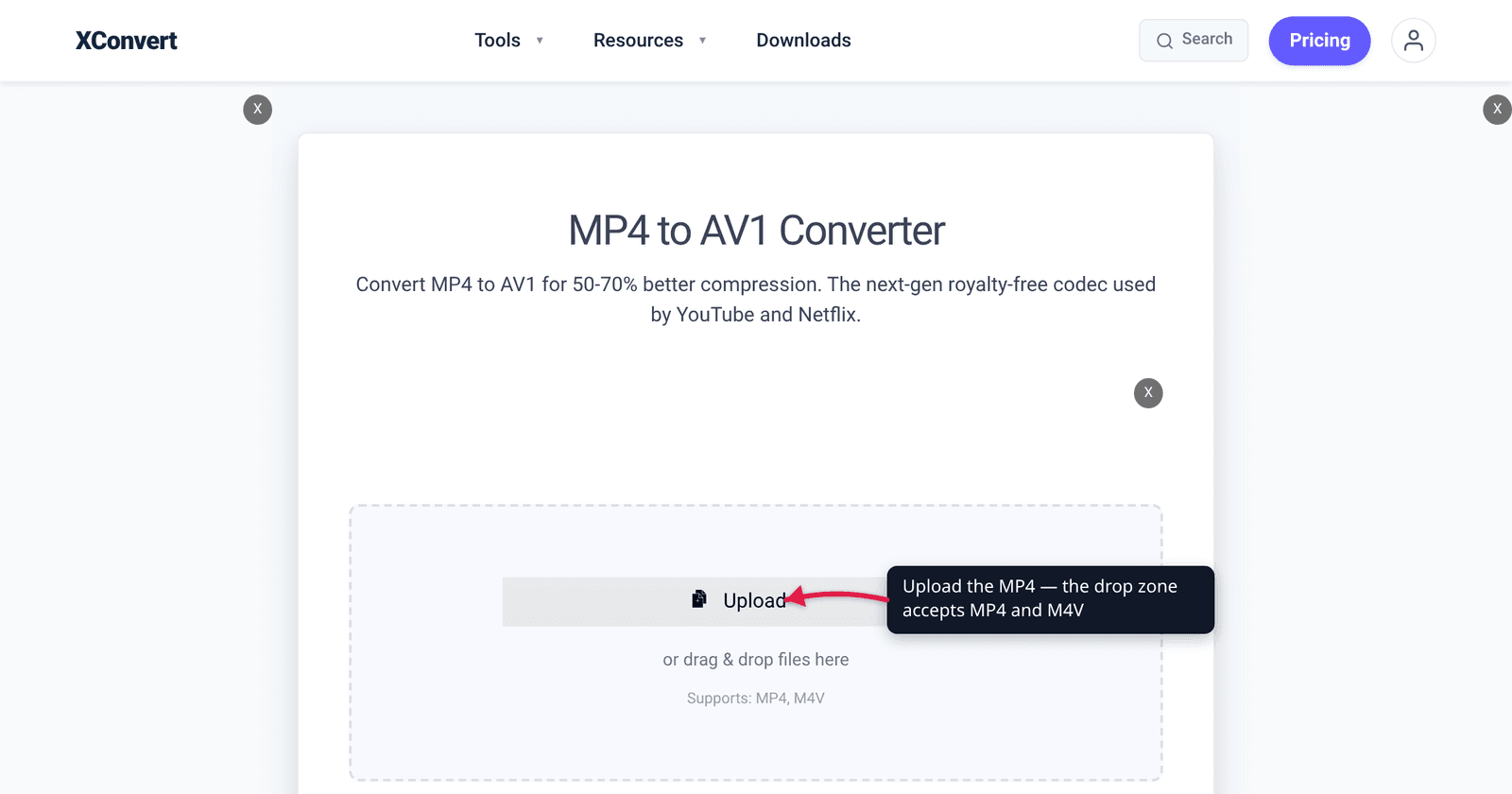
- Open xconvert.com/convert-mp4-to-av1 and click Upload, then From my Computer (Google Drive and Dropbox are in the same menu), or drag the file onto the page. The drop zone states Supports: MP4, M4V.
- Open Advanced Options (the gear icon). Do not go looking for a Video Codec control here — AV1 is the only codec this page can write, and a group with a single choice is not rendered at all, so it never appears even after Show All Options. The codec is already fixed to AV1.
- Under File Compression, either leave Quality Preset → Very High (Recommended) alone, or switch to Constant Quality and set a CRF value between 16 and 63. Lower numbers mean higher quality and larger files.
- Optionally set Video resolution (Preset Resolutions from 144p to 4320p, a percentage, or an exact Width × Height) and use Trim with Start time and Duration if you only need part of the clip.
- If the output must play on older hardware, change Audio Codec from Opus to AAC. Audio Codec is an advanced control, so click Show All Options first — unlike Video Codec it does render, because this page offers several audio codecs.
- Click Convert. Expect a wait — AV1 is CPU-heavy. Download the result and, if a player refuses it, rename the
.av1extension to.mkv.
Your file uploads over an encrypted connection, is encoded on our servers, and is deleted automatically a few hours later. No account, no watermark.
FAQ
Is converting MP4 to AV1 worth it?
For an archive you keep on your own drives, usually yes — the encode is a one-time cost and the storage saving is permanent. For anything you are sending to other people, usually no: you pay the slow encode and then discover the recipient’s device cannot decode it. The dividing line is whether you control the playback environment.
Why does AV1 encoding take so long?
Because the efficiency comes from searching more possibilities per frame — more block partitions, more prediction modes, a more flexible transform stage. Every extra option is CPU time. That is also why encoder presets exist: they control how much of that search space the encoder may skip.
Why is my converted file named .av1 instead of .mp4?
Because AV1 is a codec, not a container, and there is no official .av1 container. Our MP4-to-AV1 page writes the stream into Matroska and gives it the .av1 extension. The file is valid — rename it to .mkv if a player will not open it, or use the MP4 compressor with Video Codec set to AV1 when you want AV1 inside a genuine .mp4.
Will AV1 play on my iPhone?
Only on recent models. Apple added AV1 playback in Safari 17 / iOS 17, but only on devices that have a hardware AV1 decoder — caniuse cites the iPhone 15 Pro and M3 MacBook Pro as its examples. An older iPhone cannot play AV1 in Safari at all, though third-party players with their own software decoders can sometimes manage it.
Can I put AV1 in a MOV file?
No. QuickTime’s .mov container is limited to H.264, H.265/HEVC, MPEG-4 and MJPEG on our video tools, so a MOV output page will not offer AV1 as a codec. Use .mp4, .mkv or .webm instead — all three carry AV1 fine.
What CRF should I use for AV1?
Our Constant Quality slider runs 16 to 63, lower meaning better. There is no universally correct number because it depends on the source and how much loss you will accept, so treat the first encode as a test: run a short section with Trim, look at the result, then adjust. Starting near the low end of the range preserves more detail at the cost of size; moving higher trades the other way.
Does re-encoding H.264 to AV1 lose quality?
Yes — it is a lossy-to-lossy re-encode, so some detail is discarded no matter what setting you choose. AV1 is efficient enough that at a conservative quality setting the loss is usually invisible, but it is not reversible. Keep the original until you have watched the output.
Sources
Last verified 2026-08-31.
- Alliance for Open Media — AV1 Video Codec — AOMedia’s own description of AV1’s purpose and its 4K/8K optimisation.
- caniuse — AV1 video format — Chrome 70+, Firefox 67+ (65 Windows 64-bit only, 66 Windows and macOS), Edge 121+, Safari and iOS Safari 17+ hardware-gated, Samsung Internet 12+; 79.26% full and 15.02% partial support; the Edge note about the Microsoft AV1 Video Extension.
- xconvert option configuration for
/convert-mp4-to-av1— Video Codec fixed to AV1 with no other option, so the group does not render; Audio Codec default Opus; File Compression default Quality Preset → Very High (Recommended); Constant Quality CRF range 16–63; and the Matroska container behind the.av1extension.