 By James
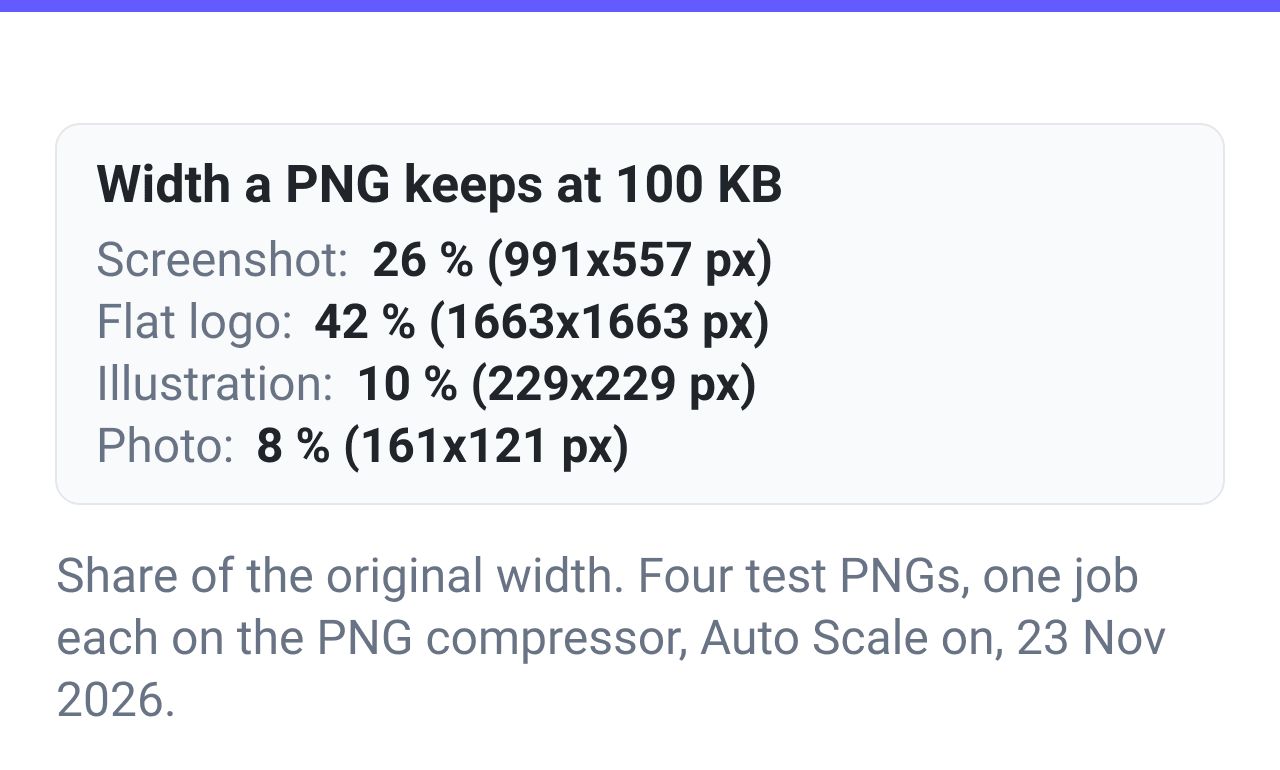
To get a PNG under 100 KB, 200 KB, 500 KB, 1 MB or 2 MB, set Specific file size in the PNG compressor. With Auto Scale on, all 18 test reductions came back under the size, 11 of them smaller in pixels.
Checked on 2026-11-24 on the PNG compressor. Sources at the end.
Who asks for a PNG this small
| Who, for what | What the page says | Page, read November 2026 |
|---|---|---|
| Slack, custom emoji | under 128KB “work best”: advice, not a cap | Slack Help |
| Discord, custom emoji | 256 KiB | developer documentation |
| Discord, server sticker | 512 KiB | developer documentation |
| GitHub, profile picture | “less than 1 MB” | GitHub Docs |
| Google Play, app icon | “Maximum file size: 1024KB”, 512×512 px | Play Console Help |
None of the pages we read names 100 KB, 200 KB, 500 KB or 2 MB for a PNG. Such a number comes from your own form or portal.
A size limit can come with a shape: some of the pages above also ask for a square picture. Where the cut goes decides what stays in the frame. That is an editing step, and it comes before compressing.
What happens over the limit
Discord’s page: “Attempting to upload an emoji larger than this limit will fail”.
With Auto Scale on, our compressor cuts colors, pixels or both until the file fits.
With Auto Scale off, the pixels stay as you set them and nothing guards the size. With Keep original, all four test pictures missed 100 KB, at 107 % to 365 % of it, with no note on the card.
What fits each size (measured)
Four test PNGs, one job per cell, on 23 November 2026: Specific file size, Auto Scale on, COLORS at ORIGINAL.
Cells give the pixels, the file size and the colors left. Unchanged means the upload was already under the size asked.
| Size asked | Screenshot, 3840×2160, 608.4 KB | Flat logo, 4000×4000, 322.2 KB | Illustration, 2400×2400, 2.29 MB | Photo, 2000×1500, 2.86 MB |
|---|---|---|---|---|
| 100 KB | 991×557, 57.5 KB, 27 colors | 1663×1663, 42.5 KB, 23 colors | 229×229, 12.2 KB, 256 colors | 161×121, 9.1 KB, 138 colors |
| 200 KB | 1667×938, 115.9 KB, 28 colors | 4000×4000, 135.6 KB, 17 colors | 385×385, 26.2 KB, 256 colors | 271×203, 24.3 KB, 155 colors |
| 500 KB | 3840×2160, 225.8 KB, 21 colors | unchanged | 767×767, 79.3 KB, 256 colors | 540×405, 94.0 KB, 192 colors |
| 1 MB | unchanged | unchanged | 2400×2400, 535.6 KB, 256 colors | 909×682, 260.3 KB, 216 colors |
| 2 MB | unchanged | unchanged | as at 1 MB | 2000×1500, 1,079.4 KB, 223 colors |
The 15 reductions above and three on a second logo with gradients landed at 9 % to 86 % of the size asked. On 11 the card read “Resolution reduced by”, with 8 % to 45 % of the width left.
Every compressed logo and illustration in the table kept its transparent background. The photo kept the smallest share of its width; why is my PNG file so big covers what makes a PNG heavy.
On the PNG compressor, in the 30 days to 22 November 2026, 182 jobs from 63 visitors asked for 100 KB to 2 MB, below the upload’s size, with Auto Scale on. None came back over the size; 86 (35 visitors) came back under a quarter of it.
More pixels fit when you set them by hand. With Auto Scale off and By Percentage at 40, the illustration fit 100 KB at 960×960. At 25, the photo fit at 500×375.
All 11 jobs of that kind fit, at 1.2 to 4.2 times the width Auto Scale left. Each percentage was tried once.
Color Palette Size 64 kept no more pixels in two jobs, and Compression level and Dither changed no byte.
Steps on the PNG compressor
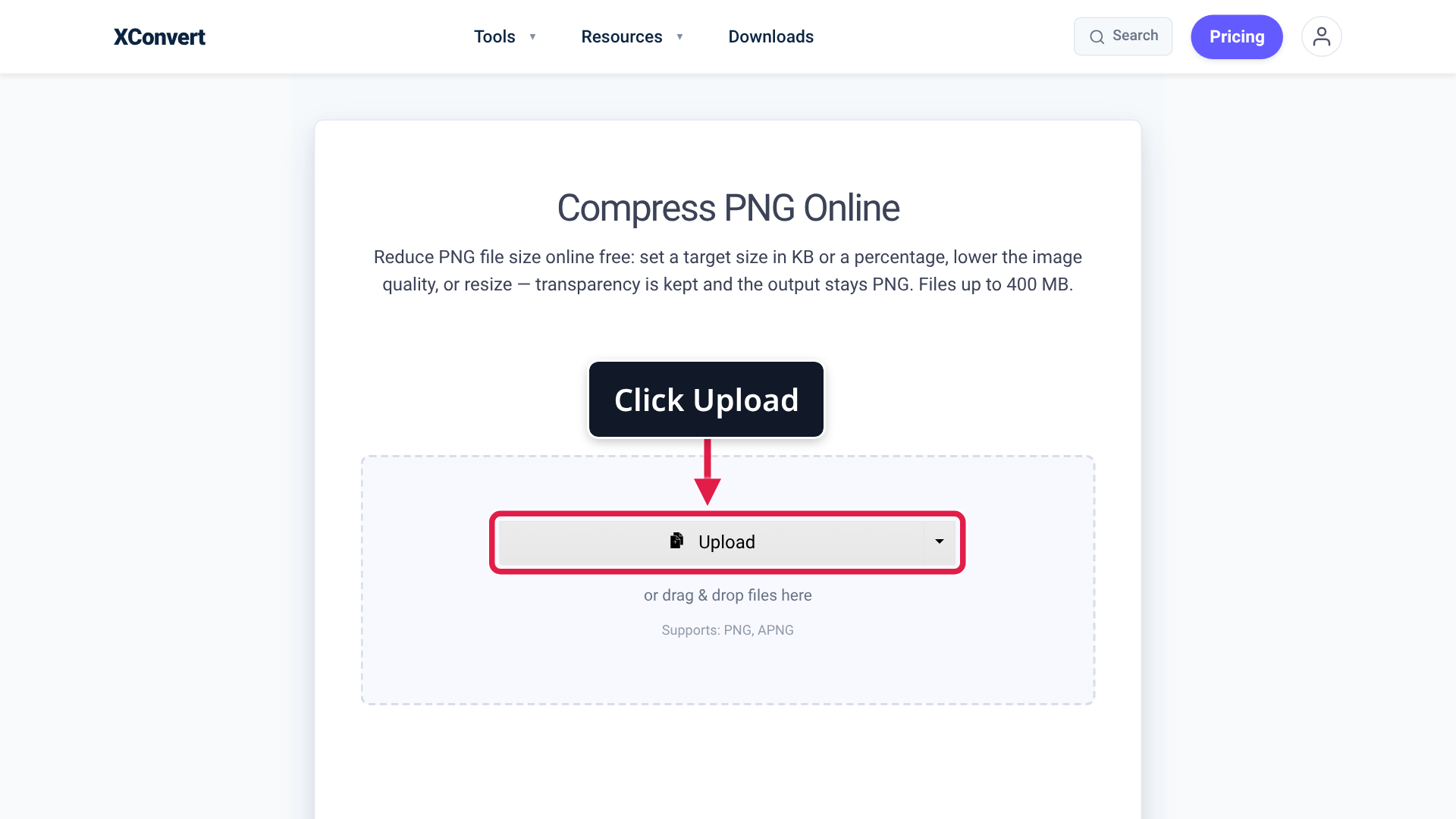
- On the PNG compressor, click Upload and choose the PNG.
- Under IMAGE COMPRESSION, click Specific file size.
- Click the unit button MB and choose KB or MB from its list.
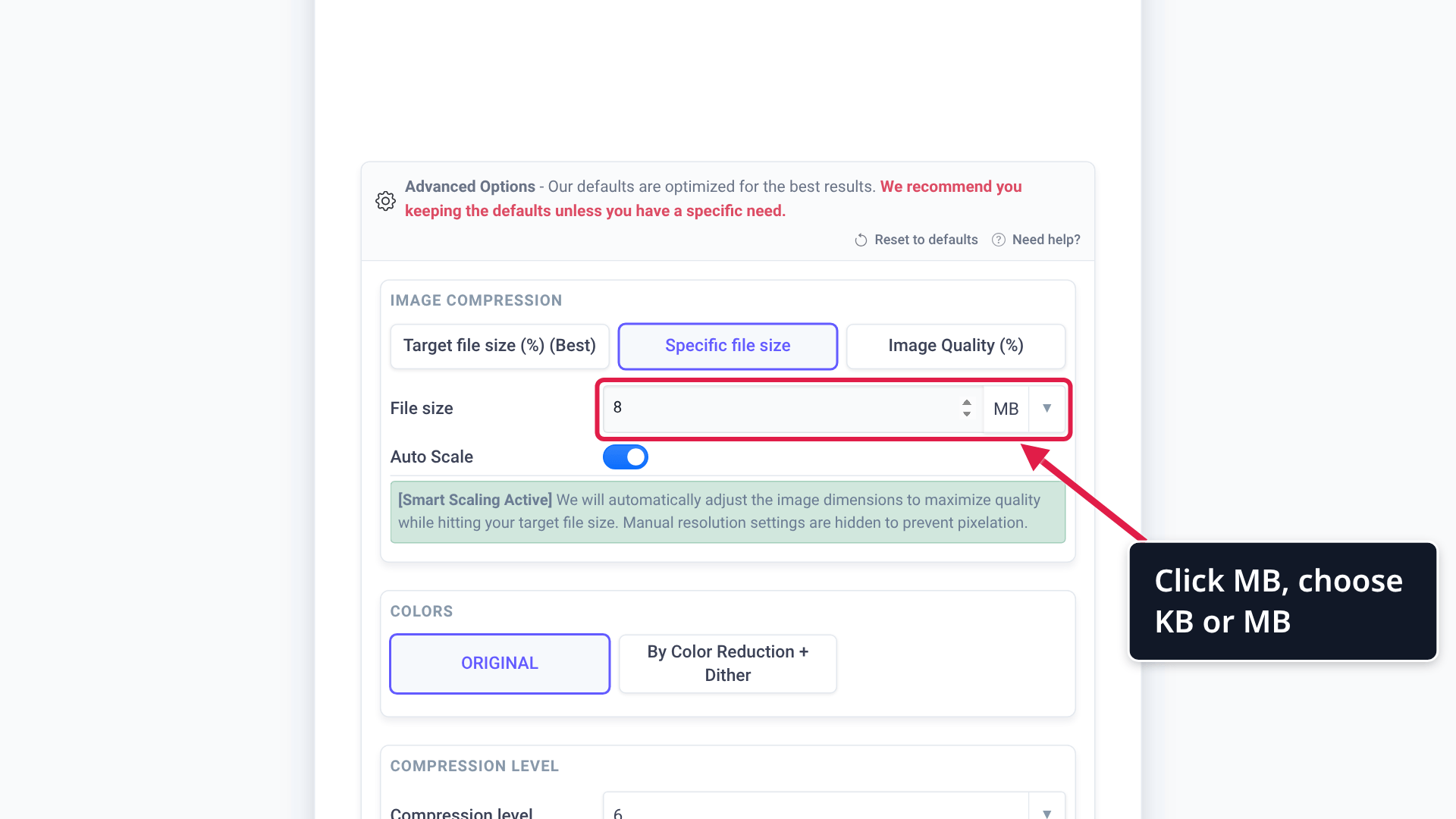
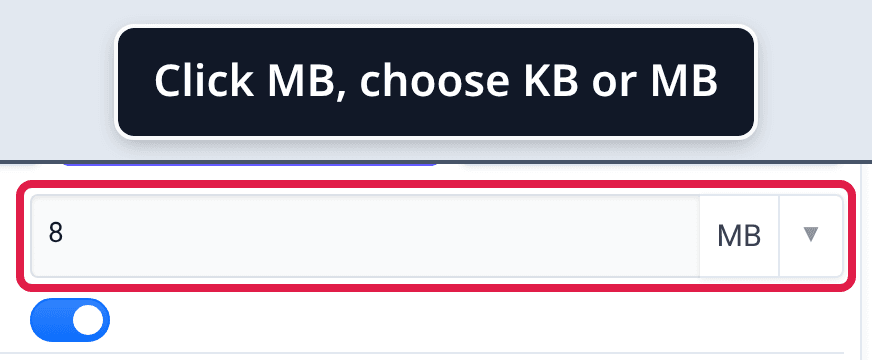
- Type the number into File size. The tool counts 1 KB as 1,000 bytes.
- Leave Auto Scale checked if the file must fit at the first try.
- Click Compress.
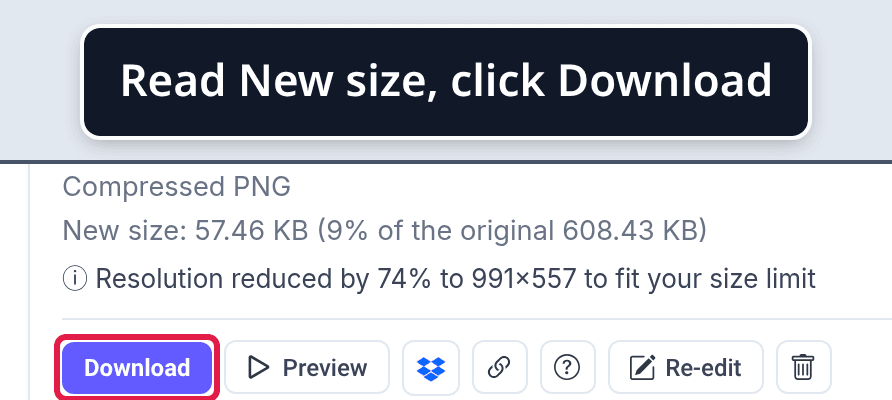
- Read New size: on the card, then click Download. Pictured: the test screenshot at 100 KB, “Resolution reduced by 74% to 991×557”.
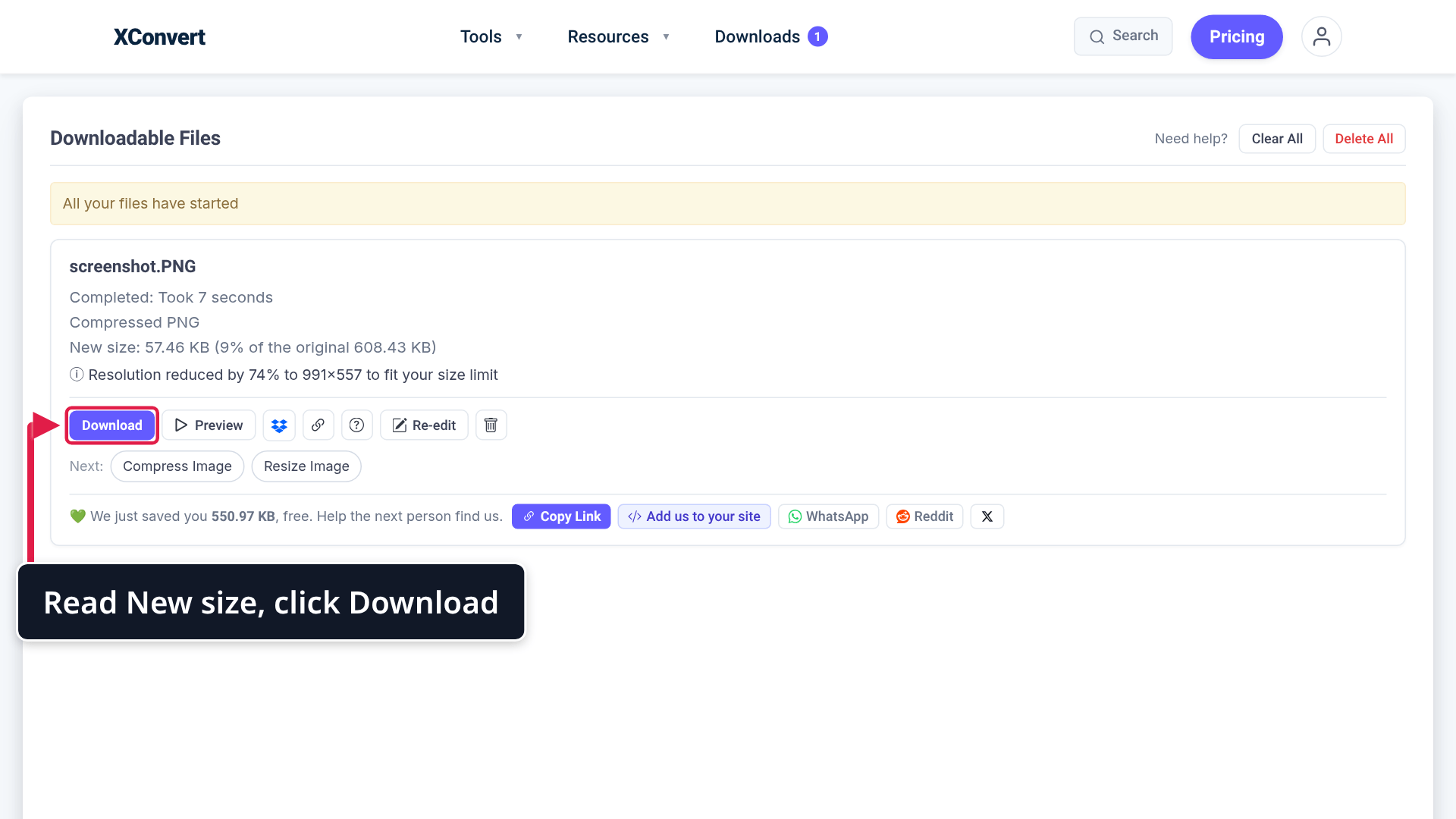
A number typed while the unit still reads MB asks for megabytes, and a PNG already under that size comes back unchanged.
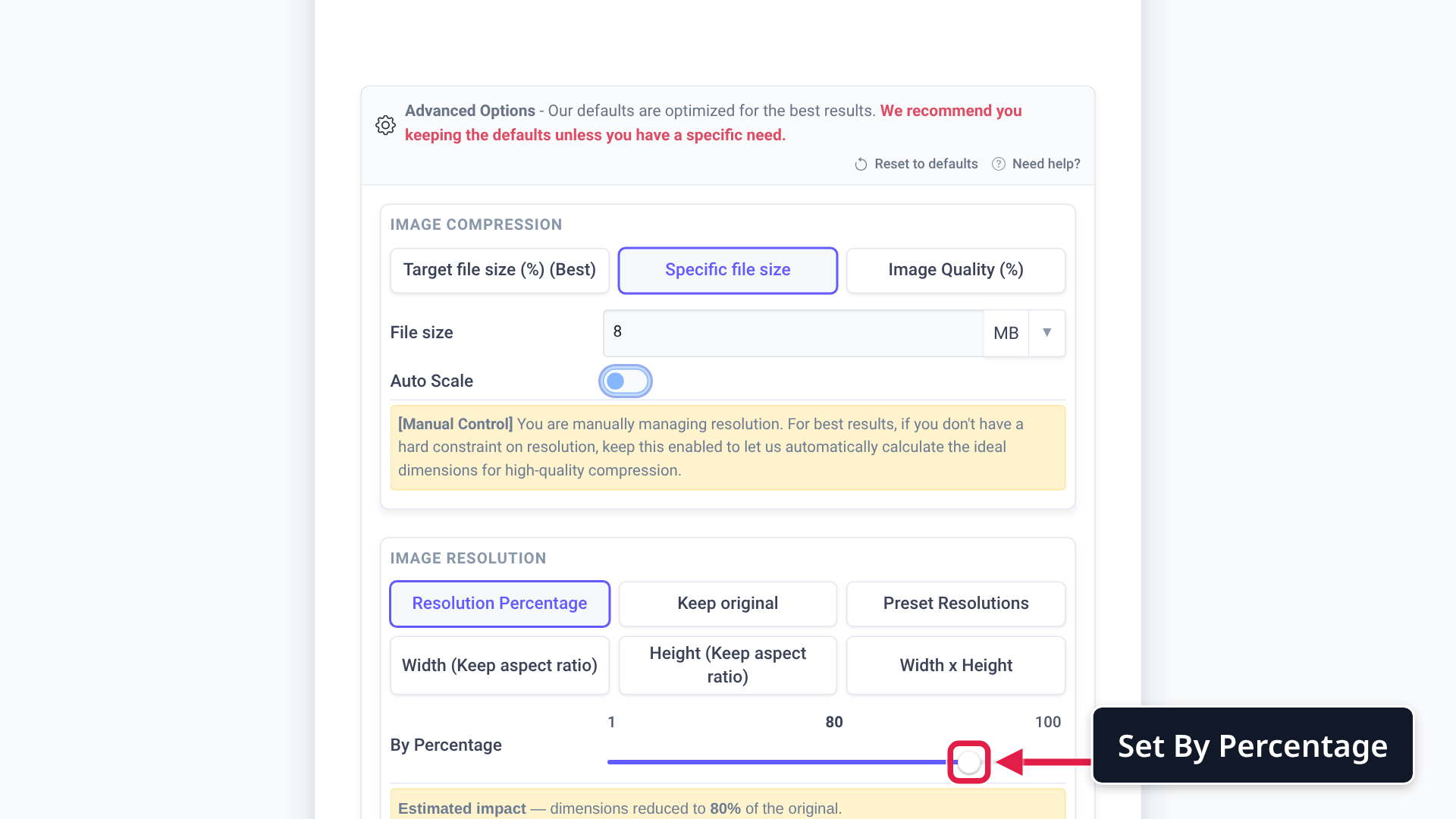
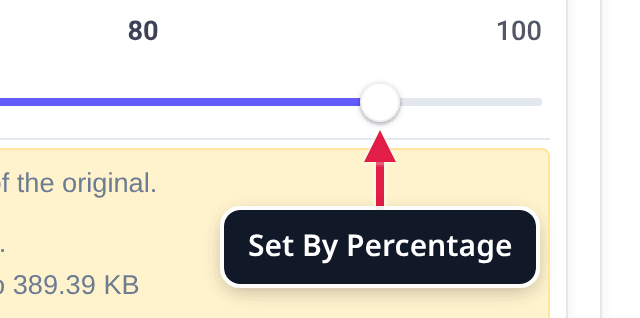
To keep more pixels, uncheck Auto Scale at step 5 and set the By Percentage slider, which opens at 80. If New size: is then over your limit, lower the slider and run again.
Files are processed on our servers, not in your browser, and are deleted automatically about 5 hours after they were written. Command line: compress a PNG to 100 KB in Linux.
When JPG or WebP is the better way out
Every PNG our tool compresses comes back with at most 256 colors, the most a palette PNG can hold: 44 of 44 compressed test results.
A form that also takes JPG or WebP gives a photo another way. The four test PNGs went through the PNG to JPG converter and the PNG to WebP converter with the options as the pages open them, pixels unchanged:
| Picture | PNG | JPG | WebP |
|---|---|---|---|
| Screenshot | 608.4 KB | 1,047.2 KB | 504.0 KB |
| Flat logo | 322.2 KB | 442.6 KB, transparent area white | 207.8 KB, transparency kept |
| Illustration | 2,288.1 KB | 719.7 KB, transparent area white | 656.6 KB, transparency kept |
| Photo | 2,860.8 KB | 824.5 KB | 492.4 KB |
- A photo without transparency: WebP held all 2000×1500 px in 492.4 KB. As a PNG at 500 KB the photo was 540×405, or 1000×750 with the percentage set by hand.
- A screenshot or a flat logo: stay with PNG. JPG made both bigger.
No JPG or WebP at a typed size was measured here: see compress a JPEG to 100 KB or 200 KB and lossless or lossy WebP.
What we could not confirm
- Twitch. Its emote guidelines page gave no readable text, live or in the archive copy of 16 November 2026.
- How a platform counts. Discord’s 256 KiB is 262,144 bytes; 256 KB typed into our tool is at most 256,000. The Slack, GitHub and Google Play pages do not say how they count.
- Files of 5 MB or more. None was tested. Of 69 visitors who asked for 100 KB to 2 MB, below the upload’s size, in the same 30 days, 20 uploaded 5 to under 20 MB and 8 uploaded 20 MB or more.
- How the results look. Pixels and colors were counted. Whether a result’s text is still readable was not measured.
Sources
- Slack Help: Add custom emoji and aliases to your workspace: the sentence on square images under 128KB. Read 2026-11-23.
- Discord developer documentation: Emoji Resource: 256 KiB, and that a larger upload fails. Read 2026-11-23.
- Discord developer documentation: Sticker Resource: PNG among the file types, 512 KiB. Read 2026-11-23.
- GitHub Docs: Profile reference: the profile picture’s file types and size. Read 2026-11-23.
- Google Play Console Help: Add preview assets to showcase your app: the app icon’s format, pixels and 1024KB. Read 2026-11-23.
- Telegram: Telegram Stickers: the pixel rule for static stickers; no file size for them on the page. Read 2026-11-23.
- YouTube Help: Add custom thumbnails: 50 MB for a video thumbnail. Read 2026-11-23.
- Twitch Help: Emote guidelines: not readable on 2026-11-23, live or in the archive copy of 2026-11-16.
- W3C: Portable Network Graphics (PNG) Specification (Fourth Edition), the editors’ copy: a palette holds 1 to 256 entries. Read 2026-11-23.
- Our measurements: 61 jobs, one at a time, from 2026-11-23, 23:34, to 2026-11-24, 00:11, New York time: 53 on xconvert.com/compress-png, 4 on the PNG to JPG converter and 4 on the PNG to WebP converter, on six test PNGs (two screenshots of our own page, two generated logos, a CC0 illustration and a cut of a CC0 photograph, both from Wikimedia Commons). Pixels, colors, PNG type and transparency were read from each downloaded file.
- Job counts: finished single-file jobs on the PNG compressor, 24 October to 22 November 2026 (UTC): 4,932 from 451 visitors, 551 of them, from 125 visitors, in Specific file size.