 By James
A PDF will not compress when little in it is left to reduce: it was compressed before, or its weight is compact text or drawings. Try one stronger setting on the PDF compressor; if the size stays, split the file or export it again.
Checked on 2026-11-20 on the PDF Compressor with generated files of 0.15 to 2.74 MB. Not tested: other compressors, a file over 5 MB, a PDF viewer, taking a password off in Acrobat or Preview. Sources at the end.
Find your symptom
Of 1,800 finished jobs on the PDF Compressor from 12 October to 20 November 2026, 181 (about 1 in 10) came back unchanged or no more than 5 % smaller. None came back larger.
The records do not say what a file held, so how common each cause is remains unknown. The rows follow our tests of 20 November 2026, from the file that moved least; the password case comes last.
| Symptom | Cause | Fix |
|---|---|---|
| The card says “(your original, unchanged)” or “about the same as the original” | Compressed before (cause 1) | Go back to the earlier file |
| A little smaller at Screen (Best); pages of photographs | Pictures already small (cause 2) | Try a stronger type once |
| About a tenth smaller, the same at every type; pages of text | Only text and fonts (cause 3) | Export again, or split |
| About a tenth smaller, the same at every type; plans, maps or charts | Drawings, not pictures (cause 4) | Simplify the drawings, or split |
| A result of a few KB with one blank page | A password to open (cause 5) | Take the password off first |
Cause 1: the file was compressed before
A 40-page text PDF that had been through Screen (Best) once came back byte for byte, at Screen (Best) and at Extreme compression alike.
On 20 November 2026 its card read “Size: 162.80 KB (your original, unchanged)”, with the badge Original kept and a note under it:
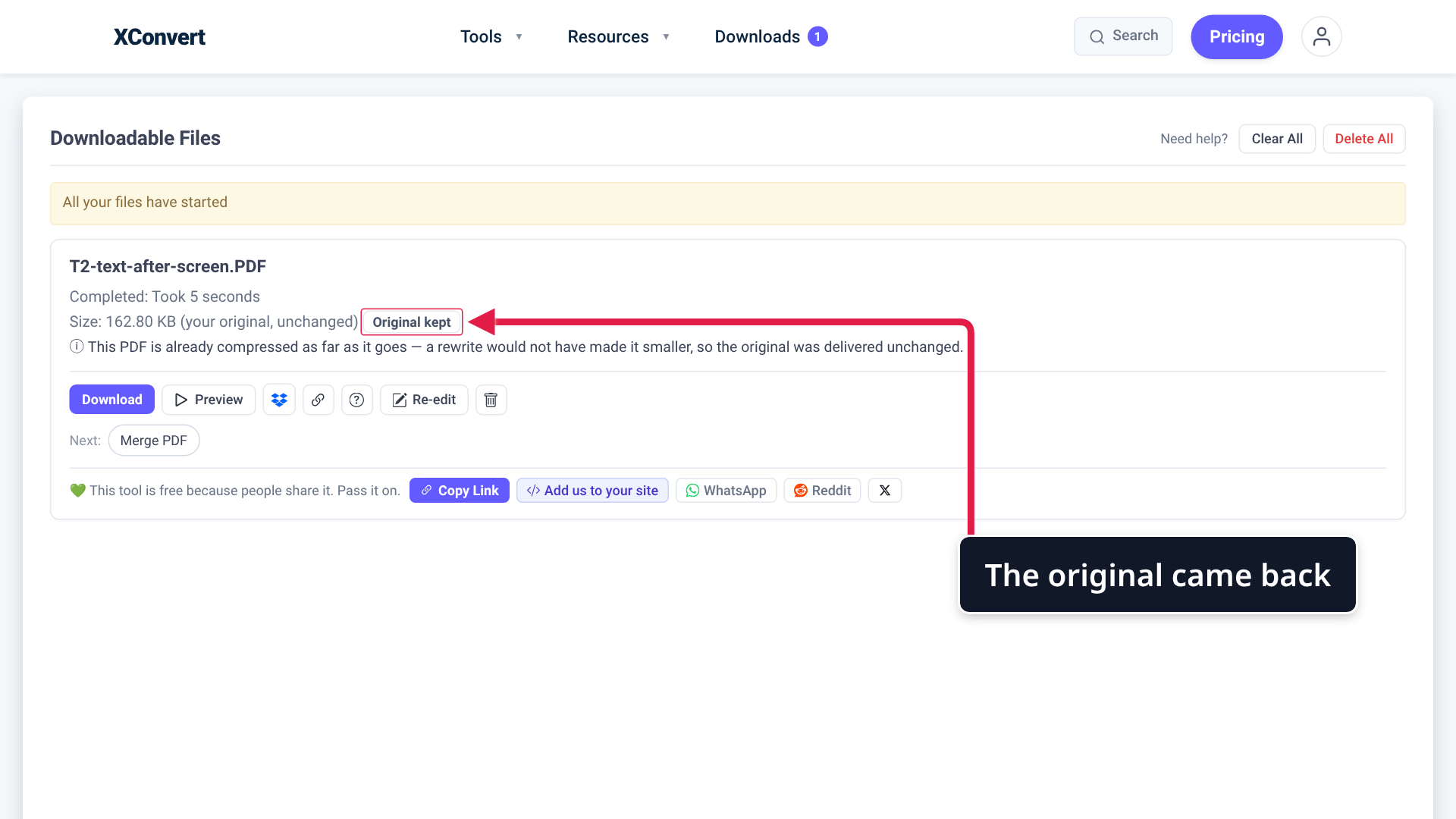
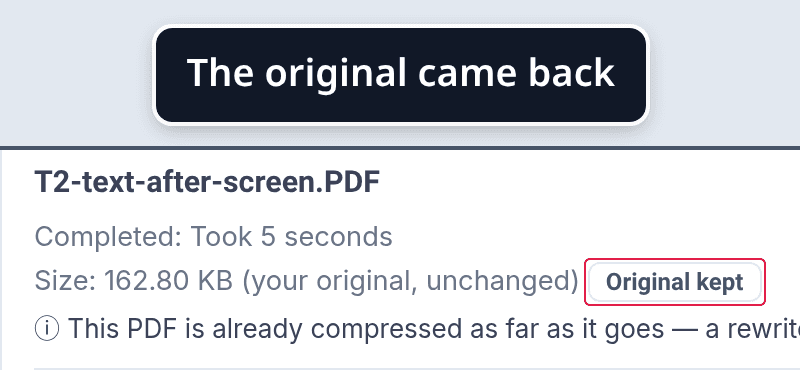
Of the 181 jobs above, only 16 returned the original. The other 165 delivered a rewritten file at 95 % of the upload or more, on a plainer card.
For a drawing file on its second pass that card had no note and read “New size: 2.41 MB (about the same as the original 2.41 MB)”.
Confirm it. The file carries no sure mark of an earlier pass. The sign is one of these two cards.
Fix it. Go back to the file you had before the first pass and compress that once, at a stronger type (steps under cause 2).
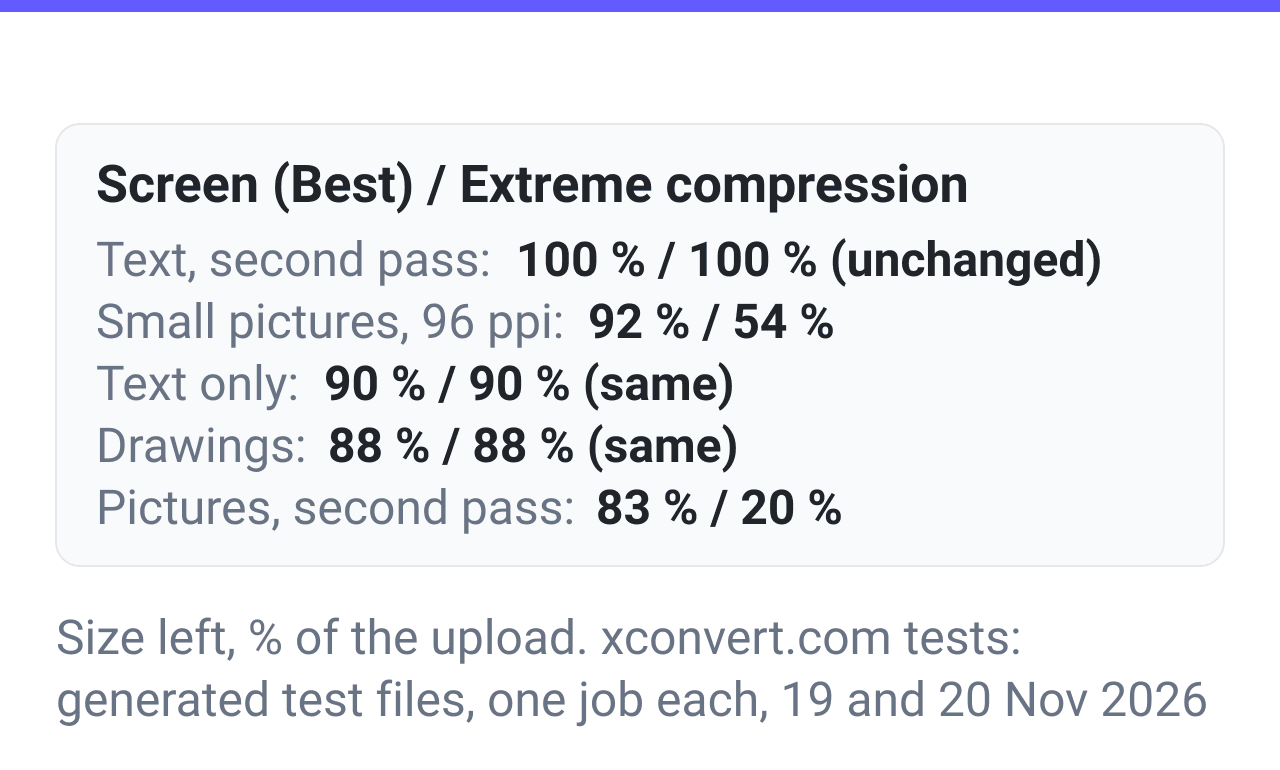
Do not compress the copy again: a second pass costs picture detail. A picture file that had been through Screen (Best) once fell to 20 % of its size at Extreme compression, with pictures at 72 to 150 ppi.
Cause 2: the pictures are already small
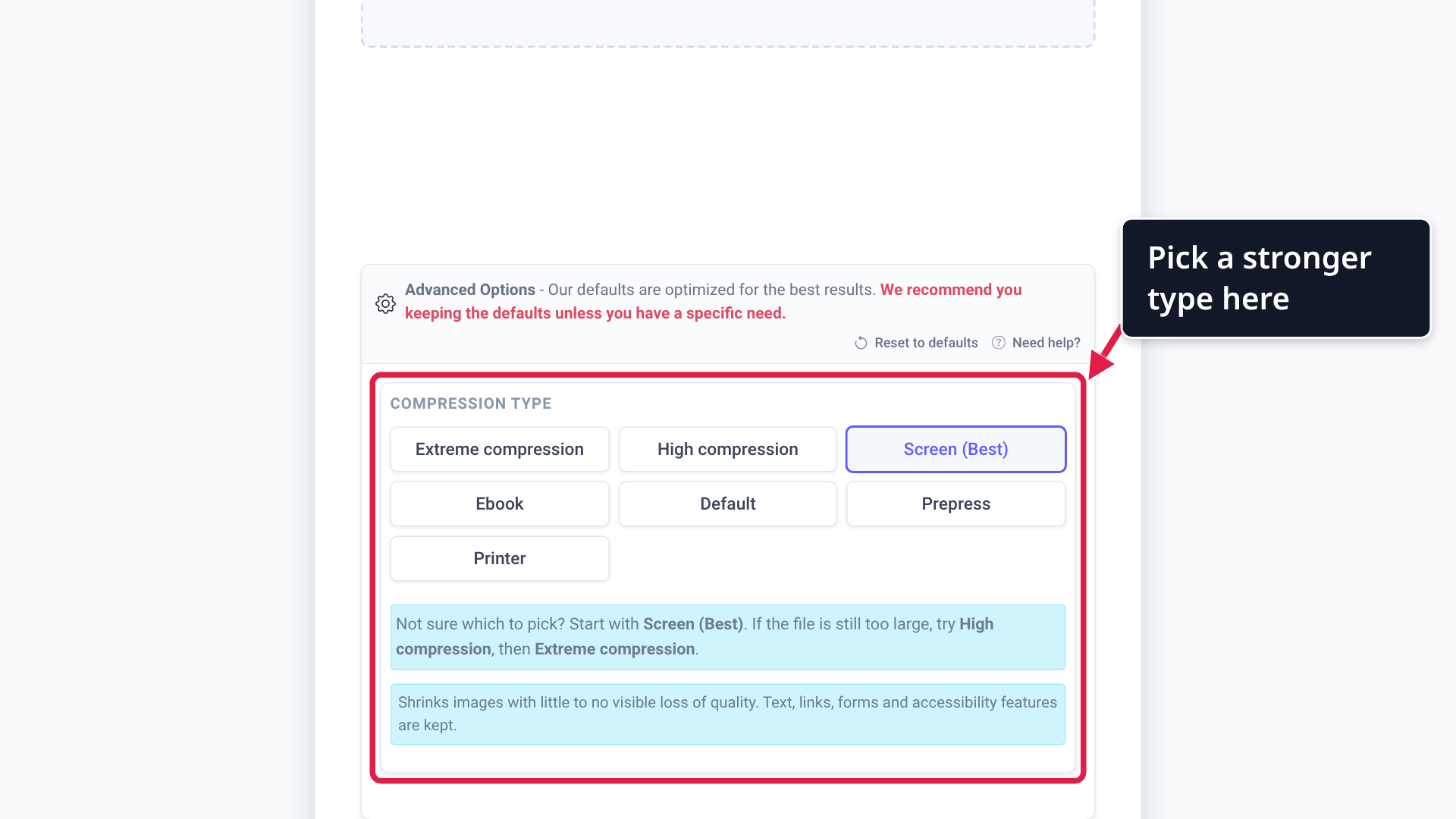
Screen (Best), the type the page loads with, is not the strongest. Six pages with pictures at 96 ppi came out at 92 % of the upload there, with no picture resampled.
At Extreme compression the same file came out at 54 %: five of its six pictures went from 96 to 72 ppi.
Confirm it. Run pdfimages -list file.pdf (Poppler, free). For each test picture it printed jpeg under enc and 96 under x-ppi.
Fix it. Pick a stronger type once, on the original file:
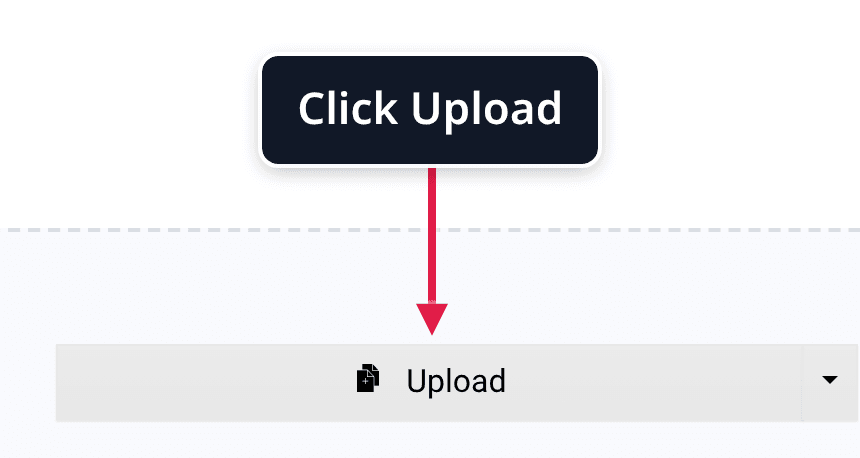
- On the PDF compressor (linked at the top), click Upload and choose the PDF.
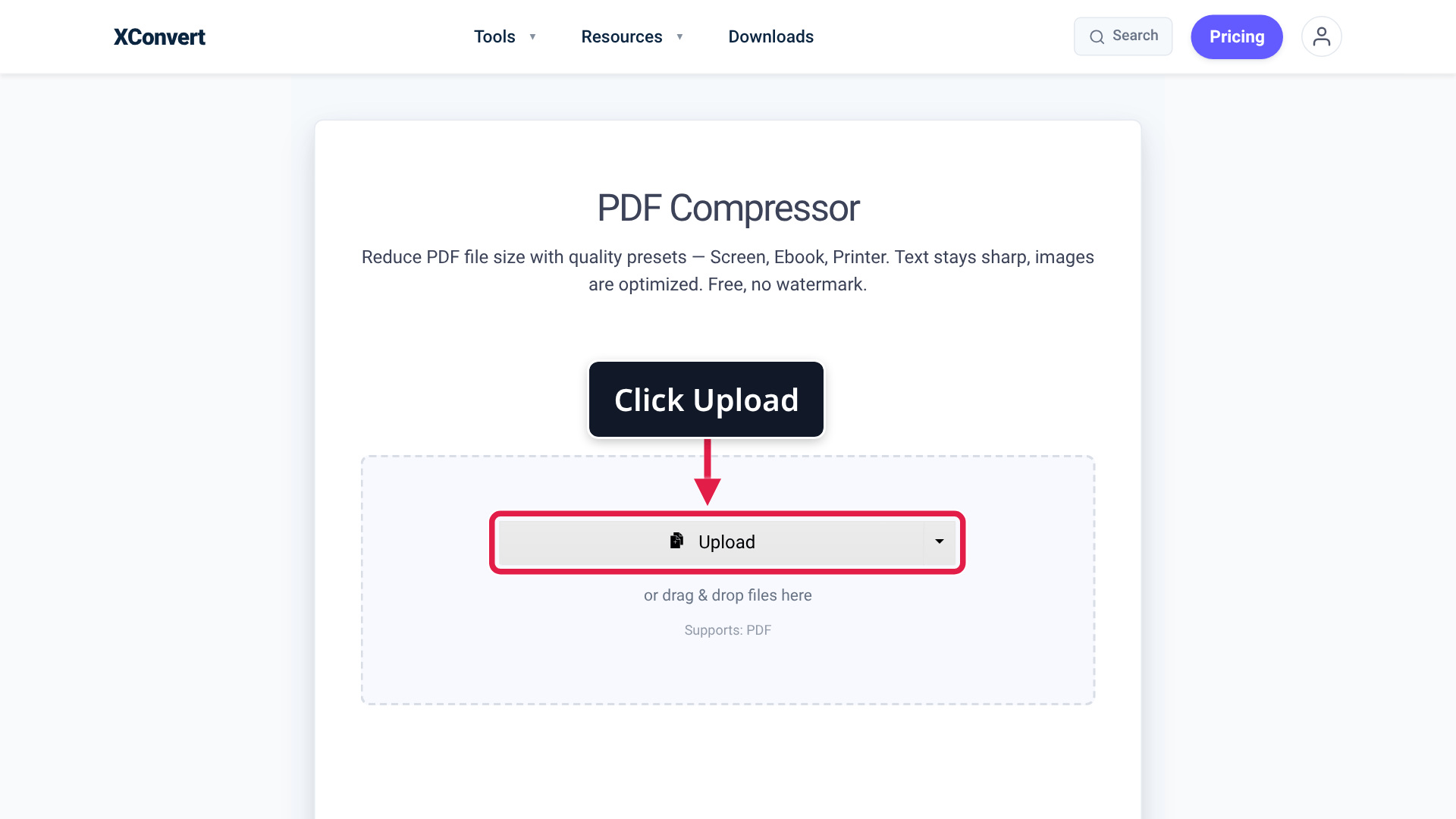
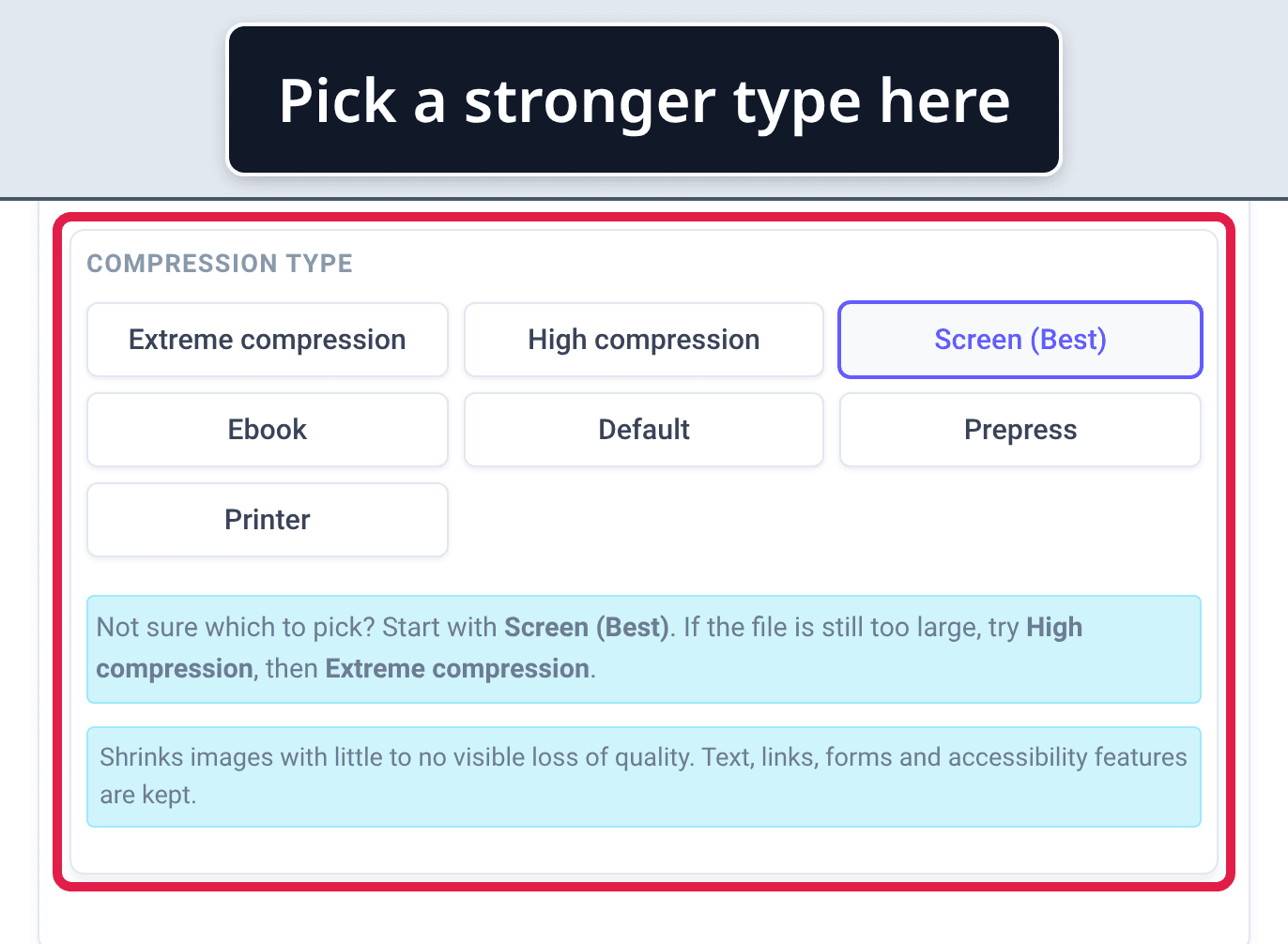
- Under COMPRESSION TYPE, click High compression or Extreme compression.
- Click Compress. The Downloads page opens, and the finished card reads “New size:” with the share of the original.
- Click Download.
The page’s own warning at Extreme compression: “Images lose noticeable detail and color accuracy”.
In the records, 28 files that came back unchanged or no more than 5 % smaller were tried again at another type within 30 minutes (a file here is one upload size from one browser or account). 15 of the 28 then came out more than 5 % smaller.
If the stronger type returns the same size, stop: the weight is not pictures that a type can reduce.
Cause 3: only text and fonts
A 40-page text PDF printed from a browser (182 KB, 4.5 KB a page) came out at 90 % of its size at Screen (Best) and at Extreme compression, the same size to the byte. The types reduce pictures, and it had none.
Text is not a cause by itself. The same 40 pages saved without compression (830 KB, 20.8 KB a page) came out at 17 %, again the same at both types.
Confirm it. Divide the file size by the page count and compare it with the two files above, then run pdfimages -list file.pdf: for the text file it printed no picture row.
Fix it. No setting is left to try. Where two smaller files will do, cut the file with Split PDF: the compressor has no setting that removes pages.
Or export again from the source: in Excel and PowerPoint the PDF export offers “Minimum size (publishing online)”.
On a Mac, Preview’s Reduce File Size will not help with such a file: it acts on images only.
Cause 4: drawings, not pictures
Six pages of line drawings with no picture (2.74 MB, 457 KB a page) came out at 88 % at Screen (Best). The day before, the same file gave 88 % at Extreme compression and at Default too.
Confirm it. pdfimages -list prints no picture row, yet the file is heavy for its pages.
Fix it. The compressor keeps drawings as drawings and does not turn them into pictures. The weight goes down in the program that drew them: the same file with fewer strokes was lighter.
Cause 5: a password to open the file
Do not upload a PDF that asks for a password when it opens. On 20 November 2026 the PDF Compressor showed no warning for such a file, finished the job as a success and delivered one blank page.
The card read “New size: 2.60 KB (2% of the original 149.13 KB)”. Open any result that small before you send it on.
Confirm it. For the test file, pdfinfo file.pdf (Poppler) answered “Incorrect password”.
Fix it. Take the password off first, in the program that set it, with the password. We have no tool that removes one.
On a command line, Ghostscript takes the password with -sPDFPassword=. The copy it wrote of our test file went through whole and came out at 96 %. qpdf’s manual gives --decrypt with --password=; we did not run it.
When the PDF compressor helps and when it does not
It helps when the weight is pictures that can still be reduced, or data that can go.
One generated file per row and one job per cell, as a share of the upload. Run on 20 November 2026; the photographs, and the drawings at Extreme compression, on 19 November.
| Test file | Screen (Best) | Extreme compression |
|---|---|---|
| Text plus a megabyte of private data | 14 % | 14 % |
| Text saved without compression | 17 % | 17 % |
| Photographs at 300 ppi | 24 % | 6 % |
| Black-and-white scan, CCITT | 63 % | 14 % |
| Pictures compressed once before | 83 % | 20 % |
| Drawings | 88 % | 88 % |
| Text, fresh export | 90 % | 90 % |
| Small pictures, 96 ppi | 92 % | 54 % |
| Black-and-white scan, JBIG2 | about the same | about the same |
| Text compressed once before | unchanged | unchanged |
Private data is what the program that made a PDF leaves in it for its own use. In one Adobe forum thread it filled a large part of a file that would not shrink. The megabyte in our file, written by script, was gone from the result.
A black-and-white scan stops shrinking once its pages are stored as JBIG2, which is how Screen (Best) stored ours. For a scan that is large to begin with, see why a scanned PDF is so big.
It is the wrong tool when:
- You need an exact size. Compression Type is the only setting: no box for a target size, no quality slider.
- Nothing may leave your computer. The file is processed on our servers, not in your browser; uploads and results are deleted about 5 hours after they were written.
When no route brings the file under a limit, the file has to travel another way. Upload it to a storage or file-sharing service and send the link in place of the attachment. Test that link from a browser where you are not signed in before you send it.
Sources
All read on 2026-11-20.
- Tests of 2026-11-20 on the PDF Compressor (/compress-pdf): 22 jobs, one at a time and one run each, with generated PDFs of 0.15 to 2.74 MB. The photograph file, and the drawing file at Extreme compression and at Default, were run on 2026-11-19. Read out with pdfimages, pdffonts, pdfinfo and pdftotext (Poppler). KB means 1,000 bytes, MB 1,000,000 bytes.
- Job counts from our own records: 1,800 jobs of the PDF Compressor that finished with one upload and one result, 12 October to 20 November 2026. Used here from a job: its sizes, its Compression Type, its time and, for the second tries, the browser or account it came from. Counts of jobs, not of people.
- pdfimages manual page (Poppler, Debian): the columns of
-list. - Microsoft Support, Save or convert to PDF or XPS in Office desktop apps: “Minimum size (publishing online)”.
- Ghostscript, Using Ghostscript (
-sPDFPassword) and qpdf, Running qpdf (--decrypt,--password). - Adobe community, Reduced PDF file size doesn’t work – why? (December 2023): the thread on private data.
- ISO 32000-1 (PDF 1.7), section 14.5, Page-Piece Dictionaries: private data.