 By Stephanie Taylor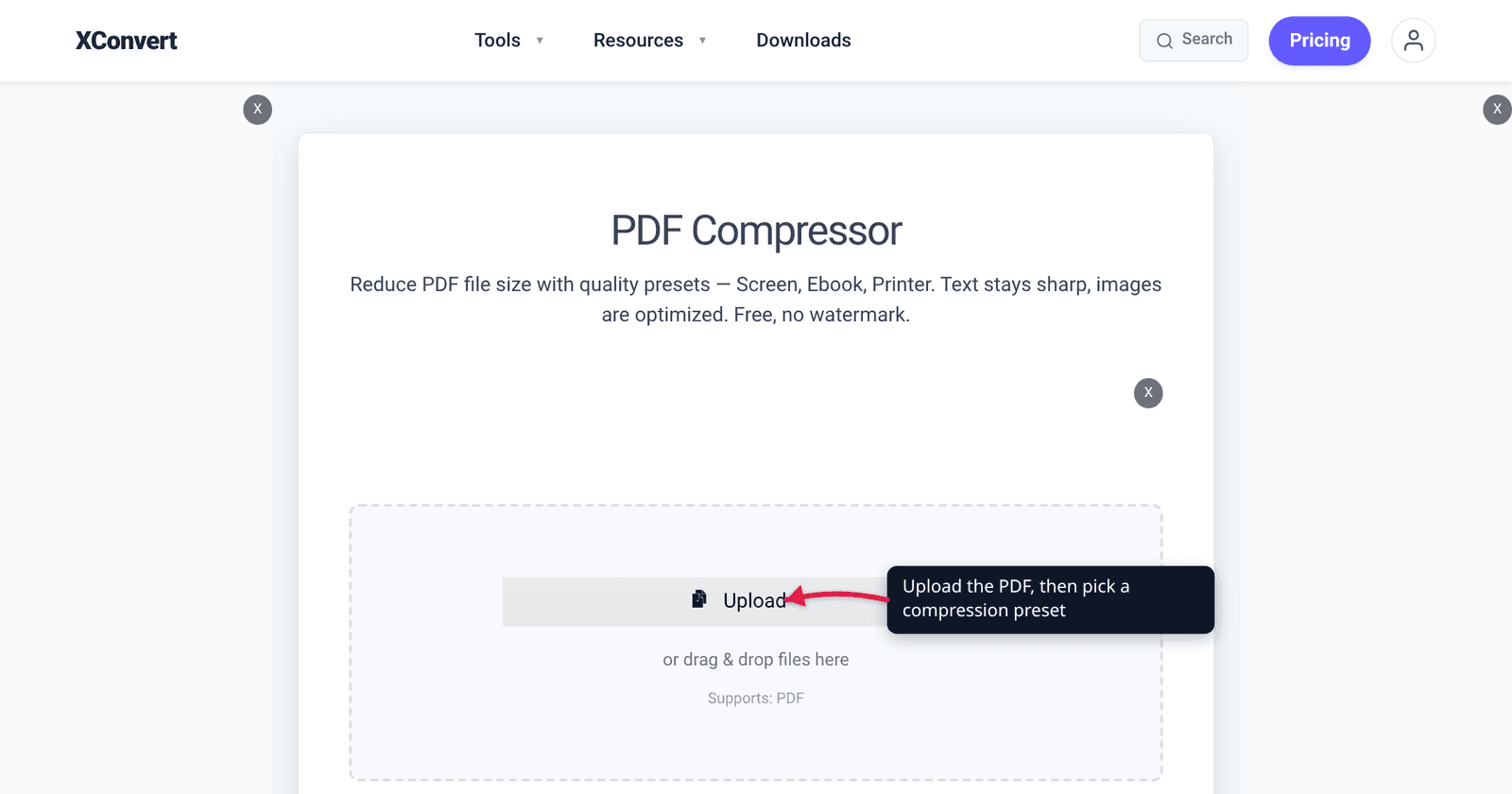
Most PDF compressors give you a slider. This one gives you five words — Screen, Ebook, Default, Prepress, Printer — and no explanation of what they do. Pick the wrong one and you either send a print shop a file whose images are 72 dpi and whose fonts aren’t embedded, or you pick “Prepress” hoping for quality and watch a 40 MB file come back at 39 MB. Those five names aren’t marketing labels: they’re Ghostscript’s documented distiller presets, and every value behind them is published. This guide reads them out of the documentation so you can pick on evidence.
Quick answer: Ebook is the right default for most people — it downsamples images to 150 dpi and embeds every font except the 14 standard PostScript ones. Use Screen only when the file will be read on a screen and nothing else: it goes to 72 dpi and leaves those same 14 fonts unembedded. Use Printer or Prepress when the PDF is going to a press — they are the only two presets that embed the standard 14, and their image targets are 300 dpi, high enough that most documents come back barely smaller. Default is the odd one out: it is the only setting that switches downsampling off entirely, so it usually shrinks a file less than any preset. The single biggest surprise: font embedding is not what the preset names imply — Screen, Ebook and Default all leave Courier, Helvetica, Times, Symbol and ZapfDingbats to be substituted on the reader’s machine.
Jump to a section
- The five presets are Ghostscript’s, not ours
- What each preset actually sets
- The counter-intuitive part: three presets don’t downsample
- What Screen quietly gives up
- Why your PDF didn’t shrink
- Which preset to pick
- Compress a PDF on xconvert
- FAQ
The five presets are Ghostscript’s, not ours
Ghostscript is the long-standing open-source PostScript and PDF interpreter that sits behind a large share of the PDF tooling you’ve ever used. Its PDF writer accepts a switch called -dPDFSETTINGS, which, in Ghostscript’s own words, “presets the ‘distiller parameters’ to one of the following predefined settings”: /screen, /ebook, /printer, /prepress and /default.
Those five values are exactly the five buttons on xconvert’s PDF compressor, mapped one to one. There is no separate quality slider, no target-size field and no DPI box on the page — the preset is the entire control surface, because each preset is itself a bundle of about seventy-five distiller parameters. What follows is what that bundle contains.
The presets originate as Ghostscript’s equivalents of the old Acrobat Distiller job options: /screen mirrors “Screen Optimized”, /ebook mirrors “eBook”, /printer mirrors “Print Optimized” and /prepress mirrors “Prepress Optimized”.
What each preset actually sets
Every value below comes from the distiller-parameter table in Ghostscript’s pdfwrite documentation. These are the rows that change your file:
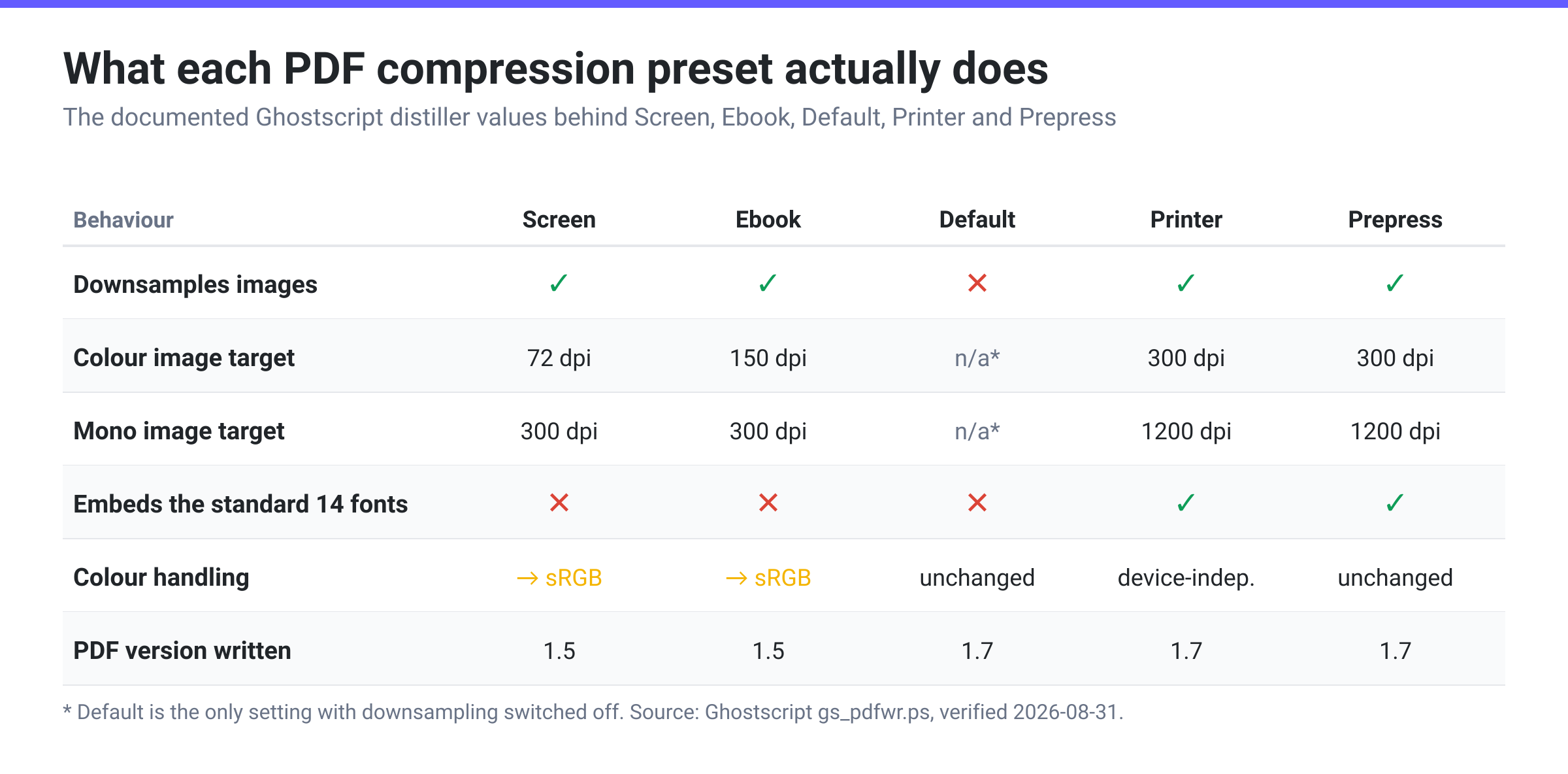
| Parameter | Screen | Ebook | Default | Printer | Prepress |
|---|---|---|---|---|---|
DownsampleColorImages | true | true | false | true | true |
ColorImageResolution | 72 | 150 | n/a (downsampling off) | 300 | 300 |
GrayImageResolution | 72 | 150 | n/a (downsampling off) | 300 | 300 |
MonoImageResolution | 300 | 300 | n/a (downsampling off) | 1200 | 1200 |
ColorImageDownsampleType | Average | Average | Subsample | Average | Bicubic |
EmbedAllFonts | true | true | true | true | true |
NeverEmbed (fonts refused) | the standard 14 | the standard 14 | the standard 14 | (empty) | (empty) |
ColorConversionStrategy | sRGB | sRGB | LeaveColorUnchanged | UseDeviceIndependentColor | LeaveColorUnchanged |
CannotEmbedFontPolicy | Warning | Warning | Warning | Warning | Error |
CompatibilityLevel (PDF version) | 1.5 | 1.5 | 1.7 | 1.7 | 1.7 |
AutoRotatePages | PageByPage | All | PageByPage | None | None |
DoThumbnails | false | false | false | false | true |
Three rows in that table decide almost everything about your result: DownsampleColorImages, NeverEmbed, and ColorConversionStrategy.
The counter-intuitive part: three presets don’t downsample
Look at DownsampleColorImages again. It is true for all four named presets and false only for Default, which overrides it explicitly in Ghostscript’s source. What separates the presets is not whether they downsample but the target they downsample to — 72 dpi for Screen, 150 for Ebook, 300 for Printer and Prepress — and a DownsampleThreshold of 1.5, meaning an image is only resampled once it exceeds 1.5x the target. At 300 dpi that means Printer and Prepress leave anything under 450 dpi alone, which is most real documents, which is why they so often hand back a file the same size.
That means the “300 dpi” you see next to Printer and Prepress is not a target they resize your images down to — it’s the threshold that would apply if downsampling were switched on, and it isn’t. Those presets leave your images at whatever resolution they already were. The same applies to Default’s 72: because downsampling is off, the number never comes into play.
The practical consequence is the thing most people get wrong about this tool:
- Screen and Ebook shrink files by throwing away image pixels. Their 72 and 150 dpi targets are below what almost any scan or photo arrives at, so the resampling always bites. That’s where the dramatic size reductions come from.
- Default, Printer and Prepress mainly re-encode. They rewrite the PDF’s structure and image streams without resampling, so on a file that was already reasonably built the saving can be small — sometimes negligible, and occasionally the rewritten file comes out around the same size or a little larger than the original.
If your goal is a smaller file, your realistic choices are Screen and Ebook. Printer and Prepress are quality-preservation profiles that happen to live in a menu labelled compression, and Default is the one setting that will not resample anything at all.
What Screen quietly gives up
Screen is the smallest output and the tool’s default, and it is also the preset with the sharpest edges. Three things it does that the others don’t:
It leaves the standard 14 fonts unembedded — but so do Ebook and Default. This is the row everyone reads backwards. EmbedAllFonts is true for all five presets, so it looks like fonts are safe everywhere. The row that actually decides is NeverEmbed, and Ghostscript’s documentation is explicit: “The default, screen, and ebook settings never embed the 14 standard fonts (Courier, Helvetica, and Times families, Symbol, and ZapfDingbats).” Only /printer and /prepress ship an empty NeverEmbed list and therefore embed everything. So a document set in Helvetica or Times comes out of Screen, Ebook or Default relying on whatever the reader substitutes locally — fine on your own machine, a lottery on someone else’s, with shifted line breaks and different glyph widths. If the document has to look identical everywhere, the preset you need is Printer or Prepress.
It converts colour to sRGB. ColorConversionStrategy is sRGB for both Screen and Ebook. Send a CMYK-authored document through either and its colour space is converted — which is correct for a screen, and exactly what a commercial printer does not want.
It writes PDF 1.5. Screen and Ebook target compatibility level 1.5; Default, Printer and Prepress target 1.7. That’s rarely a problem in 2026, but a portal that validates a specific PDF version will notice.
At the other end, Prepress has its own sharp edge worth knowing: CannotEmbedFontPolicy is Error rather than Warning. If a font in your document cannot be embedded, Prepress fails the job instead of quietly substituting — deliberate behaviour for print production, and a surprise if you were expecting a file back.
And Ghostscript itself is blunt about a common misreading: “Please be aware that the /prepress setting does not indicate the highest quality conversion… The ‘best’ quality (where best means closest to the original input) is obtained by not setting this parameter at all (or by using /default).”
Why your PDF didn’t shrink
Every parameter that produces a big saving operates on images. DownsampleColorImages, ColorImageResolution, GrayImageResolution, MonoImageResolution — all of them resample raster content.
So the size of the win is decided by what’s inside your PDF:
- A scanned document (every page is a photograph of paper) is nearly 100% image. Screen and Ebook can cut it dramatically.
- A photo book, a slide deck, a report full of screenshots — mostly image. Big savings.
- A contract, a thesis, a LaTeX paper, an invoice exported from accounting software — mostly vector text and line art, which is stored as drawing instructions rather than pixels. There is almost nothing for a downsampler to remove, and every preset will give you back a file close to the size you started with. That isn’t a fault in the tool; the bytes simply aren’t where the presets look.
If a text-heavy PDF is genuinely too big, the weight is usually in embedded fonts, attachments or duplicated resources rather than image resolution, and a preset can’t fix that. Splitting it into parts, or sharing it as a link, will do more than any preset.
Which preset to pick
- Emailing a scan, uploading to a portal, posting a manual online → Ebook. 150 dpi is still legible and prints acceptably on an office printer, and it’s the best size-to-quality trade in the set — just know the standard 14 fonts are not carried along.
- Absolute smallest file, read on screen, appearance not critical → Screen. Accept 72 dpi images and the same unembedded standard 14.
- Anything going to a commercial printer, or anything that must render identically elsewhere → Printer or Prepress. These are the only two that embed the standard 14, and their 300 dpi targets rarely bite; Prepress additionally leaves colour untouched and errors out rather than substituting a font it cannot embed.
- You want to touch the document as little as possible → Default. Ghostscript names it as the closest output to the original input.
- The PDF is mostly text and you need it smaller → none of them will help much. Split it, or share a link.
Compress a PDF on xconvert
- Open xconvert.com/compress-pdf and click Upload to add your PDF.
- Open Advanced Options (the gear icon).
- Under Compression Type, choose one of the five presets. They appear in the order Screen (Best), Ebook, Default, Prepress, Printer — Screen is pre-selected.
- Pick Ebook unless you have a specific reason not to; switch to Screen if you need the smallest possible file and the document doesn’t have to render identically elsewhere.
- Click Compress and download.
- If the result is barely smaller, check whether the PDF is image-based or text-based before trying another preset — on a text-only PDF the other four presets will not do better.
There is deliberately no target-size field or quality slider on this page: the preset carries all of it. Your file uploads over an encrypted connection, is processed on our servers, and is deleted automatically a few hours later.
For the quality-first framing of the same job, see how to compress a PDF without losing quality.
FAQ
Which PDF compression preset should I use?
Ebook for almost everything. It downsamples images to 150 dpi — enough for on-screen reading and ordinary office printing — at the best size-to-quality trade in the set. It does not, however, embed the 14 standard PostScript fonts, so if your document must render identically on someone else’s machine, use Printer or Prepress instead. Choose Screen only when you need the smallest possible file and can live with 72 dpi images. Printer and Prepress target 300 dpi, high enough that most documents come back barely smaller.
Why is Screen the default if it’s the most destructive?
Because on a PDF compressor the common request is “make this smaller”, and Screen is the only preset that reliably delivers a large reduction. It’s labelled Screen (Best) in the sense of best compression, not best fidelity. If fidelity matters more than size, change it — the whole point of the setting is that this is a choice you should make deliberately.
Does Prepress give the best quality?
Not necessarily, and Ghostscript says so directly: “the /prepress setting does not indicate the highest quality conversion”, and the output closest to the original input comes from not setting a preset at all or using /default. Prepress is a print-production profile — it leaves colour unchanged, doesn’t downsample, generates thumbnails, and errors out rather than substituting a font it can’t embed. That combination is right for a press, not automatically right for archiving.
Why did my PDF barely get smaller?
Almost certainly because it contains very little raster imagery. All five presets shrink files chiefly by resampling images; a PDF made of vector text and line art has nothing to resample. It’s also possible you chose Default, which switches downsampling off entirely, or Printer or Prepress, whose 300 dpi targets leave anything under 450 dpi untouched — switching to Ebook or Screen is the change most likely to actually resample. If it’s a text-heavy file that’s still too large, splitting it or sharing a link will do more than any preset.
Will these presets make my scanned pages unreadable?
Screen might, on small print — 72 dpi is roughly a quarter of the linear resolution most documents are scanned at, so fine type can turn mushy. Ebook’s 150 dpi generally keeps body text legible on screen and acceptable on an office printer. If the scan has to remain properly readable in print, use Printer or Prepress, whose 300 dpi target leaves an ordinary scan alone, and get the size down another way.
Do the presets change fonts or colour as well as images?
Yes, and this is the part that isn’t obvious from the names. All five set EmbedAllFonts to true, but /default, /screen and /ebook also list the 14 standard PostScript fonts under NeverEmbed, so those three ship documents that rely on font substitution; only /printer and /prepress embed everything. Both /screen and /ebook set ColorConversionStrategy to sRGB, converting CMYK artwork. /printer uses device-independent colour and /prepress leaves colour unchanged. Screen and Ebook also write PDF 1.5 while the other three write PDF 1.7.
Can I set a target file size in MB instead of choosing a preset?
Not on the PDF compressor — the Ghostscript preset is the only control it exposes, and a preset can’t be aimed at a byte count because how much it saves depends entirely on how much image data your document contains. If you need a specific number, compress with Ebook first, check the result, and step down to Screen if you’re still over. For hard portal limits, compress a PDF to under 1 MB works through that process.
Sources
Last verified 2026-08-31.
- Ghostscript — pdfwrite / VectorDevices documentation — the
-dPDFSETTINGSdescriptions, the 77-row distiller-parameter table, and Note 11: “The default, screen, and ebook settings never embed the 14 standard fonts (Courier, Helvetica, and Times families, Symbol, and ZapfDingbats).” Also the caveat that/prepress“does not indicate the highest quality conversion”. - Ghostscript source —
Resource/Init/gs_pdfwr.ps— the preset definitions themselves, which are the authority where the documentation table has drifted:.distillercommonsetsDownsampleColorImages //trueand only/defaultoverrides it to//false; every preset setsEmbedAllFonts //true;/screen,/ebookand/defaultset/NeverEmbed .standardfontswhile/printerand/prepressset/NeverEmbed [];/ebookand/screensetColorConversionStrategy /sRGB; image targets are 72/150/300/300 colour and 300/300/1200/1200 mono against aDownsampleThresholdof 1.5.