 By Stephanie Taylor
You have a logo, a diagram or a signature sitting on a PDF page, you export it as a PNG, and you drop it into Figma — where it lands inside an unmistakable white rectangle. Nothing you change about the export seems to remove it. The reason is that “transparent” is a property of the PDF page, not of the converter, and there are exactly two situations: pages that paint a background, and pages that do not. One of them can give you a transparent PNG. The other never will, no matter which tool you use.
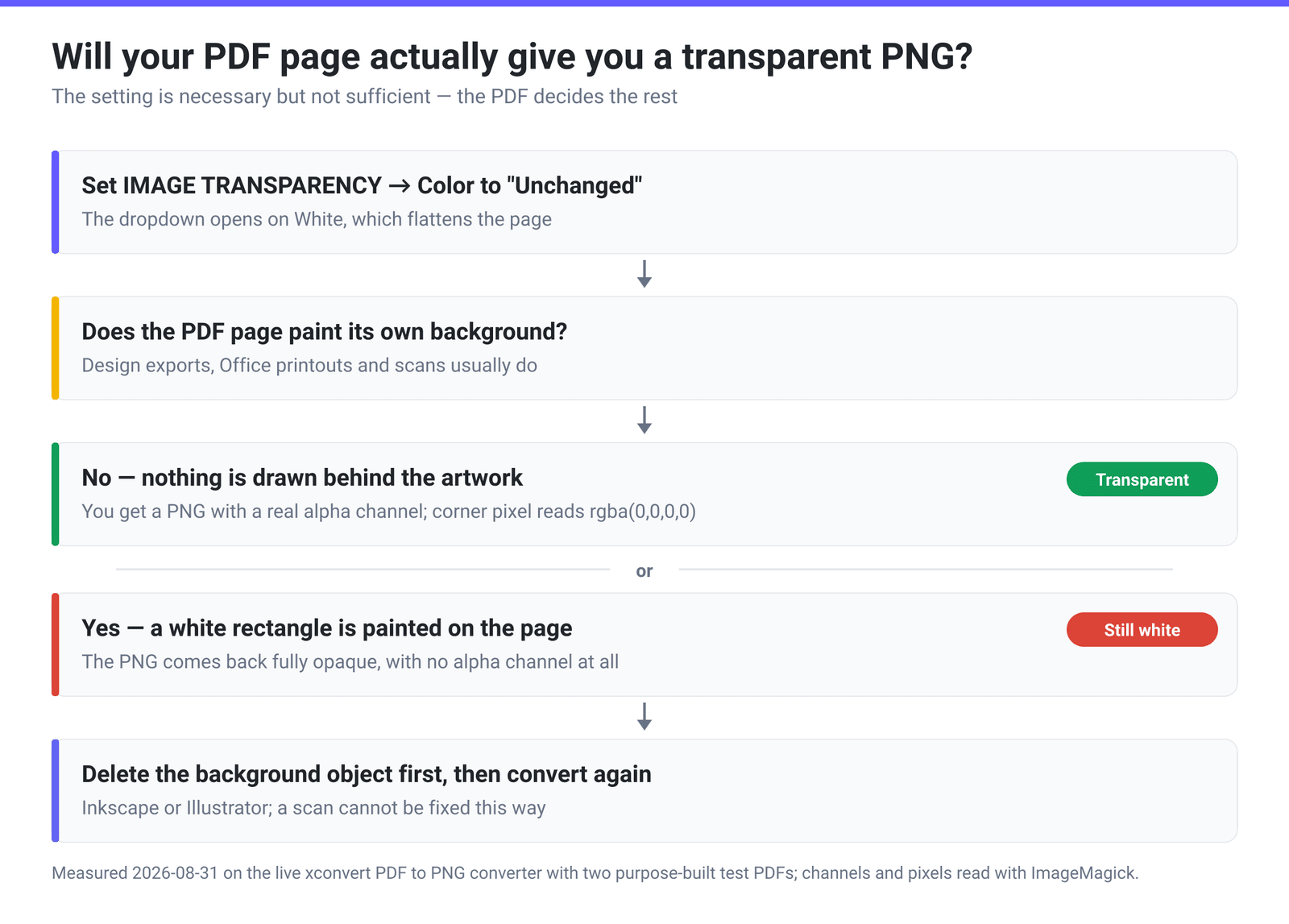
Quick answer: On PDF to PNG, open Advanced Options and set IMAGE TRANSPARENCY → Color from its default White to Unchanged. If the PDF page has nothing drawn behind your artwork, you get a real alpha channel — we measured a corner pixel of
rgba(0,0,0,0)on a test page. If the page paints its own white rectangle, the same setting returns a fully opaque PNG with no alpha channel at all, because the white is content, not background. And a JPG can never help: MDN states plainly that “JPEG does not support an alpha channel.”
Jump to a section
- Where the white behind your PDF page comes from
- A white fill is not transparency
- What we measured on the live converter
- When you still get white, and what actually fixes it
- Convert a PDF page to a transparent PNG
- FAQ
Where the white behind your PDF page comes from
Open almost any PDF and you see a white page. That is misleading. A PDF page is a list of drawing instructions on an empty canvas, and in many PDFs there is no white object anywhere in the file — the whiteness you see is your viewer painting a blank sheet behind the content so it looks like paper.
When a converter renders that page, it has to decide what to put in the empty areas. Every tool defaults to filling them with white, because a PNG of a document that is transparent everywhere except the letters looks broken to most people. That default is what you are fighting.
But plenty of PDFs do contain a real background. Exported artboards from design tools and PDFs printed from Word or PowerPoint typically draw a white rectangle across the page, and a scanned PDF is a full-page photograph in which the paper’s white is baked into the pixels. In those files, white is not the absence of content — it is content, sitting in the drawing list like any other object.
A white fill is not transparency
These two things look identical on screen and behave completely differently:
| White background | Transparent background | |
|---|---|---|
| What the file stores | Opaque white pixels, R=255 G=255 B=255 | An alpha channel, where empty pixels have alpha 0 |
| Channels in the PNG | RGB (3 channels) | RGBA (4 channels) |
| Dropped on a dark slide | Visible white box | Only the artwork shows |
| Can a JPG do it? | Yes — this is all a JPG can do | No. JPEG has no alpha channel |
| Reversible? | No — the pixels really are white | Yes, you can composite onto anything |
The JPEG limitation is not a tool restriction, it is the format. MDN’s image-format guide lists both “greyscale with alpha” and “true color with alpha” as unavailable for JPEG with the note “JPEG does not support an alpha channel.” The .jpg route from a PDF therefore always flattens; the only choice you have there is which colour to flatten onto. For the same problem across image formats, see how to keep transparency when you convert an image.
Worth knowing: the Color dropdown offers Unchanged on the PDF-to-JPG page too. Choosing it there cannot produce transparency, because the output format has nowhere to store it — if you want alpha, you have to be on the PNG page.
What we measured on the live converter
We built two single-page test PDFs: one with just blue text and a red rectangle drawn on an otherwise empty page, and one identical except that a white rectangle is painted across the whole page first. Then we ran them through the live tool at the default 300 DPI and inspected the PNGs with ImageMagick.
| Test page | IMAGE TRANSPARENCY → Color | Output channels | Corner pixel | File size |
|---|---|---|---|---|
| Nothing drawn behind the artwork | White (the default) | sRGB — no alpha | Opaque white | 16.7 KB |
| Nothing drawn behind the artwork | Unchanged | sRGBA | rgba(0,0,0,0) — fully transparent | 16.5 KB |
| A white rectangle painted on the page | Unchanged | sRGB — no alpha at all | Opaque white | 13.6 KB |
All three came out at 2550 × 3299 pixels — a US Letter page rendered at the 300 DPI default.
The third row is the one to remember. Setting the control correctly did not fail; the renderer produced exactly what the PDF describes, and what the PDF describes is a white page. It did not even keep an alpha channel, because every pixel was opaque, so there was nothing for alpha to record.
When you still get white, and what actually fixes it
If you set Unchanged and the PNG still arrives opaque, the fix is upstream of the conversion. In rough order of likelihood:
- The PDF paints a background rectangle. Open the file in a vector editor — Inkscape (free) or Illustrator — select the background object, delete it, and save. Then convert. This is the common case for exported artboards and PDFs printed from Office apps.
- The page is a scan. A scanned page is a single photograph of paper; the white is part of the picture, at pixel level. No conversion setting can recover transparency that was never recorded. This is a background-removal job for an image editor, not a format conversion.
- The artwork is a placed raster image with its own white. A logo pasted into a document as a JPG arrives with white already baked in — because, again, a JPG cannot carry alpha. You need the original vector or PNG version of that logo.
- The “transparency” is really a light grey or off-white. Scanners and some exporters produce near-white rather than pure white. It will still read as an opaque colour, and it will still show as a box against a dark background.
A quick way to tell which case you are in before converting anything: open the PDF in a viewer and look at the page edges against a dark window background, or open it in Inkscape and click on the empty area. If something selects, there is an object there.
Convert a PDF page to a transparent PNG
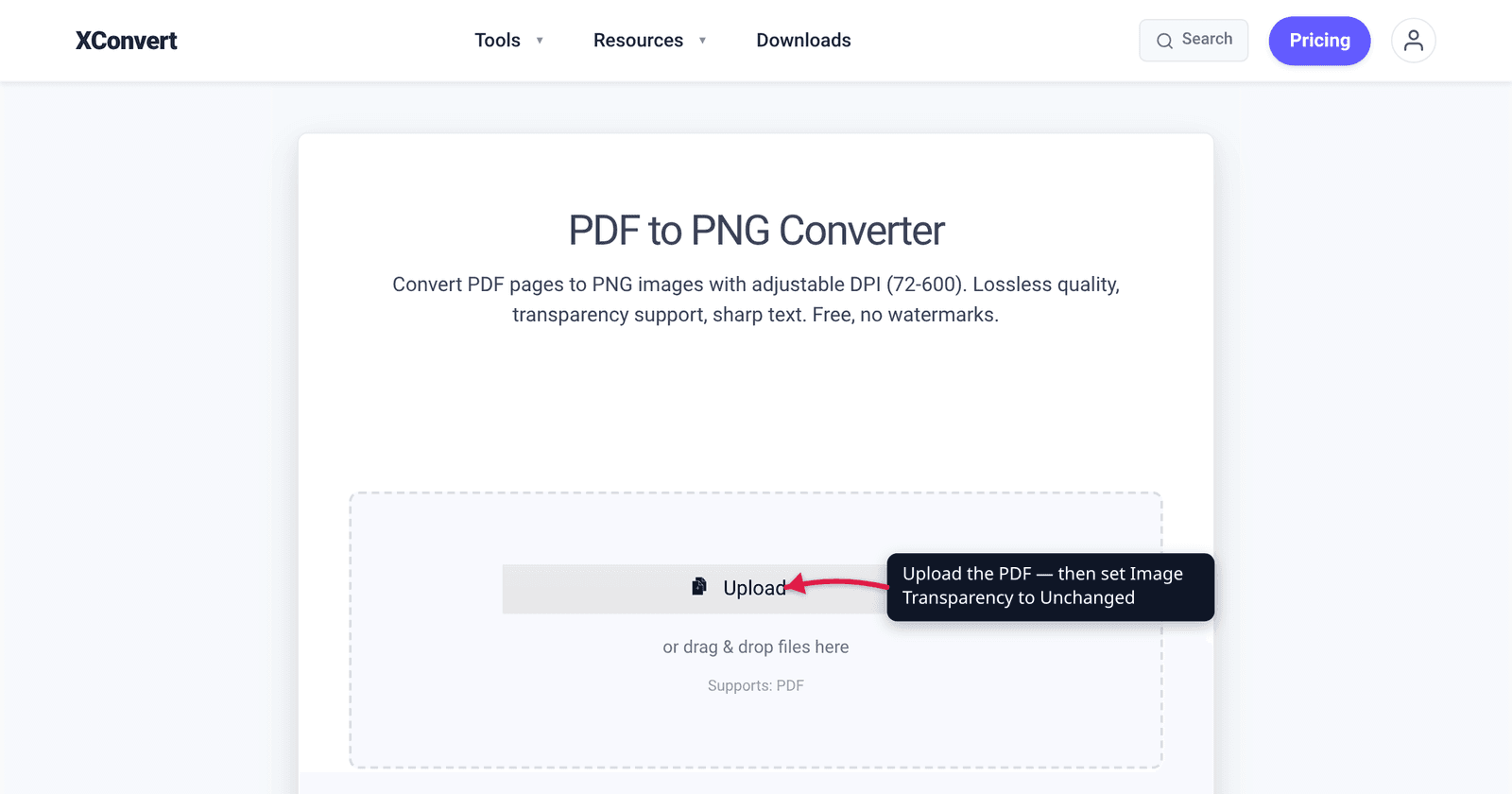
- Open xconvert.com/convert-pdf-to-png and click Upload, then From my Computer (Google Drive and Dropbox are in the same menu), or drop the PDF onto the page.
- Open Advanced Options (the gear icon). Find the IMAGE TRANSPARENCY group and its Color dropdown, which opens on White.
- Change it to Unchanged — the first entry in the list, above White and the named colours. That is the setting that preserves an alpha channel.
- Check CONVERSION QUALITY, which is preset to 300 DPI (High Quality / Print Recommended). Drop to 150 DPI for a web asset, or raise it to 600 for something you will scale up. Higher DPI means a bigger PNG, not more detail than the PDF contains.
- Click Convert, then download. Each page of a multi-page PDF becomes its own PNG.
- Verify before you build on it: drop the PNG onto a dark background in whatever you are designing in. A white box means the PDF had a background object, not that the setting failed.
Files upload over an encrypted connection, are converted on our servers, and are deleted automatically a few hours later. No account, no watermark.
If print resolution is the part you care about rather than transparency, converting PDF to PNG in high resolution covers the DPI side of the same tool.
FAQ
How do I convert a PDF to a PNG with a transparent background?
Use a PNG output — never JPG — and change the background setting from a colour to transparency. On xconvert that is Advanced Options → IMAGE TRANSPARENCY → Color → Unchanged, replacing the default White. Whether you actually get transparency then depends on the PDF: if the page draws a white rectangle, you will get white regardless.
Why is my PNG still white after choosing the transparency option?
Because the white is real content in the PDF. We tested this: a page with a white rectangle painted across it, converted with Unchanged, came back fully opaque and without an alpha channel at all. Delete the background object in a vector editor such as Inkscape, then convert again.
Can a JPG have a transparent background?
No. MDN’s image-format reference lists alpha support as unavailable for JPEG — “JPEG does not support an alpha channel” — so every JPG has an opaque pixel everywhere. If transparency matters, PNG is the output you want; the choice on a JPG page is only which colour the page gets flattened onto.
Does a transparent PNG from a PDF keep the text sharp?
It keeps whatever the DPI setting rendered. A PDF stores text as vectors that scale infinitely; a PNG stores pixels. At the 300 DPI default a US Letter page becomes 2550 × 3299 pixels, which is sharp for print-size use. If the artwork will be enlarged, render at 600 DPI — or keep the vector and export SVG from a vector editor instead.
What does “Unchanged” mean in the Color dropdown?
It means the renderer leaves the empty areas of the page alone rather than filling them, so those pixels come out with alpha 0. Every other entry — White, Black and the named colours — composites the page onto that colour first. White is preselected because it matches what a PDF viewer shows you.
Can I get a transparent PNG from a scanned document?
Not by converting. A scan is a photograph of paper: the white is recorded pixel by pixel, so there is no transparency to preserve. Removing it means erasing or masking those pixels in an image editor, which is a different operation from a format conversion — and it is worth being clear that no converter setting does it.
Sources
Last verified 2026-08-31.
- MDN — Image file type and format guide — “JPEG does not support an alpha channel”, for both greyscale-with-alpha and true-colour-with-alpha.
- Our own measurements, 2026-08-31, on the live PDF to PNG converter: two purpose-built single-page PDFs converted at the 300 DPI default; channel counts and corner pixels read with ImageMagick. Default White produced sRGB with an opaque white corner; Unchanged produced sRGBA with a corner of
rgba(0,0,0,0); the same Unchanged setting on a page carrying a painted white rectangle produced sRGB with no alpha channel.