 By James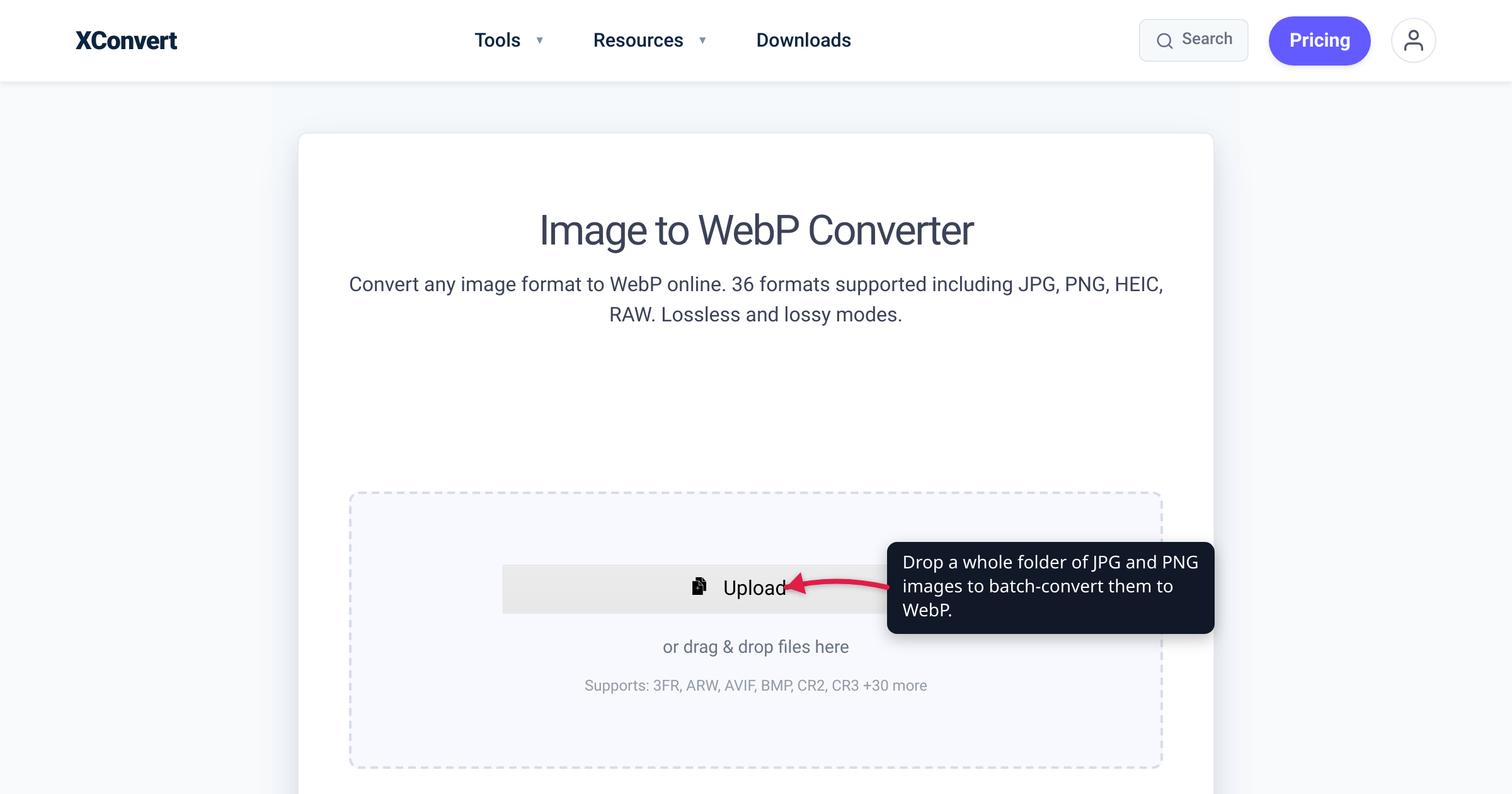
Flipping a site’s image library from JPG and PNG to WebP is one of the highest-leverage page-weight wins available: Google’s own study puts lossy WebP at 25–34% smaller than comparable JPEGs, and lossless WebP at 26% smaller than PNG. The conversion is the easy half — we verified on the live xconvert converter that you can select a whole folder of mixed JPGs and PNGs in one go and convert the batch with a single set of settings. The half that bites is everything downstream: email templates, social link previews, old Safari, CMS quirks. This guide covers both, with every number checked against Google’s WebP docs, caniuse, caniemail, and the platforms’ own documentation.
Quick answer: Batch-convert the folder first — we verified the xconvert uploader takes many files at once (“Batch is supported — drop in an entire folder”). Expect photos ~25–34% smaller (lossy vs JPEG) and graphics ~26% smaller (lossless vs PNG), per Google. Then check four things before flipping the site: fallbacks for raw
.webpURLs (≈96% of browsers render WebP; old Safari and IE never did), email templates stay JPG/PNG (classic Outlook on Windows doesn’t render WebP), og:image social previews stay JPG/PNG (scraper support is inconsistent), and transparency — which survives fine, since WebP has full alpha support.
Jump to a section
- Why WebP is worth a site-wide flip
- Conversion traps: alpha, quality, files that get bigger
- Fallbacks: who still can’t see WebP
- The pre-flip checklist: email, social cards, CMS
- Batch-convert a folder to WebP on xconvert
- FAQ
Why WebP is worth a site-wide flip
The numbers come from the format’s owner. Google’s WebP documentation states that lossy WebP images are 25–34% smaller than comparable JPEG images at equivalent SSIM quality, and lossless WebP images are 26% smaller than PNGs. For transparent graphics the gap is bigger still: lossy WebP with an alpha channel typically produces files 3× smaller than PNG. Treat those as averages from Google’s study corpus — exact savings depend on your images — but across a media library the direction is consistent: same-looking pictures, meaningfully fewer bytes.
The performance framing is Core Web Vitals. Google’s guidance is that Largest Contentful Paint should be 2.5 seconds or less (at the 75th percentile of page loads), and <img> elements are explicitly LCP candidates. If your LCP element is a hero image, cutting a third of its bytes shortens the load of the exact resource that metric measures — that’s the honest, citable claim; any specific “X% faster” figure would be invented.
Two more reassurances: Google Images indexes WebP — Google Search’s documentation lists BMP, GIF, JPEG, PNG, WebP, SVG, and AVIF as supported formats, so the flip doesn’t cost you image SEO — and one format covers both photographs (JPEG territory) and transparent graphics (PNG territory), which is what makes a single-pass conversion of a mixed folder practical.
Conversion traps: alpha, quality, files that get bigger
Transparent PNGs convert safely. WebP supports an alpha channel in both of its modes: lossless WebP carries transparency at a cost Google quotes as “just 22% additional bytes,” and lossy WebP supports it too — that’s the mode that typically lands 3× smaller than the equivalent PNG. Logos, product cutouts, and UI graphics keep their transparent backgrounds. The real decision is which mode: lossless for logos, screenshots, line art, and anything where individual pixels matter; lossy for photographic content. For the single-format deep dive, see PNG to WebP.
Some files can come out bigger. Google’s WebP FAQ warns about exactly this: re-encoding a JPEG saved at quality 80 into WebP at quality 95 will often produce a larger file, because you’re asking the new encoder to faithfully preserve the old encoder’s artifacts. The fix is a sensible conversion quality (the xconvert default preset is tuned for this) or targeting a size instead of a quality. Spot-check a handful of conversions before you run the whole library.
WebP has a hard dimension cap of 16,383 × 16,383 pixels, per Google’s FAQ. Ordinary web images never get close; stitched panoramas and high-resolution scans can — those stay in their original format or get resized first.
Keep your originals. Lossy WebP is a one-way door — converting back out doesn’t restore the discarded detail — and you’ll still want JPG/PNG copies for the email and social cases below. Archive the source folder; deploy the WebP copies.
Fallbacks: who still can’t see WebP
Per caniuse, WebP support sits at just over 96% of global browser usage: Chrome since version 32, Firefox since 65, Edge since 18 — and the long holdout, Safari, from version 14 (2020), with the caveat that on macOS it requires Big Sur or later. Internet Explorer never supported it. So the users who can’t see a raw .webp file are on pre-2020 Apple software or IE — a small and shrinking slice, but not zero.
The standard insurance is the <picture> element. Per MDN, the browser evaluates each <source> in order, skips any whose type it doesn’t support, and falls back to the <img> element’s src if nothing matches:
<picture>
  <source srcset="hero.webp" type="image/webp" />
  <img src="hero.jpg" alt="…" />
</picture>
Every visitor gets exactly one download — WebP where supported, JPEG where not — and srcset responsive variants work inside each <source> as usual.
Whether you bother is an audience question: if analytics show effectively no pre-2020 Safari traffic, bare .webp in an <img> is defensible, and many CMS plugins and CDNs sidestep the issue by serving WebP only to browsers whose Accept header advertises support. Just know which strategy — picture fallback, content negotiation, or bare WebP — your stack uses before you flip.
The pre-flip checklist: email, social cards, CMS
Bulk conversion is the fast part. These are where WebP still breaks in 2026 — check each before switching over.
1. Email templates keep JPG/PNG. Email client support is genuinely patchy, per caniemail’s test matrix: the classic Outlook desktop app on Windows does not render WebP at all; Gmail is listed as partial — it converts the file to a JPG (and drops animation); Apple Mail only gained support at Mail version 14. A newsletter has to survive the worst client on your list, and that’s Outlook on Windows — so if your emails reference images from your media library, keep JPG/PNG copies at stable URLs.
| Email client | WebP support (caniemail) |
|---|---|
| Outlook desktop, Windows | Not supported |
| Gmail (webmail, iOS, Android) | Partial — converts the file to JPG; no animation |
| Apple Mail (macOS / iOS) | Supported from Mail 14; not in 13 and earlier |
| Outlook.com / Yahoo webmail | Supported (rendering depends on the browser) |
| Outlook macOS, Thunderbird | Supported |
2. Social preview images (og:image) keep JPG/PNG. This is the most inconsistent surface of all. Meta’s image documentation publishes size rules — at least 1200 × 630 pixels recommended, 8 MB maximum — but no supported-format list. X’s Cards documentation does explicitly list JPG, PNG, WEBP, and GIF as supported. In between sit everyone else’s scrapers: independent testing by Ctrl blog (April 2022) found Facebook, Messenger, and WhatsApp rendered WebP previews despite Facebook’s docs claiming JPEG/PNG/GIF only, while LinkedIn, Slack, Signal, and Skype did not render WebP og:images at the time of that test. Scraper behavior changes without announcement — and your og:image files are a handful, not a library. The zero-risk path is to leave them JPG/PNG.
3. Confirm your CMS accepts WebP. WordPress has supported WebP in the media library since version 5.8 (2021), with two caveats from the announcement: the server’s image library (Imagick or LibGD) must support WebP for resized copies to be generated, and — as of that announcement — animated and alpha WebP files got lossy resized copies instead. Other CMSes and older site builders vary; test one upload before you test three thousand.
4. Hunt the hard-coded references. CSS background-image URLs, JavaScript that builds image paths, RSS feeds, and structured data all point at file names. A rename from .jpg to .webp breaks every reference you didn’t update — keep the old files in place alongside the new ones, or redirect the old URLs.
5. Resize while you’re at it. A migration pass is the natural moment to stop shipping 4000-pixel originals into 800-pixel slots — the converter does both in the same batch (steps below). For the sizing side, see how to resize an image for the web.
Batch-convert a folder to WebP on xconvert
We ran this flow on the live tool before writing it up, including uploading a JPG and a PNG together in a single pick. The xconvert image to WebP converter handles the batch in one pass:
- Open xconvert.com/convert-image-to-webp and click Upload, or drag and drop your images onto the page — the tool takes many files at once (“Batch is supported — drop in an entire folder”). Source options are From my Computer, From Google Drive, and From Dropbox.
- Your files appear as a queue; the Add Files button (+) appends more. Mixed input is fine: 36 formats are accepted — JPG, PNG, GIF, TIFF, BMP, HEIC, even RAW camera files — all converting to WebP in one pass.
- Tune Advanced Options once — one panel drives the entire batch. Keep the Quality Preset at Very High (Recommended) for photos, set Lossless? to Yes for logos, screenshots, and UI graphics (pixel-exact, alpha preserved), or use Specific file size to force every image under a byte budget. Resolution Percentage or Width x Height resizes the batch in the same pass.
- Click Convert. The work runs on xconvert’s servers, so a big batch doesn’t tie up your own machine.
- Click Download on each finished file — downloads are per-file in the current UI, so work in folder-sized batches to keep a large migration manageable.
Each image uploads over an encrypted connection, is processed on our servers and deleted automatically a few hours later — originals and converted copies both.
FAQ
Does converting images to WebP reduce quality?
Lossy WebP discards detail the same way JPEG does — but at the default settings the loss isn’t visible at normal viewing sizes, and Google’s study found 25–34% smaller files than JPEG at equivalent SSIM quality. If any loss is unacceptable — logos, screenshots, line art — use lossless WebP, which preserves every pixel exactly and still averages 26% smaller than PNG.
Should I convert every image on my site to WebP?
Convert the images your pages serve — that’s where the byte savings pay off. Keep JPG/PNG copies for email templates and og:image social previews, where support is still patchy, and leave anything above WebP’s 16,383-pixel cap in its original format. Archive your originals either way.
Do all browsers support WebP now?
About 96% of global browser usage does, per caniuse: Chrome (32+), Firefox (65+), Edge (18+), and Safari from version 14 in 2020 (on macOS, Big Sur or later). Internet Explorer and pre-2020 Safari never got it — that’s who the <picture> fallback is for.
Can I use WebP images in email newsletters?
Not safely. Per caniemail, the classic Outlook desktop app on Windows doesn’t render WebP, Gmail’s support is partial (it converts the file to a JPG), and Apple Mail before version 14 shows nothing. Email is the one channel where JPG/PNG remains the only broadly safe choice.
Will switching to WebP hurt my image SEO?
No — Google Search explicitly supports WebP (alongside BMP, GIF, JPEG, PNG, SVG, and AVIF), so WebP images are indexed in Google Images like any other. The page-speed side works in your favor: smaller image bytes serve Google’s LCP ≤ 2.5 s recommendation.
What happens to PNG transparency when I convert to WebP?
It’s preserved. WebP supports a full alpha channel in both lossless and lossy modes, per Google’s documentation — lossy-with-alpha files typically land around 3× smaller than the PNG equivalent. For logos and UI graphics, prefer lossless mode so edges stay pixel-exact.
Why did some of my files get bigger after converting?
Usually a quality mismatch: Google’s WebP FAQ notes that converting a JPEG saved at quality ~80 into WebP at a much higher setting (say 95) can produce a bigger file, because the encoder is reproducing the original’s compression artifacts. Keep the default preset, or use Specific file size on the converter to guarantee each output lands under a target — and skip the rare file that doesn’t shrink.
Sources
Last verified 2026-07-15.
- Google — An image format for the Web (WebP docs) — lossy WebP 25–34% smaller than JPEG at equivalent SSIM; lossless 26% smaller than PNG; alpha support in both modes (+22% bytes lossless; lossy-with-alpha ~3× smaller than PNG).
- Google — WebP FAQ — 16,383 × 16,383 maximum dimensions; the quality-mismatch warning (JPEG q80 → WebP q95 can grow).
- caniuse — WebP image format — ≈96% global support; Chrome 32+, Firefox 65+, Edge 18+, Safari 14+ (macOS Big Sur+); no IE support.
- caniemail — WebP image format — client matrix: Outlook Windows desktop unsupported; Gmail partial (converts to JPG); Apple Mail from version 14; Outlook.com/Thunderbird supported.
- web.dev — Largest Contentful Paint (LCP) — “good” LCP ≤ 2.5 s at the 75th percentile;
<img>elements are LCP candidates. - MDN — the
<picture>element — unsupportedtypesources are skipped; the<img>srcis the fallback. - Meta — Images in Link Shares — og:image sizing (≥1200 × 630 recommended, 8 MB max, 200 × 200 minimum); no supported-format list published.
- X Developer Platform — Cards markup — card images support JPG, PNG, WEBP, and GIF.
- Ctrl blog — Can you use WebP as an Open Graph image? — April 2022 scraper test: Facebook/Messenger/WhatsApp rendered WebP despite the docs; LinkedIn, Slack, Signal, Skype did not.
- Make WordPress Core — WordPress 5.8 adds WebP support — native WebP uploads since 5.8; server Imagick/LibGD requirement; animated/alpha resized-copy limitation.
- Google Search Central — Google Images best practices — supported image formats: BMP, GIF, JPEG, PNG, WebP, SVG, AVIF.
- xconvert — Image to WebP Converter — live tool verified 2026-07-15: multi-file upload, folder drop, batch settings panel, 36 input formats.