 By Stephanie Taylor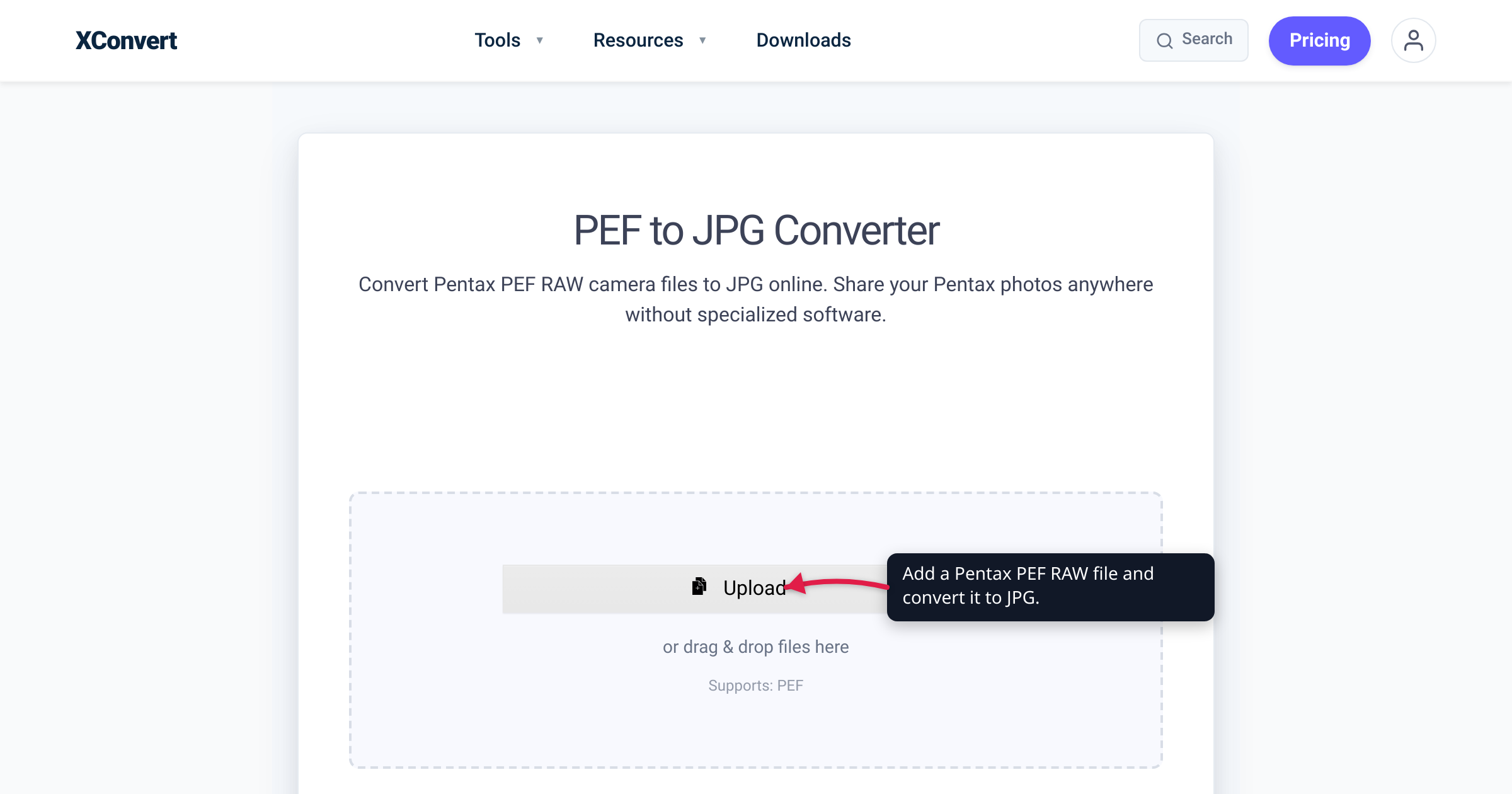
You copy a day’s shoot off your Pentax K-70, double-click a .PEF file to send the best frame to a friend — and the photo app shows a blank tile or an “unsupported format” error. Nothing is broken. PEF is Pentax’s RAW format, and a RAW file isn’t a finished photograph: it’s the unprocessed readout from the camera’s sensor, which most software can’t display. Converting it to JPG gives you a universal, far smaller image that opens anywhere. This guide covers what a PEF holds, the PEF-vs-DNG choice that makes Pentax unusual, and how to convert — verified against Ricoh Imaging’s official spec sheets and software pages.
Quick answer: PEF is the proprietary RAW format of Pentax K-series DSLRs — current bodies (K-1 Mark II, K-3 Mark III, KF, K-70) record “RAW (14bit): PEF, DNG” per Ricoh’s spec sheets. RAW must be demosaiced and rendered before it’s a viewable picture, so generic apps reject it. To share a photo, drop it into the xconvert PEF to JPG converter, click Convert, and keep the original PEF as your editing master. Going forward you can also set the camera to record DNG, the openly documented RAW format Pentax supports in-camera.
Jump to a section
- What a PEF file actually is
- PEF or DNG — a choice most brands don’t give you
- Why PEF won’t open — and why JPG does
- What you lose flattening RAW to JPG
- Ricoh’s free route: Digital Camera Utility 5
- Convert PEF to JPG on xconvert
- FAQ
- Sources
What a PEF file actually is
PEF is Pentax’s proprietary RAW image format — commonly expanded as “Pentax Electronic File,” though Ricoh’s own documentation simply calls it the PENTAX RAW format. Structurally it’s a TIFF-based container, like Canon’s CR2 and Nikon’s NEF. Two things matter about what’s inside:
- It’s a sensor readout, not a picture. A PEF stores the data read straight off the sensor — 14 bits per channel on every recent Pentax DSLR, per Ricoh’s spec sheets — before white balance, color rendering, sharpening, or JPEG compression are applied. Turning that into a viewable image requires raw development: demosaicing the sensor’s color-filter mosaic plus tone and color processing. That’s the step an ordinary photo viewer can’t do.
- It comes from K-series DSLRs and their ancestors. Ricoh’s own software-support list for PEF development runs from mid-2000s *ist-era and K10D bodies to the current K-3 Mark III (including the Monochrome edition) — Pentax stayed with optical-viewfinder DSLRs, and its current bodies still write PEF today.
Ricoh’s official spec sheets for the bodies you’re most likely to have shot:
| PENTAX body | Sensor (per Ricoh’s spec sheet) | RAW recording |
|---|---|---|
| K-1 Mark II | Full-frame CMOS, approx. 36.4 MP | RAW (14bit): PEF, DNG |
| K-3 Mark III | APS-C CMOS, approx. 25.73 MP | RAW (14bit): PEF, DNG |
| KF | APS-C CMOS, approx. 24.24 MP | RAW (14bit): PEF, DNG |
| K-70 | APS-C CMOS, approx. 24.24 MP | RAW (14bit): PEF, DNG |
Note the second half of that RAW line: every one of these cameras can also write DNG — a Pentax specialty that changes the advice.
PEF or DNG — a choice most brands don’t give you
On any recent Pentax DSLR, the recording menu lets you pick your RAW flavor: PEF (proprietary) or DNG — Adobe’s openly documented “digital negative,” built as an extension of TIFF 6.0. That’s genuinely unusual: Canon, Nikon, and Sony write only their own proprietary RAW (CR3/CR2, NEF, ARW — Nikon’s case is covered in convert NEF to JPG); Pentax, Leica, and Ricoh’s own GR compacts offer DNG natively.
Which should you shoot? Pentax-community comparisons have repeatedly found the raw image data is identical in PEF and in-camera DNG — the difference is packaging, not pixels. What differs is compatibility:
- DNG opens more readily. Because the format is openly documented, software doesn’t need a camera-specific update to read a DNG from a brand-new body.
- PEF needs per-model support. Every app that decodes PEF keeps a camera list, and a newly released Pentax model only shows up after an update.
Practically: PEFs you already shot are fine — convert what you need to JPG below and archive the rest. Going forward, switching the camera to DNG (or recording RAW+JPEG, an option the K-3 Mark III and KF spec sheets both list) prevents most of the “won’t open” pain this article solves.
Why PEF won’t open — and why JPG does
RAW is the right format for shooting and editing, and the wrong one for sharing. Where PEF concretely fails, and why JPG fixes it:
- OS viewers support RAW camera-by-camera. Apple publishes a per-model list of the RAW formats macOS and iOS can decode (Pentax entries run from the original *ist D to the K-3 Mark III and KF); Windows needs Microsoft’s free Raw Image Extension add-on before File Explorer or Photos will display RAW at all — and in the Vista/7 era Ricoh shipped a dedicated PENTAX RAW Codec just to show
.PEFfiles. RAW support is conditional; JPG support is unconditional. - The web mostly refuses RAW. Upload forms, chat apps, CMSes, and email previews are built around JPG and PNG; most reject a
.PEFoutright or render it as a paperclip. - Size. A PEF carries the full 14-bit sensor readout, so it’s several times larger than a JPG rendered from the same frame — a real cost against email attachment caps and slow uploads.
- The JPG already exists in spirit. The preview on the camera’s rear screen is a JPEG render of the RAW. Converting just turns that finished view into a file everyone can open.
What you lose flattening RAW to JPG
A JPG is 8-bit and lossy; your PEF holds 14-bit sensor data. Flattening it permanently discards editing headroom:
- Highlight and shadow recovery. The extra bits are where “pull the sky back” lives. An 8-bit JPG has far less latitude before banding and clipping appear.
- White balance. RAW lets you re-set it after the fact; a JPG bakes it in, and big corrections start to look unnatural.
- Lossy compression. At a high quality setting the JPG is visually indistinguishable from the RAW render for viewing and printing — but it isn’t the full data, and every re-save compounds the loss.
So follow the photographer’s rule: the PEF (or DNG) is your negative — archive it; the JPG is your print — share it. Convert copies, don’t replace originals.
Ricoh’s free route: Digital Camera Utility 5
Pentax cameras come bundled with Ricoh’s own RAW developer, Digital Camera Utility 5, with updates for Windows and macOS published on Ricoh’s support site. It develops PEF (and Pentax DNG) with the full Ricoh-tuned toolkit — exposure, tone, and color adjustments, lens and diffraction corrections, even Pixel Shift Resolution processing — and saves the developed result as a JPEG or TIFF. The usual workflow, per PentaxForums’ overview: select your PEFs in the Browser pane, switch to Laboratory mode to adjust, then save the result as a JPEG (exact menu wording varies by version).
It’s the right tool when you want to develop the RAW your way before flattening it. The tradeoffs are the install, the learning curve, and needing your own computer — for a quick “just give me a JPG,” the online route below skips all three.
Convert PEF to JPG on xconvert
The xconvert PEF to JPG converter renders Pentax RAW to a standard JPG on our servers — nothing to install:
- Open xconvert.com/convert-pef-to-jpg and click Upload (from your computer, Google Drive, or Dropbox) or drag and drop the file — the page shows Supports: PEF.
- Optionally open Advanced Options (the gear). The File extension control lists JPG and JPEG — they’re the same format, so leave it unless you specifically need the other spelling.
- Leave the Quality Preset at Very High (Recommended) for a near-lossless render, pick a lower preset for a smaller file, or switch to Specific file size. The Image resolution section (Resolution Percentage, Preset Resolutions, or custom Width/Height) lets you downscale in the same pass.
- Click Convert, then download your JPG.
Your PEF uploads over an encrypted connection, is processed on our servers and deleted automatically a few hours later. Because the conversion runs server-side, it works the same from a Windows PC, a Mac, a Chromebook, or a phone — no Pentax software required.
Converting a whole shoot, or PEFs mixed with another brand’s RAW? The multi-format Image Converter takes them together, and batch-convert RAW photos to JPG covers the bulk workflow.
FAQ
What is a PEF file and how do I open it?
A PEF is a Pentax RAW photo — the unprocessed 14-bit sensor readout from a Pentax DSLR (K-series bodies and their *ist-era ancestors). Ordinary apps can’t display it until the RAW data is developed. Open it with Ricoh’s free Digital Camera Utility 5 or Adobe’s RAW tools (Lightroom / Camera Raw, on supported models), or convert it to a file that opens everywhere with the PEF to JPG converter.
Should my Pentax record PEF or DNG?
Both contain the same raw image data — Pentax-community comparisons have found the sensor payload identical — so it’s a packaging choice. DNG is openly documented and opens in more software without waiting for camera-specific updates; PEF is the Pentax-native default, fully supported by Ricoh’s own tools. If compatibility headaches brought you here, DNG going forward will cause fewer of them.
Will converting PEF to JPG lose quality?
You lose editing latitude more than visible quality. JPG is 8-bit and lossy versus the PEF’s 14-bit data, so highlight/shadow recovery and white-balance freedom go away — but at a high quality setting the JPG looks identical on screen and in print. Keep the PEF as your master and share the JPG.
How do I convert PEF to JPG without Photoshop or Lightroom?
Two free routes: Ricoh’s bundled Digital Camera Utility 5 develops PEF and saves JPEG or TIFF on Windows and macOS, or — with nothing installed — upload the file to the xconvert PEF to JPG converter, leave the quality at Very High (Recommended), and click Convert.
Why won’t my PEF files open, even in photo software?
RAW support is per camera model. Apple’s macOS/iOS RAW list, Windows’ Raw Image Extension, and every RAW editor each maintain a list of supported bodies — a PEF from a camera newer than your software won’t decode until that software updates. Updating the app, converting the PEF to JPG, or switching the camera to DNG all fix it.
Can I convert PEF to JPG on my phone?
Yes. The xconvert PEF to JPG converter runs in any mobile browser and does the work on our servers, so the phone doesn’t need PEF support — upload the file, convert, and download the JPG.
Sources
Last verified 2026-07-16.
- RICOH IMAGING — PENTAX K-3 Mark III specifications — “RAW (14bit): PEF, DNG”; approx. 25.73 MP APS-C sensor; RAW+JPEG simultaneous capture.
- RICOH IMAGING — PENTAX KF specifications — “RAW (14bit): PEF, DNG”; approx. 24.24 MP APS-C sensor; RAW+JPEG capture.
- RICOH IMAGING — PENTAX K-70 specifications — “RAW (14bit): PEF, DNG”; approx. 24.24 MP APS-C sensor.
- Ricoh Imaging US — PENTAX K-1 Mark II — “RAW (14bit): PEF, DNG”; approx. 36.4 MP full-frame CMOS sensor.
- RICOH IMAGING — Digital Camera Utility 5 update for Windows — Ricoh’s bundled RAW developer: PEF/DNG development, lens/diffraction corrections, JPEG export; supported-camera list spanning *ist-era bodies to the K-3 Mark III Monochrome (macOS version).
- RICOH IMAGING — PENTAX RAW Codec for Windows — Ricoh’s legacy codec for displaying
.PEFRAW files on Windows Vista/7. - PentaxForums — Engaging with Ricoh’s Digital Camera Utility v5 — the Browser → Laboratory workflow and saving developed RAW as JPEG/TIFF.
- Wikipedia — Raw image format — PEF is TIFF-based; raw files hold 12–14 bits per channel; “raw development”/demosaicing; “Pentax uses DNG as an optional alternative to their own raw image format”; DNG as a TIFF 6.0 extension.
- Apple Support — Digital camera RAW formats supported by iOS 26 / macOS 26 — Apple’s per-model RAW support list; Pentax entries from the *ist D through the K-3 Mark III and KF.
- Microsoft Store — Raw Image Extension — the free add-on Windows uses to view RAW files in File Explorer and Photos.
- PentaxForums — PEF vs. DNG: is there any loss of data? — community consensus that PEF and in-camera DNG carry identical raw image data.
- xconvert PEF to JPG converter — live tool UI: Upload, “Supports: PEF”, Advanced Options, Quality Preset (“Very High (Recommended)”), Specific file size, Image resolution, File extension (JPG/JPEG).