 By Stephanie Taylor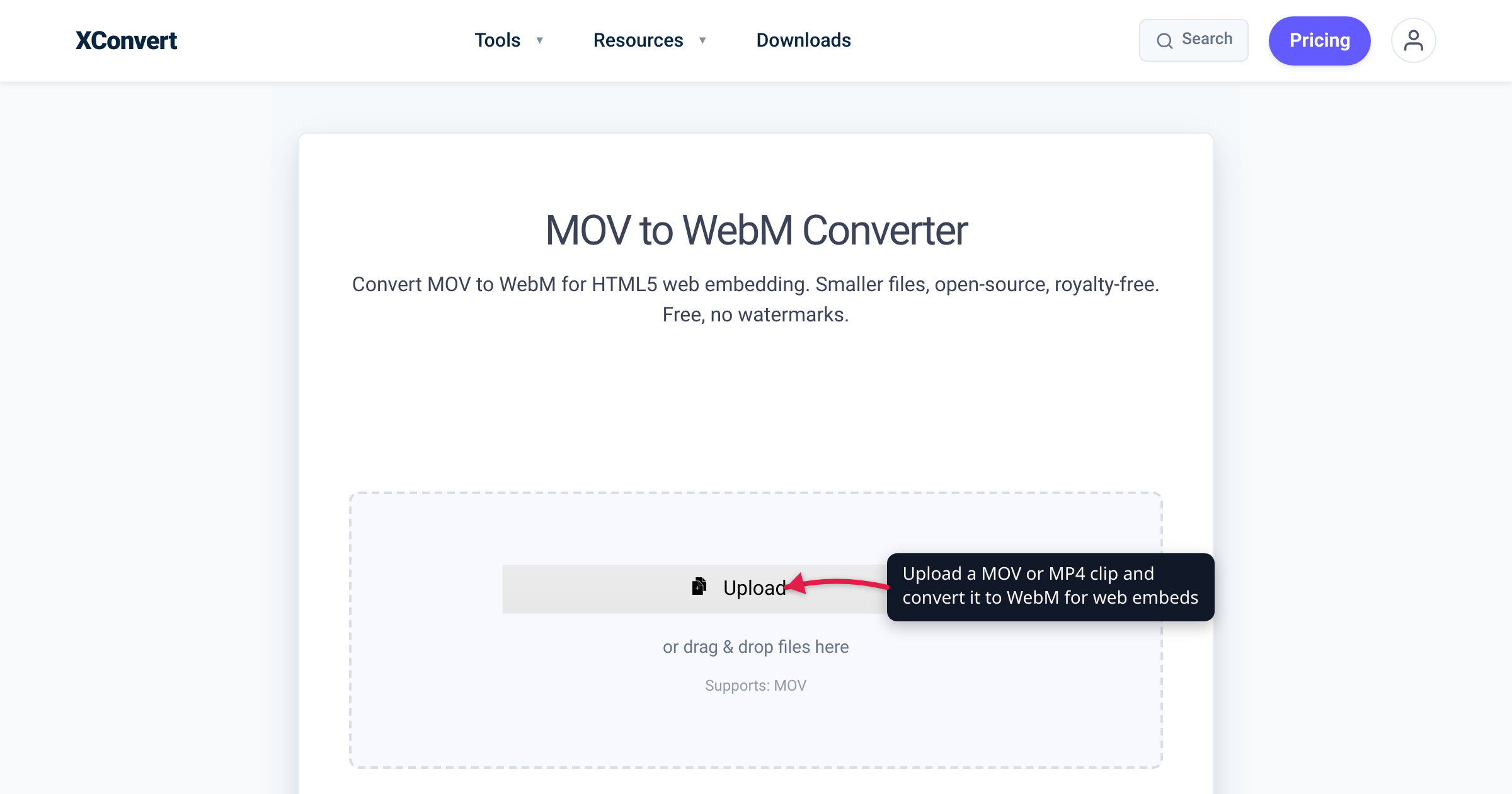
Your phone, camera, or screen recorder hands you a .mov or .mp4 — almost always H.264 or HEVC inside. That’s fine for sharing, but the moment you self-host that clip on a web page — a hero-section loop, a hover preview, a product demo in a <video> tag — you’re shipping more megabytes than you need to, in a codec that carries patent licensing. WebM is the format Google designed for exactly this job. This guide covers why WebM wins for web embeds, the Safari caveat to handle, the settings that matter, and when to keep MP4. We verified the browser-support state on caniuse, the size claims against Google’s own VP9 documentation, and every setting against the live converter.
Quick answer: For video embedded on your own site — self-hosted
<video>, hero loops, hover previews — convert MOV or MP4 to WebM with the VP9 codec (the default output on xconvert). WebM’s codecs are royalty-free, and VP9 output is typically smaller than an H.264 original at comparable web quality — Google’s VP9 documentation cites bit-rate reductions of as much as 50%. Every modern browser plays WebM, but full Safari support only arrived in Safari 16 (macOS) and iOS 17.4, so keep an MP4<source>fallback. Keep MP4 as the primary format for email, offline sharing, and unknown or older devices.
Jump to a section
- Why WebM is the web-embed format
- Browser support and the Safari caveat
- Settings that matter (codec, quality, size)
- When to keep MP4 instead
- Convert MOV or MP4 to WebM on xconvert
- FAQ
Why WebM is the web-embed format
The WebM Project describes the format in one line: “WebM is an open, royalty-free, media file format designed for the web.” Technically it’s a Matroska-based container that pairs VP8 or VP9 video with Vorbis or Opus audio — those four codecs are what compliant WebM implementations are required to support, per MDN — and the newer AV1 codec can be packaged in WebM as well.
Three properties make it the default choice for video you host yourself:
- Royalty-free codecs. MDN’s codec guide describes VP9 as “open and free of royalties and any other licensing requirements,” while H.264 (AVC) and H.265 (HEVC) — what MOV and MP4 files from cameras and phones almost always contain — are “proprietary with numerous patents,” with commercial use subject to patent-pool licensing. For a commercial site or app, the open codec removes a whole category of licensing questions.
- Smaller files at web quality. Google’s VP9 overview states that VP9 “can reduce video bit rates by as much as 50% compared with other known codecs” — it’s the codec YouTube uses for exactly this reason. Treat 50% as the favourable end, not a guarantee — the saving depends on content, source codec, and quality target — but at typical web-quality settings a VP9 WebM comes out meaningfully smaller than the H.264 original, and that saving is paid back on every single page view.
- Built for the
<video>tag. WebM exists because the web needed an open format for HTML5 video. Every modern browser ships a decoder (details below), andtype="video/webm"in a<source>element is universally understood.
This article is the conversion how-to; if you’re still deciding whether WebM or MP4 is the right distribution format for your case, the full head-to-head is in MP4 vs WebM for web video.
Browser support and the Safari caveat
Per caniuse, WebM sits at roughly 96% global browser support (mid-2026). The support history matters, though, because Safari was very late to the party:
| Browser | WebM support (per caniuse) |
|---|---|
| Chrome | Full since version 25 |
| Firefox | Full since version 28 |
| Edge (Chromium) | Full since version 79 |
| Opera | Full since version 16 |
| Safari (macOS) | Full since Safari 16.0; 14.1–15.6 supported it only on macOS 11.3 Big Sur or later; earlier versions partial at best |
| Safari (iOS) | Full since iOS 17.4; earlier versions partial (largely limited to VP8/VP9 in WebRTC) |
| Chrome / Firefox / Samsung Internet on Android | Supported |
So the honest summary is: every current browser plays WebM, but visitors on older Safari — a Mac that can’t update past an old macOS, an iPhone stuck below iOS 17.4 — may not. The web platform has a clean answer, and it’s the pattern MDN documents for the <video> element: “you can provide multiple sources inside nested <source> elements, and the browser will then use the first one it understands.”
<video controls preload="metadata" width="640">
  <source src="demo.webm" type="video/webm" />
  <source src="demo.mp4" type="video/mp4" />
  Your browser doesn't play embedded video —
  <a href="demo.mp4" download>download the MP4</a> instead.
</video>
List the WebM first so capable browsers (the ~96%) take the small file, and the MP4 second as the catch-all. You already have the MP4 or MOV source, so the fallback costs you nothing but storage.
For hero-section background loops there’s one more platform rule: browsers block autoplaying video with audible sound. MDN’s autoplay guide notes that autoplay blocking “is not applied to <video> elements when the source media does not have an audio track, or if the audio track is muted,” and that the playsinline attribute “is required for autoplay in Safari.” The standard hero-loop markup is therefore:
<video autoplay muted loop playsinline>
  <source src="hero.webm" type="video/webm" />
  <source src="hero.mp4" type="video/mp4" />
</video>
Settings that matter (codec, quality, size)
Three decisions determine how small and how compatible your WebM comes out. (These map directly onto the controls on the converter page — see the steps below.)
1. Codec: VP9 is the sweet spot. On xconvert, WebM output defaults to VP9, and that’s the right call for almost everyone: modern-browser support and the efficiency gains above. AV1 produces even smaller files, but encoding is slower and hardware decoding only exists on recent devices — pick it when your audience skews modern and every kilobyte counts. VP8 is the legacy option for very old devices; it produces larger files than VP9, so only choose it if you know you need it.
2. Quality: use a preset, a CRF, or a target size. The converter’s default (Quality Preset → “Very High (Recommended)”) is tuned for near-source quality. If you want explicit control, Constant Quality mode uses a CRF scale where lower numbers mean higher quality — Google’s VP9 encoding guide recommends CRF 31 for 1080p, 32 for 720p, 33–34 for 480p, and 36 for 360p as good web-quality targets. And if the file must land under a hard budget, Specific file size lets the encoder work backwards from an exact output size in MB.
3. Resolution and trim: the quiet giants. Re-encoding 4K camera footage into a 4K hero loop wastes everyone’s bandwidth — 1080p is plenty for a full-width background, and hover previews are often fine at 480–720p. Halving dimensions roughly quarters the pixels the encoder has to spend bits on. Likewise, a hero loop only needs the few seconds that actually loop: trim to that range as part of the conversion instead of shipping the whole clip.
If you’ve already got a WebM and it’s still too heavy for the page, that’s a compression job rather than a conversion job — see WebM compression for self-hosted video.
When to keep MP4 instead
WebM is a distribution format for the web you control. Outside that context, MP4 (H.264) is still the safer default:
- Email and messaging. A
.webmattachment opens in whatever player the recipient happens to have — or doesn’t. An H.264 MP4 opens in the default player on effectively every modern OS and phone. - Offline sharing and unknown devices. USB sticks, smart TVs, in-car players, a client whose setup you know nothing about: MP4 is the format least likely to bounce.
- Editing workflows. Editors ingest camera-native MOV/MP4 happily; WebM support in editing software is patchier. Convert for delivery, not before the edit.
- Old-Safari-heavy audiences without a fallback. If you can’t (or won’t) ship the two-
<source>pattern above — say, a platform that only accepts one file — MP4 reaches the stragglers.
The rule of thumb mirrors the codec world’s “ship H.264, store H.265”: embed WebM on your own pages, hand MP4 to everything else. The deeper trade-offs live in MP4 vs WebM for web video.
Convert MOV or MP4 to WebM on xconvert
The xconvert MOV to WebM converter handles iPhone recordings, QuickTime exports, and screen captures; for MP4 sources use the MP4 to WebM converter — the options are identical:
- Click Upload and add your video — From my Computer, From Google Drive, or From Dropbox — or just drag and drop it onto the page. Batch uploads work if you’re converting a folder of clips.
- Set quality under File Compression: the default Quality Preset (“Very High (Recommended)”) gives near-source quality, or switch to Constant Quality (CRF — try Google’s recommended 31 for 1080p) or Specific file size for a hard MB budget.
- Optionally downscale under Video resolution (Keep original, Preset Resolutions, Resolution Percentage, or exact Width x Height) and cut a loop segment under Trim → Time Range.
- To change codec, click Show All Options in the Advanced Options panel — the Video Codec selector appears, defaulting to VP9 for WebM output; switch to AV1 (smallest, modern devices) or VP8 (legacy) if your audience calls for it.
- Click Convert, then download the finished
.webm.
Your video is uploaded over an encrypted connection, is processed on our servers and deleted automatically a few hours later — nothing stays around.
FAQ
Does converting MOV or MP4 to WebM lose quality?
Slightly, in principle: H.264/HEVC and VP9 are different codecs, so this is a re-encode, and a small generational loss is unavoidable. At sensible settings — the “Very High” preset, or CRF around Google’s recommended values — the difference is generally not visible in normal playback. Quality only becomes an issue if you push the bitrate or CRF hard to hit a very small size.
Can Safari users play my WebM video?
Current Safari, yes: full WebM support shipped in Safari 16 on macOS and iOS 17.4 on iPhone/iPad (per caniuse; earlier versions had partial support at best). Visitors on older Safari are exactly why you list an MP4 as the second <source> in your <video> tag — the browser picks the first format it understands, so everyone gets something that plays.
Is WebM actually smaller than MP4?
It’s the codecs, not the containers, that set the size — and camera MOV/MP4 files are almost always H.264 or HEVC. Compared with H.264, Google’s VP9 documentation cites bit-rate reductions of as much as 50% at comparable quality; real-world savings vary with content and settings, but at web-quality targets the WebM typically comes out meaningfully smaller. Converting between containers with the same codec inside wouldn’t change the size much — the win comes from re-encoding into VP9 or AV1.
Should I pick VP9, AV1, or VP8 for the WebM?
VP9 — the default — is right for almost everything: the best balance of efficiency and modern-browser support. Choose AV1 for the smallest possible files when your audience is on recent devices, and accept the slower encode. Choose VP8 only for deliberately legacy-friendly output; its files are larger than VP9’s.
How do I make a WebM hero video autoplay?
Use <video autoplay muted loop playsinline>. Browsers block autoplay with audible sound; per MDN, autoplay blocking doesn’t apply when the video has no audio track or is muted, and Safari additionally requires the playsinline attribute for inline autoplay. Without muted, your hero loop simply won’t start on most browsers.
What happens to the audio track?
WebM doesn’t carry AAC (the usual MOV/MP4 audio); its audio codecs are Opus and Vorbis, so the audio is re-encoded during conversion, not dropped — on xconvert the WebM default is Opus. For muted hero loops and hover previews this is academic, since the track is never heard.
Does WebM support transparent (alpha) video?
The format does — VP9 supports an alpha channel, and it plays in Chrome, Edge, Firefox, and Opera. The catch, straight from MDN’s codec guide: “Safari does not support alpha transparency” in VP9. Sites that need transparent video everywhere typically ship an HEVC-with-alpha MP4 as the Safari-side fallback. If transparency matters to your embed, test in Safari before shipping.
Sources
Last verified 2026-07-16.
- The WebM Project — About — “WebM is an open, royalty-free, media file format designed for the web”; VP8/VP9 video with Vorbis/Opus audio.
- Google Developers — VP9 Overview — “VP9 can reduce video bit rates by as much as 50% compared with other known codecs”; VP9’s use by YouTube.
- Google Developers — VP9 VOD encoding settings — recommended CRF values per resolution (31 @ 1080p, 32 @ 720p, 33–34 @ 480p, 36 @ 360p).
- caniuse — WebM video format — support matrix: Chrome 25+, Firefox 28+, Edge 79+, Opera 16+, Safari 16.0+ (14.1–15.6 gated on macOS 11.3+), iOS Safari 17.4+; ~96% global support.
- MDN — The
<video>element — multiple<source>fallback: “the browser will then use the first one it understands.” - MDN — Media container formats — WebM is Matroska-based; required codecs VP8/VP9 + Vorbis/Opus; AV1 supported in WebM.
- MDN — Web video codec guide — VP9 “open and free of royalties”; H.264/HEVC proprietary licensing; Safari’s lack of VP9 alpha transparency.
- MDN — Autoplay guide for media — muted media exempt from autoplay blocking;
playsinlinerequired for autoplay in Safari.