 By James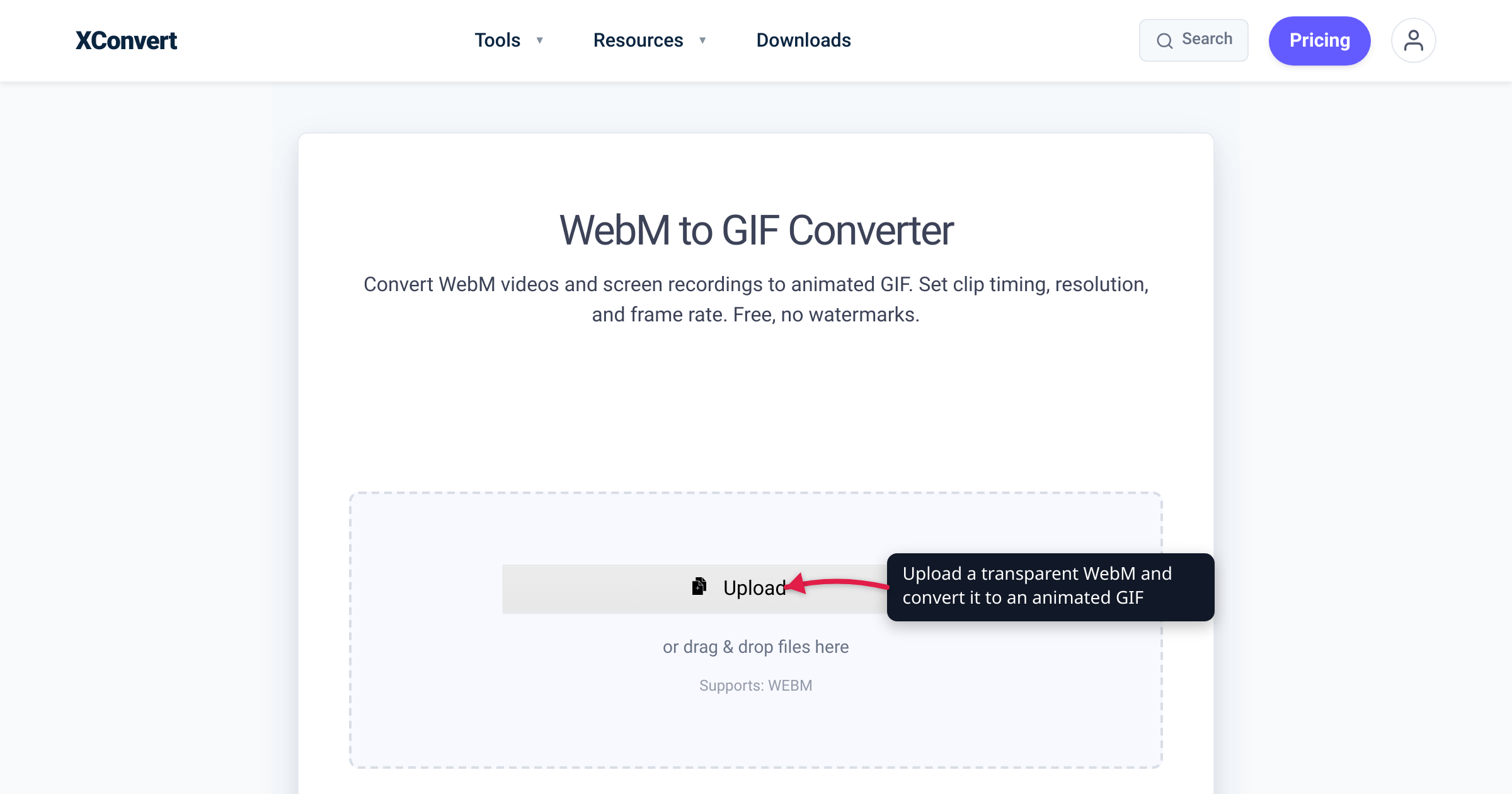
You exported a sticker, a stream overlay, or a game effect as a WebM — the format where transparent web video has lived since Chrome shipped alpha playback in 2013 — and now you need it as a GIF. The conversion itself is one upload; the real question is what happens to the transparency on the way through, because WebM stores up to 256 levels of opacity per pixel and GIF stores exactly two. We verified the details against the GIF89a specification, the WebM project’s alpha-channel documentation, and the live xconvert tool — soft edges included.
Quick answer: WebM (VP8/VP9) can carry an 8-bit alpha channel — every pixel gets an opacity value from 0 (completely transparent) to 255 (completely opaque). GIF transparency is 1-bit: per the GIF89a spec, a pixel is either fully transparent or fully opaque, nothing in between. Convert with the xconvert WebM to GIF converter and fully transparent regions stay transparent — but semi-transparent pixels (feathered edges, drop shadows, glows) must snap to one side or the other, so soft edges come out hard. If your animation genuinely needs soft transparency, GIF is the wrong target — use APNG or animated WebP instead.
Jump to a section
- Why transparent video usually means WebM
- GIF transparency is 1-bit — the spec is explicit
- What actually happens to your alpha channel
- Need soft transparency? Use APNG or animated WebP
- Convert WebM to GIF on xconvert
- FAQ
Why transparent video usually means WebM
If you’re holding a video with a see-through background, odds are it’s a WebM. The WebM project’s alpha-channel design gives every pixel a transparency value “where 0 is completely transparent … and 255 is completely opaque” — 256 opacity levels, encoded as a separate alpha plane and carried alongside the color data inside the container. And browsers actually render it: Chrome has played WebM with an alpha channel — both VP8 and VP9 — since Chrome 31 (2013), which is what made “green screen”-style video playing over web pages, images, or other videos practical.
That’s why transparent motion assets cluster in this one format:
- Stickers. Telegram’s video stickers must be “.WEBM format encoded with the VP9 codec” — one side exactly 512 pixels, up to 3 seconds, up to 30 FPS, 256 KB max, no audio.
- Stream overlays and alerts — animated widgets designed to composite over gameplay.
- Game and UI effects — sprite-style animations exported on a transparent canvas.
- Motion-graphics renders — artwork that has to sit over anything, so it ships with alpha.
The reason to convert one to GIF is reach: an alpha WebM plays where a WebM-aware player exists, while a GIF renders anywhere an image does — chat apps, docs tools, READMEs, email clients. (For the general video-to-GIF tradeoffs — the 256-color cap, no audio, file bloat — see convert any video to GIF; this article stays on the transparency question.)
GIF transparency is 1-bit — the spec is explicit
GIF transparency is not an alpha channel. It’s a flag on a single palette slot. The GIF89a specification’s Graphic Control Extension carries a Transparency Flag and a Transparency Index; when a pixel uses that index, “the corresponding pixel of the display device is not modified and processing goes on to the next pixel.” That is the entire transparency model: each pixel is either painted (fully opaque) or skipped (fully transparent). MDN’s format guide describes it the same way — pixels are opaque unless a specific color index is designated transparent, in which case they are “entirely transparent.”
Two consequences follow directly:
- No partial opacity, ever. WebM’s 256 alpha levels must collapse into GIF’s 2. A 30%-opaque shadow pixel, or the antialiased rim that blended your artwork into its background, has to end up fully opaque or fully gone.
- Transparency spends a palette entry. The Transparency Index is an entry in the GIF’s color table, which caps at 256 entries — so a transparent GIF has at most 255 real colors plus the transparent slot.
GIF’s other hard limits (256 colors per frame, no audio, bulky LZW compression) apply here exactly as they do for any source format — the generic video-to-GIF guide covers those.
What actually happens to your alpha channel
A converter that receives 8-bit alpha and must emit 1-bit transparency has only two honest strategies:
- Flatten — composite every pixel onto a background color. Output: a fully opaque GIF. Transparency is gone, but edges stay smooth because the blend is baked in.
- Hard-cut — keep binary transparency: sufficiently opaque pixels become fully opaque, the rest become fully transparent.
xconvert does the second, and says so on the tool page itself: “XConvert maps WebM alpha down to the binary GIF transparency model. Soft / antialiased edges in the WebM will look hard-edged in the GIF.” So a sticker keeps its see-through background — but the feathered rim where the artwork used to fade out gets snapped, leaving a harder, stair-stepped outline.
Note what the page does not offer: there is no background-color picker and no transparency toggle anywhere in the tool’s Advanced Options. What you get instead is File Compression (a Quality preset ladder, a Max file size target, or Custom) and Framerate on the panel, with resolution, quality and colors behind Custom. If you want the flattened look instead (say the GIF will always sit on a white page), composite the WebM onto that color in your editor before converting; you’ll trade the transparent background for smooth edges.
What the hard cut looks like in practice:
- Feathered edges turn aliased. The soft multi-pixel fade becomes an abrupt boundary.
- Drop shadows and glows clip. A shadow is made entirely of semi-transparent pixels, so after binarization it either vanishes or turns into a solid-edged shape. The exact cutoff isn’t documented, so test with your own asset rather than assuming which way it falls.
- Fringing. Edge pixels are blends of your artwork and whatever it was designed to fade into. Forced opaque, that blended tint shows up as a thin halo — most visible when the GIF lands on a background very different from the one the edges were blended toward.
The real fix is upstream, in the artwork: transparent GIFs look best when the source has crisp, high-contrast edges and no shadows, glows, or motion blur touching the boundary. If your asset has a soft rim, decide before converting: keep transparency and accept the hard edge, or flatten onto the destination color and keep the softness.
Need soft transparency? Use APNG or animated WebP
If the destination can render it, don’t force soft alpha through GIF at all:
- APNG — animated PNG with true color and a full alpha channel (8 or 16 bits per component). MDN calls it a “good choice for lossless animation sequences (GIF is less performant)”.
- Animated WebP — supports animation and alpha transparency in both lossy and lossless modes, and is widely supported in modern browsers.
- Keep it WebM — if the file will only ever be shown somewhere that plays alpha WebM, converting costs you edge quality for nothing.
MDN’s general advice for animation is to consider WebP, AVIF, or APNG before GIF; GIF wins only on the compatibility axis, rendering everywhere an image renders. And if you’re heading the opposite direction — you have GIFs and want smaller, better-looking video — see convert GIF to WebM.
Convert WebM to GIF on xconvert
The xconvert WebM to GIF converter runs the conversion on xconvert’s servers — nothing to install — and these steps use the controls on the live page:
- Open xconvert.com/convert-webm-to-gif and click Upload, then pick From my Computer, From Google Drive, or From Dropbox — or just drag and drop. The uploader accepts
.webmfiles (“Supports: WEBM”), and batch conversion is supported. - Open Advanced Options. The page notes its defaults are “optimized for the best results,” so change only what you need.
- Set the Framerate — the dropdown defaults to 10 FPS (Recommended); the page’s own guidance calls 10–15 fps the sweet spot, from a supported range of 1–50 fps.
- Leave File Compression on Quality preset, where High (Recommended) is preselected; step it to Very High or Highest for a cleaner result, or down the ladder (Medium → Lowest) for a lighter file. If the GIF has to fit a limit instead — a Telegram or chat cap, say — pick Max file size and set Size limit: Custom size value to type a number in KB or MB, or the Discord (10 MB max) / Email (25 MB max) / Forum (2 MB max) presets. You name the target and the converter searches for settings that land at or under it.
- To set things by hand, switch File Compression to Custom. That reveals Image resolution — a Resolution Percentage, a Preset Resolution, or Width (Keep aspect ratio); for sticker-sized output the page suggests around 480 px wide — plus Colors (keep ORIGINAL, or switch to By Color Reduction + Dither to tame banding) and the Image quality (%) slider, which sits at 80 by default.
- Click Convert (the button appears once your file is added) and download the GIF. Fully transparent areas stay transparent; semi-transparent edges come out hard-edged, exactly as the page’s FAQ describes.
If you only need a moment from a longer clip, cut it first — this page converts the whole file and has no trim control. Run the WebM through the video cutter, then convert the shortened clip.
Your WebM is processed on our servers and deleted automatically a few hours later.
FAQ
Does GIF support transparency at all?
Yes — but only 1-bit. The GIF89a spec reserves a single Transparency Index in the palette; a pixel using it “is not modified” when drawn (fully transparent), and every other pixel is fully opaque. There are no partial-opacity levels, so alpha gradients, soft shadows, and feathered edges cannot be represented.
Will xconvert keep my WebM’s transparent background?
Yes, as binary transparency. The tool’s own FAQ states it “maps WebM alpha down to the binary GIF transparency model” — fully transparent regions stay transparent, while “soft / antialiased edges in the WebM will look hard-edged in the GIF.” There is no background-color option; if you’d rather flatten, composite the WebM onto a color before converting.
Why do the edges of my transparent GIF look jagged or haloed?
Because semi-transparent pixels can’t exist in a GIF. The smooth edge band in your WebM was built from partially opaque pixels; binarizing forces each one fully opaque or fully gone, which reads as stair-stepping. And formerly blended edge pixels keep a tint of the background they were blended toward, which shows as a halo or fringe when the GIF sits on a differently colored page. Crisp, high-contrast source edges minimize both.
How do I keep soft shadows or glows in an animated image?
Not with GIF. Use APNG (true color with a full alpha channel; MDN recommends it over GIF for lossless animation) or animated WebP (animation plus transparency, lossy or lossless) — or keep the file as WebM wherever it will be played in a browser.
What makes a WebM transparent in the first place?
An alpha channel: per the WebM project’s design, each pixel carries a transparency value from 0 (completely transparent) to 255 (completely opaque), encoded as a separate alpha plane inside the WebM container. Chrome has rendered it for both VP8 and VP9 since Chrome 31. Telegram’s video-sticker format — WebM/VP9, one side exactly 512 px, up to 3 seconds and 256 KB — is a typical source of these files.
What settings work best for sticker-sized GIFs?
Start from the defaults, then adjust: 10–15 FPS (the tool defaults to 10 FPS (Recommended)) and the Quality preset at High (Recommended). If you need to go further, switch File Compression to Custom for a width around 480 px or less and By Color Reduction + Dither if you see banding — or to Max file size if you have a hard cap like Telegram’s 256 KB. Flat-color transparent art compresses well under GIF’s LZW scheme; the big size levers are frame rate, dimensions, and clip length.
Sources
Last verified 2026-08-31.
- W3C — GIF89a Specification — the Graphic Control Extension’s Transparency Flag and Transparency Index (“the corresponding pixel of the display device is not modified”); color tables cap at 256 entries.
- The WebM Project wiki — Alpha Channel — per-pixel alpha from 0 (completely transparent) to 255 (completely opaque), encoded as a separate VP8 alpha plane carried in the container’s BlockAdditional element.
- Chrome for Developers — Alpha transparency in Chrome video — Chrome 31+ plays WebM (VP8 and VP9) with an alpha channel; green-screen/overlay use cases.
- MDN — Image file type and format guide — GIF pixels are opaque unless a designated color index makes them “entirely transparent”; APNG and WebP support animation with alpha; APNG recommended over GIF for lossless animation sequences.
- Telegram — Stickers documentation — video stickers must be .WEBM encoded with VP9; one side exactly 512 px, ≤3 seconds, up to 30 FPS, ≤256 KB, no audio.
- xconvert — WebM to GIF Converter — documented alpha handling: “maps WebM alpha down to the binary GIF transparency model.” Advanced Options re-verified 2026-08-31 against the live option set: File Compression (Quality preset, default High (Recommended) / Custom / Max file size) and Framerate (default 10 FPS (Recommended)) render by default; Image quality (%) (default 80), Image resolution and Colors render only in Custom mode. No Background Color control and no trim control render for GIF output.
- xconvert — Video Cutter — the separate tool for shortening a clip before conversion.