 By James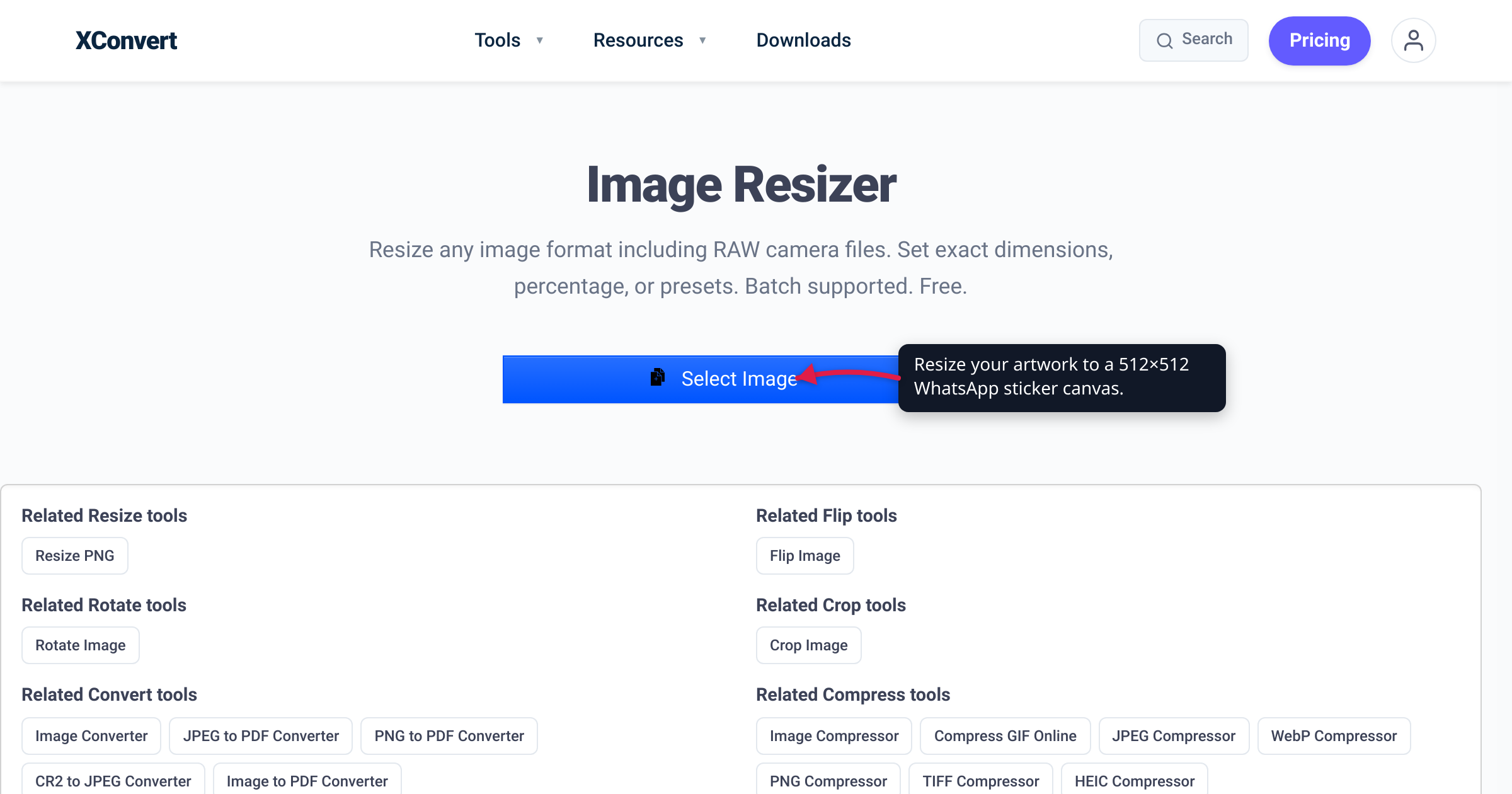
You found the perfect image, cut out the subject, and want it as a WhatsApp sticker — but WhatsApp rejects the file, or the sticker shows up with an ugly white box behind it. That happens because WhatsApp stickers aren’t just “any small image”: they have a few hard requirements, and the one most tools skip is a transparent background. This guide gives you the exact spec straight from WhatsApp’s own developer documentation, then the two-tool workflow to turn an image into a compliant sticker file. Every number here was verified against WhatsApp’s official stickers repository.
Quick answer: A WhatsApp static sticker must be exactly 512 × 512 px, saved as WebP, with a transparent background, and 100 KB or smaller (animated stickers: 512 × 512 WebP, ≤ 500 KB). Start from an image that already has a transparent background, crop and resize it to 512 × 512, then export it as WebP. The conversion produces the compliant file — actually adding it to WhatsApp still needs a third-party sticker app, because WhatsApp isn’t a WebP-file importer.
Jump to a section
- The exact WhatsApp sticker spec
- Why the transparent background is the hard part
- Resize to 512×512, then export WebP
- Make a WhatsApp sticker on xconvert
- Getting the sticker into WhatsApp
- FAQ
The exact WhatsApp sticker spec
These are WhatsApp’s own numbers, taken from the README in Meta’s official WhatsApp/stickers developer repository — the same document sticker-app developers build against.
| Requirement | Static sticker | Animated sticker |
|---|---|---|
| Dimensions | Exactly 512 × 512 px | Exactly 512 × 512 px |
| Format | WebP | WebP (animated) |
| Background | Transparent | Transparent |
| Max size per sticker | ≤ 100 KB | ≤ 500 KB |
| Frame timing | — | Frames ≥ 8 ms; total ≤ 10 s |
A few more rules from the same doc that matter if you’re building a whole pack rather than one image:
- Tray icon: each pack needs a 96 × 96 px static image, ≤ 50 KB (this is the little thumbnail in the sticker picker).
- Pack size: a pack must contain a minimum of 3 and a maximum of 30 stickers, and it must be either all static or all animated — WhatsApp doesn’t allow mixing the two in one pack.
- Stroke (recommended, not required): WhatsApp advises adding “a 8px #FFFFFF stroke to the outside of each sticker” so it reads cleanly on white, black, colored, and patterned chat backgrounds.
The three numbers you actually can’t fudge for a single sticker are the ones in bold at the top: 512 × 512, WebP, transparent, and under 100 KB. Miss any of those and the sticker either won’t import or won’t display correctly.
Why the transparent background is the hard part
Hitting 512 × 512 and WebP is mechanical — any resizer and converter can do it. The requirement that trips people up is transparency. A WhatsApp sticker is meant to float on top of the conversation, so it needs a genuine alpha channel (the invisible layer that marks which pixels are see-through). If that layer is missing, WhatsApp — or your sticker app — fills the background with a solid box, which is exactly the “white square behind my sticker” problem.
Here’s the catch: you can’t add transparency by converting to WebP. WebP supports an alpha channel, and good converters preserve one that already exists, but neither resizing nor format conversion can invent transparency where there was none. So the real question is what you’re starting from:
- Starting from a PNG (or other file) that already has a transparent background — a cutout, a logo, clip art with alpha — you’re ready. Just resize and export; the transparency carries through.
- Starting from a JPG or a normal phone photo — there is no alpha channel at all (JPEG can’t even store one), so the whole rectangle is opaque. You have to remove the background first to create a transparent cutout, then resize and convert.
xconvert’s resizer and WebP converter both preserve an existing alpha channel cleanly, but they don’t erase backgrounds — cutting a subject out of its background is a separate step (a background-removal tool, or WhatsApp’s own in-app sticker maker, which does the cutout for you). The rule of thumb: get to a transparent PNG first, and everything after that is just format work.
Resize to 512×512, then export WebP
Once you have a transparent source, the order of operations matters:
- Crop to a square before you scale. 512 × 512 is 1:1, but photos and cutouts usually aren’t. If you resize a rectangle straight to 512 × 512, the subject stretches. Crop to a square first, then scale — see resize an image for the web for the crop-then-resize logic in more detail.
- Leave a little breathing room. Don’t push the artwork right to the edge; keeping the subject slightly inside the canvas leaves room for that recommended 8 px white stroke and stops the sticker from looking cramped.
- Export as WebP and check the weight. Because a 512 × 512 canvas is tiny, a lossy WebP export almost always lands far under the 100 KB cap while keeping the alpha channel intact. WebP consistently beats PNG on size at the same quality — the same reason it’s the default for the web (convert PNG to WebP covers that trade-off).
You can do both the resize and the WebP export in a single tool, but splitting them gives you finer control over the final file size — which is what keeps you safely under 100 KB.
Make a WhatsApp sticker on xconvert
The workflow uses two xconvert tools: the image resizer to hit the 512 × 512 canvas, and the image-to-WebP converter to export the final file with transparency intact. Start from a PNG that already has a transparent background (see above).
- Open xconvert.com/image-resizer and click Select Image to add your transparent PNG (from your computer, Google Drive, or Dropbox).
- In the Photo Editor, use the Crop tab to crop the image to a 1:1 square so nothing gets stretched when you scale it — and leave a little margin around your subject.
- Switch to the Resize tab and, under Custom Sizes, set W and H both to 512. Keep the aspect-ratio lock on (it’s already square), and the image scales to the 512 × 512 canvas.
- Take that result into the WebP step: open xconvert.com/convert-image-to-webp and click Upload to add your 512 × 512 PNG. (You can instead use the resizer’s own Save ▾ → Download as WebP if the file is already tiny, but the converter gives you more control over the cap.)
- Leave Lossless? on No and pick a Quality preset — lossy WebP keeps a 512 × 512 sticker well under the 100 KB limit while preserving the full 8-bit alpha channel, so your transparent background survives. If the sticker is crisp line art or text, try Lossless? Yes and confirm the result is still ≤ 100 KB.
- Click Convert and download your 512 × 512 transparent WebP.
Your file is uploaded over an encrypted connection, is processed on our servers, and is deleted automatically a few hours later — nothing lingers on our end.
Getting the sticker into WhatsApp
This is the part worth being honest about: the file is just a file. Producing a spec-perfect 512 × 512 transparent WebP does not by itself put a sticker in your WhatsApp keyboard. WhatsApp has no “import this WebP as a sticker” button for arbitrary files. Per WhatsApp’s developer docs, a sticker pack is delivered to WhatsApp by a separate app that “send[s] an intent to launch WhatsApp’s activity,” passing the pack identifier and name — in other words, WhatsApp receives packs from sticker apps; it isn’t a sticker-file manager itself.
In practice you have two routes:
- A third-party sticker-maker app (there are several free ones on the App Store and Google Play). You import your ready-made 512 × 512 WebP files, the app assembles them into a pack, and it publishes that pack to WhatsApp. This is the route for stickers you designed and exported yourself.
- WhatsApp’s own in-app sticker creator, which builds a sticker from a photo directly inside a chat (it does the background cutout for you). That’s handy, but it starts from a photo — not from a pre-made WebP file — so it’s a different path than the one above.
The xconvert workflow’s job is the middle piece almost everyone gets wrong: turning your artwork into a file that actually meets WhatsApp’s 512 × 512 / WebP / transparent / ≤ 100 KB spec, so whichever app you hand it to accepts it without complaint.
FAQ
What size do WhatsApp stickers need to be?
Exactly 512 × 512 pixels, in WebP format, with a transparent background. A static sticker must also be 100 KB or smaller; an animated sticker must be 512 × 512 WebP and 500 KB or smaller, per WhatsApp’s official stickers repository. Those dimensions are fixed — WhatsApp doesn’t accept other sizes.
Do WhatsApp stickers have to be WebP?
Yes. WhatsApp’s developer docs state stickers “must be in the WebP format.” PNG is only used for the pack’s 96 × 96 tray icon, not for the stickers themselves. That’s why the last step of any sticker workflow is a WebP export.
Why does my WhatsApp sticker have a white box behind it?
Because your source image has no transparent background — most likely it was a JPG or a photo, which are fully opaque. Converting to WebP preserves transparency but can’t create it. You need to remove the background first to make a transparent cutout (a PNG with an alpha channel), then resize and convert. The alpha channel is what lets the sticker float over the chat.
How do I make a WhatsApp sticker from a photo?
Four steps: (1) remove the background to get a transparent cutout, (2) crop it to a 1:1 square and resize to 512 × 512, (3) export it as a WebP under 100 KB, and (4) load that file into a sticker-maker app that publishes packs to WhatsApp. xconvert covers steps 2 and 3 — the resize and the WebP export.
What’s the maximum file size for a WhatsApp sticker?
100 KB per static sticker and 500 KB per animated sticker, according to WhatsApp’s stickers repo. In practice this is rarely a problem for static stickers: a 512 × 512 canvas is so small that a lossy WebP export usually comes in well under 100 KB with room to spare.
Should I add the white outline WhatsApp recommends?
It’s optional but helps. WhatsApp advises adding an 8 px #FFFFFF stroke around each sticker so it stays readable on white, black, colored, and patterned chat backgrounds. Many sticker guides also suggest leaving a small margin (often cited as ~16 px) between the artwork and the canvas edge — treat that as a design convention rather than a hard requirement; the only enforced numbers are 512 × 512, WebP, transparent, and the size cap.
Sources
Last verified 2026-07-16.
- WhatsApp/stickers — Android README (WhatsApp/Meta official developer repo) — the authoritative spec: 512 × 512 px, WebP, transparent background, ≤ 100 KB static / ≤ 500 KB animated, 8 ms min frame / ≤ 10 s animation, 96 × 96 ≤ 50 KB tray icon, 3–30 stickers per pack, 8 px #FFFFFF stroke recommendation, and the intent-based mechanism sticker apps use to add packs to WhatsApp.
- WhatsApp Help Center — How to design custom stickers — WhatsApp’s consumer-facing page corroborating the 512 × 512, WebP, and transparent-background requirements.
- xconvert Image Resizer — crop-to-square and resize-to-512 UI (Select Image, Crop/Resize tabs, Custom Sizes W/H, aspect lock).
- xconvert Image to WebP converter — WebP export with lossless/quality controls that preserves the full 8-bit alpha channel from a transparent PNG.