 By James
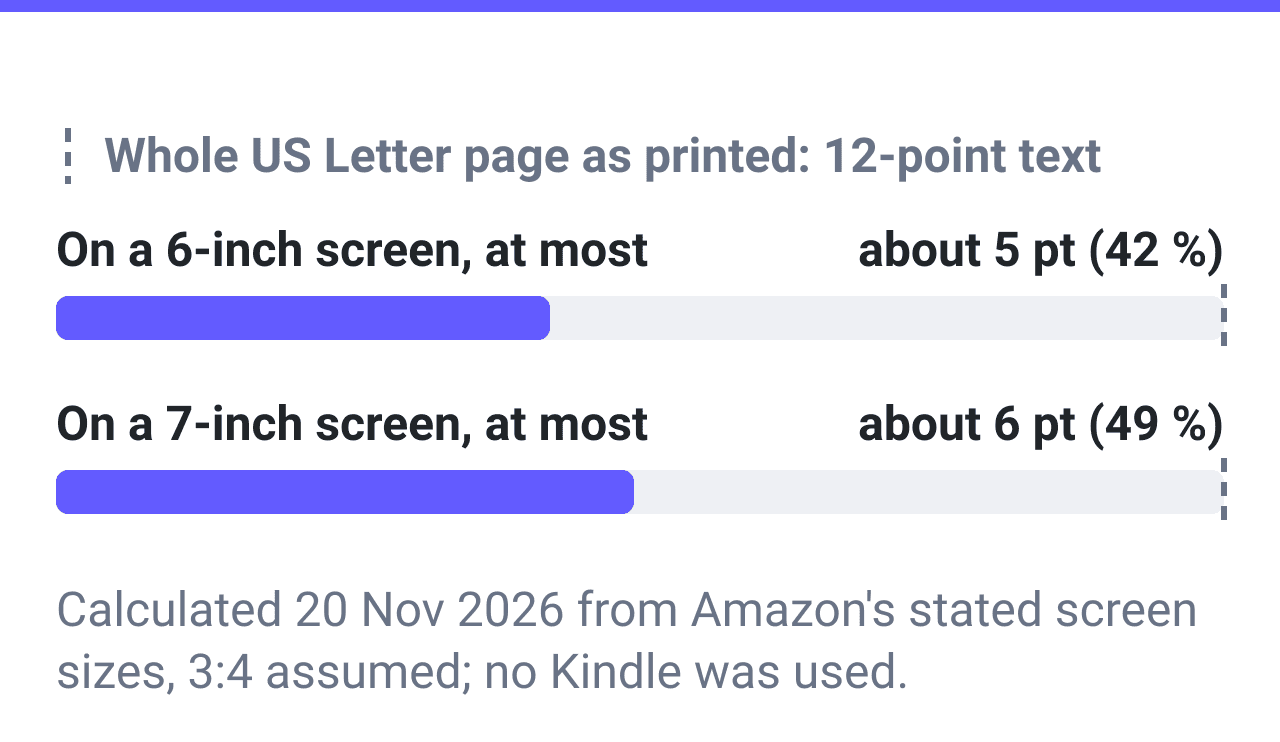
By calculation, a whole US Letter page on a 6-inch Kindle is at most 42 % of printed size: 12-point text shows at about 5 points. Landscape and cropping win some back. For one-column text, use the PDF to EPUB converter.
Checked on 2026-11-20 on the PDF to EPUB converter. No Kindle was used: the sizes are calculated from Amazon’s stated screen sizes and checked by rendering test pages on a computer. Sources at the end.
Find your symptom
| Symptom | Cause | Fix |
|---|---|---|
| The whole page is on the screen and the text is tiny | The page is far larger than the screen (cause 1) | Landscape, cropped margins, or both |
| You want to set the text size, as in a book | A PDF has no text size to change (cause 2) | An adjustable copy, for one-column text |
| A two-column paper, or converted text out of order | The converter joins the columns line by line (cause 3) | Keep the PDF; fixes of cause 1 |
| Converted, and the pages are still pictures | The PDF is a scan (cause 3) | Keep the PDF; fixes of cause 1 |
The order follows the views of five Stack Exchange questions on PDFs and Kindles, read on 20 November 2026: 103,704 for the general one, 10,528 and 8,828 for two on converting, 8,212 for multi-column PDFs, 2,823 for a converted file.
None names a scan, so that row is last. Views are visits, not Kindle owners.
Cause 1: a whole page is far larger than the screen
A US Letter page is 8.5 x 11 inches. Amazon lists a 6-inch screen for the Kindle (2026 release) and a 7-inch screen for the Kindle Paperwhite (2026 release), both at 300 ppi (read November 2026).
The table gives the most that 12-point text can measure on these screens, to the nearest half point, with the page’s scale in parentheses, as a percentage of its printed size.
| Page and screen | Whole page, upright | Whole page, landscape | Margins cropped, upright | Margins cropped, landscape |
|---|---|---|---|---|
| US Letter, 6-inch | 5 pt (42 %) | 7 pt (56 %) | 6.5 pt (53 %) | 9 pt (74 %) |
| US Letter, 7-inch | 6 pt (49 %) | 8 pt (66 %) | 7.5 pt (62 %) | 10.5 pt (86 %) |
| A4, 6-inch | 5 pt (41 %) | 7 pt (58 %) | 6 pt (50 %) | 9 pt (77 %) |
| A4, 7-inch | 5.5 pt (48 %) | 8 pt (68 %) | 7 pt (58 %) | 10.5 pt (89 %) |
Calculated on 2026-11-20 for 1-inch margins. Amazon’s pages give no pixel counts, so 3:4 screens are assumed. No Kindle was used. Renderings of six test pages on a computer agreed within one pixel in all 48 cases.
Landscape means the page’s width along the long side of the screen. It adds 1.7 to 2.4 points, and one screen then holds 58 % of the height of a US Letter page (53 % of A4).
Amazon’s guide to that Paperwhite has the setting under Aa, Layout: “Select portrait or landscape screen orientation for reading.” It says so of reading in general, not of PDFs.
Cropping 1-inch margins adds 1.0 to 1.5 points on its own. Cropped and in landscape, about half of the cropped page is on one screen.
Of the three Amazon user guides read, only the Kindle Scribe’s (3rd Generation) describes a crop on the device: “Crop margins by 50% or 100%”, for PDFs sent with Send to Kindle.
On Linux, Ghostscript 10.06.0 cropped a US Letter test page from 612 x 792 points to 468 x 648, 72 points (1 inch) a side, with this command:
gs -q -o cropped.pdf -sDEVICE=pdfwrite \
  -dDEVICEWIDTHPOINTS=468 \
  -dDEVICEHEIGHTPOINTS=648 -dFIXEDMEDIA \
  -c "<</PageOffset [-72 -72]>> setpagedevice" \
  -f letter.pdf
With 1-inch margins, no position in the table brings 12-point text back to 12 points: the largest scale is 89 %.
A whole US Letter page at its printed size needs a screen of 13.9 inches across the diagonal (A4: 14.3).
Cause 2: a PDF has no text size to change
The Calibre manual says of PDFs: “They are a fixed page size and text placement format.”
Amazon’s font size page describes the Aa menu and pinching for “your eBook” and does not mention PDFs (read November 2026).
A text size you can set needs an adjustable copy.
Amazon’s route. Amazon’s help lists “PDF (adjustable layout)” among the documents imported with Send to Kindle (read November 2026). The page does not say where that is chosen.
An EPUB copy, for one-column text. On the PDF to EPUB converter (linked at the top):
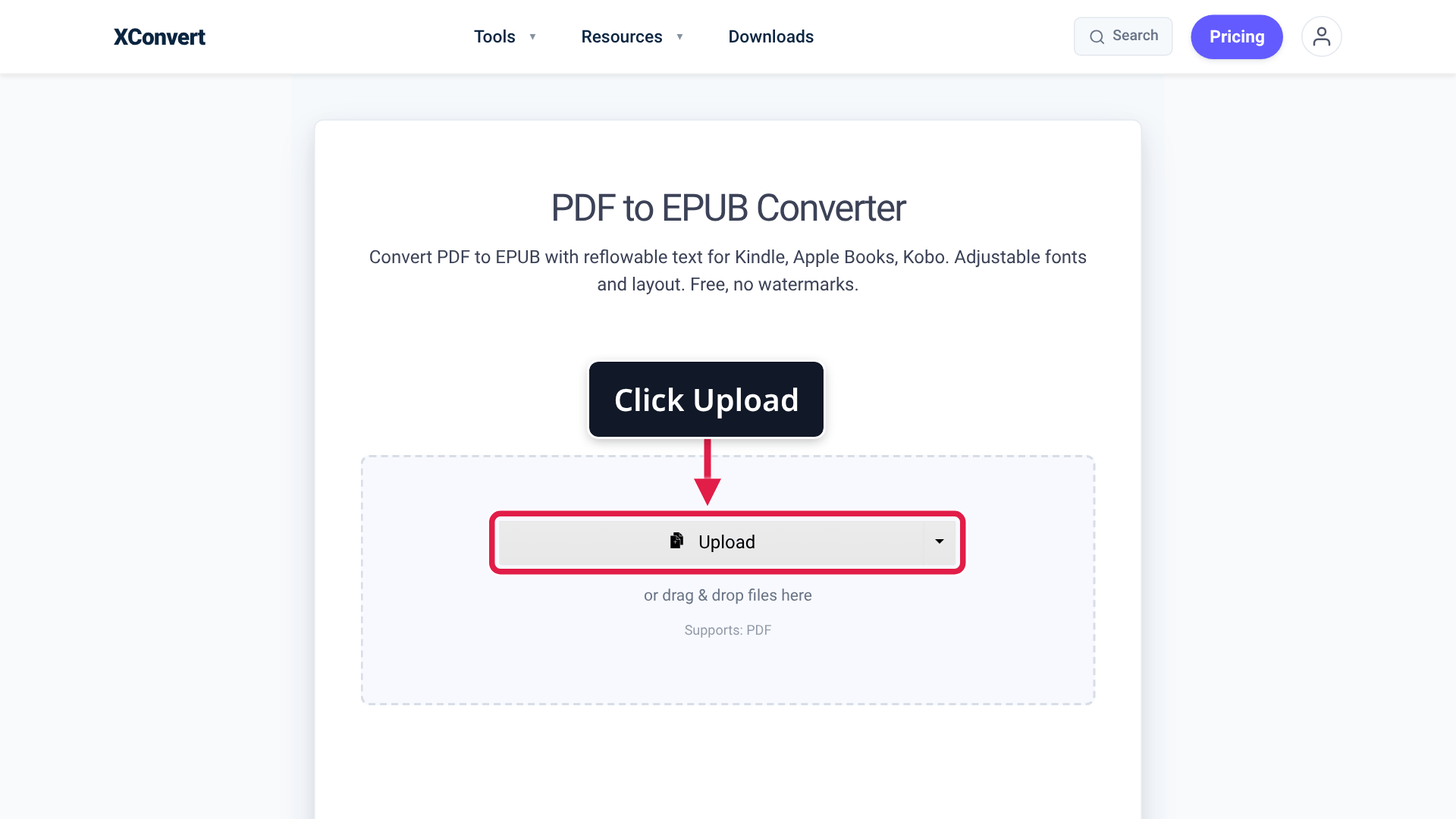
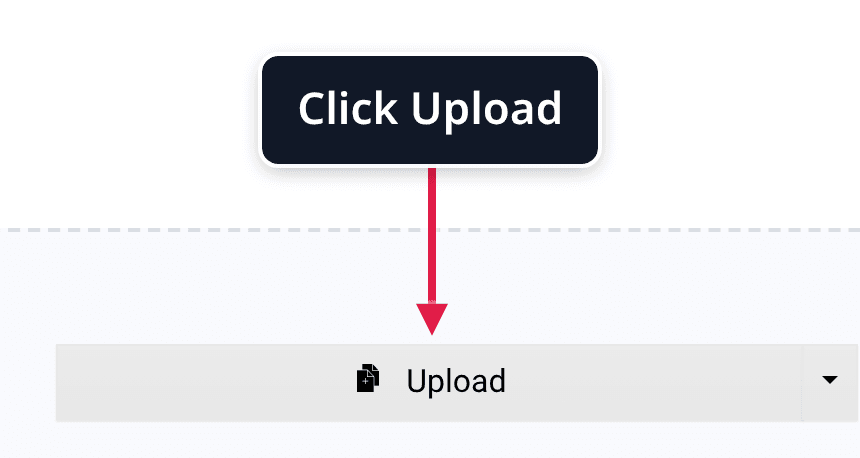
- Click Upload and choose the PDF. The box reads “Supports: PDF”, and the page has no setting to choose.
- Click Convert. The downloads page opens.
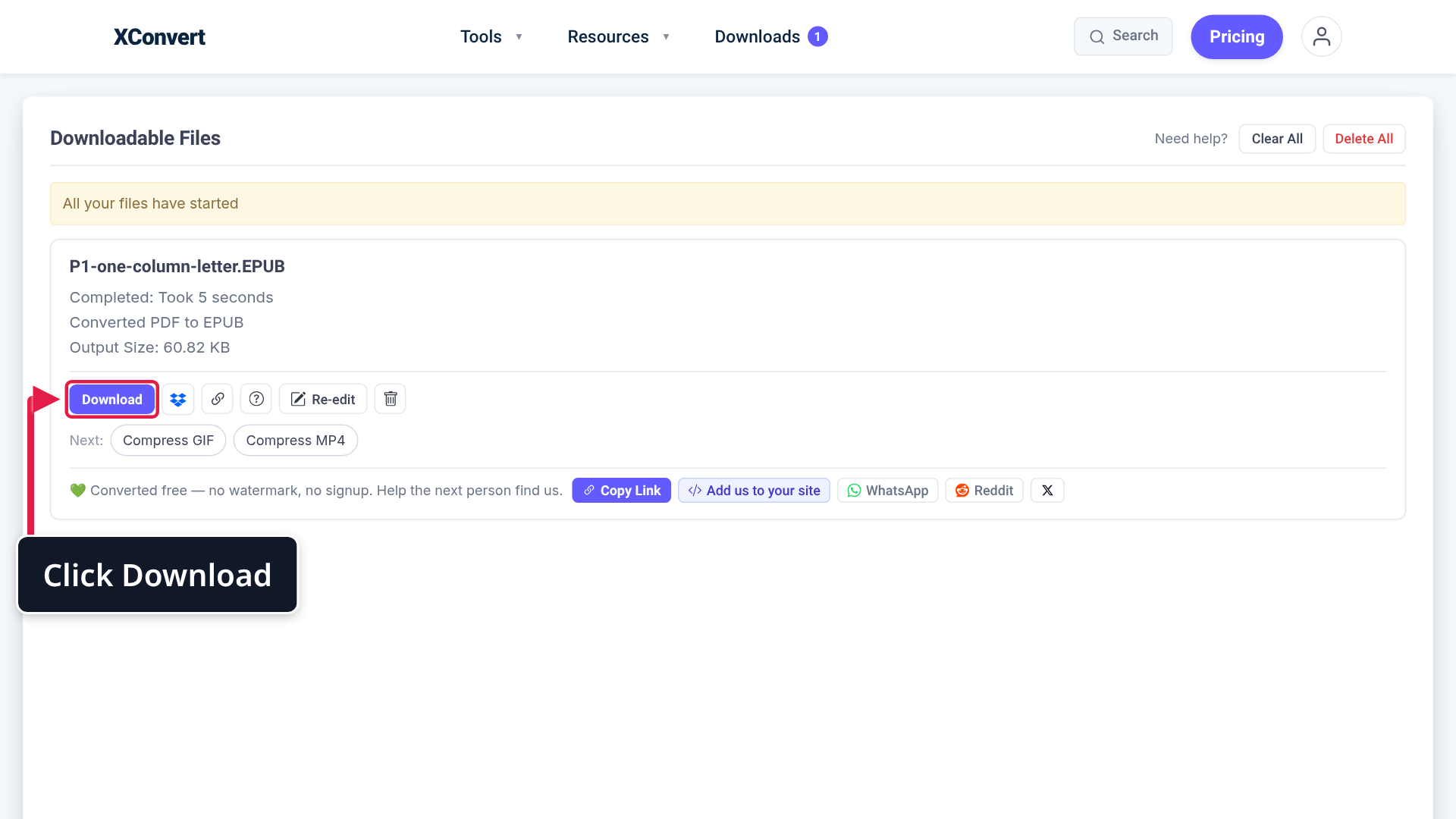
- On the finished card, which reads “Converted PDF to EPUB”, click Download.
In our test the EPUB sized its text in relative units and named no font, so the reading app sets the size (not tested on a Kindle).
Getting the EPUB onto the reader is a transfer step, separate from conversion. Before you send the file, check which file types and what file size the sending route takes.
For a Kindle, Amazon’s Send to Kindle page lists EPUB among its supported file types and 200 MB as the largest file (read November 2026).
If you have the Word file behind the PDF, convert that instead: Word manuscript to EPUB.
Cause 3: columns, tables and scans do not survive conversion
Three kinds of PDF went through the PDF to EPUB converter on 2026-11-20, one generated test file of each kind. The scan went again with a text layer added by the OCR program Tesseract.
| Kind of PDF | What came back | What was lost or changed |
|---|---|---|
| One column of text, 8 pages | 5,573 of 5,605 words (99.4 %), the three chapter headings, the picture, a contents list | Page numbers stay in the text and split a paragraph that runs over a page end; the list and the table became plain paragraphs |
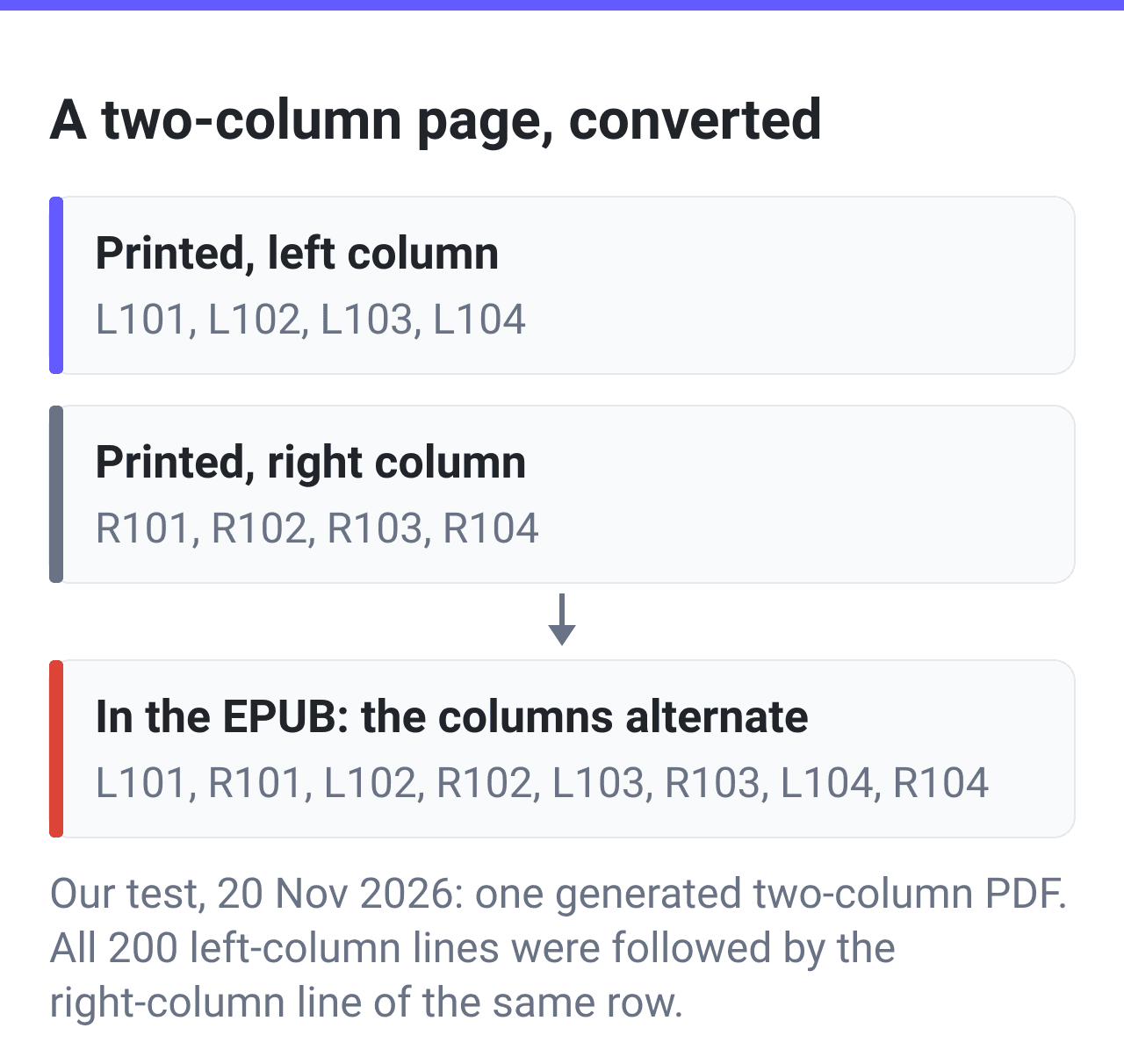
| Two columns, 4 pages | Every word | The reading order: all 200 left-column lines were followed by the right-column line of the same row |
| A scan, 3 pages | The page pictures | No text to resize |
| The same scan with a Tesseract text layer | The page pictures | None of the layer’s 2,094 words |
Not sure which kind you have? Try to select a line of text: a scan without a text layer has none. A scan with an OCR text layer has text to select, and ours still came back as page pictures.
For two-column PDFs and scans, and for a PDF that depends on its tables, keep the PDF and use the fixes of cause 1, or a larger screen.
The maker of k2pdfopt says the program “works well on multi-column PDF/DJVU files and can re-flow text even on scanned PDF files”, and lists cropping among its uses. It was not run for this article.
More on which PDFs convert well: PDF to EPUB or MOBI for e-readers.
When the PDF to EPUB converter helps and when it does not
It helps with one-column text, at the cost shown in cause 3.
Of 304 conversions on the PDF to EPUB page between 21 October and 19 November 2026, for any reading device, 267 finished (88 %) and 37 failed. The median job took 22 seconds.
It is the wrong tool when:
- The PDF has two columns or is a scan (cause 3). The converter has no OCR step.
- The PDF needs a password to open. The job fails.
- The margins are the problem. XConvert has no tool that crops PDF margins.
- Nothing may leave your computer. The file is processed on our servers, not in your browser, and uploads and results are deleted about 5 hours after they were written.
What we could not test
No Kindle and no Amazon account were used, so none of this was seen on a device:
- How a Kindle places a PDF page on its screen. Amazon’s user guides for the three models named above do not say. The table gives maximum sizes.
- Landscape and pinch zoom with a PDF open. The guides describe pinching for a book’s font size, comic books, images and tables, not for a PDF.
- Amazon’s adjustable layout. Sending needs an Amazon sign-in, so neither where it is chosen nor the PDF afterwards was seen.
- The Kindle Scribe. Its Margins setting was not seen, and Amazon’s identification page gives no size for its screen, so the table has no Scribe row.
- The EPUB on a Kindle after Send to Kindle: whether the text size setting works on it, and how the leftover page numbers look.
Sources
All read on 2026-11-20.
- Amazon: Identify Your Kindle E-Reader (6-inch and 7-inch screens at 300 ppi; no pixel counts, no screen size for the Kindle Scribe); the user guides of the Kindle Paperwhite (2026 release) and the Kindle (2026 release) (the orientation setting; pinching; no line on how a PDF page is placed); the user guide of the Kindle Scribe (3rd Generation) (“Customizing your PDF display”: Margins); How to Change Font Size on Your Kindle E-Reader (the Aa menu and pinching for an eBook; PDFs are not mentioned); Send to Kindle (supported file types, 200 MB); Kindle Personal Document File Types That Support Notes (“PDF (adjustable layout)”).
- Calibre manual, E-book conversion (the quote).
- k2pdfopt, the maker’s page (the quote and the list of uses; the program was not run).
- Ghostscript 10.06.0 documentation: Using Ghostscript (the switches of the crop command) and Ghostscript and the PostScript Language (it names PageOffset and does not describe it; what it did was measured on the test page).
- Stack Exchange, five questions; titles and view counts read through the Stack Exchange API, the threads were not opened: Reading PDFs on Kindle device (103,704), How to convert PDFs to readable Kindle format (10,528), How do I automatically convert academic papers (PDF) for reading on a Kindle? (8,828), How convert multi-column PDF files to readable PDF in 6 inches display devices? (8,212) and Zoom problem in Kindle with .MOBI converted from PDF (2,823).
- The size table: arithmetic on the page sizes (US Letter 8.5 x 11 inches, A4 210 x 297 mm) and Amazon’s screen sizes, with 3:4 screens assumed; for screens between 2:3 and 4:5 no figure moves by more than 0.45 points. Checked on six generated one-page PDFs (US Letter and A4, text at 10, 11 and 12 points in Liberation Serif, 1-inch margins), rendered with pdftoppm (Poppler) at each screen’s pixel size and measured with Pillow; the margins were cropped with Ghostscript 10.06.0. The command in cause 1 was run again on Linux on the 12-point US Letter page; the page size before and after was read with pdfinfo (Poppler), and the page kept its 287 words. The cropped file was not opened on a Kindle.
- Tests of 2026-11-20 on the PDF to EPUB converter (/convert-pdf-to-epub): five jobs, one at a time, in a desktop-size window (no job was run at phone size), with four generated PDFs of 0.03 to 1.3 MB, the one-column file twice. The finished cards showed 5 to 7 seconds. The files hold our own filler text and a generated picture, no real document. Each EPUB was unpacked and read out by script.
- Job counts from our own records: every job of the PDF to EPUB page from 21 October to 19 November 2026 (304), whatever the reading device. Five visitors or accounts made 69 % of them.