 By James
PageSpeed Insights tells you to “Improve image delivery”, and then leaves you to guess the actual number. Your designer hands over a 3.4 MB hero JPEG. Somebody on the team says “keep it under 100 KB”, somebody else says “under 500 KB”, and neither can say why. Google has never published a kilobyte limit — but it has published a time limit, and you can turn that into kilobytes with arithmetic anyone can check.
Quick answer: Work backwards from Core Web Vitals. A “good” Largest Contentful Paint is 2.5 seconds at the 75th percentile, web.dev’s own breakdown allocates about 40% of that to loading the LCP resource, and Lighthouse’s default mobile profile is Slow 4G — 1.6 Mbps, roughly 200 KB per second. One second at 200 KB/s gives a hero-image ceiling of about 200 KB. Hold that same bytes-per-pixel rate and the rest of the ladder falls out: about 50 KB for an 800×450 in-article image, 17 KB for a 400×300 card, and under 10 KB for a logo. Enforce it on xconvert’s JPEG compressor with Image Compression → Specific file size, typing the number in KB.
Jump to a section
- Google publishes a time budget, not a byte budget
- Turning 2.5 seconds into kilobytes
- The budget, slot by slot
- What actually blows the budget
- Hit a KB target on xconvert
- FAQ
Google publishes a time budget, not a byte budget
Largest Contentful Paint “reports the render time of the largest image, text block, or video visible in the viewport, relative to when the user first navigated to the page.” The threshold is unambiguous: 2.5 seconds or less is good, 2.5–4.0 seconds needs improvement, over 4.0 seconds is poor — and it is scored at the 75th percentile of page loads, so the slow quarter of your visitors is the quarter that decides your grade.
For most of the web, that largest element is a picture. HTTP Archive’s 2024 Web Almanac found that 68% of mobile pages have an image as their LCP element. So on two pages out of three, “how fast is this page” is mostly the question “how quickly does one image arrive.”
What Google does publish is how the 2.5 seconds should be spent. web.dev’s LCP optimisation guide breaks the metric into four sub-parts with recommended proportions:
| LCP sub-part | Share of LCP | What it is |
|---|---|---|
| Time to First Byte | ~40% | Server and network before the HTML arrives |
| Resource load delay | <10% | The gap between HTML arriving and the image request starting |
| Resource load duration | ~40% | Downloading the image itself |
| Element render delay | <10% | Painting it once it has arrived |
That is the number the whole article hangs on. About 40% of 2.5 seconds — one second — is the budget for moving your hero image across the network. Everything else is a hosting or markup problem; this one is a file-size problem, and it is the one you can fix in a minute.
Turning 2.5 seconds into kilobytes
One second of what connection? Lighthouse answers that too. Its default mobile configuration applies a preset it calls Slow 4G: 150 ms round-trip time, 1.6 Mbps down, 750 Kbps up, and a 4× CPU slowdown. Lighthouse’s own documentation explains the choice — those figures represent “roughly the bottom 25% of 4G connections and top 25% of 3G connections.”
Read that next to the LCP rule and the two line up exactly. Core Web Vitals grades you at the 75th percentile of real page loads; Lighthouse models roughly the bottom quarter of mobile connections. The reference user is the same person in both systems, which is why budgeting against Slow 4G is not pessimism — it is the assessment you are actually being scored on.
The arithmetic from there is one step. 1.6 Mbps is about 200 KB per second. One second of download is therefore about 200 KB, and that is your hero-image ceiling.
Two honest caveats before you write 200 KB on a sticky note.
It is a ceiling, not a target. The 40% allocation assumes the other three sub-parts behave. If your TTFB is slow, or a script delays the image request, the download window shrinks and a 200 KB hero is already too big. Treat 200 KB as the number you must not exceed and 100–150 KB as the number to aim for.
It is device pixels, not CSS pixels. A hero that occupies 800 CSS pixels of width on a 2× phone screen is fetched at 1600 device pixels. The budget applies to the file the browser actually downloads for that device, which is the whole reason srcset exists.
The budget, slot by slot
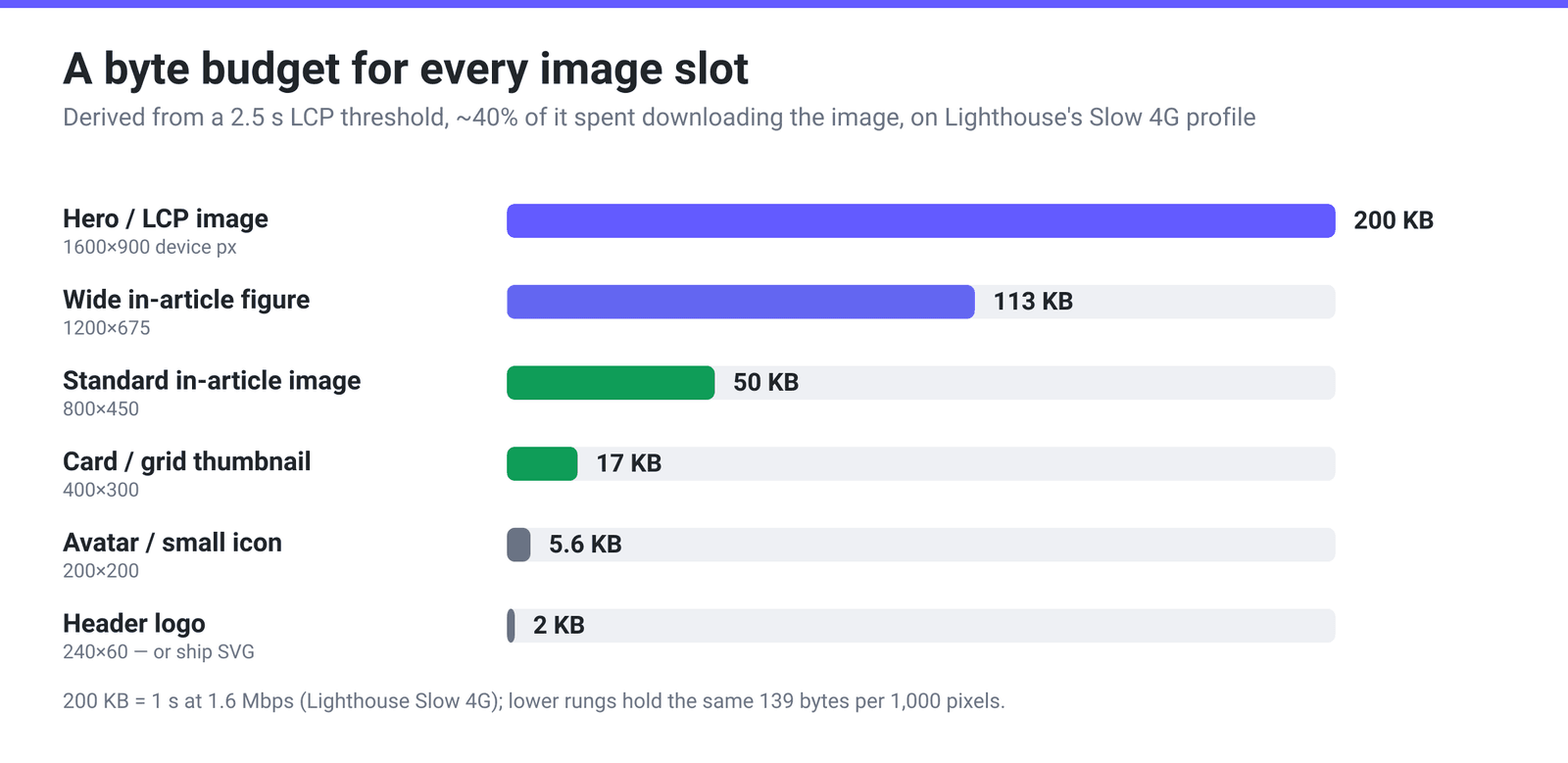
Only the hero is measured by LCP. So where do the other numbers come from? From holding the hero’s implied rate steady. A 1600×900 hero at 200 KB works out to roughly 139 bytes per 1,000 pixels — about 1.1 bits per pixel. Apply that rate to every other slot and the ladder builds itself.
| Slot | Rendered size (device px) | Byte budget | Sanity check |
|---|---|---|---|
| Hero / LCP image | 1600×900 | 200 KB ceiling, aim 150 KB | The median page’s largest image is already 135 KB |
| Wide in-article figure | 1200×675 | 113 KB | Only counts against LCP if it is above the fold |
| Standard in-article image | 800×450 | 50 KB | The common case for a blog body image |
| Card / grid thumbnail | 400×300 | 17 KB | Twenty of these still cost less than one lazy hero |
| Avatar / small icon | 200×200 | 5.6 KB | Above the median image on the web (12 KB) only if uncompressed |
| Header logo | 240×60 | 2 KB | Ship it as SVG instead and it is usually smaller still |
The sanity-check column matters, because these numbers can read as brutal until you see what the web already does. The 2024 Web Almanac puts the median image on a page at 12 KB, and the median page’s single largest image at 135 KB on mobile. The typical site is already inside this budget. The sites that fail are the ones shipping a camera original into a 400-pixel slot.
Two things bend the ladder legitimately:
- Content complexity. Flat graphics, screenshots with large areas of one colour, and line art come in far under 139 bytes per 1,000 pixels. A busy photograph — foliage, crowds, textured fabric — needs more, and at 1600×900 a detailed photo held to 200 KB will show visible compression. That is not the budget being wrong; that is the budget telling you to change format or crop tighter.
- Format. Google measures WebP lossy images as 25–34% smaller than comparable JPEG at equivalent SSIM quality, and lossless WebP as 26% smaller than PNG. That is real headroom — but it is headroom for quality at the same byte count, not permission to ship a bigger file. Keep the budget; spend the saving on looking better. Converting a site’s images to WebP in bulk covers the
<picture>fallback and the CMS side of that switch.
What actually blows the budget
In rough order of how much damage each one does:
- Serving the original. A 4000×3000 phone photo dropped into a 800×450 slot is the single most common cause. The browser downloads every one of those 12 million pixels and throws 97% of them away. Resize before you compress — no quality setting recovers bytes you did not need to send.
- Lazy-loading the LCP image.
loading="lazy"on the hero delays the request until layout has run, which inflates the “resource load delay” sub-part that is supposed to stay under 10%. The Web Almanac found 9.5% of LCP-responsible image elements use native lazy-loading — one page in ten is actively slowing down its own headline metric. Lazy-load everything below the fold and nothing above it. - Eagerly loading everything else. Anything that loads before the hero paints shares the same ~200 KB/s pipe. Six eager 60 KB thumbnails in a sidebar are 360 KB of contention — nearly two seconds of the hero’s runway spent on images nobody has scrolled to yet.
- Compressing without resizing, then resizing without recompressing. Two half-passes leave you with the worst of both. Do them together.
- Judging by the file on your laptop. You are on a fast connection looking at a cached copy. The metric is scored on the 75th-percentile visitor, on Slow 4G, on a cold cache.
Hit a KB target on xconvert
The point of a budget is that you can type it in rather than nudge a slider until it looks right.
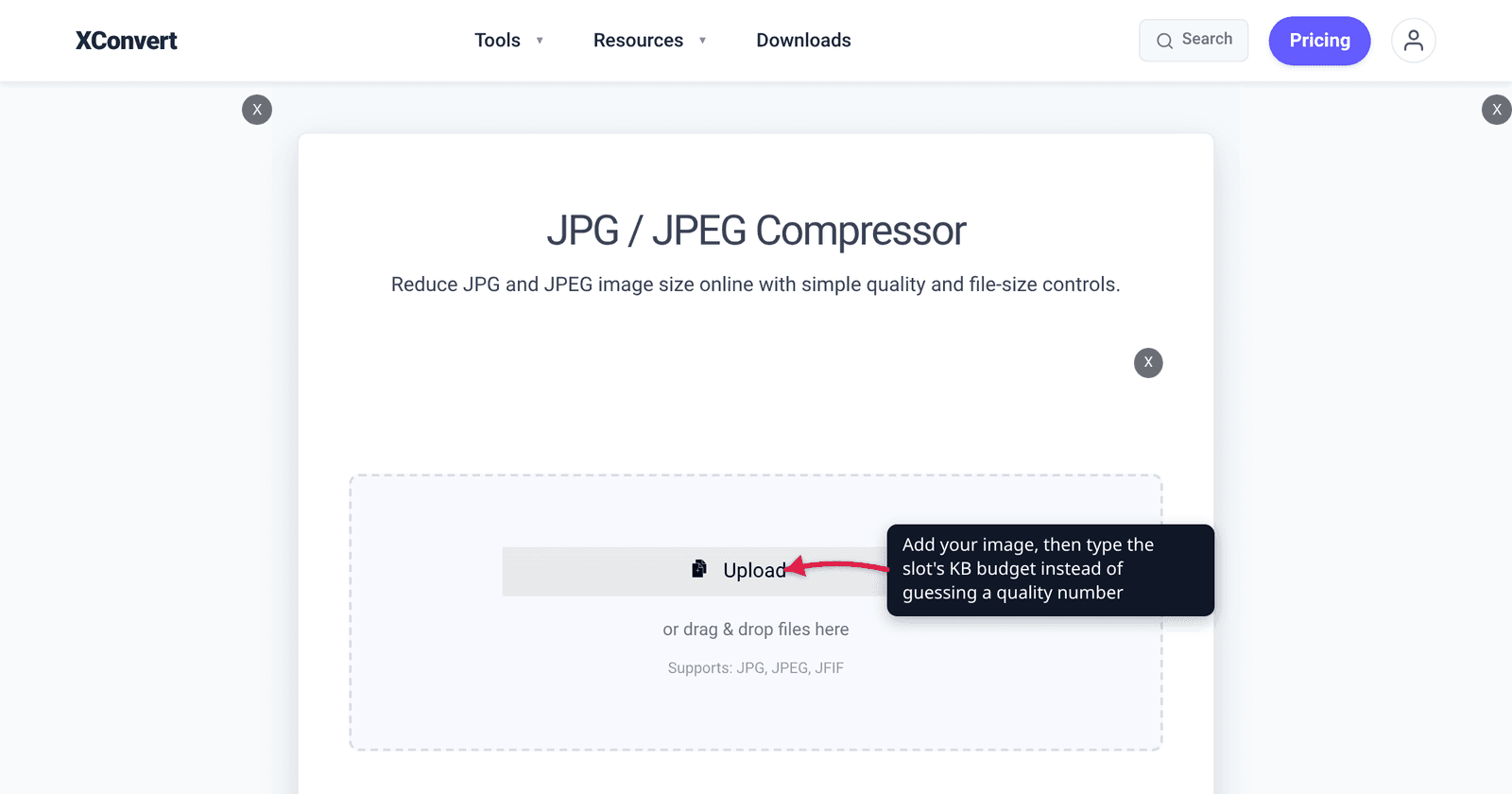
- Open xconvert.com/compress-jpeg and click Upload to add your image (from your computer, Google Drive or Dropbox).
- Look at Advanced Options, already open under the upload box. Image Compression opens on Target file size (%) (Best) with the File size (%) slider at 80. That is a relative cut; a budget is an absolute one, so click Specific file size instead.
- Type your number into File size and switch the unit dropdown from MB to KB —
150+ KB for a hero,50+ KB for a body image,17+ KB for a card. - Leave Auto Scale on if you only care about the byte count. The panel says what it is doing: “[Smart Scaling Active] We will automatically adjust the image dimensions to maximize quality while hitting your target file size. Manual resolution settings are hidden to prevent pixelation.” It shrinks the pixel dimensions to reach the number, and it can shrink them a long way: in a test on 18 November 2026 a detailed 1600×900 JPEG of 939 KB, given a 150 KB target with Auto Scale on, came back at 51 KB and 404×227. For a hero that has to stay 1,600 pixels wide, use step 5.
- If you need an exact pixel width — because the file is one entry in a
srcset— switch Auto Scale off. That reveals the Image resolution group, where Width (Keep aspect ratio) takes your number. Change its unit dropdown from Percent (%) to Pixels first; percent is what it opens on. - Click Compress, then download and check the byte count against your budget.
Your file is processed on our servers, not in your browser. Uploads and results are deleted automatically about 5 hours after they were written, or sooner if a server runs short of disk space. If you would rather drive the quality number by hand and see what each value costs, JPEG quality settings explained maps the presets to their actual numbers, and converting JPG to WebP is where to spend the 25–34% you get back.
FAQ
How many KB should a hero image be?
Under 200 KB, and ideally 100–150 KB. The ceiling comes from Google’s own numbers rather than a rule of thumb: a good LCP is 2.5 seconds, web.dev allocates about 40% of that to downloading the LCP resource, and Lighthouse’s default mobile profile moves about 200 KB per second. If your TTFB is slow the real ceiling is lower, because the download window is whatever is left after the server has had its share.
Does switching to WebP or AVIF change the budget?
No — it changes how much picture you can buy inside it. Google measures lossy WebP at 25–34% smaller than JPEG at equivalent SSIM quality, so a hero that needed 200 KB as a JPEG might need 140 KB as a WebP at the same visual quality. The right move is to keep the 200 KB ceiling and take the saving as better-looking pixels, not a bigger file. AVIF adoption is thin — the 2024 Web Almanac measured it at 1.0% of mobile images against WebP’s 12% — so ship it with a fallback.
My hero is already under 200 KB and LCP is still bad. What now?
Then it is not a byte problem, and the sub-part breakdown tells you where to look. If the image request starts late, that is resource load delay — usually loading="lazy" on the hero, a CSS background image that cannot be discovered by the preload scanner, or an image injected by JavaScript. If the page is slow before the image is even requested, that is TTFB, which is a hosting and caching question. Both are supposed to be a small slice; if either is eating half the budget, no amount of compression will fix it.
One large image or a srcset with several sizes?
srcset, if the image is displayed at meaningfully different sizes. The budget applies to the file the browser actually downloads, so a phone fetching a 1600-pixel-wide hero to display it at 360 CSS pixels blows a budget that a 720-pixel variant would have met comfortably. Generate each variant at its own pixel width and give each one its own KB target — that is the case for turning Auto Scale off and setting Width in Pixels.
Is the median web image really only 12 KB?
Yes — HTTP Archive’s 2024 Web Almanac puts the median image at 12 KB across both mobile and desktop, with the median page’s largest image at 135 KB on mobile. That gap is the shape of a normal page: one substantial hero and a long tail of small assets. It also means a budget of 50 KB for a body image and 17 KB for a card is not austere. It is roughly what the web already ships.
Is targeting an exact KB number worse for quality than picking a quality level?
Not inherently — it is a different question being answered. A quality number fixes the compression setting and lets the file size land wherever the content puts it; a size target fixes the file size and lets the encoder find the setting. For a performance budget the second is what you want, because the budget is the constraint. The one thing to watch is asking for a number the pixel count cannot support: 20 KB at 1600×900 will visibly fall apart, which is why Auto Scale reduces the dimensions instead of destroying the detail.
Sources
Last verified 2026-11-22.
- web.dev — Largest Contentful Paint (LCP) — “LCP reports the render time of the largest image, text block, or video visible in the viewport”; good ≤ 2.5 s, poor > 4.0 s, measured at the 75th percentile; eligible elements include
<img>,<svg><image>,<video>, CSS background images and block-level text. - web.dev — Optimize Largest Contentful Paint — the four sub-parts and their recommended shares: TTFB ~40%, resource load delay <10%, resource load duration ~40%, element render delay <10%.
- Lighthouse — Network throttling documentation — the default mobile “Slow 4G” preset: 150 ms RTT, 1.6 Mbps down, 750 Kbps up, constant 4× CPU multiplier; described as “roughly the bottom 25% of 4G connections and top 25% of 3G connections.”
- Chrome for Developers — Improve image delivery — the performance insight that “highlights images that have unnecessarily large download sizes”. PageSpeed Insights was updated to Lighthouse 13.0 on 20 October 2025 (release notes).
- HTTP Archive — 2024 Web Almanac, Media chapter — median image 12 KB; median page’s largest image 135 KB on mobile; 68% of mobile pages have an image as their LCP element; 9.5% of LCP-responsible image elements use native lazy-loading; WebP 12% and AVIF 1.0% of mobile images.
- Google — WebP — “WebP lossy images are 25-34% smaller than comparable JPEG images at equivalent SSIM quality index”; lossless WebP 26% smaller than PNG.
- xconvert JPEG compressor — live tool, controls verified on the page: Image Compression → Target file size (%) (Best) (File size (%) slider, opens at 80) / Specific file size (File size value plus a B / KB / MB unit dropdown, MB preselected) / Image Quality (%); the Auto Scale toggle and its “[Smart Scaling Active]” note quoted above; switching Auto Scale off reveals the Image resolution group, whose Width (Keep aspect ratio) unit dropdown opens on Percent (%), not Pixels.