 By James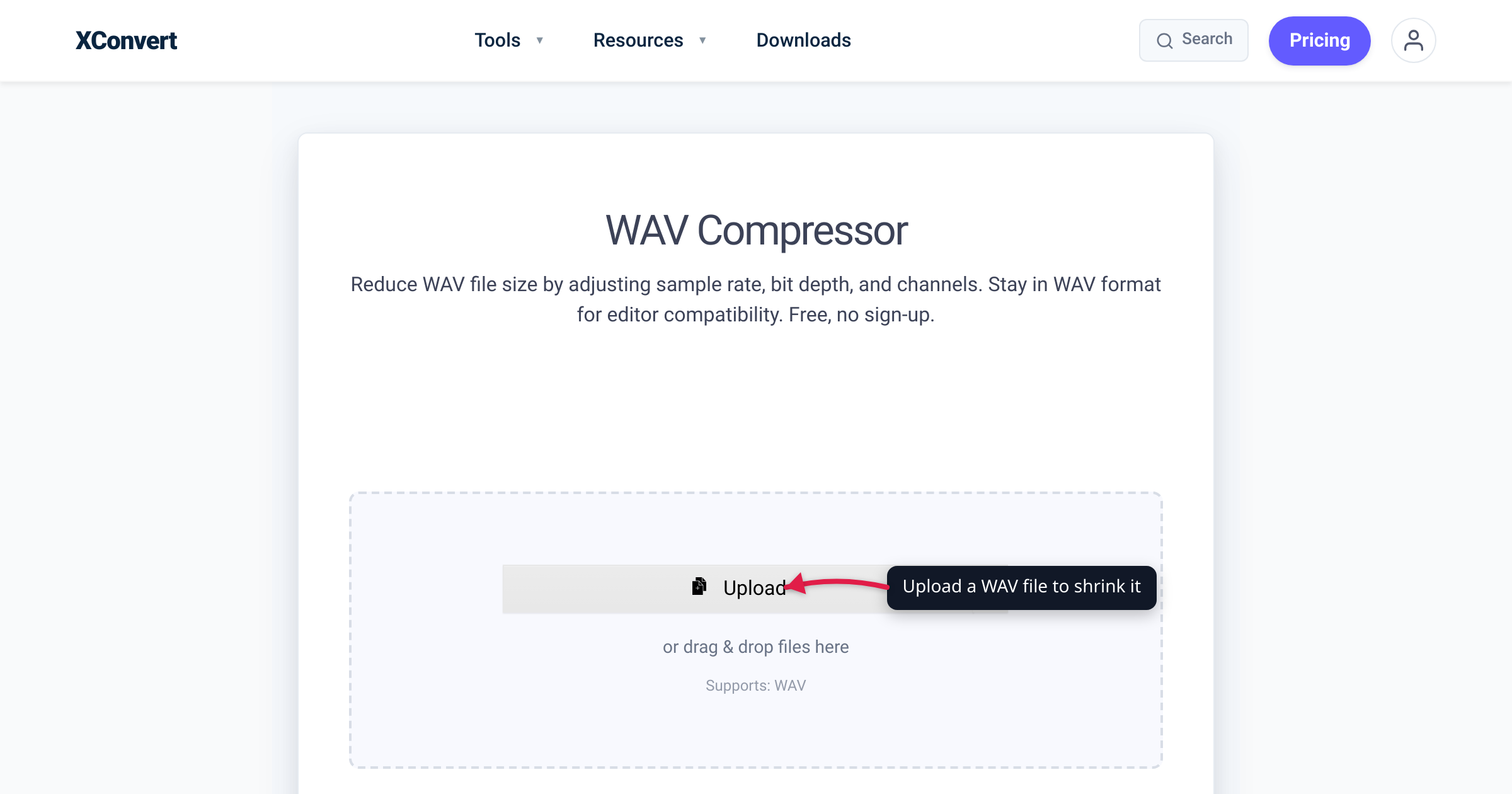
A three-minute song saved as a CD-quality WAV is about 31 MB — the same song as a 192 kbps MP3 is under 4.5 MB. WAV files are huge because they store uncompressed PCM audio: every sample is written to disk at full resolution, with no compression of any kind. That’s great for editing and archiving, but it makes WAV the worst format for email attachments, podcast hosts, or anything you need to upload. The good news: WAV’s size is governed by a simple, predictable formula, so once you know which number to turn down — bit depth, sample rate, channel count, or the container itself — shrinking a WAV is straightforward. This guide covers five methods, from a small lossless trim to an aggressive lossy cut, and which xconvert tool does each one.
Quick answer: A WAV file’s size is sample rate × bit depth × channels ÷ 8 = bytes per second. To make it smaller you can (1) drop bit depth from 24-bit to 16-bit (≈33% smaller), (2) lower the sample rate (e.g. 48 kHz → 44.1 kHz, ≈8% smaller), (3) convert stereo to mono (exactly 50% smaller), (4) convert to FLAC for a smaller lossless file, or (5) convert to MP3/AAC for the smallest lossy file. For the last two, use the xconvert WAV Compressor or WAV Converter.
Jump to a section
- Why WAV files are so big
- The WAV file-size formula
- Method 1: Lower the bit depth (24-bit → 16-bit)
- Method 2: Lower the sample rate
- Method 3: Convert stereo to mono
- Method 4: Convert to FLAC (lossless, smaller)
- Method 5: Convert to MP3 or AAC (smallest, lossy)
- Which method should I use?
- FAQ
Why WAV files are so big
WAV is a container for uncompressed PCM (Pulse-Code Modulation) audio, defined in Microsoft and IBM’s RIFF specification. Unlike MP3, AAC, or even FLAC, a PCM WAV stores the raw amplitude of every single sample with no compression — silence, a complex orchestral passage, and white noise all take exactly the same number of bytes per second. That predictability is why WAV is the standard for audio editing and mastering, but it’s also why a few minutes of audio balloons into tens of megabytes.
So the only way to shrink a WAV without changing its container is to capture less data per second — fewer bits per sample, fewer samples per second, or fewer channels. For a dramatic reduction, you change the container to a compressed format. The formula below shows exactly how each lever moves the file size.
The WAV file-size formula
For uncompressed PCM, file size is fully determined by four numbers:
bytes per second = sample rate (Hz) × bit depth (bits) × channels ÷ 8
file size (bytes) = bytes per second × duration (seconds)
The ÷ 8 converts bits to bytes. Worked through for standard CD quality (44,100 Hz, 16-bit, 2 channels / stereo):
44,100 × 16 × 2 ÷ 8 = 176,400 bytes per second
176,400 × 8 (bits) = 1,411,200 bits/sec = 1,411.2 kbps
So one second of CD-quality stereo WAV is 176,400 bytes, one minute is 10,584,000 bytes (≈10.58 MB), and a three-minute track is 31,752,000 bytes (≈31.75 MB). This matches the well-known “1411 kbps” figure quoted for CD audio. (These are decimal MB, where 1 MB = 1,000,000 bytes; in binary MiB the three-minute file is ≈30.28 MiB.)
The formula is the whole game. Every method below works by reducing one of those three multipliers (bit depth, sample rate, channels) or by replacing the uncompressed container entirely.
| Lever | Change | Size effect |
|---|---|---|
| Bit depth | 24-bit → 16-bit | ≈33% smaller |
| Bit depth | 16-bit → 8-bit | 50% smaller (quality loss is audible) |
| Sample rate | 48 kHz → 44.1 kHz | ≈8% smaller |
| Sample rate | 44.1 kHz → 22.05 kHz | 50% smaller (treble lost) |
| Channels | Stereo → mono | exactly 50% smaller |
| Container | WAV → FLAC | lossless; typically ~30–50% smaller |
| Container | WAV → MP3/AAC | lossy; commonly ~80–90% smaller |
Method 1: Lower the bit depth (24-bit → 16-bit)
Bit depth is how many bits encode each sample. Studio recordings are often 24-bit for editing headroom, but the final delivery standard for music is 16-bit (CD quality). Dropping from 24-bit to 16-bit removes one-third of the data, because 16 ÷ 24 = 0.667 — so the file shrinks by about 33% with no audible difference for normal listening.
Worked example, three-minute stereo track at 44.1 kHz:
24-bit:  44,100 × 24 × 2 ÷ 8 × 180 = 47,628,000 bytes (≈47.63 MB)
16-bit:  44,100 × 16 × 2 ÷ 8 × 180 = 31,752,000 bytes (≈31.75 MB)
That’s a saving of nearly 16 MB. Going below 16-bit (to 8-bit) halves the file again but introduces audible quantization noise, so it’s only appropriate for voice memos or retro/8-bit effects.
To re-encode a WAV at a lower bit depth, upload it to the xconvert WAV Converter, keep the output as WAV, and expand Show All Options to choose the lower depth. Your file is uploaded over an encrypted connection, processed on our servers, and deleted automatically a few hours later.
Method 2: Lower the sample rate
Sample rate is how many samples are captured per second, measured in Hz. Higher rates capture higher frequencies, but human hearing tops out around 20 kHz, and the 44.1 kHz CD rate already captures everything audible. If your WAV is at 48 kHz (the video/broadcast standard) or higher (96 kHz, 192 kHz are common in studios), you can drop the rate and shrink the file proportionally.
Because size scales linearly with sample rate, the math is direct:
- 48 kHz → 44.1 kHz: 44,100 ÷ 48,000 = 0.919, so ≈8.1% smaller.
- 96 kHz → 48 kHz: exactly 50% smaller.
- 44.1 kHz → 22.05 kHz: exactly 50% smaller, but you lose all frequency content above ~11 kHz, so this is for spoken-word/voice only.
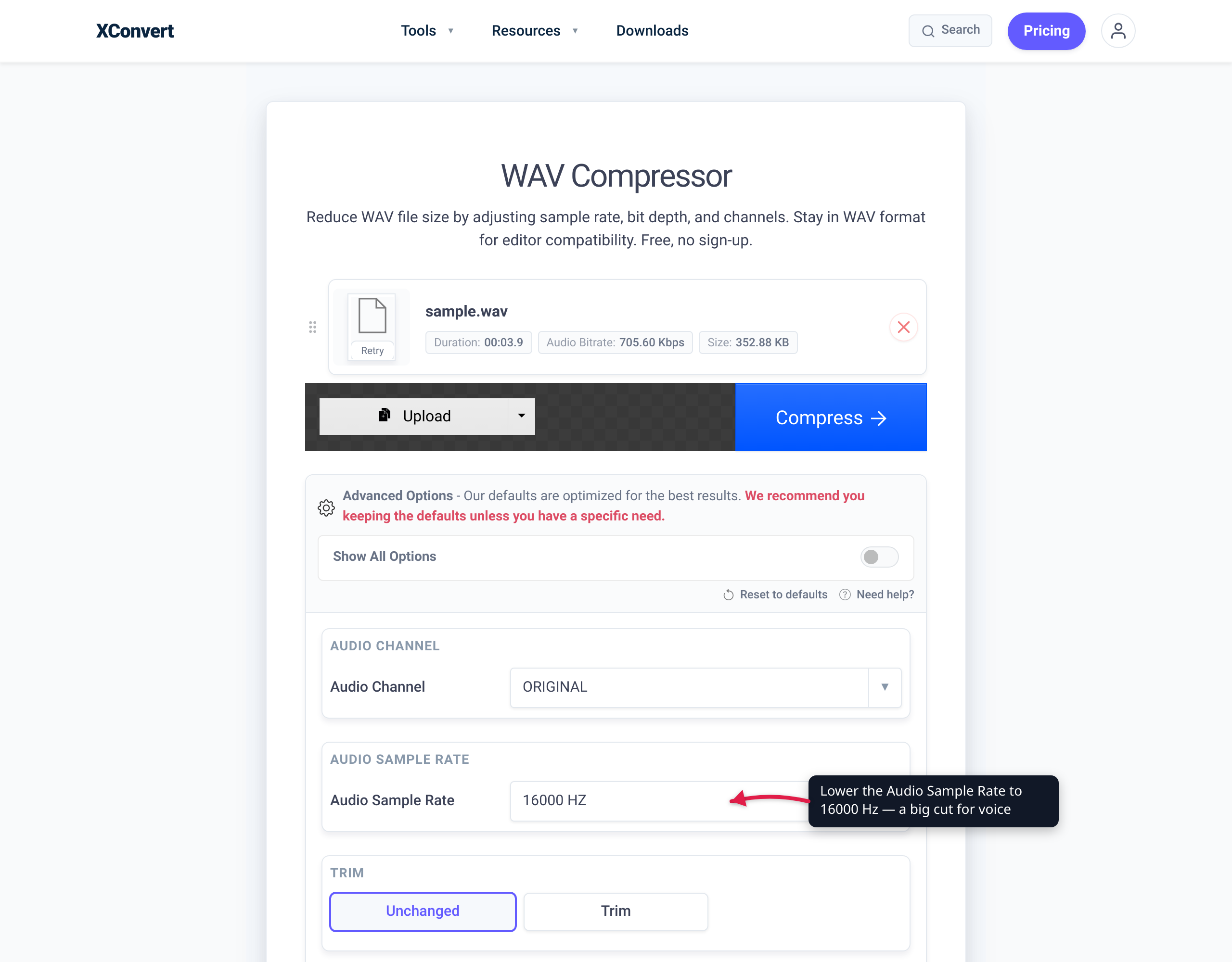
In the WAV Compressor, open Advanced Options and set Audio Sample Rate to your target value (it defaults to ORIGINAL). For music, don’t go below 44.1 kHz; for voice recordings, 22.05 kHz is usually fine and halves the file.
Method 3: Convert stereo to mono
A stereo WAV stores two independent channels; mono stores one. Since channel count is a direct multiplier in the formula, collapsing stereo to mono cuts the file size exactly in half — no other lever gives such a clean 50% with so little effort.
This is the single best trick for voice content — podcasts, narration, interviews, voice memos, audiobooks — where the two channels usually carry near-identical audio anyway, so merging them costs nothing perceptible. For music with genuine left/right separation, going mono collapses the stereo image and is not recommended.
In the WAV Compressor, open Advanced Options and set Audio Channel (defaults to ORIGINAL) to Mono. Combine it with a sample-rate drop to 22.05 kHz and a voice recording can shrink to roughly a quarter of its original size while staying perfectly intelligible.
Method 4: Convert to FLAC (lossless, smaller)
If you need to preserve every bit of the original audio — for archiving a master, or sending a producer a file they can edit without quality loss — convert the WAV to FLAC (Free Lossless Audio Codec). Per the official Xiph FLAC project, “audio is compressed in FLAC without any loss in quality,” so the decoded audio is bit-for-bit identical to the source WAV. FLAC simply stores that identical audio more efficiently, the way a ZIP archives a file without changing its contents.
How much smaller depends entirely on the audio — quiet, repetitive, or simple material compresses more than dense, noisy material — but for typical music FLAC commonly lands around 30–50% smaller than the equivalent WAV. There’s no fixed ratio because FLAC adapts to the content, which is exactly why it’s safe: you get a smaller file with zero quality cost.
Use the WAV to FLAC Converter (or the general WAV Converter with FLAC as the output). Upload the file, choose FLAC, and convert — the download is a smaller, fully lossless copy. FLAC is the right choice whenever “smaller but identical” matters more than “smallest possible.”
Method 5: Convert to MP3 or AAC (smallest, lossy)
For the smallest possible file — email attachments, web playback, podcast feeds, messaging apps — convert to a lossy format like MP3 or AAC. These codecs discard audio data the ear is least likely to notice (psychoacoustic masking), which is why they routinely shrink a WAV by 80–90% or more. A three-minute CD-quality WAV of ~31 MB becomes roughly 4–7 MB as a 192–320 kbps MP3.
The trade-off is that lossy compression is permanent: you can’t recover the original audio from an MP3. For final delivery and distribution that’s fine; for archiving or further editing, prefer FLAC (Method 4).
Use the WAV to MP3 Converter for MP3 output, or the Audio Compressor when you want a single tool that handles multiple output formats and lets you target a specific file size. Key controls:
- Quality Preset / Bitrate — higher bitrate (e.g. 320 kbps) means better quality and a larger file; lower (128 kbps) means a smaller file. 192 kbps is a good middle ground for music; 128 kbps or lower is fine for voice.
- Constant Bitrate vs Variable Bitrate — variable (VBR) generally gives better quality per byte by spending more bits on complex passages.
- Specific file size — the Audio Compressor lets you set a target size directly, which is handy when a platform has a hard upload cap.
MP3 encoding on xconvert uses a high-quality MP3 encoder. As with every method here, files are uploaded over an encrypted connection, processed on our servers, and deleted automatically after a few hours.
Which method should I use?
| Goal | Best method | xconvert tool |
|---|---|---|
| Keep WAV, trim some size, no audible loss | Bit depth 24→16, sample rate to 44.1 kHz | WAV Compressor |
| Voice/podcast recording, big saving | Stereo → mono + 22.05 kHz | WAV Compressor |
| Archive/master, smaller but identical | Convert to FLAC | WAV to FLAC |
| Smallest file for email/web/podcast | Convert to MP3 or AAC | WAV to MP3 / Audio Compressor |
| Hit an exact file-size cap | Target specific size, lossy | Audio Compressor |
The general rule: if the file must stay editable or pristine, use FLAC; if it just needs to play and be small, use MP3/AAC; if it must remain a WAV, lower bit depth first, then sample rate, then channels — in that order of safety.
FAQ
How do I make a WAV file smaller?
The two highest-impact methods are converting it to a compressed format or reducing its channels. Converting to MP3/AAC typically shrinks a WAV by 80–90% (lossy); converting to FLAC shrinks it ~30–50% with zero quality loss (lossless). If you must keep it as a WAV, set the WAV Compressor to mono (halves the file), drop the sample rate, and lower the bit depth from 24-bit to 16-bit.
Does compressing a WAV reduce its quality?
It depends on the method. Converting to FLAC is lossless — the audio is bit-for-bit identical to the original WAV. Converting to MP3 or AAC is lossy and permanently discards some data, though at 192 kbps and above most listeners can’t tell. Lowering bit depth from 24-bit to 16-bit is inaudible for normal playback; going below 16-bit, or dropping the sample rate below 44.1 kHz for music, will be audible.
Why is my WAV file so large?
Because WAV stores uncompressed PCM audio — every sample is written at full resolution with no compression. Size is fixed by the formula sample rate × bit depth × channels ÷ 8 per second, so a CD-quality stereo file is about 10.58 MB per minute regardless of what the audio contains. Compressed formats like MP3 and FLAC store the same audio in far fewer bytes.
How much smaller is FLAC than WAV?
There’s no fixed ratio because FLAC compression adapts to the content, but for typical music a FLAC file is commonly around 30–50% smaller than the equivalent WAV. Quiet or simple material compresses more; dense or noisy material compresses less. Crucially, FLAC is lossless, so you get the smaller file with no quality cost — use the WAV to FLAC Converter.
Will converting stereo to mono really halve the size?
Yes — channel count is a direct multiplier in the file-size formula, so going from 2 channels (stereo) to 1 (mono) cuts the size exactly in half. It’s ideal for voice content (podcasts, narration, voice memos) where both channels are nearly identical. Avoid it for music with real left/right separation, since it collapses the stereo image. Set Audio Channel to Mono in the WAV Compressor.
What’s the smallest I can make a WAV without losing quality?
The fully lossless route is convert to FLAC, which keeps the audio bit-for-bit identical while removing ~30–50% of the file size. If you want to stay in the WAV container, dropping a 24-bit file to 16-bit (≈33% smaller) is the only truly transparent reduction for normal listening; lowering sample rate or channels for music starts to affect what you hear.
Is it safe to upload my WAV files to convert them?
Yes. Files are uploaded over an encrypted connection, processed on our servers, and then deleted automatically after a few hours. No account is required, no watermark is added, and files are never shared.
Sources
Last verified 2026-06-18.
- Colin Crawley — Audio File Size Calculator — confirms the PCM file-size formula (sample rate × bit depth × channels ÷ 8) and the 1,411.2 kbps / ~10.58 MB-per-minute CD-quality figures.
- Xiph.Org — FLAC (Free Lossless Audio Codec) — primary source confirming FLAC is lossless (“audio is compressed in FLAC without any loss in quality”).
- Library of Congress — WAVE Audio File Format — authoritative format description: WAV is a RIFF container for (typically uncompressed) PCM audio, originally a joint IBM/Microsoft specification.