 By James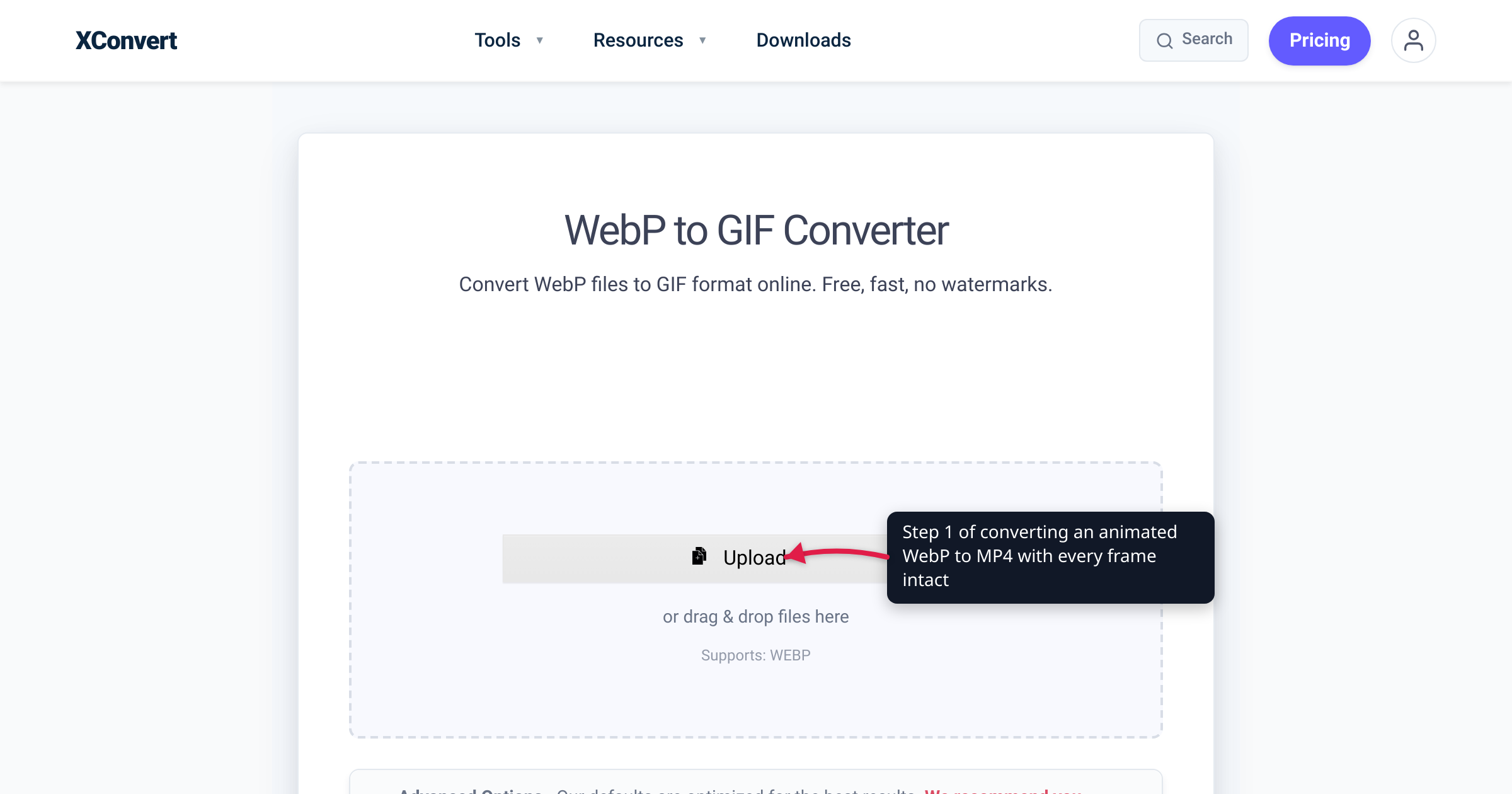
Your animated WebP plays perfectly in the browser — and comes out of a “WebP to MP4” converter frozen on its first frame. It’s not your file. We ran the experiment while writing this guide: a four-frame animated WebP fed to a direct WebP-to-MP4 converter — including xconvert’s own — produced a single-frame MP4 lasting 0.04 seconds, exactly one frame’s worth of video. The same file fed to our WebP to GIF converter came out with all four frames animating. This guide explains why direct converters still-frame animated WebPs (it’s a format problem with a surprisingly current history) and walks the two-step route that verifiably keeps the motion: WebP → GIF → MP4.
Quick answer: Don’t trust a one-step “WebP to MP4” conversion with an animated WebP — most conversion pipelines read WebP as a still image and keep only the first frame. The route that works: step 1, convert the WebP to a GIF with the WebP to GIF converter (frames, timing, and loop count survive — we verified it); step 2, convert that GIF to video with the GIF to MP4 converter. Two conversions, motion intact, and the final H.264 MP4 plays in roughly 97% of browsers and virtually every app and editor.
Jump to a section
- The trap: “WebP to MP4” usually keeps one frame
- Why converters still-frame an animated WebP
- The two-step that works: WebP → GIF → MP4
- What survives the trip — and what doesn’t
- Convert an animated WebP to MP4 on xconvert
- FAQ
The trap: “WebP to MP4” usually keeps one frame
Here’s the test we ran in July 2026. Source file: an animated WebP with four frames, looping, playing normally in Chrome.
- Through the direct WebP-to-MP4 converter: an H.264 MP4 lasting 0.04 seconds — a single frame wrapped in a video container. The animation was gone.
- Through the WebP-to-GIF converter: an animated GIF with all four frames and the loop intact.
This isn’t a quirk of one site — forums are full of the same complaint about tools across the web: MP4s that report 0 seconds, “videos” that are really stills. The tools aren’t broken so much as half-sighted: they read the file with a decoder that only understands part of the WebP format.
Before blaming any tool, run the ten-second sanity check: drag your .webp into a browser tab. Every current browser plays animated WebP. If the image moves in Chrome but your converted MP4 doesn’t, your file is fine — the converter read it as a still image.
Why converters still-frame an animated WebP
Despite behaving like a tiny video, an animated WebP is technically an image. Google’s WebP container specification defines WebP as an image format built on the RIFF container, and animation is not part of the basic format at all. It lives in the extended file format: a VP8X chunk flags the feature, an ANIM chunk holds the loop count, and each frame sits in its own ANMF chunk with a per-frame duration in 1-millisecond units. The spec itself warns that “older readers may not support files using the extended format.”
That’s the whole trap in one sentence: a decoder that implements only the basic WebP image format decodes exactly one frame — and a conversion pipeline built on such a decoder dutifully wraps that one frame as your “video.”
How widespread is that? Consider FFmpeg, the open-source engine behind a huge share of the internet’s file converters. Its WebP decoder read only the first frame of animated files for years — the gap was tracked as ticket #4907, patch attempts date back to at least September 2020, and animated-WebP decoding was merged into FFmpeg’s source tree in May 2026 — two months before this article was written. Fixes that fresh take years to reach deployed converter stacks, which is why single-frame output is still the norm in mid-2026, whatever a tool’s landing page promises.
Browsers are the exception, not the rule. Per Google’s WebP FAQ, animated WebP plays natively in Chrome 32+, Edge 18+, Firefox 65+, Opera 19+, and Safari 14+, and caniuse puts overall WebP support around 96% of global browser usage. But a browser rendering an <img> and a converter feeding a video encoder use different decoders — playing everywhere is exactly what makes the conversion failure so surprising.
The two-step that works: WebP → GIF → MP4
The dependable route hands the fragile job — reading WebP animation — to the class of tool that actually implements it, then uses the most battle-tested animation-to-video path on the web for the rest:
- Animated WebP → animated GIF. A WebP-to-GIF converter is an image-to-image tool, so it reads the source with a full image decoder: every
ANMFframe, every per-frame delay, and the loop count come across (in our four-frame test, nothing was lost). The output is a GIF — the one animated format every pipeline understands. - Animated GIF → MP4. GIF-to-MP4 is one of the most exercised conversions on the web — major platforms have transcoded uploaded GIFs to MP4 server-side for years. The encoder reads the GIF’s complete, timed frame sequence and emits a real H.264 video, typically far smaller than the GIF.
It’s the same bridge we recommend in the opposite direction for turning a video into an animated WebP: WebP animation simply isn’t plumbed through most conversion tooling yet, in either direction, and the GIF acts as the universal adapter.
What survives the trip — and what doesn’t
Two conversions mean two translations. Here’s an honest accounting of what each hop does to your animation:
| Property | Animated WebP (source) | GIF (the bridge) | MP4 (final) |
|---|---|---|---|
| Color | 24-bit | Up to 256 colors per frame | Full color, sourced from the GIF |
| Transparency | 8-bit alpha (soft edges) | 1-bit (hard on/off) | None — flattened onto a solid background |
| Frame timing | 1-millisecond precision | Hundredths of a second | Fixed frame rate |
| Looping | Loop count stored in the file | Loop count preserved | No loop flag — the player decides |
- Color is the real quality cost. The GIF89a format caps each frame at 256 colors, and the MP4 inherits whatever the GIF kept. For stickers, memes, and UI captures that’s invisible; smooth photographic gradients may band slightly — keep the GIF step at full quality to minimize it.
- Transparency doesn’t survive. WebP’s soft alpha becomes GIF’s hard 1-bit cutout, then H.264 flattens transparent regions onto a solid background. If your animation relies on transparency, MP4 is the wrong destination.
- Timing rounds, imperceptibly. WebP stores frame durations in 1 ms units; GIF rounds to hundredths of a second — invisible for typical 40–100 ms frames.
- Looping moves out of the file. An animated WebP says “loop forever” inside the file; MP4 has no loop flag, so looping becomes the player’s job — platforms auto-loop short videos, and your own page needs the
<video>element’sloopattribute. Our GIF to MP4 guide covers this in depth.
One size warning so you don’t abort mid-pipeline: the intermediate GIF will probably be bigger than your WebP — Google measured lossy animated WebP at 64% smaller than comparable GIFs, so the reverse trip commonly inflates the file to roughly 2–3× before the MP4 step compresses it back down. That bulge is temporary and normal.
Convert an animated WebP to MP4 on xconvert
Step 1 — animated WebP to GIF
- Open the WebP to GIF converter and click + Add Files to upload your
.webp(from your computer, Google Drive, or Dropbox). - The defaults are all you need — in our four-frame test they preserved every frame and the loop. If you do open the options, you can set the Image Resolution, the Image Quality (%) slider, the Framerate (dropdown, “10 FPS (Recommended)”), and the Colors palette — leave colors at the full 256 for photographic frames.
- Click Convert and download the GIF. Open it and confirm it moves — that’s your animation, verified.
Step 2 — GIF to MP4
- Open the GIF to MP4 converter and click + Add Files to upload the GIF you just made.
- Leave the Quality Preset on Very High (Recommended) — the MP4 will still land far smaller than the GIF. Under Advanced Options you can switch File Compression between Constant Quality and Constraint Quality, or change the Video resolution from Keep original.
- Click Convert and download your MP4 — full motion, playable practically anywhere.
Each file uploads over an encrypted connection, is processed on our servers and deleted automatically a few hours later. Nothing stays around.
FAQ
Why is my WebP to MP4 conversion only one frame (or 0.04 seconds long)?
Because the converter read your animated WebP as a still image. Animation lives in WebP’s optional extended format (ANIM/ANMF chunks); a pipeline that implements only the basic image format decodes frame one and encodes just that — a single frame at a 25 fps timebase is exactly a 0.04-second MP4. The fix is to convert WebP → GIF first (which keeps the animation), then GIF → MP4.
How do I check whether my WebP file is actually animated?
Drag it into a browser tab. Chrome 32+, Edge 18+, Firefox 65+, Opera 19+, and Safari 14+ all play animated WebP natively — if it moves in the browser but your converted file doesn’t, the file is fine and the converter dropped the animation.
Can I convert an animated WebP to MP4 in one step?
Sometimes — but you can’t rely on it, and the output needs checking every time. Animated-WebP decoding is genuinely new in mainstream tooling: FFmpeg, which powers a huge share of online converters, only merged it into its source tree in May 2026 after patch attempts dating back to 2020. Until that reaches deployed tools, expect many direct converters — ours included, as of our July 2026 test — to output a still frame. The two-step route works today on any stack.
Does converting an animated WebP to MP4 lose quality?
Some, and it happens at the GIF step: GIF holds at most 256 colors per frame versus WebP’s 24-bit color, and WebP’s soft transparency becomes a hard 1-bit cutout before being flattened onto a solid background in the MP4. For stickers, memes, and screen recordings the difference is usually invisible; smooth gradients may band slightly. Keep the GIF at full palette and the MP4’s Quality Preset on Very High to preserve the most.
Will the MP4 loop forever like the animated WebP did?
Not by itself. An animated WebP stores a loop count inside the file; MP4 has no equivalent flag, so looping is the player’s job. Most chat and social platforms auto-loop short videos, and on your own site <video autoplay muted loop playsinline> reproduces the GIF-like behavior — see the GIF to MP4 guide for details.
Will the MP4 be bigger or smaller than the original WebP?
The intermediate GIF will likely be bigger — Google’s measurements put lossy animated WebP at 64% smaller than equivalent GIFs, so going the other way commonly produces a GIF around 2–3× the WebP’s size. That’s temporary: H.264 then applies real video compression. Where the final MP4 lands relative to your WebP is content-dependent — motion-heavy clips compress very well, while very short loops carry proportionally more container overhead — so judge the result, not the mid-pipeline GIF.
Sources
Last verified 2026-07-15.
- Google — WebP Container Specification — WebP is a RIFF-based image format; animation is an optional extended-format feature (
VP8X+ANIM/ANMFchunks); frame durations in 1 ms units; loop count 0 = infinite; “older readers may not support files using the extended format.” - Google — WebP FAQ — animated WebP browser support (Chrome 32+, Edge 18+, Firefox 65+, Opera 19+, Safari 14+); lossy animated WebP measured 64% smaller than source GIFs across a ~7,000-GIF corpus.
- caniuse — WebP image format — ~96% global browser support for WebP.
- caniuse — MPEG-4/H.264 video format — ~96.9% global browser support for H.264 MP4, the output codec.
- FFmpeg commit a3d8ba6 — “avcodec/webp: add support for Animated WebP decoding” — animated-WebP decoding merged into FFmpeg’s source tree May 2026, fixing ticket #4907.
- FFmpeg patchwork — animated WebP decoding patch (Sept 2020) — patch attempts for the same decoder gap date back to at least 2020.
- W3C — GIF89a specification — GIF frame delays are in hundredths of a second; color tables cap at 256 entries.