 By Stephanie Taylor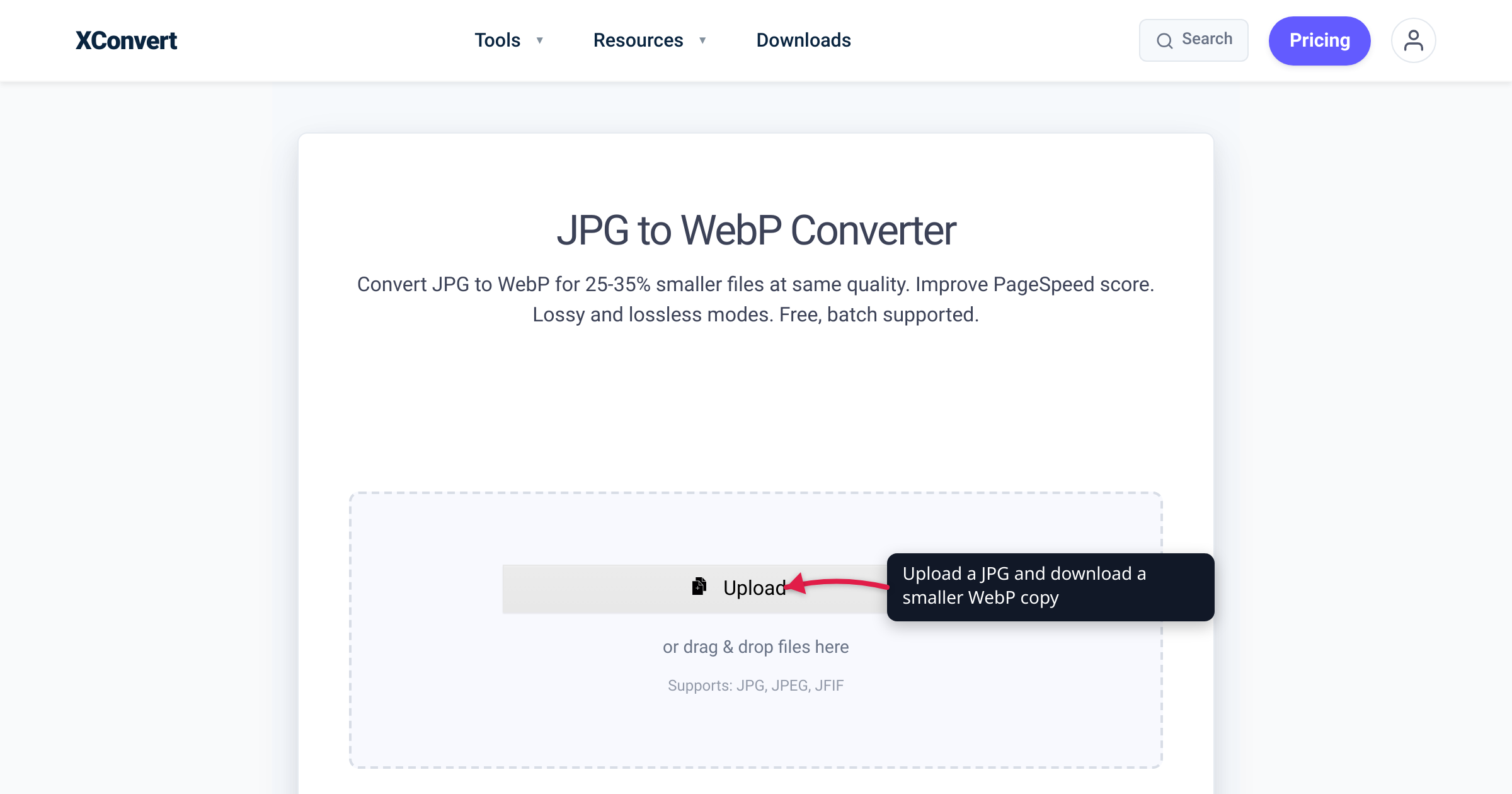
Google’s pitch for WebP fits in one number: lossy WebP comes out 25–34% smaller than a comparable JPEG. That figure is real and measured — but it was measured under conditions that aren’t quite the ones you’re in when you drag an old vacation JPG into a converter, and the format has a mode toggle that can quietly make your files bigger instead. This guide gives you the honest version: where the number comes from, what “comparable quality” actually means, when converting an existing JPG pays off, when it’s pointless, and where a WebP file still can’t follow a JPG. We verified the figures against Google’s WebP documentation and compression study, the support tables against caniuse and Can I Email, and walked the real converter UI so the steps below match what you’ll click.
Quick answer: Converting a JPG to lossy WebP typically yields a 25–34% smaller file at equivalent measured quality — Google’s own published figure. Keep the Lossless? toggle on No (Recommended) for JPG sources: Google’s FAQ warns that lossless WebP built from a lossy JPEG typically comes out larger than the original. Expect less than the headline saving if your JPG was already aggressively optimized, and remember a JPG→WebP conversion is a lossy copy of a lossy copy — quality can hold, but it can never improve. Keep the original JPG for email (classic Outlook for Windows won’t display WebP), strict upload forms, and print.
Jump to a section
- Where the 25–34% figure comes from
- What “comparable quality” actually means
- When converting is pointless — or backfires
- Where WebP can’t go
- Convert JPG to WebP on xconvert
- FAQ
Where the 25–34% figure comes from
Google’s WebP documentation states it plainly: “WebP lossy images are 25-34% smaller than comparable JPEG images at equivalent SSIM quality index.” That sentence links to Google’s own WebP compression study, and the methodology is worth thirty seconds, because it defines what the number does — and doesn’t — promise.
The study took source images from standard test sets (the Kodak and Tecnick photo collections, plus about 11,000 images crawled from the web), encoded each one to JPEG at quality settings 50, 75, and 95, and measured the result’s SSIM — a structural-similarity score that approximates how close the compressed image looks to the source. Then it encoded WebP versions tuned to hit the same SSIM score and compared the byte counts. Across those quality levels, the WebP files needed roughly 0.66–0.75× the bytes of the equivalent JPEG — in other words, 25–34% smaller at the same measured quality.
Applied naively, that means a 2 MB photo re-encoded to WebP at matching quality lands somewhere around 1.3–1.5 MB. Two honest caveats before you bank that:
- The study dates to the early libwebp era (libwebp 0.1.2 vs. libjpeg 6b with size optimization on). Encoders on both sides have improved since, so treat the range as a well-sourced ballpark, not a per-file guarantee.
- The saving is content-dependent. Smooth, photographic images compress differently from noisy or highly detailed ones, and the ratio shifts with the quality level you target.
What “comparable quality” actually means
“Equivalent SSIM quality index” is doing a lot of work in Google’s sentence. SSIM compares a compressed image against its source and scores how structurally similar it still looks; two files “at equivalent SSIM” sit at the same measured distance from the original. So the claim is: same measured visual quality, 25–34% fewer bytes. Fair enough.
Here’s the fine print that matters for you: the study’s sources were clean, lossless PNG masters. Both the JPEG and the WebP were fresh encodes of an uncompressed original. When you convert an existing JPG, your situation differs in two ways:
- There is no clean master. The JPEG’s compression artifacts — the slight blockiness, the ringing around edges — are baked into the pixels the WebP encoder now has to reproduce. Some of your output bytes get spent faithfully encoding another codec’s noise.
- You’re adding a second lossy generation. The converter decodes your JPG and re-encodes the pixels with WebP’s lossy mode. Detail the JPEG already threw away is gone forever, and the re-encode discards a little more. At a high quality setting the difference is visually negligible on screen — but the direction only goes one way. No conversion can make a JPG look better; the ceiling is “looks the same, weighs less.”
The practical consequence: a large, lightly compressed JPG — a photo straight off a camera or a high-quality editor export — converts close to the headline range. A small JPG that has already been through an optimizer or a “compress for web” pass has far less fat left, and the saving shrinks toward zero. If you’re choosing an image format from scratch rather than converting existing files, the trade-offs are laid out in PNG vs WebP vs JPG.
When converting is pointless — or backfires
Three situations where JPG→WebP isn’t the win the headline suggests:
1. The JPG is already squeezed hard. Google’s own FAQ answers the question “Can a WebP image grow larger than its source image?” with yes — it happens in specific conversion setups, and an already-optimized source is the classic setup for a disappointing result. If a JPG has been through a compressor already, WebP may shave only a few percent, or occasionally come out larger. Nothing is broken; the algorithm simply met a file that was already near its floor. Convert, compare sizes, and keep whichever file is smaller.
2. The Lossless trap. WebP has two modes, and the Lossless one is the wrong tool for a JPG. Lossless WebP must reproduce every pixel exactly — including every JPEG artifact — and Google’s FAQ is explicit that using lossless WebP to capture a lossy source “will typically result in a larger file.” Lossless mode earns its keep on clean graphics from PNG-style sources — logos, icons, screenshots that were never lossy to begin with. Pointed at a photograph that’s already JPEG, it usually grows the file while preserving the artifacts you’d happily lose. For JPG sources, lossy WebP is the correct mode.
3. The image hasn’t reached its final form. Every lossy re-encode stacks another generation of loss. If you’re still editing the picture, keep editing the original and convert only the final delivery copy. And if the destination re-compresses uploads on its own servers anyway — as most social platforms do — converting first just inserts an extra lossy generation before theirs.
The through-line: WebP is for the copy you serve, not the copy you keep. Convert duplicates; archive the original JPG.
Where WebP can’t go
In the browser, WebP is a solved problem: caniuse puts global support at about 96% — Chrome since version 32, Firefox since 65, Edge since 18, and Safari fully since 16 (iOS Safari since 14). The holdouts are Internet Explorer (never supported it) and pre-2020 Safari. For images on your own website, WebP is safe.
Off the web, the JPG habit still earns its keep:
| Destination | WebP a good idea? |
|---|---|
| Your own website / web app | Yes — ~96% global browser support (caniuse) |
| Email attachments | Risky — classic Outlook for Windows doesn’t render WebP in any version Can I Email has tested, and Gmail converts attached WebP files to JPG |
| Government / ID / job-application upload forms | Check first — many accept only .jpg/.png; it varies by site, so read the form’s accepted-formats line |
| Print services | No — lossy WebP is limited to 8-bit Y’CbCr 4:2:0 color (per Google’s FAQ), with no CMYK; print vendors expect JPEG, TIFF, or PDF |
The email row deserves emphasis because it surprises people: per Can I Email’s support table, the classic Outlook desktop client on Windows simply doesn’t display WebP images, and Gmail’s partial support includes converting the file to JPG on its side. If the picture’s destination is an inbox, attach the JPG.
None of this argues against converting — it argues for converting copies. Serve WebP where it works; keep the original JPG for everywhere it doesn’t.
Convert JPG to WebP on xconvert
The xconvert JPG to WebP converter exposes exactly the two decisions this article is about — the lossy quality level and the lossless toggle:
- Open xconvert.com/convert-jpg-to-webp and click + Add Files to upload your image — from your computer, Google Drive, or Dropbox. The page accepts JPG, JPEG, and JFIF files.
- Open Advanced Options (the gear icon) to reveal the controls.
- Leave Lossless? on No (Recommended). For a JPG source this is the setting that matters most: lossy is the correct mode, and switching to Yes typically produces a file larger than your original (see the Lossless trap above).
- Pick a Quality Preset — the default, Very High (Recommended), targets the “same look, fewer bytes” trade this article describes. If you need to hit an exact budget instead, use the Specific file size option.
- Optionally shrink the pixels too under Image resolution (a Resolution Percentage, a preset, or exact Width/Height with aspect ratio kept). If the image is displayed smaller than its pixel dimensions, downscaling saves more than any format change will.
- Click Convert, then download your WebP — and compare it against the original. If a particular file came out barely smaller (or bigger), that JPG was already at its floor: keep the original.
Your image is uploaded over an encrypted connection, is processed on our servers and deleted automatically a few hours later. Nothing stays around.
If the converted WebP is still heavier than you’d like, the quality-and-dimensions levers are covered in how to compress a WebP image.
FAQ
How much smaller will my JPG get as a WebP?
Google’s measured figure is 25–34% smaller than a comparable JPEG at the same SSIM quality. That’s the expectation for well-compressible sources; a JPG that was already heavily optimized will save less — sometimes almost nothing. The result is content-dependent, so convert and compare rather than assuming the headline number.
Does converting JPG to WebP lose quality?
Technically yes — it’s a second round of lossy compression, so a little more detail is discarded on top of what JPEG already removed. At a high quality setting (the converter’s default Very High preset) the difference is visually negligible for on-screen use. What conversion can never do is improve a JPG: detail the original encode threw away is unrecoverable.
Why did my WebP come out bigger than my JPG?
Two usual causes. Either Lossless mode was on — Google’s FAQ notes that lossless-encoding a lossy JPEG source “will typically result in a larger file” — or the source JPG was already compressed near its floor, which Google acknowledges can produce a WebP larger than the source. Set Lossless? to No, try a lower Quality Preset or a Specific file size, and if it’s still bigger, keep the JPG.
Should I ever use lossless WebP for a JPG?
Almost never. Lossless WebP is designed for clean sources like PNG graphics, where it beats PNG by about 26% (Google’s figure). Applied to a JPEG, it must reproduce every compression artifact pixel-perfectly, which typically inflates the file while locking in the flaws.
Can I email a WebP image?
It’s risky. Per Can I Email’s tests, the classic Outlook desktop client on Windows doesn’t render WebP at all, and Gmail converts attached WebP files to JPG. For anything destined for an inbox, attach the JPG original instead.
Is WebP better for SEO?
Indirectly, via page speed. Lighthouse’s “Serve images in modern formats” audit recommends WebP and AVIF because, in Google’s words, encoding images in these formats means “they will load faster and consume less cellular data” — and faster pages help Core Web Vitals. The format itself isn’t a ranking switch; the smaller payload is the benefit.
Sources
Last verified 2026-07-15.
- Google — An image format for the Web (WebP docs) — the verbatim claim: “WebP lossy images are 25-34% smaller than comparable JPEG images at equivalent SSIM quality index.”
- Google — WebP Compression Study — methodology behind the figure: PNG source sets, JPEG at Q50/75/95, SSIM-matched WebP encodes, 0.66–0.75 size ratio; encoder versions used.
- Google — WebP FAQ — WebP can exceed the source size; lossless-encoding a lossy source “will typically result in a larger file”; lossy WebP is 8-bit Y’CbCr 4:2:0 only.
- caniuse — WebP image format — ~96% global browser support; Chrome 32+, Firefox 65+, Edge 18+, Safari 16+/iOS 14+; IE and old Safari unsupported.
- Can I Email — WebP image support — classic Outlook for Windows does not render WebP; Gmail converts WebP attachments to JPG.
- Chrome Developers — Lighthouse: “Serve images in modern formats” — the audit recommending WebP/AVIF for faster loads.